Complete Guide to Connecting OpenAI Codex with MCP Servers: Configuration & Hands-On Practice
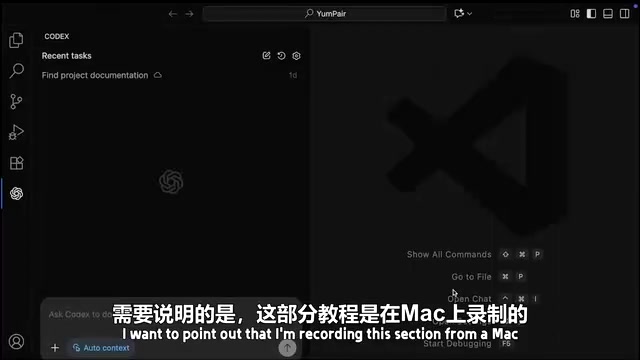
A complete guide to configuring MCP servers in OpenAI Codex using TOML, with Context7 as a practical example.
This guide explains how to connect OpenAI Codex to MCP (Model Context Protocol) servers to extend its capabilities. Using Context7 as an example, it walks through TOML configuration steps, demonstrates real-time documentation retrieval for Tailwind CSS verification, and covers best practices including agents.md automation and platform compatibility notes.
What Are MCP Servers? Why Does Codex Need Them?
MCP (Model Context Protocol) is a standard protocol designed by Anthropic specifically for connecting AI applications to external services and data sources. Think of it as a bridge between AI and the outside world.
MCP was born out of the long-standing fragmentation problem in AI application integration. Before MCP, every AI application needed custom adapter code to connect with external services, resulting in massive duplication of effort. Anthropic officially open-sourced the MCP specification in late 2024, adopting a client-server architecture: AI applications act as MCP clients that initiate requests, while MCP servers encapsulate the interaction logic with specific external services and expose capabilities to clients through three standardized primitives—"Tools," "Resources," and "Prompts." This design draws from the success of the Language Server Protocol (LSP)—just as LSP solved the M×N integration problem between editors and programming languages through a unified protocol, MCP aims to achieve the same standardization between AI applications and external data sources.
When using OpenAI Codex for development, it doesn't inherently have the ability to interact directly with third-party APIs. For example, if you want Codex to call a specific API to fetch data, it won't know where to start. MCP servers bridge this gap—they expose additional contextual information to AI models in the form of "tools," allowing AI to invoke these tools on demand to complete specific tasks.
There are currently hundreds, even thousands, of ready-made MCP servers available, covering popular services like Google Drive, Slack, and more. This means that with simple configuration, Codex can gain the ability to interact with these external services.
Context7: Giving Codex Access to Up-to-Date Technical Documentation
Why Context7?
The MCP server featured in this tutorial is Context7 (context7.com). Its core value lies in curating the latest, most complete documentation for numerous frameworks, tools, services, and libraries, including Next.js, React, Supabase, Tailwind, and other mainstream tech stacks.
AI models have a knowledge cutoff date for their training data, meaning they may not be aware of the latest API changes in a given library. This problem is particularly severe in the frontend ecosystem: React Server Components APIs underwent multiple major changes between 2023-2024, Tailwind CSS underwent a fundamental shift in configuration approach from v3 to v4 (migrating from tailwind.config.js to CSS-first configuration), and Next.js's App Router continues to evolve. If an AI model generates code based on outdated APIs, developers not only need to spend time debugging errors but may also introduce deprecated, unsafe patterns.
Through the Context7 MCP server, Codex can search and pull the latest documentation in real-time, generating code based on the most current versions. From a technical perspective, Context7 is essentially an implementation of Retrieval-Augmented Generation (RAG)—injecting up-to-date documentation context at inference time to compensate for the staleness of training data. This is especially critical for the rapidly iterating frontend ecosystem.
Registration and Getting an API Key
The first step to using Context7 is registering a free account, then obtaining an API Key from the Dashboard. This key will be used in the subsequent configuration.
After obtaining the API Key, click the "MCP" link at the top of the Context7 website to access the installation instructions page. The page provides configuration guides for different environments and AI agents—find and expand the OpenAI Codex section, then copy the configuration code.
Detailed Steps for Configuring MCP Servers in Codex
Configuration File Format
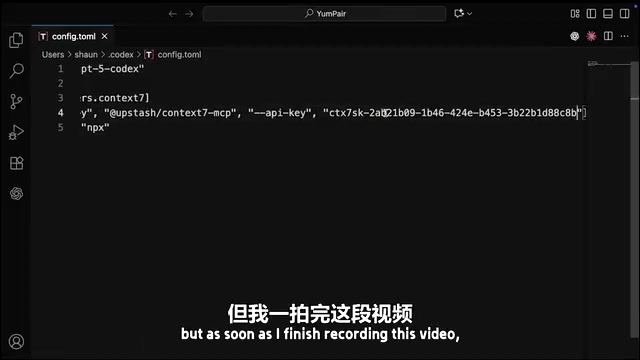
An important difference to note: Codex uses TOML files to configure MCP servers, while Claude Code, Copilot, and other tools typically use JSON files. If you've configured MCP in other tools before, don't be confused by the format difference.
TOML (Tom's Obvious, Minimal Language) is a semantically clear, easy-to-read configuration file format created by GitHub co-founder Tom Preston-Werner in 2013. Compared to JSON, TOML natively supports comments and datetime types, and doesn't require extensive curly braces and quote nesting, making it more suitable for manual editing. Codex's choice of TOML over JSON is likely because developers need to frequently modify MCP configurations manually, and TOML's readability advantage is more pronounced in this scenario. Claude Code and similar tools use JSON because their configurations are typically auto-generated and managed by the tool, with lower requirements for human readability.
Step-by-Step Configuration Process
- Open the Codex panel and click the settings gear icon
- Find the MCP Settings section and click to open the
config.tomlfile - If the file doesn't exist, Codex will provide a button to create it
- Paste the configuration code copied from Context7
- Replace the API Key with your own key
- Save and close the file
Here's a key piece of information: config.toml is a global configuration file stored in the .codex folder on your computer, not within any specific workspace. This means once configured, all projects on your computer can access the MCP server. Codex doesn't currently support project-level MCP server configuration, but this feature is expected to be released in the future.
Platform Compatibility Note
It's worth noting that using MCP servers on Windows currently has some known bugs—Windows users are advised to wait for subsequent native support updates. Mac users can use it without issues.
Hands-On Demo: Verifying Tailwind Configuration with Context7
After configuration is complete, let's look at a practical use case. Send the following instruction to Codex:
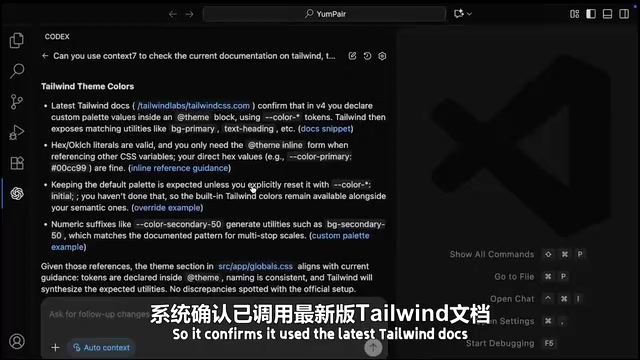
"Can you use Context7 to check the current documentation on Tailwind to make sure we're setting up theme colors correctly in this project?"
Once Codex starts working, you can expand the "finished working" section to see its detailed workflow:
- Locate documentation: Calls Context7's
Resolve Library IDtool to locate the Tailwind documentation - Fetch documentation: Calls the
Get Library Docstool to pull the latest Tailwind documentation content - Compare and analyze: Compares the fetched documentation against the project files item by item
- Output conclusion: Confirms that the theme configuration in the project's
global.cssfile is consistent with the latest Tailwind documentation guidelines
The entire process is fully automated—Codex autonomously decides which tools to call, what information to retrieve, and provides well-supported conclusions. This working pattern demonstrates the core characteristics of an AI Agent—the closed-loop capability of autonomous planning, tool invocation, and result verification, rather than simple question-and-answer interaction.
Best Practices and Advanced Tips
Adding Automated Instructions in agents.md
A highly practical tip: add an instruction in your project's agents.md file telling Codex to automatically consult the latest documentation via Context7 whenever implementing any new feature involving third-party libraries.
agents.md is a project-level instruction file supported by Codex, similar to GitHub Copilot's .github/copilot-instructions.md or Cursor's .cursorrules file. Its purpose is to provide AI agents with project-specific context and behavioral rules—essentially setting up a "project handbook" for the AI. When Codex starts, it automatically reads this file and injects its content as system-level prompts into every conversation. This means rules you define in agents.md—such as "consult the latest documentation for relevant libraries via Context7 before implementing new features"—will automatically take effect in every interaction without repeated reminders. Proper use of agents.md can significantly reduce repetitive prompt engineering work while ensuring consistent AI usage standards across team members, greatly improving workflow efficiency.
Current Known Limitations
- MCP servers currently cannot be used with Codex Cloud—if you need MCP servers to perform certain tasks, you must run Codex in a local environment
- However, given the iteration speed of AI tools, cloud support may arrive soon
More MCP Servers Worth Exploring
Beyond Context7, there are numerous MCP servers worth exploring. You can browse continuously updated server listings through directory websites like Pulse MCP. Here are some popular choices:
- Playwright MCP: For browser automation testing. Playwright is an end-to-end testing framework developed by Microsoft that supports Chromium, Firefox, and WebKit browser engines. The Playwright MCP server exposes its browser automation capabilities to AI agents, enabling Codex to perform page navigation, element interaction, screenshots, network request interception, and more. In practice, AI can not only write test code but also directly run browsers to verify functionality, and even perform visual regression testing through screenshots, achieving a complete "write code → run verification → fix issues" loop.
- Supabase MCP: For database operations. Supabase is an open-source Firebase alternative that provides PostgreSQL databases, authentication, real-time subscriptions, storage, and other backend-as-a-service capabilities. Through Supabase MCP, Codex can directly query database schemas, execute SQL statements, manage user authentication rules, and more, enabling AI to generate more accurate backend code based on its understanding of data structures.
- Figma MCP: For design file interaction. Through this MCP server, Codex can read component structures, style properties, and layout information from Figma design files, enabling more precise conversion of designs into frontend code and narrowing the gap between design and development.
Developers are encouraged to configure relevant MCP servers based on their tech stack, making Codex a truly versatile development assistant.
Summary
MCP servers are the key mechanism for extending OpenAI Codex's capabilities. Through simple TOML file configuration, you can connect Codex to various external services and data sources. Context7, as a representative documentation-focused MCP server, effectively addresses the pain point of stale AI model training data, ensuring generated code is always based on the latest official documentation. As the MCP ecosystem continues to grow and Codex's MCP support continues to improve, the capability boundaries of AI-assisted development will be further expanded.
Related articles
NestJS + LangChain: A Practical Guide for Frontend Engineers Transitioning to AI Full-Stack Architecture
How can frontend engineers transition to AI full-stack? This guide covers NestJS + LangChain, TypeScript fundamentals, AI Agent development, local model deployment, and cross-language architecture skills.
Building a Complete Mini Program with Codex: A Full-Process Walkthrough from Zero to Launch
A detailed walkthrough of building a complete WeChat Mini Program from scratch using OpenAI Codex, covering seven image tool features, membership system, WeChat Pay integration, and AI-assisted development strategies.
OpenAI Codex Deep Dive: The AI Develop…
OpenAI Codex Deep Dive: The AI Development Tool That Makes Programming Feel Like Flying
Deep dive into how OpenAI Codex redefines programming. From real developer feedback to the Time to Fly project, analyzing Codex's strengths in code generation, context understanding, and the AI coding tool competitive landscape.