Complete Guide to Connecting UE 5.8 with MCP Server: Codex Plugin Configuration Explained
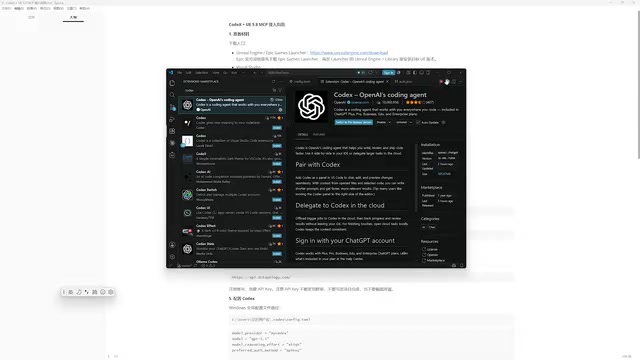
Step-by-step guide to setting up MCP Server integration with Unreal Engine 5.8 and OpenAI Codex.
This tutorial walks through the complete process of integrating MCP Server with Unreal Engine 5.8 using the OpenAI Codex plugin in VS Code. It covers UE 5.8 installation pitfalls, Codex plugin setup, API key configuration via proxy services, enabling the UMCP plugin, launching the MCP Server, and verifying the connection — enabling AI-assisted game development workflows.
Introduction
With the rapid evolution of AI-assisted development tools, Unreal Engine (UE) introduced experimental MCP (Model Context Protocol) support in version 5.8. MCP is a standardized protocol proposed and open-sourced by Anthropic in late 2024, designed to establish a unified communication interface between AI models and external tools or data sources. Before MCP, every AI application that needed to integrate with different tools or services required custom adapter code, leading to severe ecosystem fragmentation. MCP's design philosophy is similar to what USB did for hardware devices — it defines a standard request/response format that allows any MCP-compatible AI client to seamlessly connect with any MCP Server. By combining UE with OpenAI's Codex plugin, developers can chat with AI directly in their IDE to perform intelligent operations on UE projects and get code assistance.
This article is based on a hands-on tutorial from a Bilibili creator and provides a detailed walkthrough of the entire process — from environment setup to successfully launching the MCP Server — helping you quickly get started with this cutting-edge toolchain.
Note: UE's MCP functionality is still in the experimental stage. It is not recommended for large-scale use in production projects — only for learning and exploration.
Environment Setup: What Tools Are Needed for UE 5.8 MCP Integration
Core Tool Checklist
The entire configuration process involves the following key tools:
- Unreal Engine 5.8: Must be version 5.8 — versions 5.6/5.7 do not support MCP. UE 5.8 is a preview release from Epic Games in mid-2025, introducing several experimental features for AI workflows on top of 5.7. Beyond MCP support, 5.8 also improves Nanite virtual geometry support for more geometry types, enhances Lumen global illumination performance, and introduces more automation APIs at the editor level. MCP requires version 5.8 because the engine needs a built-in HTTP/SSE (Server-Sent Events) server to handle MCP protocol communication — infrastructure that doesn't exist in 5.7 or earlier versions.
- Visual Studio or Rider: Essential IDEs for UE development, used for C++ project compilation
- VS Code: A lightweight editor for installing and running the Codex plugin
- OpenAI Codex Plugin: Downloaded from the VS Code extension marketplace. Codex is OpenAI's IDE-embedded AI programming assistant, distinct from GitHub Copilot — while Copilot primarily focuses on code completion and inline suggestions, Codex emphasizes conversational interaction and task execution. It can understand natural language instructions, autonomously plan execution steps, and call external tools through protocols like MCP to complete complex tasks.
- API Key: Obtained through a third-party proxy service or directly from OpenAI
Hidden Pitfall When Installing UE 5.8
There's an easily overlooked detail here: when you click the "+" button in the Epic Games Launcher to add a new engine version, the default recommendation is usually 5.7.4, not 5.8. You need to manually expand the dropdown menu and find 5.8 in the version list to install it. Many beginners skip this step, which prevents them from enabling the MCP plugin later. It's worth noting that 5.8 is still marked as Preview, and some APIs may change in future versions, so the Epic Launcher will display an additional notice that this is a preview release.
VS Code and Codex Plugin Configuration
Installing VS Code and the Codex Plugin
VS Code can be downloaded directly from the official website (64-bit version), and the installation is a straightforward "next, next, finish" process. While VS Code isn't as full-featured as Visual Studio (e.g., incomplete shader syntax highlighting, limited breakpoint debugging), its advantage lies in being extremely lightweight with fast startup times, making it especially suitable when your computer's performance is stretched thin.
After installing VS Code, open the extension marketplace, search for "Codex," find the official OpenAI Codex plugin, and install it. Under the hood, Codex uses OpenAI's codex-mini model, which is specifically optimized for code understanding and generation and performs exceptionally well on the SWE-bench software engineering benchmark. The Codex plugin supports executing code in a sandbox environment, reading/writing files, running terminal commands, and with MCP protocol support, it can directly control external applications like game engines. After installation, a Codex chat panel will appear in the left sidebar.
Note that the Codex plugin takes a considerable time to load each time it starts — this is normal behavior, so don't assume something is wrong.
Additional note: Besides VS Code, you can also use the OpenAI official desktop app to connect to Codex directly. Visual Studio and Rider also have corresponding plugins available.
Configuring the API Key and Proxy Service
Due to network restrictions, directly using the official OpenAI API may not be convenient. The tutorial recommends using a third-party API proxy service to bridge OpenAI's ChatGPT service, offering better pricing and more stable connections.
An API proxy (also called an API relay or reverse proxy service) works by placing an intermediary server between the user and OpenAI's official API. User requests are first sent to the proxy, which forwards them to OpenAI's servers, then relays the responses back to the user. This architecture solves two core problems: first, network accessibility — the proxy servers are typically deployed in regions with direct access to OpenAI; second, payment convenience — users can top up through local payment methods, while the proxy handles overseas payment settlement with OpenAI. Technically, the proxy is essentially an OpenAI API-compatible relay service that maintains the exact same request/response format as the official API, so switching only requires changing the API Base URL.
Configuration steps:
- Register a proxy account and top up (supports WeChat/Alipay payments)
- Create an API key: Select the GPT group (Default group is fine), save and copy the key
- Configure the Codex plugin: In VS Code, go to Codex settings and click the "Open config.toml" button
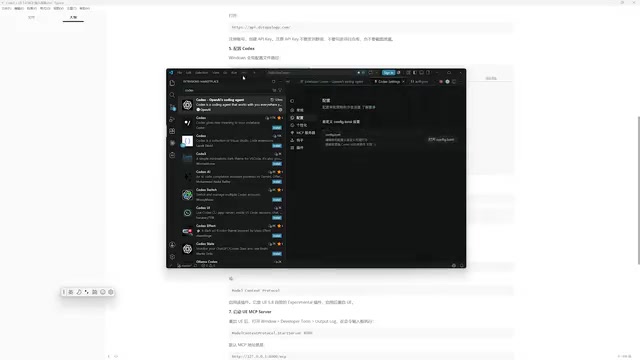
After opening the config.toml file, paste the complete configuration information provided by the proxy service (including the API URL and related parameters) and save. TOML (Tom's Obvious, Minimal Language) is a semantically clear, easy-to-read configuration file format designed by GitHub co-founder Tom Preston-Werner. Compared to JSON, TOML supports comments and doesn't require extensive quotes and brackets; compared to YAML, TOML has more relaxed indentation rules and is less prone to parsing errors caused by spacing issues. The Codex plugin chose TOML as its configuration format because it needs to store multi-level configuration information (such as API endpoints, model parameters, MCP server lists, etc.), and TOML's table and array syntax is well-suited for this kind of structured configuration.
The API key needs to be entered separately in the corresponding key file — right-click the Codex icon, locate its folder directory, and paste the API key you copied from the proxy service into the key file.
Critical step: You must restart VS Code after completing the configuration! Without restarting, none of the settings will take effect. After restarting, type "hello" in the Codex chat box — if the AI responds normally, the configuration was successful.
Enabling MCP Server in UE 5.8
Enabling the UMCP Plugin
Open your UE 5.8 project (when creating a new project, note: the project name cannot contain Chinese characters — use English naming). Once in the editor, follow these steps:
- Go to Edit → Plugins
- Search for "UMCP"
- Check the MCP tools plugin
- Restart the UE editor to confirm the plugin is installed successfully
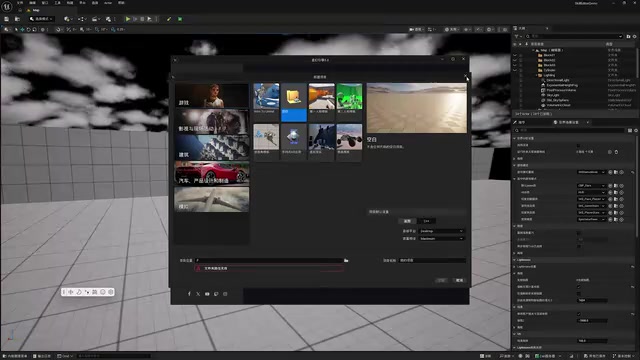
Once the UMCP plugin is enabled, the UE editor internally registers a series of MCP Tools that wrap the engine's core capabilities — such as querying and manipulating Actors in the scene, browsing and importing assets, creating and connecting Blueprint nodes, adjusting material parameters, etc. — into standardized MCP interfaces. When an external AI client calls these tools through the MCP protocol, it's as if an experienced developer is operating the editor.
Starting the MCP Server and Configuring the Port
After enabling the plugin and restarting, enter the startup command in the UE editor's command line (console) to launch the MCP Server. The port number is customizable — the default is 8000, but you can change it to 8001 or another port. If port 8000 conflicts with other services (e.g., Python's FastAPI also defaults to 8000), it's recommended to switch to an unoccupied port.
Once the MCP Server starts, it listens on the specified port for connection requests from AI clients. In UE's case, since the engine is a standalone GUI application that cannot communicate via stdio (standard input/output), it uses HTTP+SSE (Server-Sent Events). SSE is a unidirectional push technology based on HTTP, where the server can continuously push event streams to the client — ideal for AI conversations that require streaming responses.
After entering the command and pressing Enter, check the output log. When you see "start server 8000", the MCP Server has been successfully launched.
The Critical Line in the Project Configuration File
The tutorial specifically highlights a common pitfall: in the project's configuration file, you must add the MCP auto-discovery configuration line, otherwise Codex will take an extremely long time when attempting to connect to MCP (measured at approximately 6 minutes and 40 seconds). This is because without auto-discovery configuration, Codex needs to scan possible MCP endpoints one by one, whereas with explicit configuration, the client can directly locate the correct Server address and port, dramatically reducing connection establishment time.
The specific approach is to add the MCP auto-discovery configuration entry at the end of the configuration file. In TOML format, the order of configuration sections can sometimes affect parsing results, especially when global and sectioned configurations are mixed. Placing the new MCP configuration section at the end of the file is the safest approach. After adding it, save the file and restart VS Code.
Verifying the MCP Connection
After completing all configurations, type the following in the VS Code Codex chat box:
"Please check the current MCP connection status"
Codex will automatically detect and report the MCP connection status. If the returned information contains the "-mcp" identifier and shows a successful connection, the entire configuration process is complete.
At this point, you can interact with your UE project through Codex for AI-assisted development — for example, having the AI analyze your project structure, generate Blueprint logic suggestions, or assist with writing C++ code. In practice, Codex can retrieve context data through the MCP protocol, including information about all Actors in the current scene, the project's directory structure, existing Blueprint classes and C++ class lists, and more. This means the AI's responses are no longer generic — they can provide precise suggestions and ready-to-use code snippets based on your specific project.
Summary and Important Notes
The entire UE 5.8 MCP integration process can be summarized in five steps:
- Install UE 5.8 (remember to manually select the version)
- Install VS Code + Codex plugin
- Configure the API key and proxy URL
- Enable the MCP plugin in UE and start the Server
- Verify the MCP connection in Codex
After completing each step, you need to restart the corresponding tool (VS Code or UE) — this is the most easily overlooked yet most critical operation. As a reminder, MCP is still an experimental feature, suitable for learning and exploration, and is not yet recommended for production environments. As the MCP protocol ecosystem continues to mature and UE deepens its support for AI workflows, this toolchain is poised to become an indispensable productivity multiplier in game development.
Related articles

Anthropic Dynamic Workflows Explained: When to Use Them and Pitfalls to Avoid
Deep dive into Anthropic Dynamic Workflows: core mechanisms, differences from single Agent and Sub-Agent patterns, and a decision tree for when to use them vs. when to avoid burning tokens.

The Era of Managed Agents: Anthropic vs. Google's Two Diverging Approaches
Deep analysis of Anthropic vs Google's Managed Agent architectures, pricing strategies, and selection guidance. Managed Agents are emerging as a new AI infrastructure product category.
Setting Up Claude Code from Scratch: An Installation & Configuration Troubleshooting Guide
A complete guide for beginners to set up Claude Code, covering VS Code installation, plugin troubleshooting, API configuration, model switching pitfalls, and practical usage tips.