Complete Guide to Installing and Configuring Claude Code: From Environment Setup to Connecting Domestic Chinese LLMs

Step-by-step guide to installing Claude Code and connecting it to free Chinese domestic LLMs.
This comprehensive tutorial walks you through installing Claude Code from scratch, including setting up Git and Node.js prerequisites, configuring environment variables, bypassing connection verification for restricted networks, and connecting to Alibaba Cloud Bailian's free domestic LLMs as an alternative to paid Claude models.
What Is Claude Code? Why Are Developers Flocking to It
Claude Code is an AI programming assistant launched by Anthropic, fundamentally different from AI chat tools like ChatGPT and DeepSeek. The core difference: it doesn't just chat — it can actually do things for you.
From a technical architecture perspective, Claude Code adopts an Agent architecture, which is fundamentally different from traditional LLM chat applications. Traditional LLM applications use a simple request-response pattern, while the Agent architecture allows AI to autonomously plan tasks, invoke tools, observe results, and iterate on execution. This architecture draws from the ReAct (Reasoning + Acting) paradigm, enabling AI not only to think but also to take action. When Claude Code runs in the terminal, it's essentially an AI Agent with file system access and Shell command execution permissions, interacting with the operating system through the Tool Use protocol, forming a "think → act → observe → think again" loop.
The traditional AI chat workflow goes: copy code → paste into chat → get response → paste back into editor. Claude Code operates directly within your project, eliminating the tedious back-and-forth copying.
Here's a comparison of Claude Code versus regular AI chat across five dimensions:
- Interaction: No copying and pasting back and forth — operates directly in your project
- Context Understanding: Automatically reads your entire project codebase and proactively searches files
- Execution Power: Can create files, modify code, run commands, and execute tests
- Memory: Remembers project rules and coding style preferences through configuration files
- Tool Invocation: Connects directly to browsers, databases, GitHub, and other external services via MCP
MCP (Model Context Protocol) is a standardized protocol open-sourced by Anthropic in late 2024, designed to solve the connection problem between AI models and external data sources/tools. Before MCP, every AI application needed custom integration code for each external service, resulting in massive duplication of effort. MCP defines a unified client-server communication standard, similar to how USB unified the connection method for various peripherals. Through MCP, Claude Code can query databases, operate GitHub repositories, control browsers for automated testing, and more — developers just need to install the corresponding MCP Server.
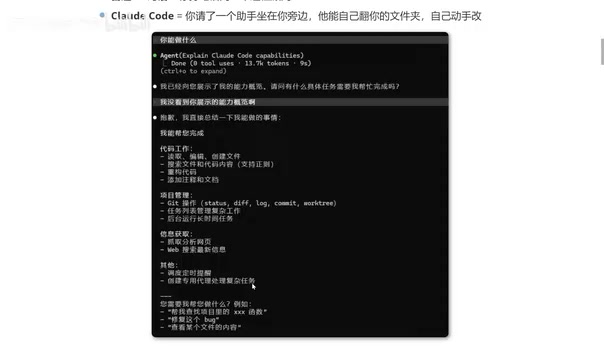
Here's an analogy: regular AI chat is like calling a remote consultant on the phone, while Claude Code is like having an assistant sitting right next to you who can browse through folders and modify code on their own.
Core Capabilities of Claude Code
After installation, Claude Code clearly states its capability scope:
- Code Work: Read, edit, create files, search code content, refactor code, add comments and documentation
- Project Management: Git operations, task list management, running long-duration tasks in the background
- Information Retrieval: Fetch and analyze web pages, web search, news and updates
- Advanced Features: Schedule timed reminders, create specialized agents for complex tasks
Claude Code vs Cursor: How to Choose
For developers already using Cursor, both have their strengths — use whichever you're more comfortable with. However, from practical experience, Claude Code has one clear advantage: lower Token consumption.
Tokens are the basic units that large language models use to process text — Chinese roughly maps to one Token per 1-2 characters, while English is approximately one Token per 4 characters. In AI programming tools, Token consumption directly determines usage cost. IDE-integrated tools like Cursor often need to send large amounts of editor context (open files, cursor position, project structure, etc.) as part of the Prompt with each interaction, consuming significant input Tokens. Claude Code employs a more precise context management strategy, searching and reading files on demand rather than loading all context at once, thereby consuming fewer Tokens for the same tasks. This is especially noticeable in frontend development, where Claude Code often produces results that better match expectations.
Installing Prerequisites: Git and Node.js
Claude Code offers multiple usage methods: terminal, IDE integration, web interface, and app. For most developers, the terminal approach is the simplest and most direct, and it's the recommended way to get started.
Before installing Claude Code, you need to prepare two prerequisites.
Installing Git
Git is a distributed version control system created by Linux creator Linus Torvalds in 2005, and is currently the de facto standard in global software development. Claude Code depends on Git for two reasons: First, Git provides a safety net for code changes — any modifications Claude Code makes can be rolled back via Git, preventing irreversible damage from AI mistakes; Second, Git's diff functionality lets users clearly review exactly what changes the AI made. For AI programming tools, Git isn't just a dependency — it's a safety mechanism.
Installation steps:
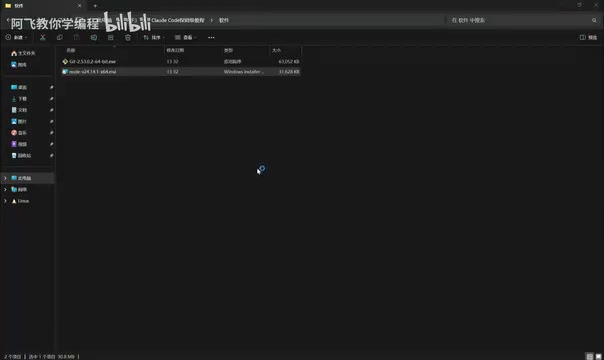
- Go to the Git website (git-scm.com), find "Install for Windows" and download
- Simple installation — just click Next all the way through
- Verify installation: open the command line and type
git— if there's no error, it's successful
Installing Node.js
Node.js is a JavaScript runtime environment built on Chrome's V8 engine, created by Ryan Dahl in 2009. Claude Code uses Node.js as a runtime dependency because its package is distributed through npm (Node Package Manager). npm is the world's largest software package registry, with over 2 million packages. The Claude Code installation command actually globally installs a CLI tool package via npm — that's why Node.js needs to be installed first: it provides the npm package manager and JavaScript execution environment.
Installation steps:
- Go to the Node.js website (nodejs.org) and download the Windows installer
- Another simple installation — default path is fine (recommended to keep it on the C drive since both tools are small)
- Verify installation: open CMD and type
node -v— if a version number appears, it's successful
Installing Claude Code Itself
With prerequisites ready, it's time to install Claude Code:
- Open Windows PowerShell
- Go to the Claude website (claude.com) and copy the official installation command
- Paste it into the terminal and execute — wait a few minutes
- When you see version information (e.g., 2.1.104), installation is successful
After installation, confirm the install path: C:\\Users\\YourUsername\\.local\\bin\\claude.exe
Three Configuration Steps to Make Claude Code Actually Usable
Installation alone doesn't mean you can use it right away — there are three critical configurations to complete.
Step 1: Configure Environment Variables
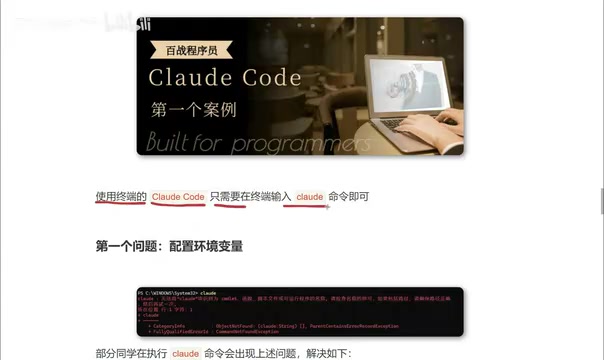
Environment variables are OS-level key-value configurations that any program running on the system can read. When you type a command in the terminal, the operating system searches for the corresponding executable file in each directory listed in the Path environment variable. If Claude Code's installation directory isn't in the Path, the system can't find claude.exe and will throw an error like "is not recognized as an internal or external command."
If typing claude in the terminal produces an error, you need to manually add the environment variable:
- Search for "environment variables" in Windows and open "Edit the system environment variables"
- Find
Pathunder User variables and double-click to edit - Click "New" and add the path:
C:\\Users\\YourUsername\\.local\\bin - Click OK to save, then close and reopen PowerShell
- Type
claudeagain to verify
Note that environment variable changes only take effect in newly opened terminal windows — already open windows won't automatically refresh environment variables. This is by design in Windows.
Step 2: Bypass Connection Verification
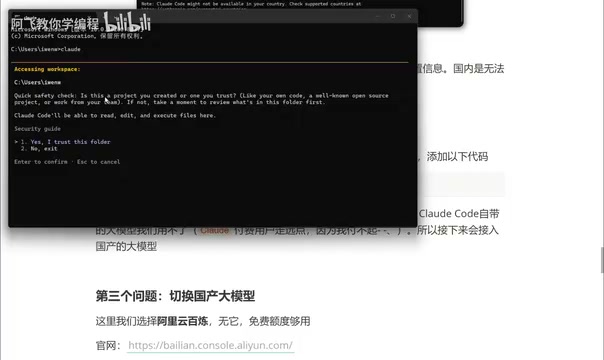
Due to network environment restrictions, running Claude directly may result in authorization connection failures. The solution:
- Locate the configuration file:
C:\\Users\\YourUsername\\.claude.json - Open it with Notepad
- Add the bypass configuration entry (note JSON format — add a comma before it)
- Save and run
claudeagain
Step 3: Connect to Alibaba Cloud Bailian (Chinese Domestic LLM)
Claude Code's built-in model requires a paid subscription, but we can connect free domestic Chinese LLMs as an alternative. Here we choose Alibaba Cloud Bailian for a simple reason: the free quota is sufficient.
Alibaba Cloud Bailian is a large model service platform launched by Alibaba, providing API access to the Qwen (Tongyi Qianwen) series of models. Claude Code can connect to Alibaba Cloud Bailian because Bailian's API interface is compatible with Anthropic's Messages API format. This API compatibility strategy is common in the industry — OpenAI's API format has become the de facto standard, and many Chinese domestic LLM providers offer compatible interfaces, allowing tools originally developed for specific models to seamlessly switch to other models. Note that using domestic models as a substitute for Claude's native model may result in quality differences in code generation, especially when handling complex architectural design and multi-file coordinated modifications.
Creating an API Key:
- Register and log in to the Alibaba Cloud Bailian website
- Click "Models" → "Model Usage" on the left sidebar to confirm free quota
- Click "API Key" → "Create API Key"
Execute the following three configuration commands in CMD:
# Set API Key
setx ANTHROPIC_API_KEY "your-api-key"

# Set URL (Alibaba Cloud Bailian public API address)
setx ANTHROPIC_BASE_URL "alibaba-cloud-bailian-api-address"

# Set model (e.g., qwen-glb-5 or qwen-3.6-plus)
setx ANTHROPIC_MODEL "qwq-glb-5"
The setx command used here permanently sets user-level environment variables. Unlike the temporary set command, variables set with setx persist after system restart, but you need to open a new terminal window to read the new values.
Each command should display "SUCCESS" after execution. Finally, verify the configuration is correct using output commands.
Summary: Claude Code Installation and Configuration Recap
After completing all the steps above, Claude Code should be running properly. The entire installation and configuration process breaks down into three major phases:
- Install Dependencies: Git + Node.js (simple installation)
- Install Claude Code: One-command official installation
- Three Configuration Steps: Environment variables → Bypass verification → Connect domestic LLM
A few practical tips:
- Git and Node.js are small — recommended to keep the default C drive installation
- After configuring environment variables, you must restart the terminal for changes to take effect
- Alibaba Cloud Bailian's free quota is more than enough for learning and daily use
- If you're a paid Claude subscriber, you can skip Step 3 and use the official model directly
- When using domestic models, start with simple tasks to test and gradually understand the model's capability boundaries in code generation
Related articles

A Gen-Z Woman Making $1.5M/Month: Deconstructing the Growth Methodology Behind AI Apps
Gen-Z indie dev Nicole built 4 hit AI apps earning $1.5M/mo. Deep dive into her industrialized UGC engine, traffic testing system, and minimalist tech stack.
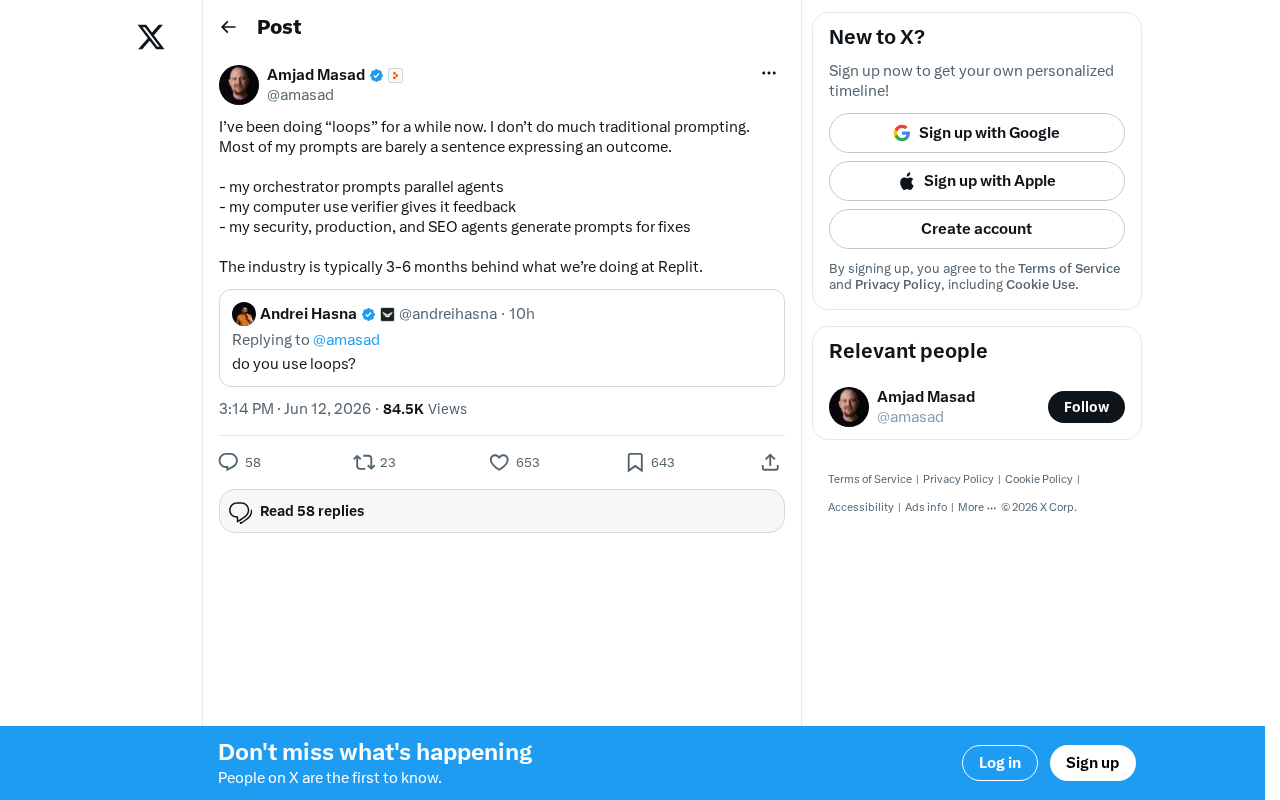
Replit's AI Loops Workflow Explained: Multi-Agent Collaboration Replaces Prompt Engineering
Deep dive into Replit's AI Loops workflow: how orchestrators, parallel agents, and Computer Use Verifiers build automated closed-loop systems through multi-agent collaboration.
Claude Code + Skills: A Practical Guide to AI-Powered Test Case Generation
Learn how to use Claude Code + Skills to auto-generate enterprise-grade test cases. Covers AI Agent vs LLM differences, the four core capabilities, and the complete workflow from requirements to test cases.