Complete Guide to Installing Hermes Agent on Windows: WSL Setup and Troubleshooting Common Issues
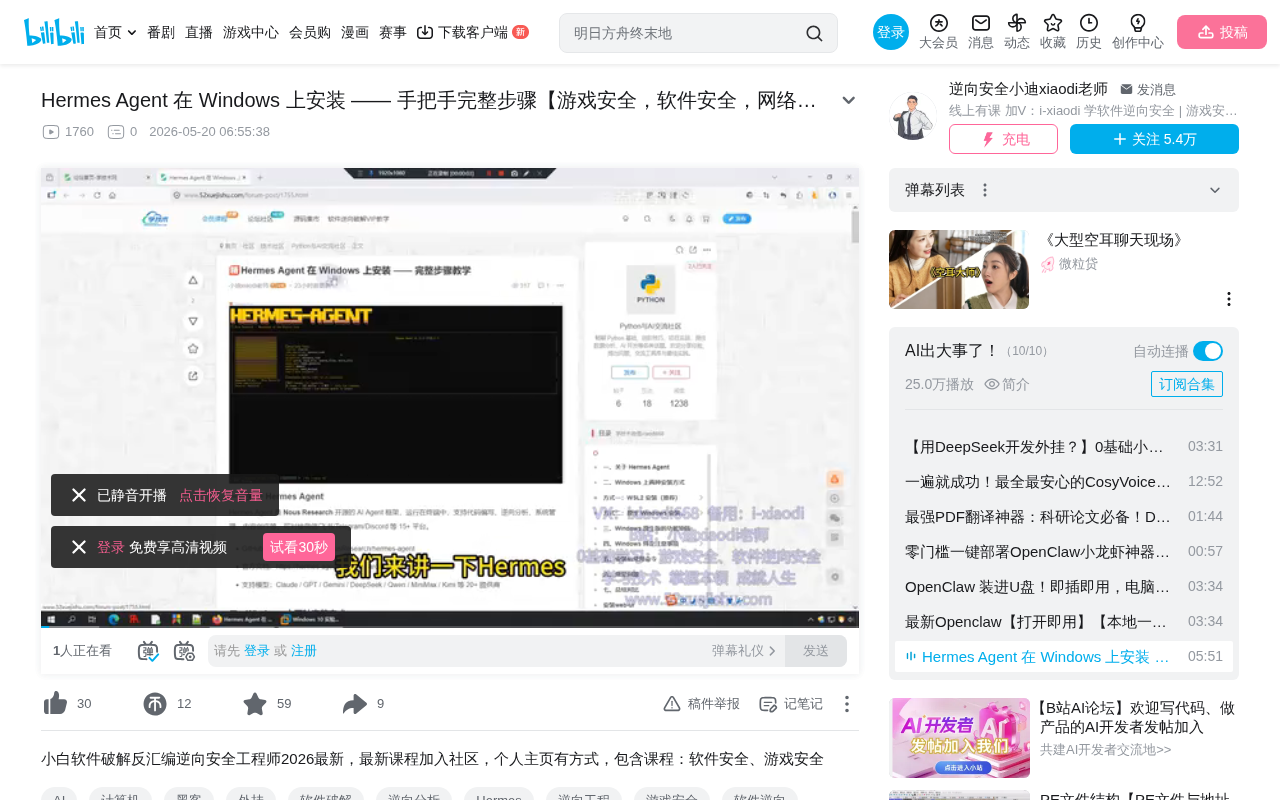
Complete Windows installation and configuration tutorial for the Hermes Agent open-source AI agent framework
This article provides a detailed walkthrough for installing the open-source AI agent framework Hermes Agent on Windows, covering WSL environment setup (including solutions for DNS, virtualization, and other common issues), Ubuntu initialization, Hermes installation and API configuration, and Web UI deployment. The framework is compatible with multiple mainstream LLMs and offers conversation, memory management, and skill extension features, making it suitable for security professionals in automated analysis scenarios.
What is Hermes Agent
Hermes Agent is an open-source AI agent framework that supports various capabilities including code writing, impact analysis, system management, and content creation. It's compatible with mainstream large language models such as Claude, GPT, Gemini, and DeepSeek. For professionals working in game security, software security, cybersecurity, and CTF competitions, this is a fundamental tool worth paying attention to.
AI agent frameworks represent an important development direction in the AI application layer in recent years. Unlike traditional LLM API calls, agent frameworks empower AI with autonomous planning, tool invocation, and multi-step reasoning capabilities. As an open-source framework, Hermes Agent's core value lies in providing a unified abstraction layer that allows developers to build AI applications with autonomous decision-making capabilities without worrying about underlying model differences. In the security domain, agents can automate tasks such as vulnerability analysis, malicious code detection, and attack surface assessment, significantly improving security research efficiency.
On the Windows platform, Hermes Agent offers two installation methods: WSL (Windows Subsystem for Linux) and native Windows. It's worth noting that the native Windows version is still in early testing stages with suboptimal stability. For production-level stable usage, the WSL installation method is recommended.
WSL Environment Installation and Troubleshooting
Basic Installation Steps
WSL (Windows Subsystem for Linux) is a compatibility layer technology from Microsoft that allows users to natively run Linux binary executables on Windows. WSL 2 is based on a lightweight virtual machine architecture using a real Linux kernel, offering significant improvements in file system performance and system call compatibility compared to WSL 1. For development toolchains requiring a Linux environment, WSL provides a more lightweight solution than traditional virtual machines and a more convenient one than dual-boot setups.
First, open PowerShell as administrator, then execute the WSL installation command:
wsl --install
Wait for the download and installation to complete. While the process seems simple, you may encounter several issues during actual operation.
Issue 1: Connection Reset
If you see a "connection to server was reset" error, this is typically a DNS resolution issue. DNS (Domain Name System) is one of the internet's fundamental infrastructures, responsible for resolving domain names to IP addresses. When the system's default DNS server responds slowly or is interfered with, it can cause network request timeouts or connection resets.
Here's the solution:
- Open "Network and Internet Settings" → "Change adapter options"
- Right-click the network connection → Find IPv4 → Double-click
- Select "Use the following DNS server addresses" and enter
223.5.5.5(Alibaba Public DNS) - After confirming, run
ipconfig /flushdnsin Command Prompt to flush the DNS cache - Re-execute
wsl --install
Alibaba Public DNS (223.5.5.5) is a widely used public DNS service in China, known for low latency and high availability. Running ipconfig /flushdns clears the local DNS cache, forcing the system to re-resolve domain names using the newly configured DNS server, thereby resolving connection failures caused by stale cache entries.
Issue 2: Installation Progress Stuck at 0%
If the installation progress remains stuck at 0%, try the following:
- Open a new PowerShell window
- Execute the relevant reset commands
- Restart your computer and reinstall
Issue 3: Virtualization Not Enabled
If you encounter virtualization-related errors, the following configuration is needed:
Hyper-V is Microsoft's native virtualization technology, and WSL 2 relies on it to create lightweight virtual machines for running the Linux kernel. Virtualization requires CPU hardware support (Intel VT-x or AMD-V), and some computers ship with this feature disabled in BIOS by default. If virtualization is confirmed enabled in BIOS but errors persist, you need to check whether Windows-level virtualization components are properly enabled.
- Open "Control Panel" → "Programs" → "Turn Windows features on or off"
- Find and check the Hyper-V related options
- Additional precaution: Open the Group Policy Editor (gpedit.msc), navigate to "Administrative Templates" → "System" → "Device Guard", edit and enable the relevant options
- Restart your computer and re-execute the installation command
Device Guard is a Windows security feature related to Virtualization-Based Security (VBS). In some cases, its policy configuration can affect Hyper-V's normal operation. The Group Policy Editor (gpedit.msc) is a system policy management tool available in Windows Pro and higher editions — Windows Home users may need alternative methods to enable this functionality.
Ubuntu System Initialization
After installation is complete, the console interface font will change, and the system will automatically launch Ubuntu. Complete the following initialization steps:
- Wait for the Ubuntu system to finish starting
- Create a user account (enter a username)
- Set a password (enter twice to confirm)
- Type
yesto confirm
At this point, the WSL Ubuntu operating system is fully installed. Ubuntu is the default Linux distribution installed by WSL and one of the most widely used Linux desktop/server distributions in the developer community, with a rich package ecosystem and comprehensive community support.
Hermes Agent Installation and API Configuration
Downloading and Installing Hermes Agent
Execute the Hermes installation command in the Ubuntu terminal. If the official source has slow download speeds or access restrictions, you can switch to an alternative download address. Alternative addresses typically offer faster download speeds without access limitations.
Once installation is complete, the system will automatically launch the configuration wizard.
Quick Configuration Process
The configuration wizard requires the following steps:
- Installation mode selection: Choose "Quick Setup"
- API Key configuration: Select your model provider (e.g., DeepSeek) and enter the corresponding API Key
- Run mode: Keep the default "Local" (local execution)
- Messaging platform configuration: Optionally configure social platforms like WeChat, QQ, or Feishu for conversational interaction, or skip and configure later
An API Key is a credential used by LLM service providers for authentication and billing. Different providers (OpenAI, Anthropic, DeepSeek, etc.) each offer independent API interfaces and key systems. DeepSeek, as a Chinese-developed large model, is known for its high cost-effectiveness and strong Chinese language capabilities, with API pricing typically far lower than international models like GPT-4. Hermes Agent encapsulates the API differences between providers through a unified model adaptation layer — users only need to provide the corresponding API Key to seamlessly switch between models. This is the technical foundation behind the framework's "multi-model compatibility" feature.
Seeing the configuration complete screen indicates that Hermes Agent has been successfully set up. If you need to adjust the configuration later, you can re-enter the configuration process through the appropriate command.
Web UI Installation and Usage
Why Install the Web UI
While you can enter the agent's internal dialogue by typing hermes directly in the terminal, the command-line interface doesn't offer a friendly interaction experience. Installing the Web UI provides a more intuitive graphical interface.
Web UI (Web User Interface) provides a graphical interface through the browser, offering higher visualization and lower operational barriers compared to command-line interaction. Modern AI applications universally adopt Web UI as their primary interaction method — products like ChatGPT and Claude all center their experience around web interfaces. Hermes Agent's Web UI not only provides conversation functionality but also integrates advanced features like memory management and skill configuration. This reflects the fundamental difference between an agent framework and a simple chatbot — agents possess persistent memory and extensible tool capabilities.
Web UI Installation Steps
- Execute the Web UI installation command
- If errors occur, first update the package list:
sudo apt update - Then update related dependencies:
sudo apt upgrade - After updates complete, re-execute the Web UI installation command
sudo apt update and sudo apt upgrade are the most commonly used package management commands in Ubuntu. The former updates the local package index list (equivalent to refreshing the catalog of available software), while the latter upgrades installed packages to their latest versions based on the updated index. Web UI installation depends on runtime environments like Node.js and Python — if these base dependencies are outdated, the installation script may fail.
Web UI Features
After installation, execute the startup command and the system will output a local access URL. Copy this address into your browser, log in, and you'll see the Web UI conversation window.
The Web UI provides the following functional modules:
- Conversation window: Interact directly with the agent
- Memory management: View user profiles and conversation memories. The agent's memory system is a key feature distinguishing it from ordinary chatbots — it retains user preferences, historical context, and key information across sessions, enabling more personalized and coherent interactions
- Soul configuration: Customize the agent's personality settings. Define the agent's role, tone, expertise areas, and other characteristics through System Prompts — similar to setting up a "persona" for the AI
- Skill management: View and manage installed skill packages. Skill packages are the agent's tool extension mechanism, with each package encapsulating specific functionality (such as code execution, file operations, web search, etc.). The agent can autonomously choose which skills to invoke based on task requirements
- Model switching: View the currently active model and add new models
- Channel configuration: Configure integration with social platforms like Feishu and WeChat
Summary
The entire Hermes Agent installation process on Windows can be summarized as: Install WSL → Configure Ubuntu → Install Hermes → Configure API and platforms → Install Web UI. While there are many steps, each one has clear operational guidance.
The most common issues during installation are concentrated in the WSL environment setup phase, primarily involving system-level settings like network connectivity and virtualization configuration. Once the WSL environment is ready, the subsequent Hermes installation and configuration proceed relatively smoothly.
From a technical architecture perspective, Hermes Agent's choice of WSL as its runtime environment is a pragmatic one. Package management, process management, and file system operations in a Linux environment are more friendly to the AI agent's tool invocation chain. Meanwhile, WSL 2's performance overhead is extremely low (typically only a few hundred MB of memory), causing no noticeable impact on daily usage. For security professionals, mastering the deployment and usage of such agent tools will yield significant efficiency gains in scenarios like automated analysis, report generation, and code auditing.
Related articles
 Tutorials
Cursor + Codex Dual-IDE Collaboration: A Practical Methodology for Open-Source Project Customization
A complete methodology for open-source project customization based on real-world experience, detailing the Cursor+Codex dual-IDE workflow, seven-stage process, MVP validation, and AI source code reading techniques.
 Tutorials
Cursor Multi-Agent in Practice: Building a Full-Stack Next.js Blog in 50 Minutes
Build a full-stack blog in 50 minutes using Cursor IDE's multi-Agent mode with Next.js, Clerk auth, and Supabase. Learn the 4-phase AI Agent workflow and key integration pitfalls.
 Tutorials
Building an AI Software Factory from Scratch: A Cursor Engineer's Hands-On Experience with Multi-Agent Collaboration
Cursor engineer Eric shares practical insights on building an AI software factory: automation levels, guardrail design, parallel Agent management, and scaling to 1000+ Agents for 24/7 development.