Complete Guide to OpenAI Codex CLI Built-in Commands and Session Recovery
A comprehensive guide to OpenAI Codex CLI's built-in slash commands and session recovery features.
This guide covers all built-in slash commands in OpenAI Codex CLI, including /compact for context management, /status for session info, /model for switching reasoning depths, and /approvals for security modes. It also explains session recovery with codex resume and provides context on MCP integration, agents.md configuration, and practical tips for building efficient AI-assisted programming workflows.
Overview
As a command-line AI programming tool, OpenAI Codex CLI comes with a series of practical slash commands that help developers manage coding sessions more efficiently. Slash commands are an interaction paradigm dating back to the IRC (Internet Relay Chat) era, where users type text beginning with "/" in the input field to trigger specific functions rather than sending them as regular messages. This pattern was later widely adopted by modern collaboration tools like Slack and Discord, and has gradually become the standard interaction method for AI programming assistants—Claude Code, GitHub Copilot Chat, Cursor, and other tools all employ similar command systems. The advantage lies in providing a lightweight way to execute meta-operations without leaving the current context.
This article provides a detailed introduction to these built-in commands, their functions and usage, as well as how to recover previous coding sessions. If you've used Claude Code before, you'll find the command experience between the two very similar.
Built-in Commands Overview
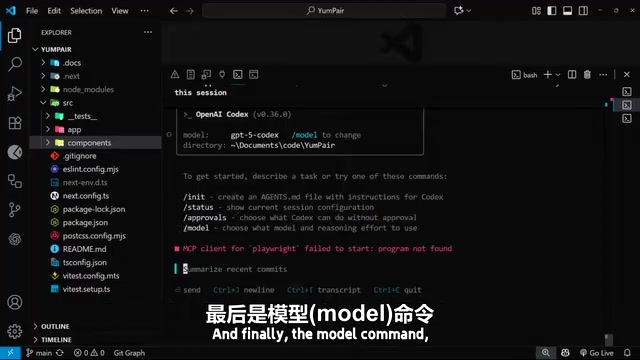
After launching a brand new Codex session, the CLI will first suggest you try a few core commands:
/init: Creates an agents.md file for configuring AI agent behavior/status: Displays detailed information about the current session/approvals: Sets the auto-approval mode/model: Selects the OpenAI model to use (defaults to GPT-5 Codex)
About the agents.md Configuration File
agents.md is the configuration file Codex CLI uses to define AI agent behavior specifications, similar to CLAUDE.md in Claude Code or .cursorrules in Cursor. The core concept behind these files is using natural language instructions to constrain and guide AI behavior patterns, including code style preferences, project-specific conventions, prohibited operations, and more. This "prompt engineering as configuration" paradigm is an important trend in current AI tools—developers no longer need to learn complex configuration syntax but can describe desired behavior in natural language. agents.md is typically placed in the project root directory, and team members can share the same configuration to ensure consistent AI behavior.
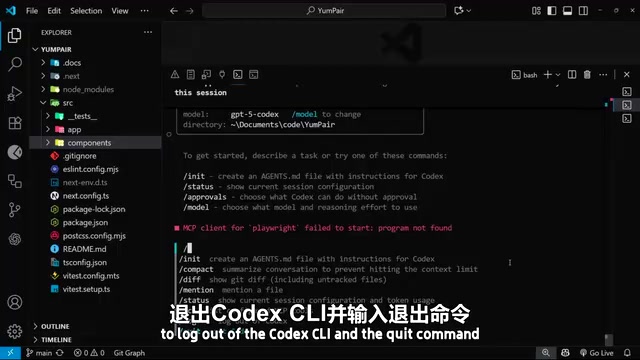
Typing a forward slash / reveals the complete list of all available commands. Beyond the four core commands mentioned above, these include:
/new: Starts a new session/compact: Compresses chat history into a compact summary, reducing session context/diff: Displays git diff directly in the terminal/mention: Adds a file as context to the prompt (equivalent to using the @ symbol)/mcp: Lists all MCP servers configured in the project/logout: Logs out of Codex CLI/quit: Exits the current session
The Importance of the /compact Command
The /compact command deserves special attention. As a session continues, context accumulates and becomes bloated, which creates two problems:
- Impacts AI decision quality: Excessive context noise can lead to less precise code editing decisions
- Hits context limits: Every AI model has a maximum amount of context it can process
The context window of an AI large language model refers to the maximum amount of text the model can process in a single inference, typically measured in tokens. Tokens are the basic units the model uses to process text—in English, each word corresponds to roughly 1-2 tokens, while in Chinese, each character typically corresponds to 1-2 tokens. Although GPT-5 series models have relatively large context windows (typically in the 128K-200K token range), research shows that when context becomes too long, the model's attention to information in the middle decreases—this is what academia calls the "Lost in the Middle" phenomenon, where models tend to focus more on the beginning and end of the context while their ability to remember and utilize middle content is significantly weakened.
Therefore, for long-running sessions, periodically using /compact to compress history is a good practice. It compresses verbose conversation history into key summaries, preserving necessary context information while avoiding the negative impact of information overload on model decision quality.
/mcp Command and External Tool Integration
MCP (Model Context Protocol) is a standardized protocol proposed and open-sourced by Anthropic in late 2024, designed to provide AI models with a unified way to access external tools and data sources. MCP adopts a client-server architecture: AI tools (like Codex CLI) act as MCP clients, while various external services (such as databases, APIs, file systems, browsers, etc.) expose their capabilities through MCP servers. This protocol solves the previous problem of AI tools integrating external capabilities in fragmented, incompatible ways.
By using the /mcp command to view MCP servers configured in a project, developers can understand which external resources and tools the current AI agent can access—for example, connecting to a project database for queries, accessing Jira for task information, or calling specific internal APIs.
Core Commands Explained
/status Command
Executing /status displays complete information about the current session, including:
- Permission scope: Codex's access permissions in the current workspace (e.g., write access limited to current workspace and agent files)
- Account information: Details of the currently logged-in account
- Model information: The model in use and its detailed parameters
- Client version: CLI tool version number
- Token usage: Statistics on token consumption for both user input (prompts) and AI output
/model Command
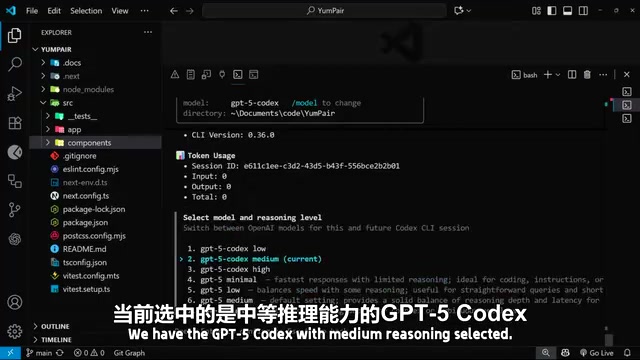
Executing /model allows you to view and switch the current AI model. All available models are GPT-5 variants, differing in their levels of reasoning depth:
- The default selection is GPT-5 Codex (Medium Reasoning)
- You can choose different reasoning intensities based on task complexity
Understanding Reasoning Depth Levels
GPT-5's reasoning depth tiering mechanism originates from the "Chain-of-Thought" reasoning architecture introduced by OpenAI in the o1 and o3 series models. Different reasoning depths mean the model spends varying amounts of internal "thinking tokens" analyzing the problem before generating a final answer:
- Low Reasoning: Suitable for simple code completion and formatting tasks, with fast response times and low cost
- Medium Reasoning (default): Suitable for most programming tasks, striking a balance between speed and quality
- High Reasoning: Suitable for complex architectural design, algorithm optimization, and multi-file refactoring scenarios that require deep reasoning
Choosing higher reasoning depth consumes more tokens and increases response latency, so dynamically adjusting based on task complexity is best practice. For everyday bug fixes and small feature development, Medium Reasoning is more than sufficient; when facing large-scale refactoring that requires understanding the entire codebase architecture, switching to High Reasoning can yield significantly better results.
/approvals Command
The approval mode determines how much human confirmation Codex requires during operations. There are three modes:
| Mode | Description |
|---|---|
| Auto | Can automatically read files, edit code, and run commands (limited to current workspace) |
| Read Only | Can only read files and answer questions; other operations require human approval |
| Full Access | Fully autonomous operation, including automatic network access |
The default Auto mode strikes a good balance between security and efficiency, suitable for most development scenarios.
Security Considerations for Approval Modes
The approval mode design in AI programming tools reflects the industry's deep thinking about balancing AI autonomy with security. The "limited to current workspace" constraint in Auto mode is essentially a sandbox mechanism—the AI can only execute file operations and commands within the project directory scope, unable to access system-level files or other projects. This design draws from containerization and the Principle of Least Privilege security concepts.
Full Access mode allowing network access means the AI can execute commands requiring network connectivity such as npm install, pip install, or access external APIs. While this is very convenient in certain scenarios, it also introduces security risks like supply chain attacks—malicious dependency packages could execute harmful code during installation. In enterprise environments, security teams typically require developers to use Read Only or Auto mode, enforced through organization-level policies.
Recovering Historical Sessions
In real-world project development, developers typically create different Codex sessions for each independent feature, and a project might accumulate 10 to 15 or even more sessions. When you need to return to an old session to continue working, you can use the session recovery feature.
Recovery Steps
- Type
codex resumein the terminal and press Enter - The system will list all historical sessions for the current project
- Use the up/down arrow keys to select the target session, then press Enter to confirm
- You can also use the search function to quickly locate sessions—type keywords from the session description (e.g., "summary") to filter
Current Limitations
One detail worth noting: as of now, Codex CLI does not provide a built-in function to delete old sessions. As the number of sessions grows, the list can become lengthy. However, considering the product is still in rapid iteration, this feature is expected to be added in future versions.
Product Maturity Assessment
From an overall experience perspective, Codex CLI is still in a relatively early stage. Compared to Claude Code, it has fewer built-in commands, and some features (like session management) are not yet fully polished. This reflects a common phenomenon in the current AI programming tools market—vendors are rushing to bring products to market, resulting in tools that appear immature in certain aspects.
However, OpenAI will clearly continue to expand the command list and feature set. For developers already familiar with command-line workflows, Codex CLI's foundational framework is practical enough to be worth integrating into daily development.
Summary
Mastering Codex CLI's built-in commands and session management is the foundation for using this tool efficiently. By properly using /compact to control context, configuring appropriate permission modes through /approvals, and flexibly switching work contexts through codex resume, developers can build a smooth AI-assisted programming workflow.
Key Takeaways
Related articles
NestJS + LangChain: A Practical Guide for Frontend Engineers Transitioning to AI Full-Stack Architecture
How can frontend engineers transition to AI full-stack? This guide covers NestJS + LangChain, TypeScript fundamentals, AI Agent development, local model deployment, and cross-language architecture skills.
Building a Complete Mini Program with Codex: A Full-Process Walkthrough from Zero to Launch
A detailed walkthrough of building a complete WeChat Mini Program from scratch using OpenAI Codex, covering seven image tool features, membership system, WeChat Pay integration, and AI-assisted development strategies.
OpenAI Codex Deep Dive: The AI Develop…
OpenAI Codex Deep Dive: The AI Development Tool That Makes Programming Feel Like Flying
Deep dive into how OpenAI Codex redefines programming. From real developer feedback to the Time to Fly project, analyzing Codex's strengths in code generation, context understanding, and the AI coding tool competitive landscape.