Coze Workflow Tutorial: One-Click Short Video Generation Complete Guide
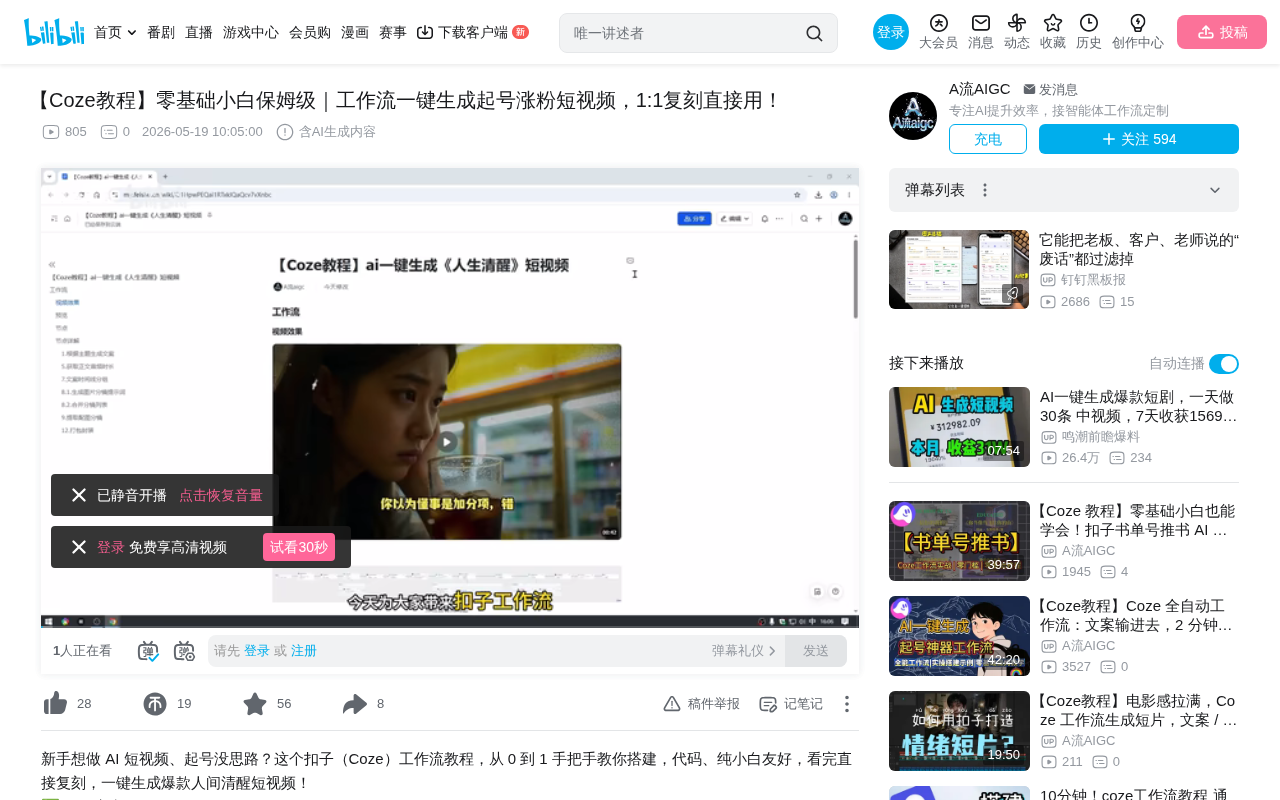
Complete tutorial on building a one-click short video generation workflow using the Coze platform.
This article provides a detailed breakdown of building an automated short video generation workflow on the Coze platform, covering script generation (Doubao 2.0 mini), text cleaning and segmentation, batch voiceover with Fish Audio, timeline processing, AI storyboard prompting, Jimeng image/video generation, and final packaging as a CapCut draft for fine-tuning and publishing. The entire process achieves one-click generation from topic input to finished video, ideal for creators scaling multiple accounts.
Overview
The short video space is fiercely competitive, and efficiently generating content in bulk has become the key to growing new accounts. Based on a Coze workflow tutorial shared by Bilibili creator "A流," this article provides a detailed breakdown of how to build a complete automated short video generation workflow on the Coze platform — from script generation to voiceover, image creation, video synthesis, and finally packaging into CapCut (Jianying) for fine-tuning and publishing.
This workflow is particularly suited for text-driven short video accounts focused on "life wisdom," psychology, emotional content, and similar niches. The entire process achieves one-click generation from topic input to finished video.
Overall Workflow Architecture
The core logic of the entire workflow can be summarized as the following pipeline:
Topic Input → Script Generation → Text Cleaning → Voiceover Generation → Timeline Extraction → Storyboard Prompting → Image/Video Generation → CapCut Packaging
Coze is an AI application development platform launched by ByteDance that allows users to build AI workflows visually, enabling complex automation tasks without writing extensive code. The concept of a Workflow originates from enterprise-level automation tools. The core idea is to decompose complex tasks into multiple standardized nodes, each performing a specific function, connected through data flows. This design pattern is known as the "pipe-and-filter" architecture in software engineering, with advantages in high modularity, ease of debugging, and extensibility. Coze's workflow system supports conditional branches, loops, batch processing, and other control structures, enabling it to handle multi-step tasks far more complex than simple conversations.
Start Node Configuration
Go to the Coze platform (coze.cn) and create a new workflow in the resource library. The start node requires three input variables:
- Topic (zhuti): String type, the core theme for script generation
- Key: API computing key for calling AI services like Jimeng
- Watermark (shuiyin): Video watermark text, such as the account name
These three variables run throughout the entire workflow. The watermark variable design is clever — embedding the watermark during the generation phase eliminates the need to manually add it later in CapCut.
Script Generation and Cleaning
LLM Script Generation
Add a large model node and select the "Doubao 2.0 mini" model, extending the maximum reply length appropriately. Doubao is ByteDance's proprietary large language model. The 2.0 mini version maintains good generation quality while offering faster inference speed and lower token consumption, making it suitable for scenarios requiring frequent calls within a workflow. The system prompt should clearly specify:
- Role positioning (e.g., life wisdom quote creator)
- Writing style requirements
- Creative structure guidelines
- Output word count limits
The user prompt directly references the "topic" variable from the start node. If the generated script feels too short, you can control this by adjusting the word count limit in the system prompt.
Intelligent Script Segmentation
Use the "Text Cleaning" function from the "CapCut Assistant Tool" plugin to intelligently segment the full script by punctuation. Text cleaning essentially uses regular expressions or NLP sentence-breaking algorithms to split continuous text into independent sentence units based on periods, question marks, exclamation marks, and other punctuation. This step is crucial because subsequent voiceover generation, timeline calculation, and subtitle alignment all depend on precise sentence-level segmentation results.
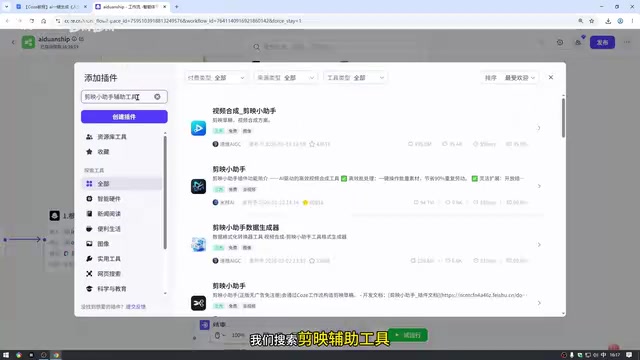
Important Note: When searching for plugins, make sure to find the official plugin with the exact matching name — look for the developer with the yellow verification badge. Using the wrong plugin may cause the entire workflow to fail.
Voiceover Generation and Timeline Processing
Batch Voiceover Generation
Here we use a batch processing node to generate multiple voiceover segments in parallel. Batch Processing is a computing model that packages multiple independent tasks for simultaneous execution. Compared to sequential processing one by one, it can significantly reduce total processing time. In Coze workflows, the underlying logic of batch processing nodes assigns each element in the input array to an independent execution thread for parallel processing. For example, 10 script segments calling the voiceover API simultaneously means the total time theoretically approaches that of a single voiceover generation, rather than 10 times that. However, note that parallel capacity is limited by the API's Rate Limit — excessively high parallelism may trigger throttling and cause request failures, so you need to find a balance between speed and stability.
The voiceover plugin uses "Fish Audio," a deep learning-based Text-to-Speech (TTS) service that supports multiple voice cloning and natural speech synthesis. Modern TTS technology has evolved from early concatenative synthesis to neural network-based end-to-end synthesis, capable of generating speech effects close to real human voices. Fish Audio's technical approach supports zero-shot voice cloning, meaning only a small amount of reference audio is needed to replicate a specific voice. Key notes:
- Import the API Key from the start node
- The speech text should reference the batch-processed script output, not the cleaned text
- Voice selection can be made on the Fish Audio platform
- Speech rate can be adjusted later based on results
Extracting Audio Timeline
Use the CapCut Assistant's "Get Timeline List from Audio List" function to obtain two key pieces of data:
- Total timeline: The total duration of all voiceovers
- Individual timelines: The independent duration of each voiceover segment
Audio timeline refers to the precise start and end timestamps of each voice segment, which is critical for subsequent subtitle alignment and scene transitions. Timeline data is typically recorded in milliseconds to ensure audio-visual synchronization precision at a level imperceptible to the human eye.
Main Audio Duration Extraction
Extract the main audio duration through a code node, with the total timeline as input and an integer-type audio duration value as output. The code is pre-written — simply copy and paste.
Storyboard Generation and Image/Video Production
Script-Timeline Merging and Grouping
Use the CapCut Assistant to merge scripts with their corresponding timelines one-to-one, then group them through a code node (default grouping by 30 elements).
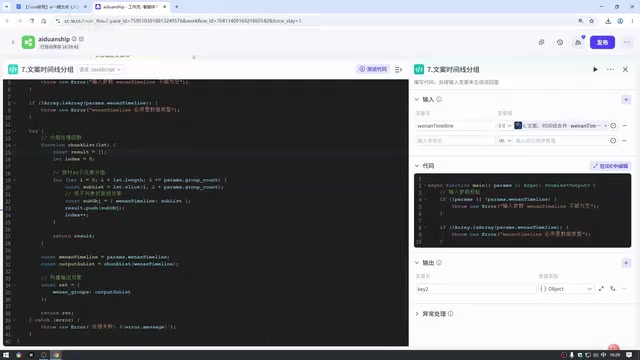
The grouping code node's output needs to be configured as an "array of objects" containing three sub-fields: script text, start time, and end time. The purpose of grouping is to avoid degraded generation quality or exceeding token limits when passing too much context to the LLM at once. Batch processing ensures high-quality output from each call.
Loop-Based Storyboard Prompt Generation
Use a loop node to iterate through each group of scripts, using the LLM to generate image storyboard prompts. Storyboard is a core concept in film and video production, referring to the process of breaking down a complete narrative into a series of independent frames. In traditional film production, storyboards are hand-drawn by directors or storyboard artists; in AI workflows, the LLM takes on the role of "AI storyboard artist," automatically planning what scene each frame should present based on the script content. The design of merging 1-3 subtitle lines into one scene avoids overly frequent scene changes that cause viewing discomfort — the human eye needs time to adapt to new visuals, and typically each shot should be held for at least 2-3 seconds for comfortable information reception.
The system prompt requires the model to combine 1-3 consecutive subtitle lines into one scene, outputting:
- Video prompt
- Image prompt
- Timeline start/end
- Sequence number
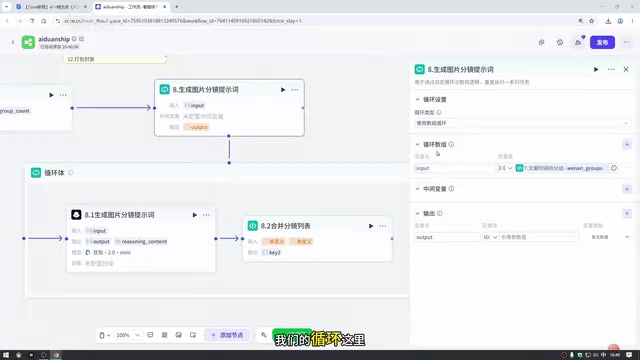
Within the loop body, you also need to configure a "Merge Storyboard List" code node and a "Set Variable" node to accumulate results from each iteration and reset intermediate variables.
Batch Image and Video Generation
After extracting the storyboard prompts, use batch processing nodes to generate assets in bulk:
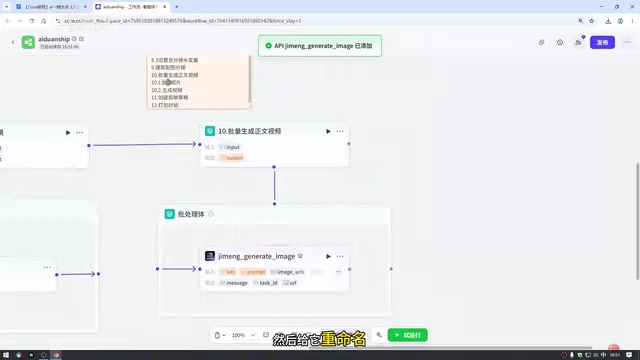
Image Generation: Use the "Jimeng Image Generation" plugin. Jimeng is ByteDance's AI creation platform, with image generation based on Diffusion Model technology. Diffusion models work by first adding noise to an image until it becomes completely random, then learning the reverse denoising process, enabling high-quality image generation from text prompts.
- Use a lower-tier model during testing to save computing resources
- Set aspect ratio to 16:9
Video Generation: Use the "Jimeng Video Generation" plugin, which employs a video large model architecture similar to Sora. It adds temporal consistency constraints on top of image diffusion models to ensure coherence between frames. The "reference image" feature (Image-to-Video) uses the generated static image as the starting frame, letting AI generate dynamic video from that basis — this offers better controllability than pure text-to-video generation.
- Select Video 3.0 model
- Default duration is 5 seconds (keep default during testing)
- Reference image uses the image URL from the previous step
- Set resolution to 720P during testing (higher resolutions consume several times more computing power and take longer to generate)
CapCut Packaging and Publishing
Creating a Draft
Use the CapCut Assistant's "Create Draft" function with a 16:9 ratio (1920×1080). CapCut's draft files store project data in JSON format, containing track information, asset references, timelines, effect parameters, and the complete project structure. The core principle of the "CapCut Assistant" tool is to programmatically generate project files that conform to CapCut's draft JSON Schema specification, enabling seamless integration between external tools and CapCut. The advantage of this approach is that it preserves the flexibility of manual fine-tuning — auto-generated drafts can be further adjusted in CapCut for transitions, filters, text styles, and other details, balancing both efficiency and quality.
Packaging Node
The tutorial provides a pre-packaged packaging node (in compressed archive format). Import method:
- Download the compressed archive (do not extract)
- Click "Import" in the Coze resource library
- Select the downloaded archive to import
- After publishing, it can be called within the workflow
Parameters required by the packaging node include: storyboard list, total timeline, main audio duration, audio links, draft ID, cleaned script, watermark text, individual timelines, and video links.
Final Output
The workflow end node outputs a draft ID (unique identifier for each project). Using the companion "CapCut Assistant" desktop tool, paste the draft ID to create a CapCut draft, which can then be opened in CapCut for editing, fine-tuning, and direct publishing.
Practical Tips and Considerations
- Plugin Selection: Always confirm you're using the officially developed version when searching for plugins — look for the yellow verification badge
- Variable Types: Timeline-related variables must be set to integer type; scripts should remain as strings. Type mismatches are one of the most common causes of workflow errors, because string and number operations behave completely differently in scripting languages like JavaScript
- Input Method Switching: When referencing variables, use English input mode and press
{{to quickly insert references - Computing Cost Control: Don't set batch processing parallel run counts too high; reduce them appropriately for image/video generation. AI image and video generation costs are far higher than text generation — a single high-quality image costs roughly dozens of times more than a text conversation, and video costs even more
- Code Nodes: Variable names must exactly match the parameter names in the code, otherwise errors will occur
- Archive Import: The packaged node's compressed archive must not be extracted, or the workflow won't recognize it. This is because Coze's import function needs to read the specific directory structure and metadata files within the archive
Conclusion
This Coze workflow automates the entire short video production process from script creation to final output, dramatically reducing the time cost of content production. For creators looking to grow multiple accounts in bulk or increase their posting frequency, this is an extremely practical solution. Although the workflow has many nodes, each one has clear configuration logic — following the tutorial step by step will allow you to replicate it successfully.
From a technology trend perspective, this type of workflow represents an important direction in the AIGC (AI Generated Content) space — connecting multiple AI capabilities (text generation, speech synthesis, image generation, video generation) through an orchestration engine into an end-to-end production pipeline. As AI model quality continues to improve across each component, the quality of automatically generated content will increasingly approach that of carefully handcrafted human work.
Key Takeaways
- Build a complete automated short video generation workflow on the Coze platform, covering scripts, voiceovers, images, and video
- Use Doubao 2.0 mini for script generation, Fish Audio for voiceovers, and Jimeng for image and video generation
- Batch processing nodes enable parallel generation of multiple voiceover and video assets, dramatically improving efficiency
- Final output is packaged as a CapCut draft via the CapCut Assistant, ready for fine-tuning and direct publishing
- Key considerations include plugin version selection, variable type settings, and computing cost management
Related articles
 Tutorials
Cursor + Codex Dual-IDE Collaboration: A Practical Methodology for Open-Source Project Customization
A complete methodology for open-source project customization based on real-world experience, detailing the Cursor+Codex dual-IDE workflow, seven-stage process, MVP validation, and AI source code reading techniques.
 Tutorials
Cursor Multi-Agent in Practice: Building a Full-Stack Next.js Blog in 50 Minutes
Build a full-stack blog in 50 minutes using Cursor IDE's multi-Agent mode with Next.js, Clerk auth, and Supabase. Learn the 4-phase AI Agent workflow and key integration pitfalls.
 Tutorials
Building an AI Software Factory from Scratch: A Cursor Engineer's Hands-On Experience with Multi-Agent Collaboration
Cursor engineer Eric shares practical insights on building an AI software factory: automation levels, guardrail design, parallel Agent management, and scaling to 1000+ Agents for 24/7 development.