Coze AI Agent Tutorial: A Complete Guide to Building AI Agents from Scratch
A complete beginner's guide to building AI agents on ByteDance's Coze platform from scratch.
This article provides a detailed walkthrough of building AI agents from scratch on ByteDance's Coze platform. It covers four core modules: prompt writing to define agent personality, the plugin system (based on Function Calling) to extend real-time capabilities, the knowledge base (powered by RAG) to provide domain expertise, and the memory system (variables, database, and long-term memory) for data persistence. It also explains LLM parameters like Temperature and Top-P, helping non-technical users quickly get started with AI application development.
Introduction
Coze is an AI agent building platform launched by ByteDance. Thanks to its low-code, visual approach, it has become the go-to tool for many people getting started with AI application development.
An AI Agent is an artificial intelligence system capable of autonomously perceiving its environment, making decisions, and executing tasks. Unlike traditional single-turn Q&A AI, agents possess goal-oriented behavior, tool-calling capabilities, and multi-step reasoning abilities. The rise of low-code platforms stems from the trend of democratizing software development — through visual drag-and-drop interfaces and pre-built components, functionality that once required hundreds of lines of code is simplified into configuration operations. Coze's positioning in this space is similar to "WordPress" for AI — enabling non-technical users to build complex AI applications.
This tutorial will walk you through building a fully functional AI agent on the Coze platform from scratch, covering core modules including LLM configuration, plugin integration, knowledge base setup, and memory systems.
Quickly Creating Your First Coze Agent
Basic Setup Process
After registering a Coze account, click "Workspace" in your personal center, then click "Create" to start building an agent. During creation, you'll need to fill in the agent's name and functional description. For example, you could create an "Emotional Support Agent" with the description "Provides emotional conversation services for singles." The system also supports auto-generating icons.
Once created, the core configuration is concentrated in the left panel. First, you need to select an LLM — this is essentially equipping your agent with a "brain." The default is the Doubao model, but you can switch to DeepSeek or other models. Doubao is ByteDance's proprietary large language model series, trained on a Transformer architecture, excelling at Chinese comprehension and generation tasks. DeepSeek is an open-source LLM from DeepSeek AI, known for its outstanding performance on reasoning tasks and excellent cost-effectiveness. Choosing different models is essentially a trade-off between capability, speed, and cost — models with more parameters generally have stronger comprehension but respond more slowly and consume more tokens.
Writing Prompts
The prompt is the soul of an agent — it tells the LLM "who you are" and "what services you provide." A complete prompt typically contains three parts:
- Role Definition: Clearly define the agent's identity, e.g., "You are an emotional support robot"
- Skill Description: List specific capabilities, e.g., "Listen to users share, offer encouragement, proactively guide conversations toward positive topics"
- Constraints: Set boundaries, e.g., "Must focus on positive emotions, never send negative messages"
If you're unsure how to write prompts, you can click the "Optimize" button directly. The system will auto-generate a persona and response logic based on the agent's description, which you can then adjust as needed.
Publishing and Sharing Your Agent
Once the agent is created, click "Publish" in the upper right corner, where you can set an opening message and preset questions. Publishing channels include the Coze Store, Doubao, Feishu, Douyin, WeChat, and other platforms. After successful publication, share the link with others — they just need to register a Coze account to use it.
Deep Dive into LLM Parameters
Temperature and Top-P Parameters
In the model configuration interface, there are two key parameters to understand:
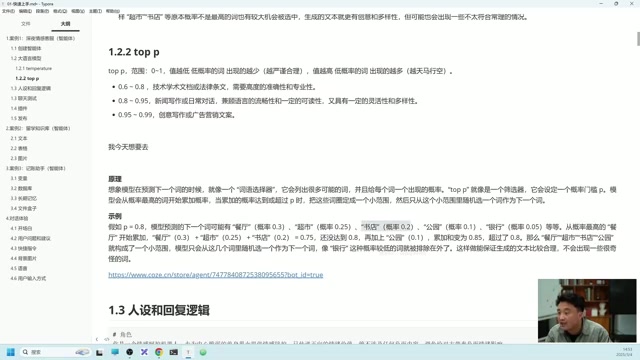
Temperature controls the randomness of responses:
- Lower temperature → More conservative, more precise responses (suitable for technical documentation, legal documents)
- Higher temperature → More creative, more imaginative responses (suitable for sci-fi novels, ad copy)
- 0.4–0.7 → The balanced range, neither absurd nor rigid
From a mathematical perspective, the Temperature parameter acts on the Softmax function. When generating each token, the LLM calculates a logit score for every candidate word in the vocabulary, then converts these into a probability distribution via Softmax. Temperature serves as the divisor in Softmax: when T<1, the probabilities of high-scoring words are amplified, making the distribution "sharper," and the model tends to select the most likely word; when T>1, the probability distribution is "smoothed," giving lower-probability words more chances of being selected, producing more diverse output. At T=0, the model becomes completely deterministic greedy decoding.
Top-P serves a similar function but works differently. It starts from the highest-probability words and accumulates until the cumulative probability reaches the set threshold. For example, if set to 0.8, the system selects candidate words whose cumulative probability reaches 80%, excluding low-probability options.
The core difference between the two: Temperature controls diversity by adjusting the "steepness" of the probability distribution, while Top-P achieves this by truncating low-probability candidates. In practice, just remember: the lower both values are, the more conservative; the higher, the more divergent.
Context Turns and Output Control
- Context turns carried: Default is 3 turns, meaning each response references the previous 3 turns of conversation. Increasing to 10–20 turns can improve response accuracy but increases token consumption
- Output format: Choose between plain text or Markdown format
- Maximum length: Default is 1024 tokens, approximately 1,500 Chinese characters
Here it's important to understand the concept of Tokens: A token is the basic unit that LLMs use to process text — it's neither exactly a character nor exactly a word. For English, one token is roughly 4 characters or 0.75 words; for Chinese, one character is typically encoded as 1–2 tokens. A model's Context Window is measured in tokens — for example, a 4K context means the model can process approximately 4,096 tokens in a single pass. Carrying more context turns means sending more tokens per request, which directly impacts API call costs and response latency.
Plugin System: Extending Your Agent's Capabilities
LLMs aren't omniscient — they can't access real-time information. For example, if you ask "What's trending on Zhihu today?", the model itself can't answer. This is where plugins come in to fill the gap.
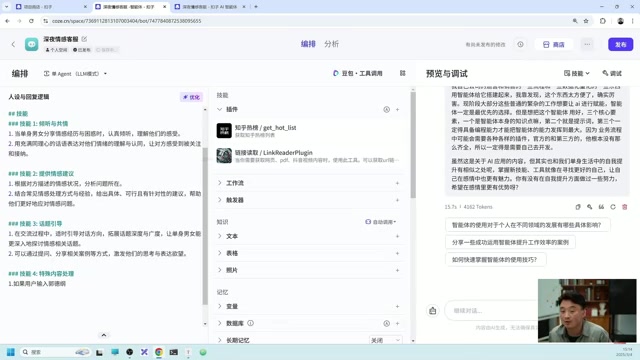
How to Use Plugins
Plugins are essentially pre-written code modules designed to perform specific functions. The underlying technology is the Function Calling mechanism: when a user asks a question, the LLM not only generates a text response but also determines whether external tools need to be called. Specifically, the system passes the functional descriptions of all available plugins (including parameter formats) to the model as part of the system prompt. The model decides based on user intent whether to output a function call instruction in a specific format. The platform captures this instruction, executes the corresponding code, and returns the result to the model for the final answer.
Here are the steps:
- Click the plus icon in the plugin area
- Search for the desired functionality (e.g., "Zhihu")
- Select the appropriate plugin and add it
- The LLM will automatically determine when to call it based on user questions
Common plugin examples:
- Zhihu Trending plugin: Fetches real-time trending data
- Link Reader plugin: Extracts video/webpage content
- Bing Image Search: Searches for images by keyword
Note that if your prompt sets strict constraints (e.g., only answer emotional questions), it may prevent plugin functions from being triggered. This is because the model considers all contextual constraints when deciding whether to call a tool. In such cases, you need to add corresponding skill descriptions to the prompt or relax the constraints appropriately.
Knowledge Base Setup: Building an Enterprise-Specific AI Assistant
Text Knowledge Base Configuration
For enterprise internal knowledge base scenarios, Coze supports uploading three types of knowledge materials: text, spreadsheets, and images.
The core technology behind the knowledge base is RAG (Retrieval-Augmented Generation). The workflow is as follows: when documents are uploaded, the system splits the text into segments (Chunks) and converts each segment into high-dimensional vectors via an Embedding model, storing them in a vector database. When a user asks a question, the system also converts the question into a vector, retrieves the most relevant segments from the vector database using algorithms like cosine similarity, then concatenates these segments as context into the prompt for the LLM to generate precise answers.
Using a "Study Abroad Knowledge Base" as an example:
- Create an agent and write the prompt
- In the "Knowledge" module, click "Text" → Create Knowledge Base
- Upload local documents (supports Markdown, TXT, and other formats)
- Choose the parsing method: auto-segmentation for plain text, precision parsing for content with charts and tables
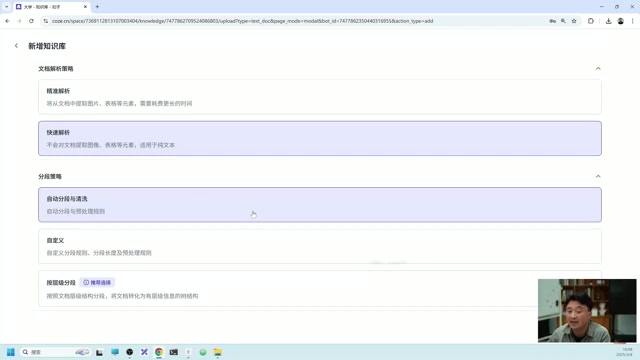
The difference between "auto-segmentation" and "precision parsing" lies in the text chunking strategy — the former splits by fixed length or paragraphs, while the latter identifies structured elements like tables and images for semantic-level chunking, ensuring related information isn't split across different segments.
Once uploaded, the agent can provide precise answers based on the knowledge base content. For example, after uploading a "New York School Tuition" document, asking about specific school information will yield accurate responses.
Spreadsheet and Image Knowledge Bases
- Spreadsheet Knowledge Base: Upload Excel and similar formats, ideal for structured data queries (e.g., tuition comparisons, program duration information)
- Image Knowledge Base: After uploading, images need to be annotated (smart annotation or manual annotation) with text descriptions before the agent can recognize and retrieve them
Memory System: Enabling Your Agent to "Remember" User Information
The agent's memory system simulates the layered structure of human memory — from simple key-value storage to complex structured databases to automated long-term memory extraction — forming a complete data persistence solution.
Variable Memory
By default, the agent forgets all information after a conversation is cleared. The "Variables" feature enables persistent storage of key information, similar to human "working memory" — storing small amounts of critical information for immediate recall:
- Add fields in the variables area (e.g., name, age, salary)
- When relevant information is mentioned during conversation, it's automatically extracted and saved
- These stored values can be recalled at any time in subsequent conversations
From a technical implementation perspective, variables are stored in session-level key-value pairs, with each user having an independent variable space to ensure data isolation between different users.
Database Storage
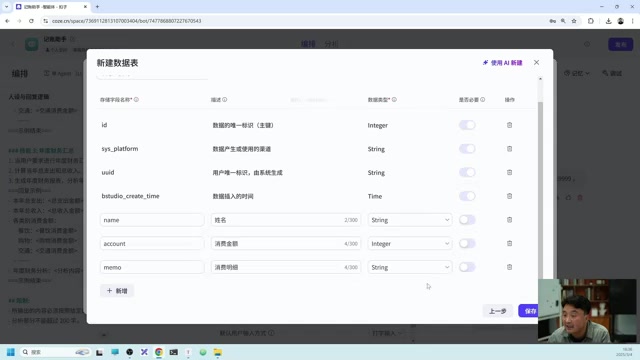
For scenarios requiring large amounts of structured data (e.g., an expense tracking assistant), you can use the database feature. This is similar to human "procedural memory," saving large volumes of factual data in a structured manner:
- Create a data table, defining column names and types (text, number, etc.)
- When spending information is mentioned in conversation, it's automatically written to the database
- Supports querying, filtering, and aggregation operations
For example, saying "I spent 100 yuan buying flowers for my girlfriend today" will cause the system to automatically extract the name, amount, and spending details and store them in the table. You can then request "Show all spending records for this month" or "Filter spending over 50 yuan."
Long-Term Memory and File Storage
- Long-Term Memory: When enabled, the system automatically summarizes chat records and extracts key information for persistent storage (determined automatically by the system, not manually controllable). Its technical implementation combines text summarization models with vector retrieval, automatically loading historical summaries related to the current user when a new conversation begins — similar to human "episodic memory"
- File Storage: Supports uploading files during conversation, which can later be retrieved by keyword
Triggers and Conversation Experience Optimization
Trigger Configuration
Triggers support two types:
- Scheduled Triggers: Automatically send messages to the agent at set times (e.g., summarize the day's exchange rates every day at 4 PM)
- Event Triggers: Receive external requests via API endpoints, carrying parameters to trigger specific tasks
Conversation Experience Settings
- Opening Message: Welcome message when users first enter
- Question Suggestions: Automatically generate follow-up question suggestions based on context
- Quick Commands: Preset shortcut buttons for common operations
- Background Image: Customize the agent's interface background
- Voice Interaction: Supports text-to-speech playback and cloud calling features
Conclusion
The Coze platform has lowered the barrier to building AI agents to an extremely accessible level — even without a programming background, you can complete complex functionality through visual configuration. The four core modules to master are: prompts determine the agent's "personality," plugins extend its "capabilities," the knowledge base provides "expertise," and the memory system gives it "recall." By flexibly combining these four modules, you can create AI agents that meet the needs of virtually any business scenario.
Key Takeaways
- Core Coze agent building workflow: Create → Configure prompts → Select model → Add plugins → Upload knowledge base → Publish
- LLM Temperature and Top-P parameters work differently but produce similar effects — lower values are more conservative, higher values are more divergent
- The plugin system is based on the Function Calling mechanism, extending the agent's ability to fetch real-time data and compensating for the LLM's knowledge cutoff limitations
- The knowledge base is built on RAG technology, supporting text, spreadsheet, and image formats — key to building enterprise internal AI assistants
- The memory system includes three layers — variables, database, and long-term memory — simulating the layered structure of human memory to meet data persistence needs from simple to complex
Related articles
 Tutorials
Cursor + Codex Dual-IDE Collaboration: A Practical Methodology for Open-Source Project Customization
A complete methodology for open-source project customization based on real-world experience, detailing the Cursor+Codex dual-IDE workflow, seven-stage process, MVP validation, and AI source code reading techniques.
 Tutorials
Cursor Multi-Agent in Practice: Building a Full-Stack Next.js Blog in 50 Minutes
Build a full-stack blog in 50 minutes using Cursor IDE's multi-Agent mode with Next.js, Clerk auth, and Supabase. Learn the 4-phase AI Agent workflow and key integration pitfalls.
 Tutorials
Building an AI Software Factory from Scratch: A Cursor Engineer's Hands-On Experience with Multi-Agent Collaboration
Cursor engineer Eric shares practical insights on building an AI software factory: automation levels, guardrail design, parallel Agent management, and scaling to 1000+ Agents for 24/7 development.