Cursor + MCP in Practice: A Complete Guide to Building a Browser Automation Agent
Cursor + MCP in Practice: A Complete G…
Set up Node.js and integrate Playwright MCP Server to enable browser automation in Cursor AI agent.
This article explains how to integrate Microsoft's Playwright MCP Server with the Cursor AI programming IDE to achieve browser automation control. It covers the MCP protocol overview, Node.js environment setup using NVM for version management, NPM mirror source configuration using NRM for faster downloads, and Playwright MCP Server installation methods (global install or NPX temporary execution), laying the infrastructure foundation for building AI programming agents with web control capabilities.
Introduction
With the rapid development of AI programming tools, Cursor—currently the hottest AI programming IDE—combined with the MCP (Model Context Protocol), enables large language models to seamlessly interact with external tools and build powerful AI agents. This article provides a detailed guide on setting up the environment from scratch, integrating Microsoft's Playwright MCP service, and achieving browser automation control—a critical step in building a programming agent.
MCP Protocol Overview and Chapter Objectives
MCP (Model Context Protocol) was officially open-sourced by Anthropic in November 2024 as a standardized tool-calling protocol designed specifically for large language models. Its core concept is similar to the unified USB interface standard—before MCP, every AI application needed to develop separate integration code for different tools, resulting in extremely high maintenance costs. MCP defines a unified Client-Server architecture where the LLM (Large Language Model) acts as the Client and various external tools serve as Servers, communicating through standardized JSON-RPC 2.0 message formats. This design means tool developers only need to implement an MCP Server once, and it can be directly called by all MCP-supporting AI applications (such as Cursor, Claude Desktop, Cline, etc.), greatly reducing ecosystem development costs.
Through the MCP protocol, we can quickly integrate various third-party tools. Previously, three MCP integration methods were introduced:
- STDIO: Standard input/output streams, suitable for local inter-process communication with the lowest latency
- SSE: Server-Sent Events, HTTP-based unidirectional push, suitable for remote services
- Streamable HTTP: Streamable HTTP services, balancing flexibility and compatibility
The core objective of this chapter is to introduce Cursor, leveraging its deep integration with the Claude model, to connect external MCP services and custom-built MCP services, laying the foundation for subsequent programming agent projects.
Cursor and Claude Integration Architecture: Cursor is a deeply customized AI programming IDE based on VS Code, with its core differentiation being the deep embedding of large language models into every aspect of the editor. Cursor natively supports Claude (Anthropic), GPT-4 (OpenAI), and other top-tier models, with particularly deep integration with Claude—Claude's long context window (200K tokens) enables it to understand an entire codebase's structure in one pass. At the MCP integration level, Cursor implements tool calling through its Agent mode: when a user poses a task requiring external capabilities, Cursor automatically identifies and calls configured MCP Servers, injects tool return results into the conversation context, forming a complete "perceive-decide-execute" Agent loop. This architecture makes Cursor not just a code completion tool, but a versatile programming assistant capable of controlling browsers, managing code repositories, and querying databases.
Browser Automation MCP Service Selection
In ModelScope's MCP marketplace, there are numerous browser automation-related MCP services to choose from. Here we recommend using Microsoft's Playwright MCP Server.
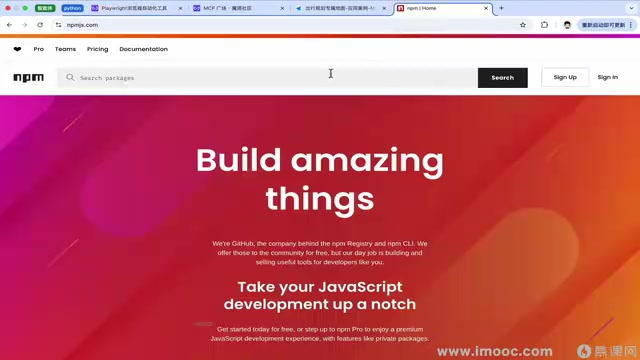
Playwright is a modern browser automation framework released by Microsoft in 2020, derived from Google's Puppeteer project. Compared to traditional Selenium, Playwright has three core advantages: First, cross-browser support—it natively supports Chromium, Firefox, and WebKit (Safari's engine), covering mainstream browsers with a single codebase; second, auto-wait mechanisms—it intelligently waits for page elements to be ready without manually adding sleep statements; third, network interception capabilities—it can simulate network requests and mock API responses. Playwright MCP Server wraps these capabilities as standard MCP tools, enabling large models to control browsers like humans—clicking buttons, filling forms, taking page screenshots, and extracting page content, providing a solid foundation for AI Agents to execute complex web tasks.
The Playwright MCP service needs to be installed locally—because it controls your local machine's browser. Although the service is developed by Microsoft and hosted on the NPM registry, it must run in the local environment.
Why Choose Playwright MCP Server?
- Officially maintained by Microsoft: Stability and compatibility are guaranteed
- Comprehensive features: Supports page navigation, element manipulation, screenshots, and full browser control capabilities
- Standard MCP interface: Works out of the box, seamlessly integrating with AI tools like Cursor
Node.js Environment Setup
To use Playwright MCP Server, you first need to set up a Node.js environment. Node.js was created by Ryan Dahl in 2009, built on the Chrome V8 engine, extending JavaScript's execution environment from the browser to server-side and desktop applications. Its non-blocking I/O and event-driven architecture make it excellent at handling high-concurrency scenarios. In the AI tool ecosystem, Node.js holds an important position—a large number of MCP Servers, CLI tools, and frontend build tools are developed on Node.js. NPM (Node Package Manager), as the world's largest software package registry hosting over 2 million open-source packages, is the core infrastructure of the JavaScript ecosystem.
In simple terms, Node.js is like the Python interpreter running Python scripts—it allows JavaScript scripts to run at the operating system level, independent of the browser. Understanding Node.js version management logic (LTS long-term support vs. Current latest version) is crucial for maintaining a stable development environment, which is the fundamental reason NVM exists.
Installing Node.js with NVM
Using NVM (Node Version Manager) to manage Node.js versions is recommended as the most flexible installation method. NVM achieves version switching by modifying the system's PATH environment variable—each Node.js version installed through NVM is stored in an independent directory (typically ~/.nvm/versions/node/). When executing the nvm use command, NVM temporarily places the corresponding version's bin directory at the front of PATH, so the system prioritizes finding the specified version's node and npm executables. Different versions are completely isolated and don't interfere with each other, thoroughly solving the classic "it works on my machine" problem.
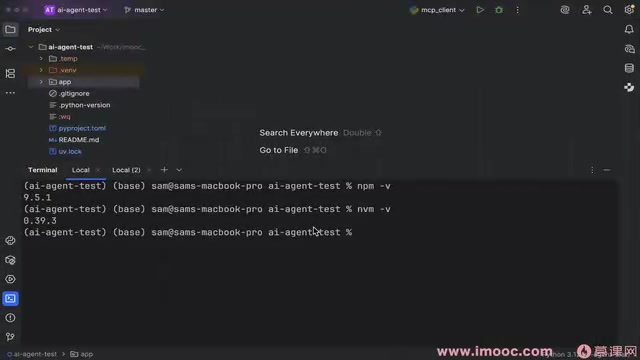
macOS installation:
# Install nvm via curl or wget
curl -o- https://raw.githubusercontent.com/nvm-sh/nvm/v0.39.0/install.sh | bash
Windows installation: Download the NVM for Windows installer and follow the wizard to complete installation.
Common NVM Commands
# Check nvm version
nvm -v

# View all available Node.js versions
nvm ls-remote

# Install a specific version (LTS long-term support recommended)
nvm install 22

# View locally installed versions
nvm ls

# Switch versions
nvm use 22
The advantage of NVM is the ability to easily switch between different Node.js versions. For developers maintaining multiple projects simultaneously, you can also create a .nvmrc file in the project root directory specifying the Node.js version. Team members can simply run nvm use to automatically switch to the correct version, and future upgrades are also very convenient.
Installing Playwright MCP Server
After Node.js installation is complete, NPM (Node Package Manager) is automatically installed alongside it. You can then globally install Playwright MCP Server:
npm install -g @anthropic/playwright-mcp-server
Two Usage Methods
Method 1: Global Installation
Permanently install the package to the local global directory via npm install -g. The installed package is located in Node.js's lib/node_modules directory and can be called at any time. Suitable for frequently used packages where a stable version is needed.
Method 2: Temporary Execution (NPX)
npx @anthropic/playwright-mcp-server
NPX (Node Package Execute) is a command-line tool introduced in NPM version 5.2. Its working principle is: first check the local node_modules/.bin directory; if the target package is not found, temporarily download it from the NPM registry to a cache directory for execution, with optional cache cleanup after completion. This "use and discard" design philosophy solves the pain point of global package version conflicts. It's worth noting that tools like Cursor typically support directly entering npx commands when configuring MCP, meaning each time the AI calls an MCP tool, it ensures the latest version of the Server is used—a practical approach that balances convenience with version freshness.
Solving Slow NPM Downloads
NPM uses a foreign source (npmjs.com) by default, which may result in very slow or failed downloads for users in China.
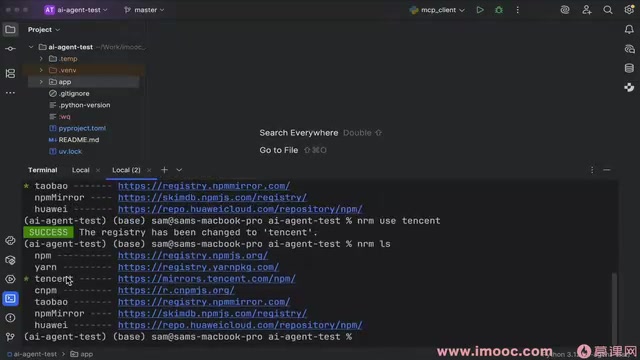
NPM mirror sources (Registries) are essentially complete mirror copies of the npmjs.com official repository, deployed on domestic data centers via CDN nodes. This transforms cross-Pacific network requests into domestic access, reducing latency from hundreds of milliseconds to single-digit milliseconds. The Taobao NPM mirror (npmmirror.com), maintained by Alibaba Cloud with a sync frequency of approximately 10 minutes, is currently one of the most stable and widely-covered mirror sources in China; the Tencent source, leveraging Tencent Cloud's CDN infrastructure, performs particularly well in South China. Note that some private packages or enterprise internal packages won't appear on public mirror sources—in such cases, you'll need to temporarily switch back to the official source or configure a private Registry.
Managing Mirror Sources with NRM
NRM (NPM Registry Manager) is a lightweight source management tool that turns source switching into a simple command operation rather than tedious configuration file modifications:
# Install nrm
npm i -g nrm

# View all available sources
nrm ls

# Switch to Taobao source
nrm use taobao

# Switch to Tencent source
nrm use tencent
After switching sources, all npm install commands will download from the new source, significantly improving speed. You can also manually specify a source:
npm install --registry https://registry.npmmirror.com
But manually specifying it every time is obviously not elegant—NRM solves this problem once and for all.
Environment Verification and Future Outlook
After completing the above steps, your development environment now has:
- ✅ Node.js runtime (managed via NVM, supporting multi-version switching)
- ✅ NPM package manager (with NRM source management for faster domestic downloads)
- ✅ Playwright MCP Server (globally installed, ready to call anytime)
Next, you can configure the MCP connection in Cursor, integrate the Playwright service into your AI agent, and achieve:
- Automated web operations and data scraping
- Building multi-step workflows with LangGraph
- Intelligent code repository management through GitHub MCP
Once the entire pipeline is connected, the Cursor + MCP combination will greatly enhance development efficiency, making AI a true programming assistant.
Summary
The first step in building an AI agent is establishing solid infrastructure. This article covers the complete process from Node.js environment configuration to Playwright MCP Server installation. While it may seem basic, these steps are essential prerequisites for building complex agent systems later. Once you've mastered the local setup of MCP services, you can flexibly integrate more tools and continuously expand the capability boundaries of your AI agent.
Key Takeaways
- MCP protocol is Anthropic's open-source standard for LLM-to-external-tool interaction, based on JSON-RPC 2.0, supporting three integration methods: STDIO, SSE, and Streamable HTTP
- Microsoft's Playwright MCP Server encapsulates complete browser automation capabilities, supporting Chromium/Firefox/WebKit, and must be installed in the local environment
- NVM is recommended for managing Node.js versions, using PATH environment variable switching to achieve multi-version isolation for flexible switching and upgrades
- Slow NPM downloads can be resolved using the NRM tool to switch to Taobao source (npmmirror.com) or Tencent source, with sync frequency of approximately 10 minutes
- NPX is suitable for temporary MCP Server execution, while global installation suits frequent-use scenarios; Cursor supports both methods when configuring MCP
- Cursor combined with Claude (200K context window) and MCP services forms a "perceive-decide-execute" loop through Agent mode, building programming agents with browser control, code management, and other capabilities
Related articles
 Tutorials
Cursor + Codex Dual-IDE Collaboration: A Practical Methodology for Open-Source Project Customization
A complete methodology for open-source project customization based on real-world experience, detailing the Cursor+Codex dual-IDE workflow, seven-stage process, MVP validation, and AI source code reading techniques.
 Tutorials
Cursor Multi-Agent in Practice: Building a Full-Stack Next.js Blog in 50 Minutes
Build a full-stack blog in 50 minutes using Cursor IDE's multi-Agent mode with Next.js, Clerk auth, and Supabase. Learn the 4-phase AI Agent workflow and key integration pitfalls.
 Tutorials
Building an AI Software Factory from Scratch: A Cursor Engineer's Hands-On Experience with Multi-Agent Collaboration
Cursor engineer Eric shares practical insights on building an AI software factory: automation levels, guardrail design, parallel Agent management, and scaling to 1000+ Agents for 24/7 development.