Essential for AI-Powered Coding: Keep Your Git Repository Clean with .gitignore

Master .gitignore configuration to keep your Git repo clean in the age of AI-powered coding.
This guide systematically covers .gitignore configuration for AI-powered development. It explains three categories of files to ignore — system-generated files, AI tool artifacts from Cursor/Copilot, and dependencies/build outputs. Includes five essential pattern-matching rules, ready-to-use templates for Node.js and Python projects, and instructions for fixing already-committed files.
In the era of AI-powered coding, tools like Cursor and Copilot continuously generate all kinds of temporary and backup files. Without proper management, your Git repository will quickly become bloated and unwieldy. Today, let's systematically walk through .gitignore configuration techniques to help you establish good repository management habits from the very start.
Why Is .gitignore So Important?
Put simply, .gitignore is Git's "filter rule" — it tells Git which files don't need to be tracked. Think of it like a closet organization system: only clean code gets in, while junk and temporary files are kept out.
To understand how .gitignore works, you first need to understand Git's file management mechanism. Git manages file states through three areas: the Working Directory, the Staging Area (Index), and the local Repository. When you run git add, files move from the working directory to the staging area; when you run git commit, a snapshot of the staging area is permanently recorded in the repository. .gitignore acts at the very front of this pipeline — it excludes matching files at the git add stage, making Git completely "blind" to these files. Understanding this mechanism is crucial because it explains why files already being tracked are not affected by .gitignore: once a file has entered Git's object database, .gitignore can no longer intervene in its tracking status.
Without configuring ignored files, you'll face four major problems:
- Repository bloat: Large volumes of useless files make the repository increasingly large, slowing down cloning and pulling
- Privacy leak risks: Passwords, API keys, and other sensitive information may be accidentally committed to public repositories
- Team collaboration conflicts: System-generated files vary from person to person, frequently causing meaningless merge conflicts
- AI coding amplifies the problem: AI tools continuously generate temporary files and backups, multiplying these issues
Three Categories of Files You Must Ignore
Category 1: System-Generated Files
Different operating systems automatically generate hidden files, such as:
- macOS's
.DS_Store(short for Desktop Services Store, which stores custom display attributes for folders like icon positions and background colors) - Windows's
Thumbs.db(a thumbnail cache database used by Windows Explorer to speed up image previews) - Various editor configuration directories (e.g.,
.vscode/,.idea/)
These files are only relevant to your local machine environment and have no significance to the project itself — there's absolutely no reason to commit them.
Category 2: AI Coding-Specific Junk Files
This is a category that deserves special attention today. When using AI editors like Cursor, a large number of unique files are generated:
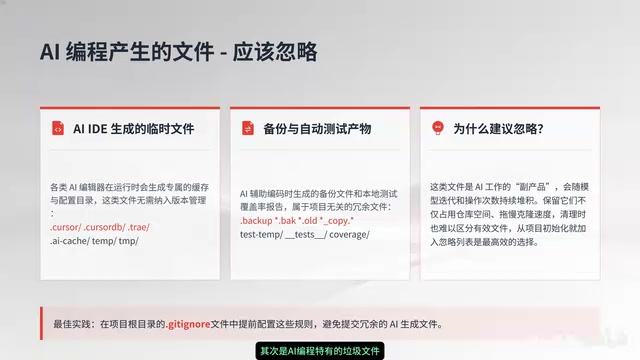
- Cursor editor's
.cursor/directory - Various AI-generated backup files (
.bakfiles) - Auto-generated configuration snapshots
Cursor is a deeply customized build on VS Code's open-source architecture, integrating large language models like GPT-4 and Claude to enable code generation, refactoring, and conversational programming directly within the editor. During this process, Cursor stores session context, model caches, code diff snapshots, and other data in the .cursor/ directory to support multi-turn conversations and code rollback features. GitHub Copilot works slightly differently — it primarily runs as a plugin but also generates local cache files. With the emergence of next-generation AI editors like Windsurf and Aide, the temporary file formats and directory structures generated by each tool vary, making .gitignore configuration both more complex and more necessary.
These files are generated continuously. If you don't ignore them from the start, your repository will quickly be overwhelmed.
Category 3: Dependencies and Build Artifacts
These are the most classic targets for ignoring:
- The
node_modules/folder in Node.js projects (easily hundreds of MB) - Python project directories like
__pycache__/andvenv/ - Build output directories like
dist/andbuild/
The reason node_modules is so massive lies in the dependency management philosophy of the Node.js ecosystem. npm uses a nested dependency tree to manage packages — a medium-sized frontend project might contain thousands of dependency packages, with the node_modules folder easily exceeding 500MB or even 1GB. These dependencies are already precisely recorded with version information in package.json and package-lock.json (or yarn.lock, pnpm-lock.yaml), and anyone can fully restore them with a single command. Similarly, Python's venv virtual environment contains a complete copy of the Python interpreter and all installed third-party libraries, which can also be quite large. These "reproducible" files are the most classic use case for .gitignore — replacing hundreds of MB of actual dependencies with a few KB of lock files.
Which Files Must Be Committed? Remember This Rule of Thumb
Not all files should be ignored — some are core project assets. Remember this simple rule of thumb:
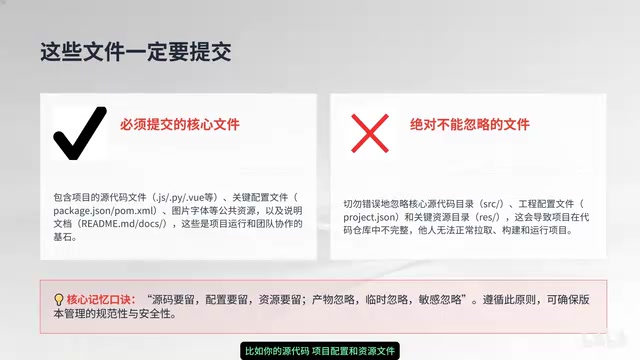
Keep source code, keep configs, keep assets; ignore artifacts, ignore temp files, ignore secrets.
Specifically:
- ✅ Should commit: Source code files, project configuration files (
package.json,requirements.txt, etc.), static asset files - ❌ Should ignore: Build artifacts, temporary files, sensitive information (keys, passwords, etc.)
Regarding sensitive information, the severity of this risk deserves special emphasis. Committing API keys, database passwords, and other sensitive information to a Git repository is an extremely dangerous practice. Even if you later delete these files and recommit, Git's history still retains the complete file contents — anyone with repository access can find this sensitive data using git log and git show commands. GitHub has published data showing that thousands of API keys are accidentally pushed to public repositories every day. The correct approach is to use .env files to store sensitive configurations, add .env to .gitignore, and provide a .env.example file as a configuration template for team reference.
Five .gitignore Rule Patterns
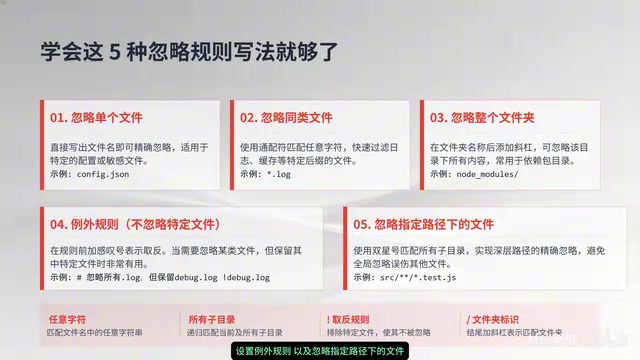
Master these five syntax patterns, and you can cover virtually all scenarios:
# 1. Ignore a single file
.DS_Store

# 2. Ignore a file type (wildcard)
*.log
*.bak

# 3. Ignore an entire folder
node_modules/
__pycache__/
.cursor/

# 4. Set exception rules (! negation)
*.config
!app.config

# 5. Ignore files under a specific path
docs/*.pdf
build/**/*.map
.gitignore uses glob pattern matching syntax, a filename matching specification originating from Unix shells. * matches any number of characters (excluding path separators), ** matches any level of directories, ? matches a single character, and [abc] matches any single character within the brackets. The slash / has special meaning in rules: if a rule starts with /, it only matches files in the repository root directory; if a rule ends with /, it only matches directories, not files. The exclamation mark ! is used for negation, allowing you to "rescue" specific files from an already-ignored scope. These rules are executed from top to bottom, with later rules overriding earlier ones — understanding this priority mechanism is essential for writing complex ignore rules.
Practical Templates: Ready to Use
Here are several commonly used .gitignore templates for different tech stacks that you can copy directly into your projects:
Node.js project core configuration:
node_modules/
dist/
.env
*.log
.DS_Store
.cursor/
Python project core configuration:
__pycache__/
venv/
*.pyc
.env
.DS_Store
.cursor/
💡 Tip: GitHub officially maintains a gitignore template repository covering nearly all mainstream languages and frameworks — definitely worth bookmarking.
How to Fix Already-Committed Files?
This is the most common pitfall for beginners: if a file has already been tracked by Git, adding it to .gitignore later will have no effect.
You need to first untrack the file with the following commands:
# Untrack a single file (keep the local file)
git rm --cached filename

# Untrack an entire folder
git rm -r --cached foldername/

# Then commit the changes
git commit -m "Remove files that should not be tracked"
Let me explain how git rm --cached works. A regular git rm removes the file from both the staging area and the working directory, but with the --cached flag, Git only removes the file from the staging area (index) — the file in your local working directory remains completely unaffected. This means the file still exists on your computer and is still usable, but Git no longer tracks its changes. After running this command, Git records the "removal of tracking for this file" as a pending change, and you need to follow up with git commit to confirm.
It's important to note that the file's records in Git history still exist. If the accidentally committed file contains sensitive information (such as passwords or keys), using git rm --cached alone is not enough — you'll also need to use tools like git filter-branch or BFG Repo-Cleaner to thoroughly purge the sensitive data from the history, followed by a force push to the remote repository.
Only after executing these commands will the .gitignore rules take effect for these files.
Summary
As AI coding tools become increasingly prevalent, .gitignore is more important than ever before. AI tools continuously generate temporary files and backups, and if you don't configure ignore rules from project initialization, the cleanup cost later will be very high. It's recommended that the very first step when creating any new project is to configure your .gitignore file, keeping your repository clean and efficient from the start.
Related articles

CodeGraph: The 50K-Star Open-Source Tool That Cuts AI Coding Token Usage in Half
CodeGraph is a 50K-star open-source tool that builds a code knowledge graph so AI coding assistants can locate code instantly—cutting Token usage by 47%, boosting speed by 22%, all running 100% locally.

VibeCoding Beginner's Guide: A Complete Guide to Building Software with Natural Language from Scratch
VibeCoding lets anyone build software through natural language conversations with AI. Learn the core concepts, learning path, and practical methods to get started.

Using UU Accelerator to Speed Up Cursor: A Compliant Solution for Stable AI Coding in China
Learn how to use NetEase UU Accelerator to speed up Cursor AI coding tool in China, with step-by-step setup including node selection and launch configuration.