Build a WhatsApp AI Chatbot with Zero Code: YCloud Chatbot Flow Configuration Tutorial

Complete tutorial on building a WhatsApp Chatbot automation flow with YCloud's zero-code platform
This article provides a detailed guide on building a WhatsApp Chatbot automated conversation flow using YCloud's zero-code platform. Key steps include creating triggers (supporting keyword, natural language, and button click types), adding question and reply components to build conversation logic, connecting nodes, and activating the flow. The article also offers practical advice on keyword matching strategies, flow design principles (3-5 conversation turns, fallback nodes, and human agent handoff).
Introduction
In cross-border e-commerce and international business scenarios, WhatsApp has become one of the core channels for enterprise-customer communication. WhatsApp currently has over 2 billion monthly active users worldwide, covering more than 180 countries and regions, and holds an absolutely dominant position as an instant messaging platform in key cross-border e-commerce markets including Southeast Asia, Latin America, the Middle East, and Europe. After Meta launched the WhatsApp Business API in 2018, businesses can manage customer messages at scale, send template messages, and automate conversations through official interfaces. Compared to traditional email marketing, WhatsApp messages boast an open rate of up to 98%, far exceeding email's roughly 20%, making it one of the most efficient channels for customer outreach.
How to efficiently automate customer conversations and reduce the burden on human support agents is a real challenge many businesses face. As a Meta-certified WhatsApp Business Solution Provider (BSP), YCloud offers a zero-code Chatbot flow builder that enables non-technical staff to configure an intelligent customer service system in just minutes.
This article provides a detailed breakdown of the steps to create a WhatsApp Chatbot flow based on YCloud's official tutorial, helping you get started quickly.
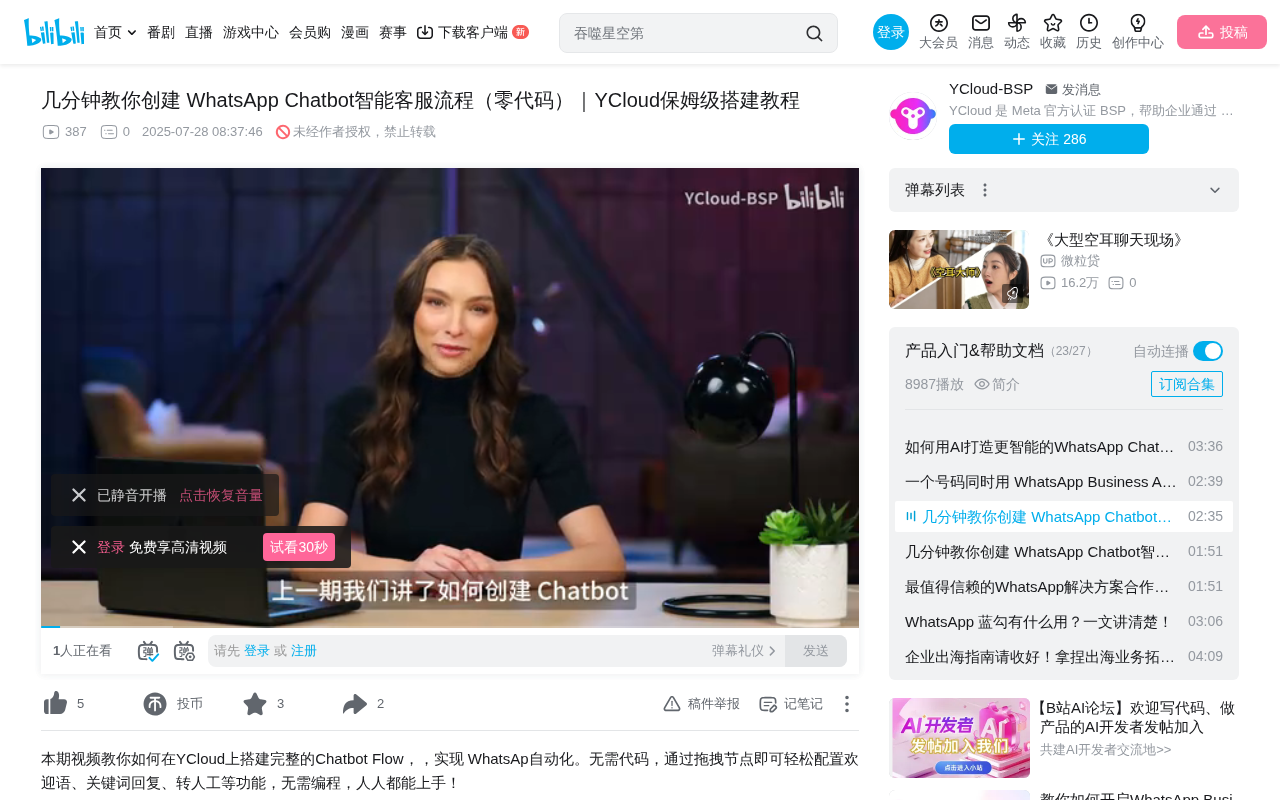
Basic Steps to Create a Chatbot Flow
Step 1: Navigate to the Chatbot Detail Page
First, click on an existing Chatbot in the YCloud platform to enter its detail page. If you haven't created a Chatbot yet, refer to YCloud's basic creation tutorial to complete the initial setup first.
Once on the detail page, click the "Create a Flow" button to start building your automated conversation flow. The entire interface uses a visual drag-and-drop design that requires no coding whatsoever. The core philosophy of this No-Code platform is to enable non-technical users to accomplish tasks that traditionally required programming, through visual interfaces and pre-built modules. In traditional Chatbot development, you would typically need to use NLP frameworks like Dialogflow or Rasa to write intent recognition logic and integrate with the WhatsApp Business API, with development cycles often spanning several weeks. The zero-code approach encapsulates these underlying technologies into drag-and-drop components, allowing users to focus solely on business logic. Under the hood, it's usually based on a Finite State Machine (FSM) or decision tree model, abstracting the conversation flow into a graph structure of nodes and connections, where each node represents a conversation state and each connection represents a state transition condition.
Step 2: Add a Trigger
The trigger is the starting point of the entire Chatbot flow, determining under what conditions the automated conversation is initiated. In Chatbot architecture, the trigger serves as the entry mechanism of the intent recognition layer — a critical bridge connecting user input to the automation flow. YCloud supports three types of triggers:
- Keyword Trigger: Activated when a customer's message or button reply contains specific keywords. This is the most basic rule engine implementation, using string matching algorithms to determine whether preset rules are hit. Its advantage is strong determinism and controllable false trigger rates; its disadvantage is the inability to handle synonyms and semantic variants.
- Natural Language Trigger: Triggered based on semantic understanding, suitable for more complex scenarios. It relies on NLP (Natural Language Processing) technology, typically combining intent classification models and entity recognition to understand the semantics of user input. It can handle messages like "I want to return an item" and "How do I send something back" — different expressions with the same intent.
- Button Click Trigger: Activated when a customer clicks a specific button. This is the most deterministic approach since user input is confined to preset options, completely eliminating ambiguity. This is also the core design philosophy behind WhatsApp Interactive Messages.
Taking the keyword trigger as an example, there are two matching modes available when setting up keyword rules:
- Exact Matching: The customer's message must be identical to the keyword
- Containing: The flow is triggered as long as the message contains the keyword
After selecting the matching type, enter your keywords and save — the trigger is now successfully added to the flow.
Core Components for Building Conversation Flows
Question Component: Ask a Question
After the trigger is configured, the next step is to add functional components from the toolbox. The "Ask a Question" component allows you to pose a question to the customer, such as "What type of product are you interested in?", and set up multiple button options for the customer to choose from.
The advantages of button-based interaction include:
- Reducing customer input effort and improving response rates
- Collecting customer intent in a structured way for easier routing
- Minimizing ambiguity in natural language understanding
It's important to note that the WhatsApp Business API has strict format specifications. Button Messages support a maximum of 3 buttons, with each button text limited to 20 characters; List Messages support up to 10 options with no more than 10 sections. These limitations directly impact Chatbot flow design and are the technical basis for the later recommendation of keeping buttons to 3-4 per conversation turn.
Reply Component: Send Message
When a customer clicks a button, the "Send Message" component handles sending the corresponding automated reply. YCloud supports three reply formats:
- Text: Plain text messages
- Button: Messages with clickable buttons that can guide customers into the next conversation turn
- Media: Rich media content such as images, videos, or documents
It's worth noting that WhatsApp distinguishes between User-Initiated Conversations and Business-Initiated Conversations, with different billing models for each. Chatbots typically respond after a user initiates a conversation, falling under Service Conversations, which allow unlimited messages within a 24-hour conversation window. This provides a significant cost advantage for multi-turn automated conversations.
Connect Nodes and Save
Once all components are configured, connect the nodes by dragging to form a complete conversation flow diagram. Finally, click the "Save" button in the upper right corner.
Activation and Going Live
After the flow is built, there's a critical step that's easy to overlook: switching the status from Inactive to Active. The Chatbot flow will only take effect and start responding to customer messages after activation.
Practical Application Tips
Keyword Configuration Best Practices
Keyword selection directly affects the Chatbot's trigger accuracy. The choice of keyword matching strategy is essentially a trade-off between Precision and Recall — exact matching has high precision but low recall, potentially missing variant expressions like "refund process" or "apply for refund"; containing matching has high recall but low precision, for example, setting "ship" as a keyword might falsely trigger on "worship" or "flagship" in unrelated messages.
Here are some recommendations:
- E-commerce scenarios: Set high-frequency inquiry terms like "price," "shipping," "refund"
- Service booking scenarios: Set action-oriented terms like "appointment," "schedule," "cancel"
- Multilingual scenarios: Set keywords in the corresponding language for different markets. Pay special attention to the tokenization characteristics of different languages — Chinese has no natural space delimiters, so containing matching may produce more false hits, requiring more careful keyword list design
It's recommended to use a combined strategy of exact matching and containing matching — use containing matching for high-value, low-ambiguity business terms (such as brand names and product model numbers) to maximize coverage, and use exact matching for short or generic words (such as "ok" or "yes") to avoid false triggers.
Flow Design Principles
- Keep button options per conversation turn to no more than 3-4 to avoid information overload (this is also technically constrained by WhatsApp API's button count limit)
- Complete key paths within 3-5 conversation turns; longer flows lead to customer drop-off. According to research in Conversational UI, each additional turn in a Chatbot conversation increases user drop-off by approximately 15-20%, similar to the pattern in mobile form design where "each additional field reduces conversion rate by about 10%"
- Set up a human agent handoff at the end of the flow to handle complex issues that the Chatbot cannot cover. It's also recommended to set up a Fallback node — when the Chatbot cannot understand the user's intent, it automatically provides options to re-select or transfers to a human agent, preventing the conversation from reaching a "dead end" and ensuring the customer experience isn't interrupted by automation limitations
Conclusion
YCloud's zero-code Chatbot flow builder reduces the technical barrier for WhatsApp intelligent customer service to a minimum. Through the combination of trigger setup, question components, and reply components, businesses can quickly build automated conversation flows covering common inquiry scenarios. For cross-border e-commerce, SaaS services, local services, and other businesses requiring extensive customer communication, this is an efficiency tool well worth trying.
Key Takeaways
- YCloud supports three Chatbot triggers: Keyword Trigger, Natural Language Trigger, and Button Click Trigger
- Keyword matching comes in two modes — Exact Matching and Containing — suitable for different precision requirements
- Flow building uses a visual drag-and-drop design, constructing conversation logic through Ask a Question and Send Message components
- After saving, the flow must be manually switched to Active status to take effect
- It's recommended to keep conversation paths within 3-5 turns and set up a human agent handoff option
Related articles
 Tutorials
Cursor + Codex Dual-IDE Collaboration: A Practical Methodology for Open-Source Project Customization
A complete methodology for open-source project customization based on real-world experience, detailing the Cursor+Codex dual-IDE workflow, seven-stage process, MVP validation, and AI source code reading techniques.
 Tutorials
Cursor Multi-Agent in Practice: Building a Full-Stack Next.js Blog in 50 Minutes
Build a full-stack blog in 50 minutes using Cursor IDE's multi-Agent mode with Next.js, Clerk auth, and Supabase. Learn the 4-phase AI Agent workflow and key integration pitfalls.
 Tutorials
Building an AI Software Factory from Scratch: A Cursor Engineer's Hands-On Experience with Multi-Agent Collaboration
Cursor engineer Eric shares practical insights on building an AI software factory: automation levels, guardrail design, parallel Agent management, and scaling to 1000+ Agents for 24/7 development.