Ollama Local LLM Deployment: From Installation to Conversation in Three Steps

Ollama is an open-source local LLM platform that deploys AI models in just three steps.
Ollama is an open-source, free local large language model management platform built on llama.cpp that supports offline operation and protects data privacy. Users simply need to download and install Ollama, choose a model, and execute the ollama run command to complete deployment. It supports mainstream open-source models like Qwen and Llama, uses 4-bit quantization to dramatically lower hardware requirements, and can be paired with frontends like Open WebUI for a graphical interaction experience.
What is Ollama?
Ollama is an open-source large language model management platform that enables everyday users to easily deploy and run various AI models on their own computers. Here's a simple analogy: we can read books online through a browser, but we can also use e-book management software to download books for offline reading. Ollama works like the latter — it's a local management tool for large language models, allowing us to use AI without relying on an internet connection every time.
What is a Large Language Model (LLM)?
A Large Language Model (LLM) is an artificial intelligence model built on the Transformer architecture in deep learning. Through pre-training on massive text datasets, it learns statistical patterns and semantic understanding of language. Since ChatGPT captured global attention in late 2022, LLM technology has rapidly evolved from cloud-exclusive to locally deployable. Early models like GPT-3, with 175 billion parameters, could only run in large data centers. Today, thanks to model compression and quantization techniques, models with billions of parameters can run smoothly on consumer-grade hardware — this is the technical foundation that makes local deployment tools like Ollama possible.
Ollama's Technical Architecture and Ecosystem Position
Ollama is built on top of the llama.cpp project, a C/C++ inference engine developed by Georgi Gerganov that is deeply optimized for CPU and Apple Silicon. On top of this foundation, Ollama adds model management, version control, API services, and other features, providing an experience similar to Docker's container image management — users can pull AI models just like pulling Docker images. Once launched, Ollama starts a REST API service on local port 11434, meaning any application that supports HTTP requests can call local models, offering tremendous convenience for developers building AI applications. Within the broader open-source LLM ecosystem, Ollama complements tools like vLLM, LocalAI, and LM Studio, but stands out with its minimalist user experience.
Ollama has three notable advantages:
- Completely open-source and free: Very friendly for individual developers and small organizations with limited budgets
- Supports offline operation: Works normally even without an internet connection
- Data privacy and security: All data is processed locally and never uploaded to the cloud, eliminating privacy concerns
Downloading and Installing Ollama
Getting the Installer
Installing Ollama is straightforward and requires just a few steps:
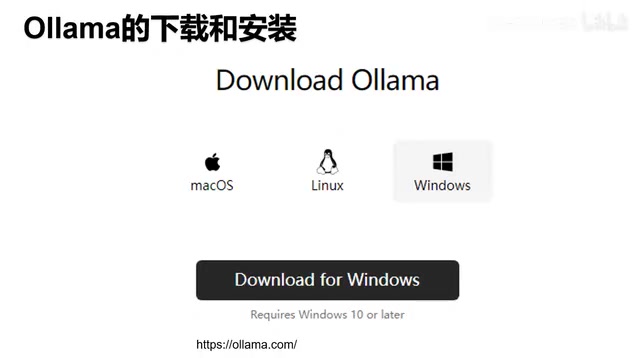
- Go to the Ollama official website (ollama.com) — the page design is very clean, with the download button being the most prominent element
- After clicking the download button, select the version corresponding to your operating system (Windows/macOS/Linux)
- Once downloaded, double-click the installer to begin installation
Installation Notes
Unlike other Windows software, Ollama's installer is extremely streamlined — there's no installation directory selection, no configuration parameters to set. The only thing you need to do is click the "Install" button. Due to the relatively large file size, the installation process may take a few minutes.
Verifying Successful Installation
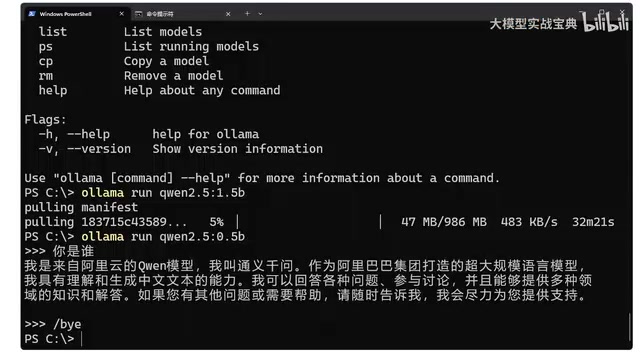
After installation, open Command Prompt (CMD) and type the ollama command. If the installation was successful, the system will display Ollama's information and a list of available commands, including:
ollama list: View deployed modelsollama ps: View currently running modelsollama run: Deploy or run a model
Deploying Your First Model
Choosing the Right Model
Go to the Ollama website and click the "Models" menu to see a list of all supported models. Currently supported models include Meta's (Facebook) Llama series, Google's Gemma, Alibaba's Qwen, and many other mainstream open-source models.
Overview of Major Open-Source Models
The open-source models currently supported by Ollama each have their own strengths: Meta's Llama series (latest being Llama 3.1) is the most influential foundation model in the open-source community, excelling at English tasks; Google's Gemma series is lightweight and efficient, suitable for resource-constrained scenarios; Alibaba's Qwen (Qwen2.5) excels in Chinese understanding and generation, making it particularly friendly for Chinese-speaking users; Mistral AI's models achieve performance beyond expectations with small parameter counts. Additionally, there are models focused on code generation such as DeepSeek Coder and CodeLlama. These models use different open-source licenses, with some allowing commercial use (such as Llama 3.1 and Qwen2.5) — users should pay attention to license terms when making their selection.
Taking Alibaba's Qwen2.5 as an example, clicking into it reveals multiple versions to choose from: 0.5B, 1.5B, 3B, 4B, etc. Here, "B" represents the model's parameter count (in billions) — more parameters mean stronger capabilities, but also higher hardware requirements.
Understanding Model Parameters and Quantization
The "B" in model parameter counts stands for Billion, representing the number of trainable weights in the model. More parameters mean the model can capture richer language patterns and knowledge, but correspondingly requires more memory (RAM/VRAM) to load. For example, a 7B model at FP16 precision requires approximately 14GB of VRAM. To enable large models to run on ordinary hardware, the industry widely adopts quantization technology — compressing model weights from 32-bit or 16-bit floating-point numbers to 8-bit, 4-bit, or even lower-precision integer representations. Ollama uses 4-bit quantization (Q4) by default, which allows a 7B model to run with only about 4-5GB of memory, dramatically lowering the hardware barrier. While there is slight precision loss, it has minimal impact on everyday use.
Selection advice: If you're just learning and experimenting, start with smaller parameter versions (such as 0.5B or 1.5B), which have lower hardware requirements and faster download times.
One-Click Model Deployment
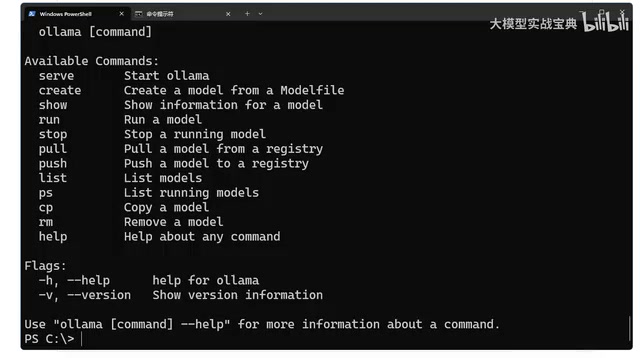
After selecting a model version, the corresponding deployment command will appear on the right side of the page, for example:
ollama run qwen2.5:0.5b
Simply copy this command into your command prompt and execute it. On first run, Ollama will download the model file (the 0.5B version is about 400+ MB). Once the download is complete, a success message will appear, and you'll automatically enter conversation mode.
Start Chatting with the Model
Once in conversation mode, you can interact directly with the model. For example, type "Who are you?" and the model will respond with a self-introduction. The experience is essentially the same as using ChatGPT or similar products online, except all computation happens locally.
Advanced: Adding a Visual Interface to Ollama
While the command-line interface is fully functional, it's not user-friendly for most people. In practice, we'd prefer a beautiful, easy-to-use graphical interface. The community currently offers several open-source Ollama frontend projects, such as Open WebUI, which provides a ChatGPT-like web interaction experience for Ollama.
Open WebUI and the Visual Frontend Ecosystem
Open WebUI (formerly Ollama WebUI) is currently the most mature graphical frontend for Ollama. It provides a web interface nearly identical to ChatGPT, supporting multi-turn conversations, conversation history management, model switching, file uploads, RAG (Retrieval-Augmented Generation), and other advanced features. Installation is typically done via Docker with a single command:
docker run -d -p 3000:8080 --add-host=host.docker.internal:host-gateway ghcr.io/open-webui/open-webui:main
Besides Open WebUI, the community also offers Chatbox (desktop client), LobeChat (supports plugin extensions), Jan (privacy-focused), and many other options. Users can choose the frontend tool that best suits their needs.
Summary
Deploying a local LLM with Ollama from scratch requires just three core steps:
- Download and install the Ollama client
- Choose a suitable model from the official website
- Execute the
ollama runcommand to complete deployment
The entire process is very beginner-friendly and requires no programming knowledge. For users who want to experience AI models locally, protect data privacy, or develop offline, Ollama is one of the simplest and most user-friendly solutions available today.
Key Takeaways
- Ollama is an open-source, free local LLM management platform that supports offline operation and protects data privacy
- Installation is minimal — just download the installer and click Install
- The
ollama runcommand enables one-click model download and deployment, supporting mainstream open-source models like Qwen and Llama - Larger parameter counts (B) mean stronger capabilities but higher resource consumption — beginners should start with smaller versions
- Ollama is built on llama.cpp and uses 4-bit quantization by default to dramatically lower hardware requirements
- Pair it with visual frontends like Open WebUI for a more user-friendly interaction experience
Related articles
 Tutorials
Cursor + Codex Dual-IDE Collaboration: A Practical Methodology for Open-Source Project Customization
A complete methodology for open-source project customization based on real-world experience, detailing the Cursor+Codex dual-IDE workflow, seven-stage process, MVP validation, and AI source code reading techniques.
 Tutorials
Cursor Multi-Agent in Practice: Building a Full-Stack Next.js Blog in 50 Minutes
Build a full-stack blog in 50 minutes using Cursor IDE's multi-Agent mode with Next.js, Clerk auth, and Supabase. Learn the 4-phase AI Agent workflow and key integration pitfalls.
 Tutorials
Building an AI Software Factory from Scratch: A Cursor Engineer's Hands-On Experience with Multi-Agent Collaboration
Cursor engineer Eric shares practical insights on building an AI software factory: automation levels, guardrail design, parallel Agent management, and scaling to 1000+ Agents for 24/7 development.