PawzoChat Cloud Deployment Tutorial: Complete Guide to Connecting an AI Virtual Companion to WeChat
Step-by-step guide to deploying PawzoChat on a cloud server for 24/7 WeChat AI companion chat.
This tutorial walks through the complete process of deploying PawzoChat on a Windows cloud server to create a 24/7 AI virtual companion on WeChat. It covers purchasing and connecting to a cloud server, configuring the API provider and AI character, binding WeChat, and setting up port forwarding and remote access for mobile management.
Introduction
PawzoChat (Puzzle Chat) is a tool that connects AI large language models to WeChat, enabling 24/7 virtual character chat with support for MCP protocol, image recognition, image generation, Moments posting, and other rich features. By deploying on a cloud server, users can keep their AI character online around the clock and interact with it anytime via WeChat.
This article provides a detailed walkthrough of PawzoChat's cloud deployment process based on a tutorial shared by Bilibili creator "Shao Hui," covering server purchase, software configuration, character creation, and remote access setup.
1. Preparation: Purchasing a Windows Cloud Server
1.1 Choosing a Cloud Server
PawzoChat requires a Windows environment, so the first step is purchasing a Windows cloud server. The tutorial recommends the "Rainyun" platform for its cost-effectiveness and ease of use.
Step-by-step instructions:
- Go to the Rainyun official website and register an account
- Click "Cloud Server" → "Purchase Cloud Server"
- Region selection: Choose a node geographically close to you or with lower pricing (e.g., Jiangsu)
- Configuration: The KVM standard tier is sufficient
- Operating system: Windows Server 2022 Datacenter Edition
- Pre-installed software: Select Puzzle Chat (Rainyun offers a one-click pre-installation option)
New users can reduce costs through coupons and new user promotions. WeChat binding and identity verification must be completed before purchase.
1.2 Connecting to the Cloud Server
After purchase, connect to the cloud server via Remote Desktop:
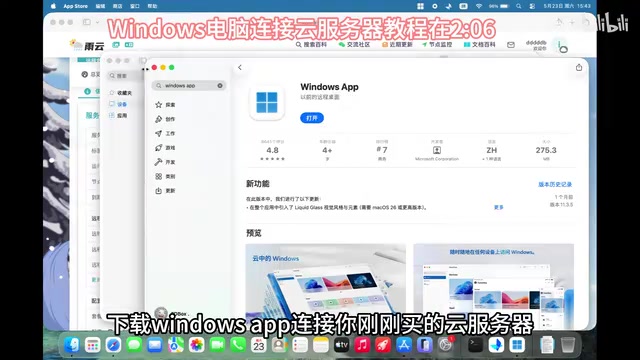
- Mac users: Download "Windows App" from the App Store, click the top-right button to add a computer, enter the server IP and credentials (username/password) to connect
- Windows users: Search for "Remote Desktop" in the Start menu, enter the remote connection address, and provide the username and password to access
If you're using Rainyun with PawzoChat pre-installed, the Puzzle Chat folder will appear directly on the desktop after connecting — just double-click to run. If using a different cloud provider, you'll need to manually download the Windows version of PawzoChat, upload it to the server, extract it, and run it.
2. PawzoChat Initial Configuration
2.1 Configuring the API Provider
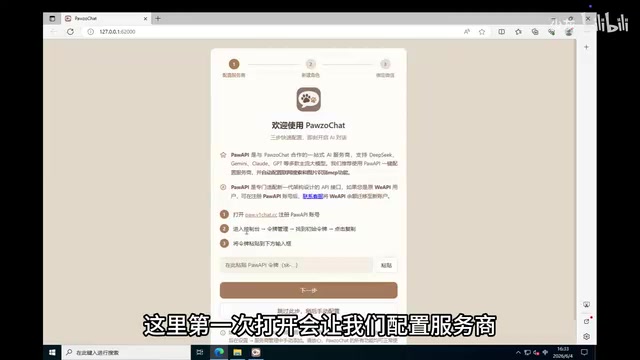
When you first open PawzoChat, a setup wizard will guide you through configuring the AI model's API interface. The tutorial recommends using Power API as the provider:
- Go to the Power API official website, register and log in
- Enter the console and click "Token Management" on the left sidebar
- Copy the initial token's secret key
- Paste the key into PawzoChat's configuration page
- Click "Next" to complete the API setup
Through Power API, you can access multiple large models including DeepSeek, and flexibly switch between them based on your needs.
2.2 Creating an AI Character
After configuring the API, the next step is creating your virtual character. PawzoChat offers several character creation methods:
- Manual writing: Enter custom character descriptions and personas
- Import community personas: Use character configurations shared by other users
- One-sentence generation: Let AI automatically draft a character persona
If you choose the AI generation method, the workflow is:
- Select a model (e.g., DeepSeek)
- Enter your desired character description, such as "Generate the persona of [character name] from [game name]"
- Click "Generate" and wait a moment to receive a complete character profile
2.3 Binding WeChat
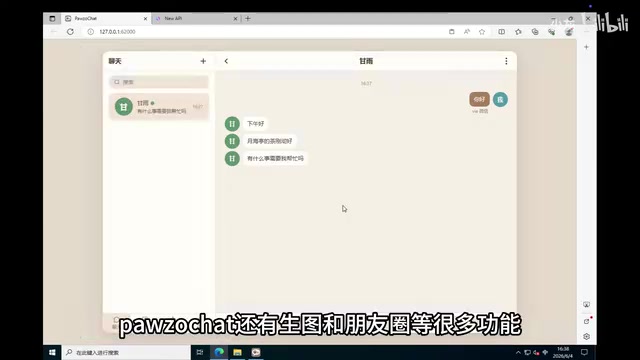
Once the character is created, scan the QR code with WeChat to bind it. After successful binding, you can test the chat to confirm the AI character responds to messages properly.
Beyond basic chat, PawzoChat also supports image generation and Moments features among other extensions. Users can gradually explore these after mastering the basics.
3. Port Opening and Remote Access Configuration
The core advantage of cloud deployment is being able to manage PawzoChat from your phone anytime, anywhere. To achieve this, network access permissions must be properly configured.
3.1 PawzoChat Network Settings
- Go to PawzoChat's "Settings" → "Network Settings"
- Set a public access password (for security)
- Toggle on "Open to Public Network"
- Critical step: Close the current page and PawzoChat's main process window, then restart the software. The port opening only takes effect after restarting — this is essential to remember
3.2 Configuring Windows Firewall
After restarting, return to the network settings page, copy the displayed port number, then configure the firewall rules:
- Click the Start menu and open "Server Manager"
- Click "Tools" at the top → "Windows Defender Firewall with Advanced Security"
- Click "Inbound Rules" → "New Rule"
- Select "Port" and paste the port number shown in PawzoChat
- Click Next through the remaining steps, give it any name, and finish creating the rule
3.3 Identifying IP Type and Configuring Access Links
This step requires different approaches depending on your server's IP type:
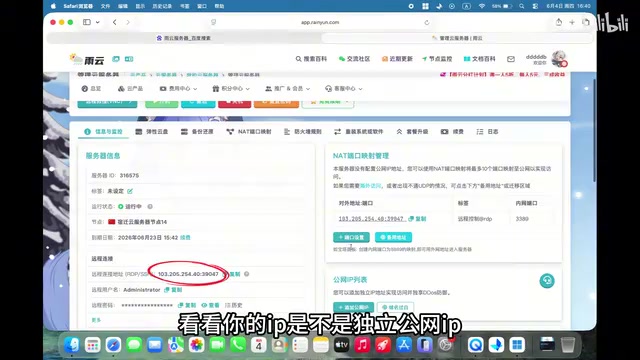
Scenario 1: Dedicated Public IP (format: xxx.xxx.xxx.xxx)
- Copy the access link displayed in PawzoChat
- Replace the IP in the link with the public IP shown in the Rainyun panel
- Open the link in your phone's browser to access it
Scenario 2: Shared Public IP (NAT forwarding)
- Go to Rainyun's "NAT Port Mapping Management" page
- Click "Port Settings" → "New Rule"
- Enter PawzoChat's port number in the "Internal Port" field and create the mapping rule
- Copy the public access link shown at the bottom of PawzoChat's page
- Replace the IP and port in the link with the public address generated by the NAT rule
Important note: The access link prefix must be https — using http will not work. When accessing from your phone for the first time, you may see an "untrusted link" warning — just tap "Continue" to proceed.
4. Usage Tips and Considerations
Security
- Always set a public access password to prevent unauthorized access to your PawzoChat panel
- Regularly check your cloud server's security status to avoid malicious exploitation
Stability
- The biggest advantage of cloud deployment is 24/7 uptime without keeping a local computer running
- Choose a reliable API provider to ensure continuous AI responses
Cost Control
- Select an appropriate server configuration based on actual usage frequency — the KVM standard tier is sufficient for PawzoChat
- API calls incur additional costs, so monitor your token usage
Conclusion
PawzoChat's cloud deployment solution enables AI virtual characters to be online 24/7 on WeChat. The entire deployment process can be summarized in four steps: purchase a cloud server → configure the API and character → bind WeChat → open ports for remote access. For users who want to experience an AI virtual companion or role-playing, this is a feature-rich and relatively beginner-friendly solution. Note that when using such tools, you should comply with relevant platform usage policies and use AI technology responsibly.
Related articles
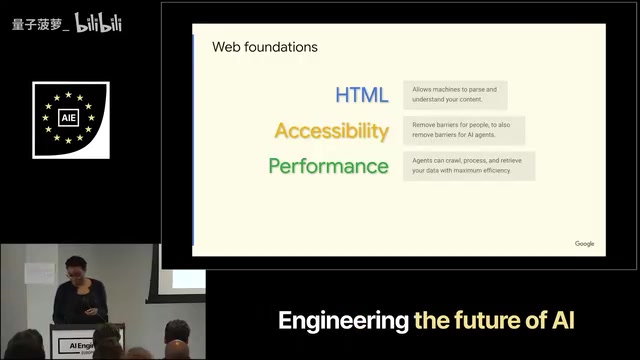
What Is Google WebMCP? A Deep Dive into the New Standard for AI Agents to Directly Invoke Web Functionality
A deep dive into Google WebMCP (Web Model Context Protocol): how it works, its technical implementation, and use cases. Learn how WebMCP lets AI Agents directly invoke web tools.
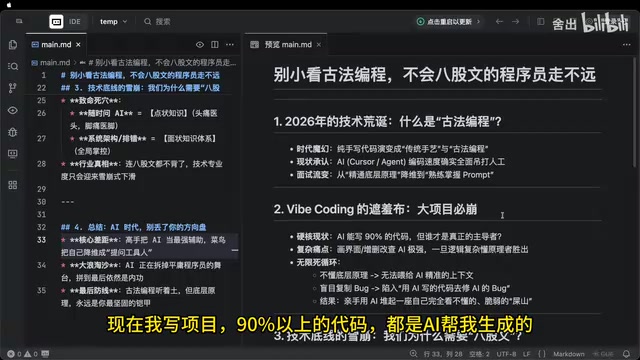
AI Can't Kill Old-School Programming: Why Fundamentals Are Still a Developer's Moat
Vibe Coding is trending, but can it replace solid fundamentals? A deep analysis of why core principles, systems thinking, and knowledge frameworks remain a developer's moat in the AI era.
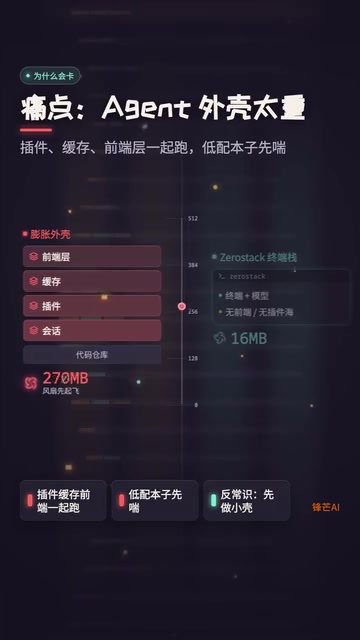
ZeroStack: An In-Depth Look at the Rust-Based Minimalist Coding Agent That Uses Only 16MB of RAM
In-depth review of ZeroStack, a Rust-based coding agent using only 16MB RAM. Analyzing its file I/O, multi-model support, permission controls, and ideal use cases.