Practical Guide to Configuring 6 Major AI Coding CLI Tools on Windows
Step-by-step Windows setup guide for 6 major AI coding CLI tools with API proxy configuration.
This practical guide walks through configuring six major AI programming CLI tools on Windows: Claude Code, GitHub Copilot CLI, OpenAI Codex (CLI + Desktop), Trae, and OpenCode. It covers essential setup details including system environment variables, OpenAI-compatible API configuration, API proxy platforms for unified model access, and common pitfalls like terminal restart requirements.
Introduction
With the explosive growth of AI programming tools, more and more developers are turning to CLI (Command Line Interface) AI coding assistants to boost their development efficiency. CLI-based AI coding assistants represent a third interaction paradigm alongside IDE plugins and web interfaces. Unlike AI assistants integrated into editors like Cursor and Windsurf, CLI tools run directly in the terminal, where developers interact with AI through natural language commands, and the AI can directly read, modify project files, and execute commands. This approach doesn't depend on any specific editor, works with any development environment, and is particularly well-suited for use in remote servers, Docker containers, and other GUI-less environments. In the first half of 2025, with the successive releases of Claude Code and GitHub Copilot CLI, CLI-based AI programming tools entered an explosive growth phase.
However, configuring these tools on Windows often comes with various challenges — environment variable setup, API compatibility, login authentication, and more — which can be daunting for many users.
Based on a hands-on demonstration by a Bilibili content creator, this article covers the complete configuration process for Claude Code CLI, GitHub Copilot CLI, OpenAI Codex (CLI + Desktop), Trae, and OpenCode — six mainstream AI programming tools on Windows — to help you get up and running quickly.
OpenCode: The Simplest Setup to Get Started
OpenCode is probably the easiest to configure among all these tools. It doesn't require any login — you just need to focus on a few key fields in the configuration file.
Here are the configuration steps:
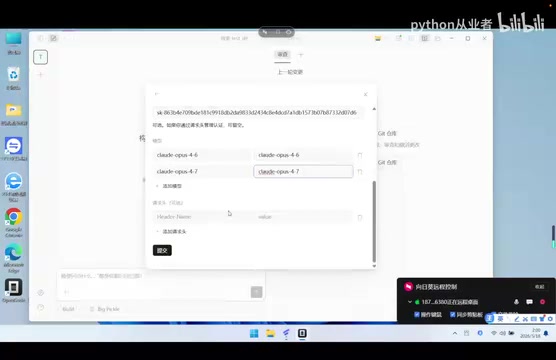
- After opening OpenCode, go to the settings interface and find the Provider option
- Customize a provider name and enter the API domain
- Enter your API Key (a single key can access all models on the platform)
- Set the Model ID — pay special attention here: the Model ID must exactly match the model name on the platform
The "one key to access all models" capability mentioned here relies on API proxy platforms. These platforms (such as OpenRouter, one-api, etc.) act as an intermediary layer between developers and multiple AI model providers, unifying APIs from different vendors like Claude, GPT, and Gemini into an OpenAI-compatible format. Developers only need to top up on one platform to access all integrated models. These platforms also provide load balancing and failover capabilities — when an upstream API experiences issues, they can automatically switch to backup routes.
Once configured, OpenCode is ready to use. It supports multi-turn conversations for code generation and modification, and testing confirms normal responses with models like GPT-4o.
GitHub Copilot CLI: Environment Variables Are Key
The configuration approach for Copilot CLI is very similar to Claude Code, with the core difference being how environment variables are set.
Environment Variables to Configure
Copilot CLI requires approximately 5 environment variables:
- Auto-update switch: Set to FORCE
- API domain: Enter your proxy platform domain
- API Key: Enter your assigned key
- Model name: Specify the default model to use
- Compatibility mode: Set to OpenAI-compatible format
Setting Environment Variables on Windows
There's a critically important detail here: environment variables must be set as system environment variables, not user environment variables.
Windows environment variables are divided into two levels: "User variables" and "System variables." User variables only apply to the currently logged-in user, while system variables apply to all users and system services. Some CLI tools read environment configurations as system-level processes at startup, and if variables are only set at the user level, they may fail to load due to permission or loading order issues. Additionally, Windows environment variable changes don't propagate in real-time to already-open terminal processes — each CMD or PowerShell window takes a "snapshot" of the current environment variables at launch, and subsequent changes won't affect existing windows. This is why you must reopen CMD. On macOS/Linux, the equivalent operation is modifying ~/.bashrc or ~/.zshrc and then running the source command.
Navigation path: Settings → System → Advanced System Settings → Environment Variables → System Variables
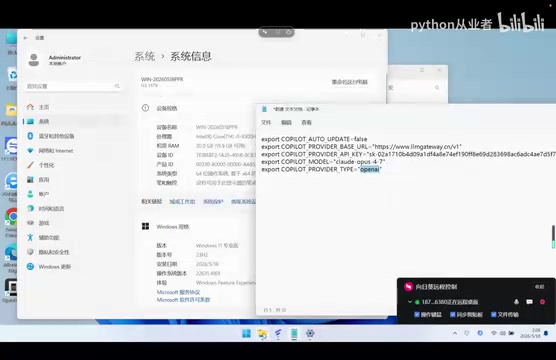
After making changes, you must open a new CMD window — the previous CMD window won't pick up the changes. Once reopened, Copilot CLI no longer requires login authentication and can be used directly.
OpenAI Codex: Dual Configuration for CLI and Desktop
Codex CLI Configuration
Codex CLI configuration has a unique aspect. All AI programming tools store their configuration files in hidden folders under the user's home directory. The Codex configuration file path is ~/.codex/configure.toml. The ~ (tilde) is a Unix/Linux shorthand for the current user's home directory, which on Windows typically corresponds to C:\Users\YourUsername\. Folders starting with a dot (like .codex) are hidden folders in Unix systems. While Windows doesn't follow this convention, these tools still use this naming pattern, so you'll need to enable "Show hidden items" in File Explorer to see them. TOML (Tom's Obvious Minimal Language) is a configuration file format that's more readable than JSON and stricter than YAML, and has been adopted by an increasing number of development tools in recent years.
You need to add the following configuration items at the end of this file:
- Model name
- API platform address
- API Token
- Request format (OpenAI Response format)
The "OpenAI Response format" mentioned here is a new-generation API response format introduced by OpenAI in 2025, which differs from the traditional Chat Completions format. Some tools require explicitly specifying this format to function properly.
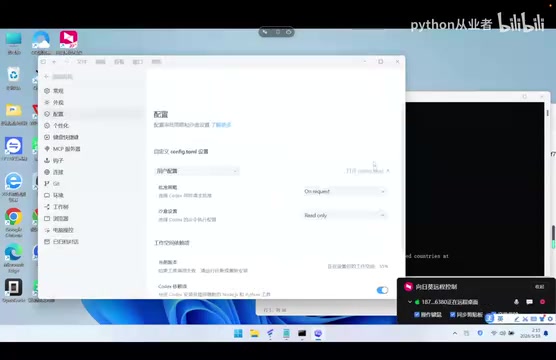
After saving, reopen CMD and enter Codex to see that the default model has switched to your configured model (e.g., GPT-4.5).
Codex Desktop Configuration
The good news for Codex Desktop is: if you've already configured the CLI configuration file, the desktop app will automatically read the same configuration — no need to set things up again.
On first launch, you may see a login screen, but after it finishes loading, simply click "Skip" to enter the main interface and start using it.
Claude Code CLI: Three Parameters and You're Done
Claude Code CLI configuration also relies on environment variables. Refer to the API documentation for three core parameters:
- API Base URL (SWB domain)
- API Key
- Model parameter
Add these three environment variables to your system variables, reopen the terminal, and you're ready to go. Once configured, you can freely switch between different models in Claude Code, including Sonnet 4, Opus, and others.
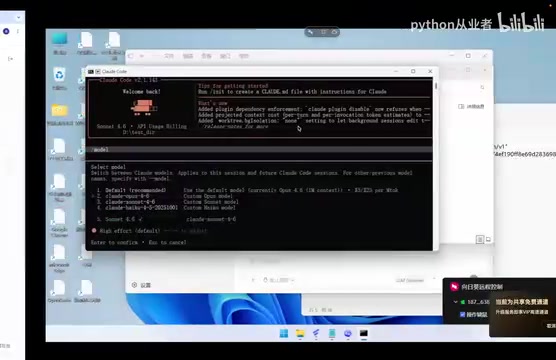
It's worth noting that a single API Key supports calls to all models — you just need to pass different model parameters in your requests, which greatly simplifies the configuration process.
Trae: Custom Model Addition
Trae's configuration approach is similar to OpenCode, but it requires logging into an account first before you can use it. After successfully logging in, add custom models through the following steps:
- Go to Settings → Model Management
- Click "Add Model" and select custom configuration
- Currently supports OpenAI Chat compatible format
- Enter the API domain, Model ID, and API Key
The "OpenAI-compatible format" (OpenAI-compatible API) supported by nearly all tools is the de facto standard in the current AI tool ecosystem. OpenAI originally defined a set of RESTful API specifications, including endpoints like /v1/chat/completions, the messages array format, and the role/content field structure. Due to OpenAI's first-mover advantage, virtually all subsequent large model providers (such as Anthropic, Google, and various open-source model deployment frameworks like vLLM and Ollama) offer interfaces compatible with this format. API proxy platforms leverage this by wrapping models from different vendors into OpenAI-format interfaces, allowing developers to configure just one API address and key to seamlessly switch between different models.
Note that Trae may experience some delay when adding custom models — just be patient. Once successfully added, Trae will automatically read the entire project's document structure and generate code based on context.
Configuration Summary and Tool Comparison
Universal Configuration Principles
After hands-on configuration of all six tools, several universal principles emerge:
- Unified API Key: Use an API platform that supports multiple models — one key to access them all
- OpenAI-compatible format: Nearly all tools support OpenAI API compatibility mode
- Exact Model ID matching: Model names must exactly match the identifiers on the platform
- System environment variables first: On Windows, always set system variables rather than user variables
- Restart terminal to apply: You must reopen CMD after modifying environment variables
A Note About Cursor
The video specifically mentions that Cursor requires a Pro subscription to use third-party specified models, which is why it wasn't demonstrated. This is an important distinction between Cursor and other CLI tools — it has a higher barrier to entry for third-party model integration.
This reflects the ongoing battle between two business models in AI programming tools. IDE-based tools like Cursor and Windsurf adopt a "closed platform + subscription" model, deeply integrating AI capabilities into the editor, covering model invocation costs through subscription fees while limiting users' ability to bring their own API keys. CLI tools like Claude Code and Copilot CLI adopt an "open interface + bring your own key" model, where users can freely choose their model providers and API sources. The former offers the advantage of being ready out of the box with a consistent experience; the latter offers high flexibility and controllable costs. For heavy users, bringing your own key through an API proxy platform often results in lower long-term costs compared to subscriptions — this is one of the key reasons CLI tools have been gaining widespread attention recently.
API Compatibility Notes
Mainstream API proxy platforms have now achieved comprehensive interface compatibility, including support for the Azure Topic interface used by GPT-4.5 and others. The "Azure Topic interface" mentioned here refers to specific API endpoints from Microsoft's Azure OpenAI Service — models like GPT-4.5 deployed through Azure channels use an interface format slightly different from OpenAI's official one, and proxy platforms have already handled these differences. This means developers can connect to various AI programming tools in a unified way without configuring different API routes for each tool separately.
Final Thoughts
For Windows users, configuring AI programming CLI tools does require a few more steps compared to macOS/Linux, especially when it comes to environment variable setup. But once configured, the usage experience is consistent across platforms. Beginners are recommended to start with OpenCode (simplest configuration) and gradually try other tools to find the one that best fits their workflow.
Key Takeaways
Related articles

A Gen-Z Woman Making $1.5M/Month: Deconstructing the Growth Methodology Behind AI Apps
Gen-Z indie dev Nicole built 4 hit AI apps earning $1.5M/mo. Deep dive into her industrialized UGC engine, traffic testing system, and minimalist tech stack.
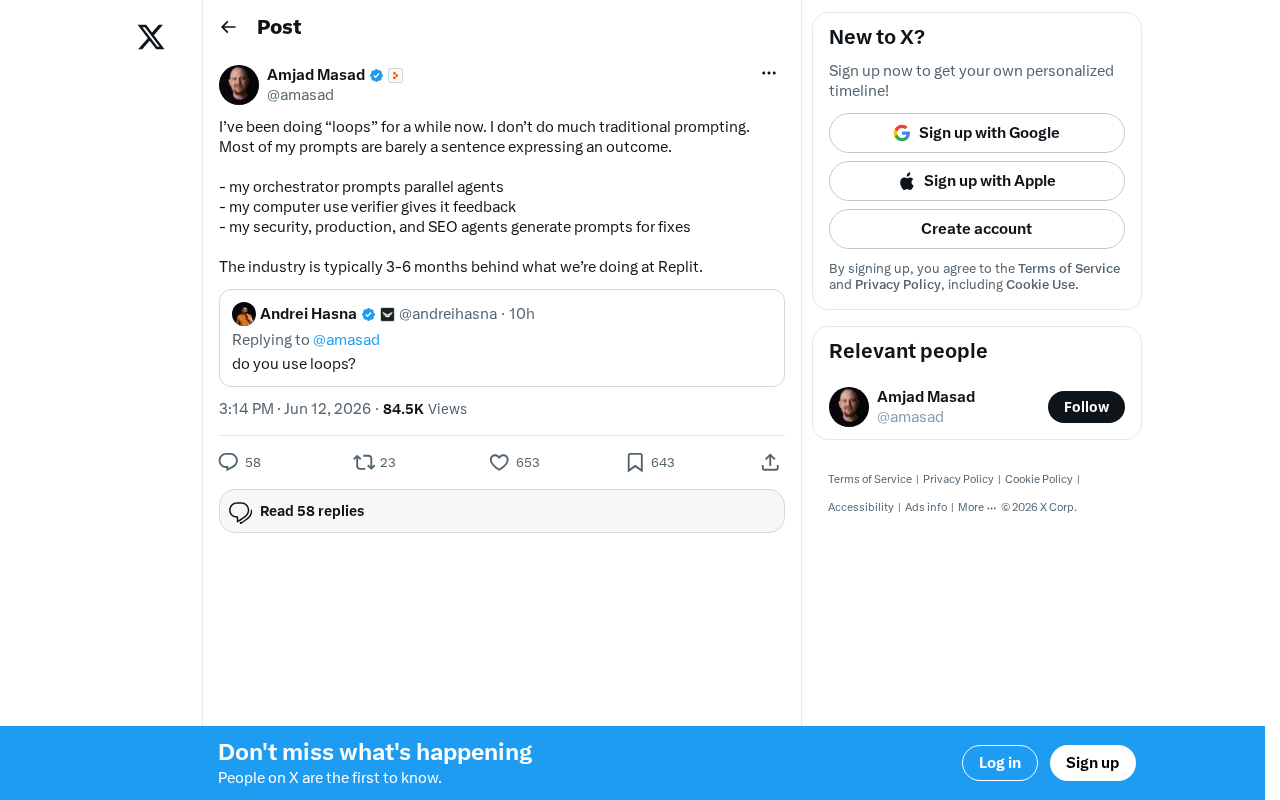
Replit's AI Loops Workflow Explained: Multi-Agent Collaboration Replaces Prompt Engineering
Deep dive into Replit's AI Loops workflow: how orchestrators, parallel agents, and Computer Use Verifiers build automated closed-loop systems through multi-agent collaboration.

Claude Code + Skills: A Practical Guide to AI-Powered Test Case Generation
Learn how to use Claude Code + Skills to auto-generate enterprise-grade test cases. Covers AI Agent vs LLM differences, the four core capabilities, and the complete workflow from requirements to test cases.