Practical Guide to Configuring MCP Servers and Extensions in Gemini CLI
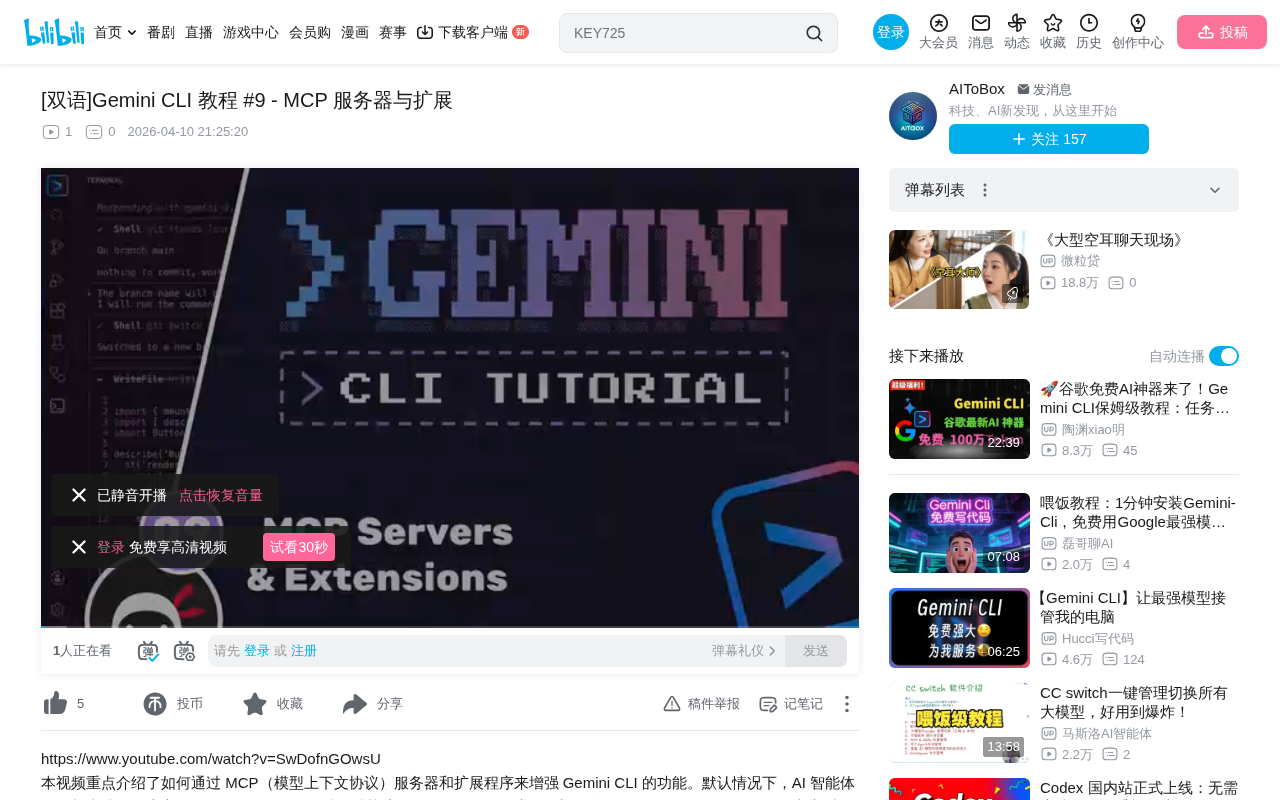
Complete guide to connecting external services to Gemini CLI via MCP servers and extensions
This article explains how MCP (Model Context Protocol) works and demonstrates its practical configuration in Gemini CLI. MCP is an open protocol by Anthropic that solves the combinatorial explosion problem of integrating AI clients with external services through a unified communication standard. Using Context7 (real-time documentation queries) and Firebase extensions as examples, the article walks through MCP server configuration, secure key management, and the differences and selection strategies between MCP servers and extensions.
Gemini CLI is powerful on its own, but by default it can only interact with local code. If your project depends on external services like Firebase or Supabase, you'll need MCP servers to extend its capabilities. This article explains how MCP works in detail and demonstrates the complete configuration workflow using Context7 and Firebase extensions as examples.
What Is an MCP Server
MCP (Model Context Protocol) is an open protocol proposed by Anthropic, specifically designed to enable standardized communication between AI clients and external services. Its core mechanism is straightforward: an MCP server exposes a set of Tools to the AI, where each tool is essentially a function responsible for sending requests to external services and returning results.
MCP was officially released by Anthropic in late 2024, drawing design inspiration from the "adapter pattern" in software engineering and the API gateway concept in microservices architecture. Before MCP, every AI tool vendor had to write separate integration code for each external service, leading to an N×M combinatorial explosion—if you had 10 AI clients and 20 external services, you'd need 200 independent integration modules. MCP simplifies this to N+M (i.e., 30 implementations) by defining a unified communication protocol: each AI client only needs to implement the MCP client protocol once, and each external service only needs to provide one MCP server implementation. The protocol is based on the JSON-RPC 2.0 transport format and supports two transport methods: stdio (standard input/output) and HTTP+SSE (Server-Sent Events)—the former for local inter-process communication, the latter for remote service calls.
Taking the Firebase MCP server as an example, it exposes tools like Firebase List Projects. When Gemini needs information about your Firebase projects, it requests the MCP server to run the corresponding tool, then decides on next steps based on the results.
Here's a key point to understand: the AI model doesn't directly access external services—it only knows about the tool context provided by the MCP server. All interactions with external services are completed through the MCP server as a middle layer. This design brings significant security advantages—the AI model never directly holds database credentials or API keys; all sensitive operations are performed on the MCP server side, and the model only receives processed result data.
Hands-On: Adding the Context7 MCP Server
Context7 is a service that aggregates the latest documentation for mainstream frameworks, covering popular tech stacks like Next.js, React, Vue, and Tailwind. Through its MCP server, Gemini can query official documentation in real time, avoiding outdated or incorrect code generation due to stale training data.
This addresses a core challenge in AI application development: large models have an inherent knowledge cutoff in their training data, meaning the model knows nothing about framework versions, API changes, and best practices released after that date. For example, a model with training data cut off in early 2024 might not know about Next.js 15's Server Actions improvements or Vue 3.5's reactivity optimizations. Context7 provides a real-time document retrieval layer by continuously crawling and indexing official documentation. This is essentially a concrete application of the RAG (Retrieval-Augmented Generation) pattern in the development toolchain—first retrieving relevant document snippets, then injecting them as context into the model's reasoning process to generate accurate answers based on the latest information.
Prerequisites
Before starting configuration, complete the following preparations:
- Register a free account at Context7.com
- Create an API Key in the Dashboard and save it securely
- Visit Context7's GitHub repository and find the configuration code snippet for Gemini CLI
Configuration Steps
Add the MCP server configuration in the settings.json file at your project root. To avoid leaking API Keys to public repositories, it's recommended to use a .env file to manage sensitive information:
# .env
CONTEXT7_API_KEY=your_api_key
Then reference the environment variable in settings.json via ${CONTEXT7_API_KEY}. After configuration is complete, exit the current Gemini session and restart it, then run the /mcp command to verify whether the server has been successfully added.
A few more words on security practices for key management: in modern development workflows, hardcoding sensitive credentials into configuration files is one of the most common security vulnerabilities. GitHub's Secret Scanning reports show that millions of keys are accidentally committed to public repositories each year, including cloud service keys, database connection strings, and third-party API tokens. The .env file combined with .gitignore approach follows the third principle of the Twelve-Factor App methodology—store configuration in the environment, not in code. For team collaboration scenarios, you can also combine tools like dotenv-vault or 1Password CLI for encrypted key sharing, ensuring team members don't need to pass keys through insecure channels (like instant messaging tools).
Usage and Experience
Once successfully added, Context7 provides two core tools: getting library IDs and getting library documentation. You don't need to remember specific tool names—just ask in natural language:
"use context 7 to check I've set up vitest correctly for a nuxt app"
Gemini will automatically call the resolve_library_id and get_library_docs tools, requiring manual authorization on first run. After verification, it will provide accurate assessment results based on the queried official documentation.
The technical flow behind this process is: Gemini first parses the user's natural language intent, identifying the need to query Vitest configuration documentation in a Nuxt environment; then calls resolve_library_id to map "vitest" and "nuxt" to Context7's internal library identifiers; and finally retrieves the corresponding documentation snippets via get_library_docs. The entire process demonstrates the core capabilities of an AI Agent—Tool Selection and Multi-step Reasoning.
Pro tip: Add a rule in your project's Gemini instruction file (e.g., GEMINI.md) requiring Gemini to automatically consult Context7 documentation when implementing framework-specific features. This eliminates the need for manual reminders each time, significantly improving workflow efficiency. This approach is similar to setting a "System Prompt" for the AI, shaping its work habits through predefined behavioral rules.
Gemini CLI Extension System
Beyond manually configuring MCP servers, Gemini CLI also provides a unique Extensions mechanism. Extensions are pre-packaged feature bundles that may include:
- MCP server configurations
- Markdown-formatted context files
- Custom commands
Gemini CLI's extension mechanism draws from the design philosophy of VS Code Extensions and Homebrew Formulas—describing extension components through declarative manifest files, with the host program handling loading and lifecycle management. The core advantage of this architecture is decoupling: extension developers don't need to understand Gemini CLI's internal implementation details; they just need to package according to the agreed directory structure and configuration format for distribution. From a software engineering perspective, this is a typical application of the "Convention over Configuration" principle, lowering the barrier to ecosystem participation and encouraging the community to contribute more high-quality extensions.
Installing the Firebase Extension
The extension installation process is very concise—a single command does it all:
gemini extensions install <extension-URL>
Extensions are installed by default to the global ~/.gemini/extensions/ directory. This design is similar to npm's global module directory (/usr/local/lib/node_modules/) or Python's site-packages, ensuring extensions are available in any working directory without needing to be reinstalled in each project.
Using the Firebase extension as an example, after installation it provides three useful custom commands:
/firebase:consult— Consult the Firebase assistant for architecture advice/firebase:deploy— One-click deployment of Firebase resources/firebase:init— Initialize backend services and link them to frontend projects
These commands are essentially combinations of predefined prompt templates and MCP tool calls. For example, /firebase:consult likely concatenates your question with Firebase best practices documentation before sending it to the model, while authorizing the model to call relevant tools from the Firebase MCP server to obtain your current project's actual configuration, thereby providing targeted architecture recommendations.
Key Differences Between MCP Servers and Extensions
The advantage of manually configuring MCP servers lies in precise scope control—you can choose project-level or global configuration. Extensions are one-click global solutions, better suited for quick onboarding.
For example, Context7 can be added to a single project through manual MCP server configuration, or installed globally as an extension—the specific choice depends on your use case.
From a technical architecture perspective, the relationship between the two is similar to Docker Compose (manually orchestrating multiple services) versus Helm Charts (pre-packaged application deployment solutions): the former provides maximum flexibility and control, while the latter trades some customization capability for out-of-the-box convenience.
Recommendations for Choosing Between MCP Servers and Extensions
MCP servers are Gemini CLI's bridge to the external world, while extensions are higher-level abstractions built on top. In practice, consider the following principles when choosing:
- Core dependency services (e.g., databases, backend APIs): Configure via MCP servers at the project level to ensure different projects don't interfere with each other
- General development tools (e.g., documentation queries, code search): Global extensions are more convenient—install once, use everywhere
- API Key management: Always store via
.envfiles and add.envto.gitignoreto eliminate key leakage risks
Additionally, there are some advanced considerations worth noting: the number of MCP servers directly impacts Gemini's context window usage—each MCP server's tool descriptions are injected into the model's system prompt, and too many tool definitions may crowd out effective code context space. Therefore, it's recommended to only enable MCP servers that your current project actually needs, rather than enabling everything at once.
Once you've mastered the configuration of MCP servers and extensions, Gemini CLI is no longer limited to local code operations—it becomes an AI development hub capable of orchestrating various external services. As the MCP ecosystem continues to grow—with hundreds of community-contributed MCP servers now covering development tools from GitHub and Jira to Figma and Slack—the capability boundaries of AI-assisted development are being rapidly expanded.
Key Takeaways
- MCP (Model Context Protocol) is a protocol for AI clients to interact with external services—AI indirectly accesses external APIs by calling tool functions exposed by MCP servers
- The Context7 MCP server provides Gemini with the latest framework documentation, preventing AI from generating outdated code
- MCP server configuration supports both project-level and global-level scopes; API Keys should be securely managed via .env files
- Gemini CLI extensions are pre-packaged bundles of MCP servers, context files, and custom commands that can be installed with a single command
Related articles
 Tutorials
Cursor + Codex Dual-IDE Collaboration: A Practical Methodology for Open-Source Project Customization
A complete methodology for open-source project customization based on real-world experience, detailing the Cursor+Codex dual-IDE workflow, seven-stage process, MVP validation, and AI source code reading techniques.
 Tutorials
Cursor Multi-Agent in Practice: Building a Full-Stack Next.js Blog in 50 Minutes
Build a full-stack blog in 50 minutes using Cursor IDE's multi-Agent mode with Next.js, Clerk auth, and Supabase. Learn the 4-phase AI Agent workflow and key integration pitfalls.
 Tutorials
Building an AI Software Factory from Scratch: A Cursor Engineer's Hands-On Experience with Multi-Agent Collaboration
Cursor engineer Eric shares practical insights on building an AI software factory: automation levels, guardrail design, parallel Agent management, and scaling to 1000+ Agents for 24/7 development.