Pre-Installation Guide for Codex: Setting Up Git, Node.js, and VS Code
Complete guide to setting up Git, Node.js, and VS Code as prerequisites for installing OpenAI Codex.
Before installing OpenAI Codex, you need three prerequisite tools: Git for version control, Node.js for package management, and VS Code for code editing. This guide walks through downloading, installing, and verifying each tool step by step, including version requirements and troubleshooting tips. The entire setup takes about 10-15 minutes for beginners.
Why You Need These Prerequisites
Codex is an AI programming tool that doesn't provide code editing functionality on its own. When AI generates code and you need to make detailed modifications, you still rely on traditional development tools. Therefore, before installing Codex, you need to configure three prerequisite software packages: Git, Node.js, and VS Code.
Each serves a different purpose:
- Git: A collaborative development tool that nearly all AI development tools and Agents (such as Hermes Agent, Claude Code, etc.) depend on
- Node.js: Responsible for installing dependency packages and serves as the foundation of the runtime environment
- VS Code: A code editor — while not strictly required, it's highly recommended as it integrates well with Codex later on
Current AI programming tools fall roughly into three categories: embedded assistants (like GitHub Copilot, integrated directly into editors for code completion), standalone Agents (like Claude Code and Devin, capable of autonomously completing complex programming tasks), and hybrid tools (like Codex, combining conversational interaction with code generation capabilities). Although these tools have different functional focuses, they all rely on similar development infrastructure underneath — version control, package management, and code editors form the three pillars that AI programming tools run on. Understanding this helps you see why these three tools need to be set up before installing Codex.
Installing Git
Download and Installation
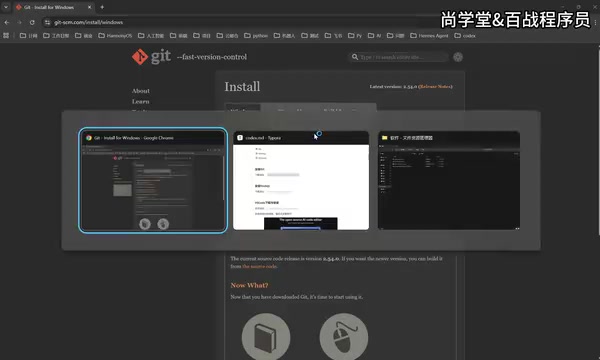
Git is the simplest of the three to install. Visit the Git official website, click "Install for Windows," then click "click here to download" to start the download.
After downloading, double-click the installer — the entire process is straightforward. Just keep clicking "Next" until it's complete. Git itself is small in size and installs quickly.
Background: What Is Git?
Git is a distributed version control system created by Linux creator Linus Torvalds in 2005. In simple terms, its core function is to record every modification made to code, allowing developers to freely switch between different versions and merge code branches. Think of it as a "time machine" for code — you can return to any previous state at any time.
In the AI programming tool ecosystem, Git plays a particularly critical role. Nearly all AI Agents use Git to manage code changes, track differences between AI-generated code and manual modifications, and ensure code is traceable and collaborative. When Codex generates code for you, Git helps you clearly see "what the AI changed," and if the results aren't satisfactory, you can revert to the pre-modification state with a single click.
Notes
If your network connection makes downloading slow, you can look for local mirror sources or offline installation packages. For developers, Git is an essential tool — regardless of whether you use Codex later, collaborative development requires it.
Installing Node.js
Download Options
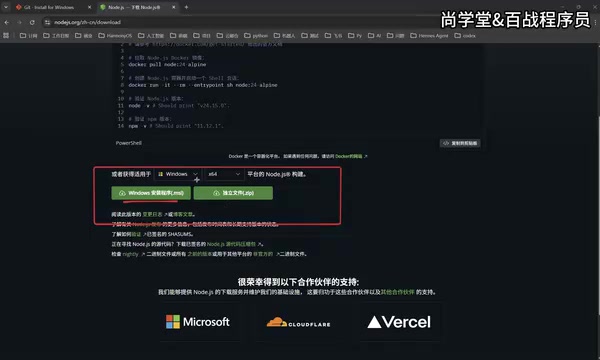
Visit the Node.js official website and click the "Get Node.js" button, then select the version corresponding to your operating system. The official site supports Windows, macOS, Linux, and other platforms.
Background: What Is Node.js?
Node.js is a JavaScript runtime environment built on Chrome's V8 engine, created by Ryan Dahl in 2009. It allows JavaScript to run beyond the browser — on servers and local computers. Node.js comes with npm (Node Package Manager), the world's largest open-source library ecosystem with over 2 million packages.
Codex depends on Node.js primarily because its CLI (Command Line Interface) tool and related dependency packages are distributed and managed through npm. When you later execute the command to install Codex, npm is actually downloading Codex's program package from the cloud and installing it locally. Think of npm as an "app store," and Node.js as the operating system that runs that store.
Version Requirements
Codex has no strict Node.js version requirements — just install the latest version. This differs from some other AI tools — for example, Claude Code has specific version requirements (typically Node 18 or above). The current latest version is 24.15; it's recommended to install the latest stable release directly.
Verifying the Installation
After installation, verify that Node.js was installed successfully:
- Press
Win + Rto open the Run dialog - Type
cmdto open the command prompt - Type
node -vand press Enter
If you see a version number output (such as v24.15.0), the installation was successful.
💡 Tip: If the command returns "is not recognized as an internal or external command," it's usually because environment variables weren't configured correctly during installation. The simplest fix is to reinstall Node.js, making sure to check the "Add to PATH" option during installation.
Installing and Configuring VS Code
Installation Process
Open the VS Code official website — it will automatically detect your system and recommend the corresponding version. Windows users can simply click "Download for Windows."
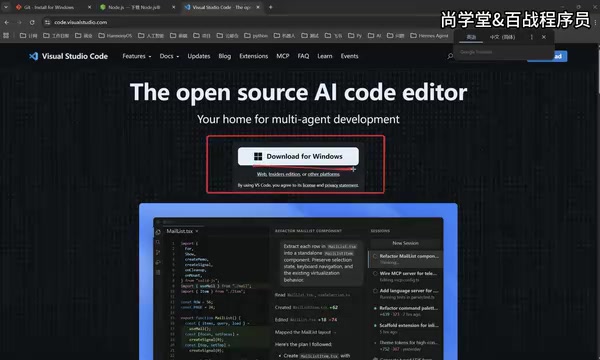
Installation is equally straightforward — just use the default installation path on the C drive. VS Code isn't large (about 400MB), so if your C drive has sufficient space, installing there is recommended. In practice, which drive you install software on has no significant impact on performance.
Background: Why VS Code?
VS Code (Visual Studio Code) is a free, open-source code editor released by Microsoft in 2015. It has become the most widely used editor among developers worldwide (with over 70% market share according to the Stack Overflow Developer Survey). Through its rich extension ecosystem, it supports virtually all programming languages and has deep integration with GitHub Copilot and various AI programming assistants.
VS Code's lightweight architecture is based on the Electron framework, combining desktop application performance with web technology flexibility. For Codex users, VS Code's value lies in its ability to directly open project files generated by Codex, providing syntax highlighting, error prompts, code formatting, and other features that let you quickly fine-tune and test code after AI generation. You can also install specific extensions later to achieve tighter workflow integration with Codex.
Configuring the Chinese Language Pack for VS Code
After installation, VS Code defaults to an English interface. If you need to switch to Chinese:
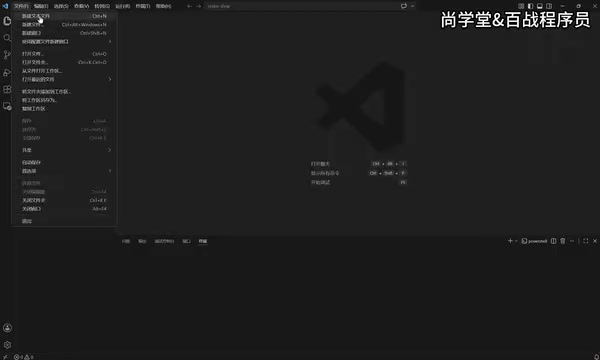
- Click the Extensions icon in the left sidebar (the icon with four small squares)
- Type
Chinesein the search box - Find "Chinese (Simplified) Language Pack" and click "Install"
- After installation, a restart prompt will appear in the bottom-right corner — click to restart
- After restarting, the interface will be in Chinese
💡 Tip: VS Code's extension marketplace has a wealth of useful plugins. When using Codex later, keep an eye on AI programming-related extensions — they can significantly boost development efficiency.
Installation Path Recommendations
Here are some practical tips regarding installation paths:
- When C drive space is sufficient (e.g., 80GB+ remaining), installing frequently used software directly on C drive is most convenient
- When C drive space is tight, you can install on other drives with no noticeable performance impact
- If you're worried about a full C drive affecting system speed, consider allocating a larger C drive partition when setting up your system
It's worth noting that modern solid-state drives (SSDs) have very fast read/write speeds — as long as all partitions are on the same SSD, performance differences between installation locations are negligible. What actually affects system speed is having too little free space on the C drive (below 10%), which restricts system cache and virtual memory operations.
Summary
Once Git, Node.js, and VS Code are all installed, your pre-installation preparation for Codex is complete. These three tools don't require additional configuration for now — you'll gradually use their respective features as you work with Codex.
A quick recap of how the three work together: Node.js's npm handles installing Codex itself, Git manages version control for code generated by Codex, and VS Code is your primary interface for viewing and editing code. Each serves its own role, together forming the foundational working environment for AI-assisted programming.
The next step is to proceed with the actual Codex installation. For complete beginners, the entire prerequisite setup process takes approximately 10-15 minutes to complete.
Related articles

Five Common Claude Code Mistakes — How Many Are You Making?
Five common Claude Code mistakes developers make: copy-pasting code, skipping CLAUDE.md, inefficient prompting, ignoring docs, and poor context management — with fixes.

Andrew Ng's New Course Explained: A Practical Guide to Using OpenAI's O1 Reasoning Model
Deep dive into Andrew Ng and OpenAI's Reasoning with O1 course covering test-time scaling, new prompting paradigms, multi-model orchestration, and practical applications for developers.

Learning AI After College Entrance Exams: A Complete Path from Zero to Freelancing
How to efficiently learn AI skills during summer break after exams? A complete path from mastering prompts and hands-on projects to freelancing on platforms.