PyCharm AI Assistant Deep Dive: Local Completion, Edit Mode & Practical Tips
PyCharm AI Assistant Deep Dive: Local …
PyCharm AI Assistant major update adds local AI models and Edit mode among other features
JetBrains has rolled out a major update to PyCharm AI Assistant, introducing free offline local AI code completion, cloud AI completion powered by the Malum LLM, and an Edit mode embodying the Human-in-the-Loop paradigm (supporting cross-file batch modifications with individual review). The AI Assistant panel integrates chat, prompt management, model switching, and web search, while differentiated context management strategies (automatic RAG retrieval in Edit mode, manual fine-tuning in Chat mode) optimize AI output quality.
JetBrains recently rolled out a major update to PyCharm's AI Assistant, introducing local AI models, an Edit mode, and several other features. This article provides a systematic overview of these new capabilities to help developers get started quickly and boost their coding efficiency.
Local AI Completion: Free, Offline, and Ready Out of the Box
PyCharm now ships with built-in local AI models—one of the most noteworthy changes in this update. These models offer three core advantages: completely free, runs locally, and requires no internet connection.
A Local AI Model refers to a machine learning inference engine that runs entirely on the user's device, with no need to upload code data to remote servers. These models typically use quantization compression techniques (such as GGUF, INT4/INT8 quantization) to shrink models that would otherwise be tens of gigabytes down to a size that runs smoothly on a standard laptop CPU or consumer-grade GPU. From a privacy perspective, local execution means that source code, business logic, API keys, and other sensitive information never leave the developer's physical device—a critical consideration for industries like finance, healthcare, and defense that have strict data compliance requirements.
For developers who prioritize code privacy or work in network-restricted environments, local AI completion is practically a must-have. The model focuses specifically on code completion tasks, delivering an experience similar to PyCharm's existing autocomplete but with noticeable improvements in semantic understanding and contextual inference. No additional configuration is needed—it works right after installing PyCharm.
As you use it over time, you'll find the local model increasingly feels like a coding partner that "gets you"—it doesn't just complete simple syntax structures but also provides suggestions that better match your intent based on the current code context.
Cloud AI Completion and Plugin Configuration
If the local model doesn't meet your needs, PyCharm also offers enhanced completion powered by cloud-based AI models. Cloud models have stronger reasoning capabilities and can handle more complex code generation tasks.

Enabling it is straightforward: click AI Assistant in the right panel, select "Install Plugin" to install the plugin, then log in with your JetBrains account. For more granular configuration, navigate to Settings → Tools → AI Assistant, or disable the feature entirely in the plugin settings.
AI Assistant Panel Features Explained
Once the plugin is enabled, the AI Assistant panel offers a rich set of interactive features:
- Chat: Ask programming questions directly and get code examples and solutions
- Context attachments: Attach files, commit records, and other information to optimize your prompts
- Custom prompts: Manage and reuse frequently used Prompt templates to reduce repetitive input
- Model selection: Freely switch between different AI models, or even connect your own local models
- Web search: Use the
/webcommand to invoke web search capabilities for the latest technical resources
The combination of these features transforms AI Assistant from a simple code completion tool into a comprehensive development assistant that integrates Q&A, generation, and search capabilities.
Code Generation Powered by the Malum LLM
AI Assistant's code completion and generation capabilities are powered by JetBrains' in-house large language model, Malum. Malum represents the mainstream technical approach in the code AI space—building on a general-purpose foundation model with continual pre-training and instruction fine-tuning using massive amounts of high-quality code data. Similar to GitHub Copilot's underlying Codex and Google's AlphaCode, these models specifically learn programming-specific knowledge such as code syntax structures, API call patterns, and test case writing conventions. This specialized training makes the model significantly outperform general-purpose conversational models in code completion accuracy, cross-file context understanding, and programming language switching, while also better understanding the structured context information provided by the IDE, such as AST (Abstract Syntax Tree), type signatures, and call stacks.
Developers can guide generation directly in code through natural language comments, or use built-in AI actions to automatically generate documentation comments and unit tests.
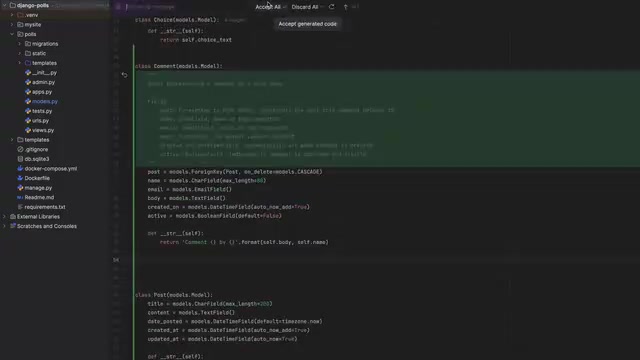
This design of deeply embedding AI capabilities into the coding workflow lets developers complete documentation and test writing while writing code, without frequently switching windows—resulting in a significant boost to overall development efficiency.
Chat Mode vs. Edit Mode: Two Ways to Collaborate
This update introduces a key concept—the mode selector, which currently includes two modes:
Chat Mode (Default)
Chat mode is suited for asking general programming questions. By default, the AI does not automatically reference code context from your project unless you manually enable the "code-based" button. This design gives developers full control over privacy and context.
Edit Mode (Beta)
Edit mode is the highlight feature of this update, embodying the important AI engineering safety paradigm of "Human-in-the-Loop" (HITL). Unlike fully autonomous AI Agents (such as Devin or OpenHands), HITL systems retain a human review step at every critical decision point, ensuring that every modification made by the AI receives explicit confirmation from the developer. This design has deep engineering rationale: large language models suffer from "hallucination" issues and may generate code that is syntactically correct but logically flawed; cross-file batch modifications have a wide impact scope, where a single error could trigger cascading problems.
In this mode, developers can ask the AI to make batch modifications across multiple files. Unlike JetBrains' AI Agent product Juni, Edit mode requires developers to review each change one by one, functioning more like an AI-assisted code refactoring workflow.
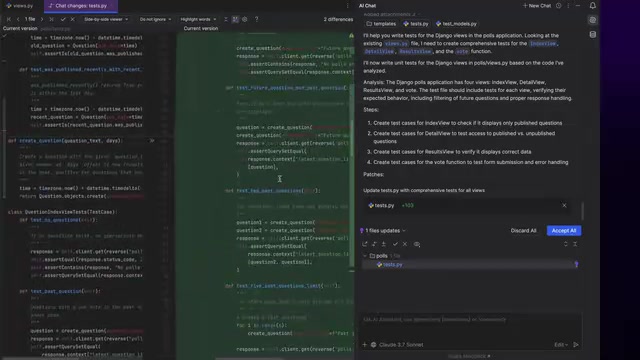
Thanks to PyCharm's built-in DiffViewer—a comparison tool that implements line-by-line change visualization based on the Myers diff algorithm—the change review experience is very smooth. Developers can clearly see before-and-after comparisons for each file and decide whether to accept or reject each modification. This design ensures code quality controllability while maintaining efficiency.
Context Management: The Key to AI Output Quality
The quality of AI model output largely depends on the input context, which involves the core technical constraint of large language models' "Context Window." Current mainstream models have context windows ranging from 8K to 200K tokens, but stuffing an entire code repository into the context is neither practical nor beneficial for the model's attention quality. To address this, PyCharm AI Assistant implements differentiated context management strategies:
- Edit mode: The system employs techniques similar to RAG (Retrieval-Augmented Generation), building semantic indexes of project files and automatically retrieving the most relevant code snippets to inject into the context during generation, reducing manual effort
- Chat mode: Control is returned to the developer, supporting manual fine-tuning of context and selective information provision—ideal for scenarios requiring precise control over information boundaries
Additionally, AI Assistant provides fine-grained control over generated code, allowing developers to more precisely guide the AI's output direction. Proper Context Engineering often determines the practical value of AI output more than the model's inherent capabilities—this is also the core technique for maximizing AI Assistant's value.
Pricing and Usage Recommendations
PyCharm's local AI completion feature is completely free, and cloud AI features also come with a certain free quota. For individual developers, the free quota is sufficient to experience most core features; for teams with higher demands, refer to JetBrains' official paid plans.
From a practical standpoint, developers are advised to start with local completion to get accustomed to the rhythm of AI-assisted coding, then gradually explore the advanced features of Chat and Edit modes. The value of AI tools often only truly manifests through sustained use—it won't replace your thinking, but it will help you convert your thoughts into code more efficiently.
Related articles
 Tutorials
Cursor + Codex Dual-IDE Collaboration: A Practical Methodology for Open-Source Project Customization
A complete methodology for open-source project customization based on real-world experience, detailing the Cursor+Codex dual-IDE workflow, seven-stage process, MVP validation, and AI source code reading techniques.
 Tutorials
Cursor Multi-Agent in Practice: Building a Full-Stack Next.js Blog in 50 Minutes
Build a full-stack blog in 50 minutes using Cursor IDE's multi-Agent mode with Next.js, Clerk auth, and Supabase. Learn the 4-phase AI Agent workflow and key integration pitfalls.
 Tutorials
Building an AI Software Factory from Scratch: A Cursor Engineer's Hands-On Experience with Multi-Agent Collaboration
Cursor engineer Eric shares practical insights on building an AI software factory: automation levels, guardrail design, parallel Agent management, and scaling to 1000+ Agents for 24/7 development.