The Complete Guide to Cursor Model Selection, Context, and Token Mechanisms
A complete guide to Cursor's model selection, context management, and token billing mechanisms.
This guide covers everything developers need to know about Cursor AI's core mechanisms: how to choose between Auto, Max Mode, and Compose 2.5 Fast models for different tasks; what each Context panel metric (System Prompt, Tool Definitions, Rules, MCP, Conversation, etc.) means and how it affects token usage; and how to monitor and manage token consumption to avoid unexpected costs.
Introduction
As one of the most popular AI coding tools available today, Cursor's model selection, context management, and token billing mechanisms are core concepts every user needs to understand. This article systematically covers Cursor's model dropdown options, the meaning of each metric in the Context panel, and how to view and manage tokens—helping you use this tool more efficiently.
Cursor Model Dropdown Options Explained
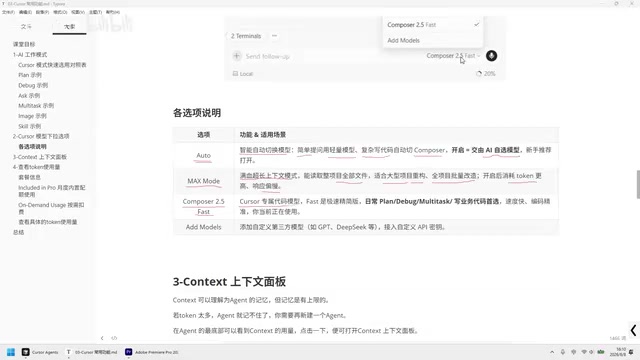
In Cursor's chat interface, the default model option is Auto. Clicking on it reveals multiple selectable models. Each model is suited for different use cases, and choosing the right one can significantly boost your development efficiency.
Auto Mode: The Smart Choice for Beginners
Auto mode is an intelligent auto-switching mechanism. When you ask a simple question, the system automatically selects a lightweight model for a quick response; when the question is more complex, it automatically switches to a more powerful model (like Compose) to handle it.
Behind Auto mode is a Model Routing technique that's becoming increasingly common in modern AI application architectures. The system first classifies user intent and evaluates complexity—for example, determining whether it's a simple syntax question or an architectural design involving multiple files—then dispatches the request to the most appropriate model based on preset rules. The core value of this design lies in cost optimization: simple questions handled by small models are both fast and token-efficient, while large models are only invoked for complex problems, achieving the optimal balance between performance and cost. Similar routing concepts are widely used in OpenAI's API and AI gateways from major cloud providers.
For beginners, just stick with Auto mode. It essentially lets AI choose the most suitable model for you, saving you the trouble of manual judgment.
Max Mode: Full Power for Complex Tasks
Max Mode is designed for complex scenarios—think of it as a "full-power, super-context mode." Its core capability is reading all files across your entire project, making it particularly suited for:
- Architectural design of large projects
- Project-wide batch refactoring
- Complex tasks requiring cross-file understanding
However, be aware that Max Mode consumes tokens heavily and response times are noticeably slower. This is because when the entire project's code files are fed as context input, the token count can reach tens or even hundreds of thousands. The model needs to perform attention calculations over much longer sequences, naturally increasing processing time significantly. Use it only when you genuinely need global project understanding.
Compose 2.5 Fast: Your Daily Coding Workhorse
Compose 2.5 Fast is Compose's dedicated code model, where "Fast" indicates the speedy classic version. For everyday planning, debugging, writing tests, and business code, this should be your go-to model.
Its key advantages are:
- Speed: Quick responses that won't keep you waiting
- Coding precision: Optimized for code scenarios with consistent output quality
The difference between code-specific models and general-purpose models lies in their training data and fine-tuning strategies. Code models are typically trained specifically on large volumes of high-quality code repositories (such as GitHub open-source projects) and have a deeper understanding of programming language syntax, design patterns, and best practices. As a result, they often outperform general-purpose models of similar size on code generation tasks.
Add Models: Connecting Third-Party Models
If you have special requirements, you can use the Add Models option to connect third-party models like GPT, DeepSeek, and others. However, you'll need to configure a custom API Key, making this more suitable for advanced users with specific model preferences.
This open model integration design reflects an important trend in current AI tools—Model Agnostic architecture. Users aren't locked into a single model provider and can flexibly choose based on task characteristics: for example, using DeepSeek for Chinese-related code comments, Claude for complex reasoning tasks, or GPT-4o for multimodal needs.
Context Mechanism Explained
What Is Context?
Context can be understood as the Agent's "memory." Since it's memory, there's a capacity limit. When too many tokens accumulate, the Agent "forgets" earlier content, and you'll need to create a new Agent to start a fresh conversation.
From a technical perspective, the Context Window is one of the core limitations of the Transformer architecture. Because the computational complexity of the Self-Attention mechanism scales quadratically with sequence length (O(n²)), there's a physical upper limit on how many tokens a model can process simultaneously. Early GPT-3.5 had a context window of only 4K tokens, while current mainstream models have expanded to 128K or even 200K tokens. Despite the ever-growing window sizes, when accumulated conversation tokens approach the window limit, the model's "attention" to earlier information drops significantly—this is the well-known "Lost in the Middle" phenomenon, where the model's ability to retrieve information from the middle of long texts is notably weaker than from the beginning or end. This is the fundamental technical reason why Cursor recommends creating a new Agent when Context approaches its limit.
Creating a new Agent is simple: just click the plus icon next to the conversation list.
Context Panel Metrics Explained
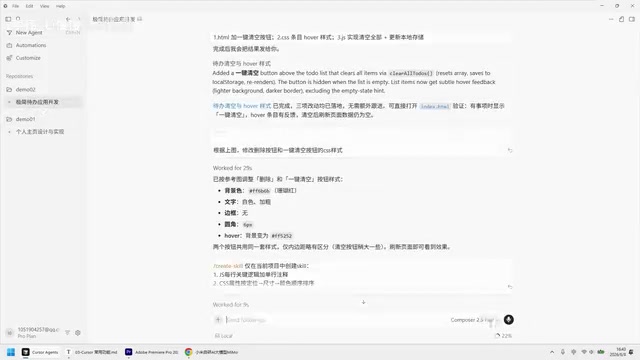
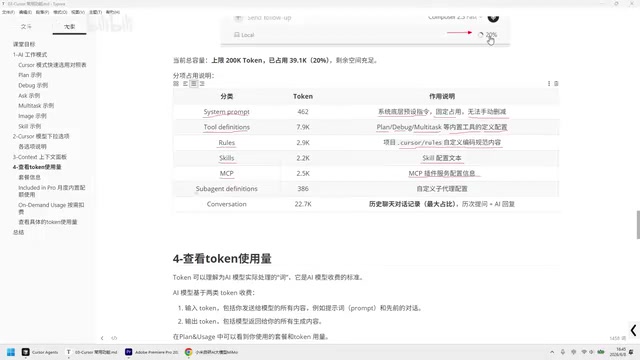
Below the chat interface, there's a percentage display (e.g., 22%). Clicking on it opens the Context panel, which shows detailed token allocation. Here's what each metric means:
System Prompt: The token usage for underlying system preset instructions. This is a fixed cost and cannot be manually reduced. The System Prompt is a special role message in large language model conversation systems, injected before each conversation begins to define the model's behavioral boundaries, output format, and domain expertise. In Cursor, the System Prompt includes critical configurations like code generation standards, safety constraints, and tool invocation instructions. Although users can't see this content, it's sent to the model with every interaction, continuously consuming a portion of the token quota—which explains why Context never shows 0% even in an empty conversation.
Tool Definitions: The token usage for built-in tool definition configurations like Plan, Debug, Multi-file Test, etc. These definitions are essentially structured text (usually in JSON Schema format) that tells the model which tools are available, each tool's parameter format, and how to invoke them. This is the foundation of the Function Calling mechanism, letting the model know when and how to call external tools to complete tasks.
Rules: The token usage for coding rules defined in the Cursor Rules page. Rules is a topic worth exploring in depth. Rules allow users to define project-level coding standards, tech stack preferences, and output format requirements—essentially setting up a "project handbook" for the AI.
Secure Rules: The token usage corresponding to Secure configuration files. This typically includes security-related constraints, such as prohibiting the generation of code containing sensitive information or restricting access to specific files.
MCP: The token usage for MCP plugin service configuration information. MCP (Model Context Protocol) is an open protocol introduced by Anthropic in late 2024, designed to standardize communication between AI models and external tools and data sources. It's like a "USB-C port" for the AI world, enabling different tools and services to connect to AI applications in a unified way. In Cursor, MCP plugins allow the model to call external APIs, run database queries, perform file system operations, and more, greatly expanding the AI coding assistant's capabilities. Each MCP service you connect consumes a certain amount of Context space for its tool descriptions and configuration information.
Subagent Definitions: The token usage for sub-agent configuration definitions. Sub-agents follow an architectural pattern that decomposes complex tasks into multiple subtasks handled by different specialized agents. This Multi-Agent design is particularly effective for large engineering tasks—for example, one sub-agent handles code generation, another writes tests, and yet another updates documentation.
Conversation: Historical chat records—this metric typically has the largest token usage. It includes the cumulative tokens from every question you've asked plus every AI response. Notably, since large language models have no inherent "memory" capability, the complete conversation history must be resent to the model with each interaction. This means token consumption per request grows linearly as conversation turns increase. This is the fundamental reason why responses slow down and costs increase in later stages of long conversations.
Token Billing Mechanism and Cost Management
Basic Token Concepts
Tokens can be understood as the smallest text units that AI models actually process. AI models bill based on two types of tokens:
- Input Tokens: The number of tokens contained in what you type in the input box
- Output Tokens: The number of tokens in everything the model returns to you
From a technical implementation standpoint, tokens are basic units produced by splitting text through a Tokenization algorithm. Mainstream models generally use the BPE (Byte Pair Encoding) algorithm for tokenization, which builds a vocabulary by identifying frequently occurring character combinations in the corpus, balancing vocabulary coverage and computational efficiency. For English, one token corresponds to roughly 4 characters or 0.75 words; for Chinese, one character typically takes 1.5–2 tokens. This means the same semantic content in Chinese usually consumes 30%–50% more tokens than in English.
It's especially important to understand that in Cursor's usage context, "input tokens" aren't just the text you manually type—they also include the System Prompt, tool definitions, Rules, conversation history, and all referenced code files sent to the model. This is why a seemingly brief question might consume far more input tokens than you'd expect. Output tokens are typically priced 3–4x higher than input tokens, since generating text requires more computational resources than understanding it.
How to Check Token Usage
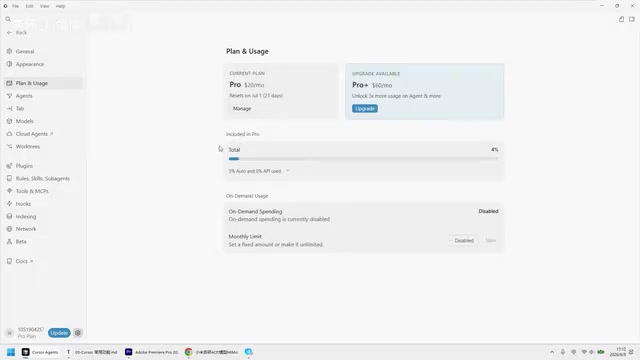
To view total token usage across all Agents, follow these steps:
- Click the settings icon in the bottom right
- Select "Plan and Usage"
- View your current plan information and monthly token usage in the panel
Token Overage Handling Strategies
In the Plan and Usage page, there's an "On Demand Usage" option for configuring what happens when you exceed your token quota:
- Off by default (recommended): No extra charges when you exceed your quota, but the AI model's processing speed will slow down. The system won't block your usage—it just throttles performance. This mechanism is known as "Rate Limiting" in the industry and is a common traffic management approach used by API providers. After throttling, the system may place your requests in a lower-priority queue or automatically switch to a smaller model for processing.
- On-demand billing enabled: Maintains normal speed after exceeding the quota, but incurs additional charges.
For individual users, it's recommended to keep the default setting (no on-demand billing) to avoid unexpected extra costs. If you find yourself approaching your quota limit mid-month, consider these optimization strategies: reduce unnecessary long conversations, create new Agents promptly to clear context, avoid frequent use of Max Mode, and streamline unnecessary rule content in your Rules.
Summary and Usage Recommendations
Mastering Cursor's model selection, Context management, and token mechanisms is the foundation for using this tool efficiently. Here are the key recommendations:
- Beginners should use Auto—let AI choose the model for you
- Use Compose 2.5 Fast for daily coding—fast and precise
- Use Max Mode for complex, project-wide tasks—but watch your token consumption
- Regularly monitor the Context percentage—create new Agents promptly to avoid context overflow
- Monitor token usage in Plan and Usage—plan your usage pace wisely
A practical rule of thumb: when the Context percentage exceeds 70%, you should consider whether it's time to start a new Agent. As context expands, not only does token consumption accelerate, but the model's accuracy in understanding earlier information also declines, potentially causing generated code to become inconsistent with previous discussions.
Beyond the features covered in this article, Cursor also offers advanced capabilities like Cloud Agents, Plugins, and Hooks—feel free to explore these based on your actual needs.
Related articles

A Gen-Z Woman Making $1.5M/Month: Deconstructing the Growth Methodology Behind AI Apps
Gen-Z indie dev Nicole built 4 hit AI apps earning $1.5M/mo. Deep dive into her industrialized UGC engine, traffic testing system, and minimalist tech stack.
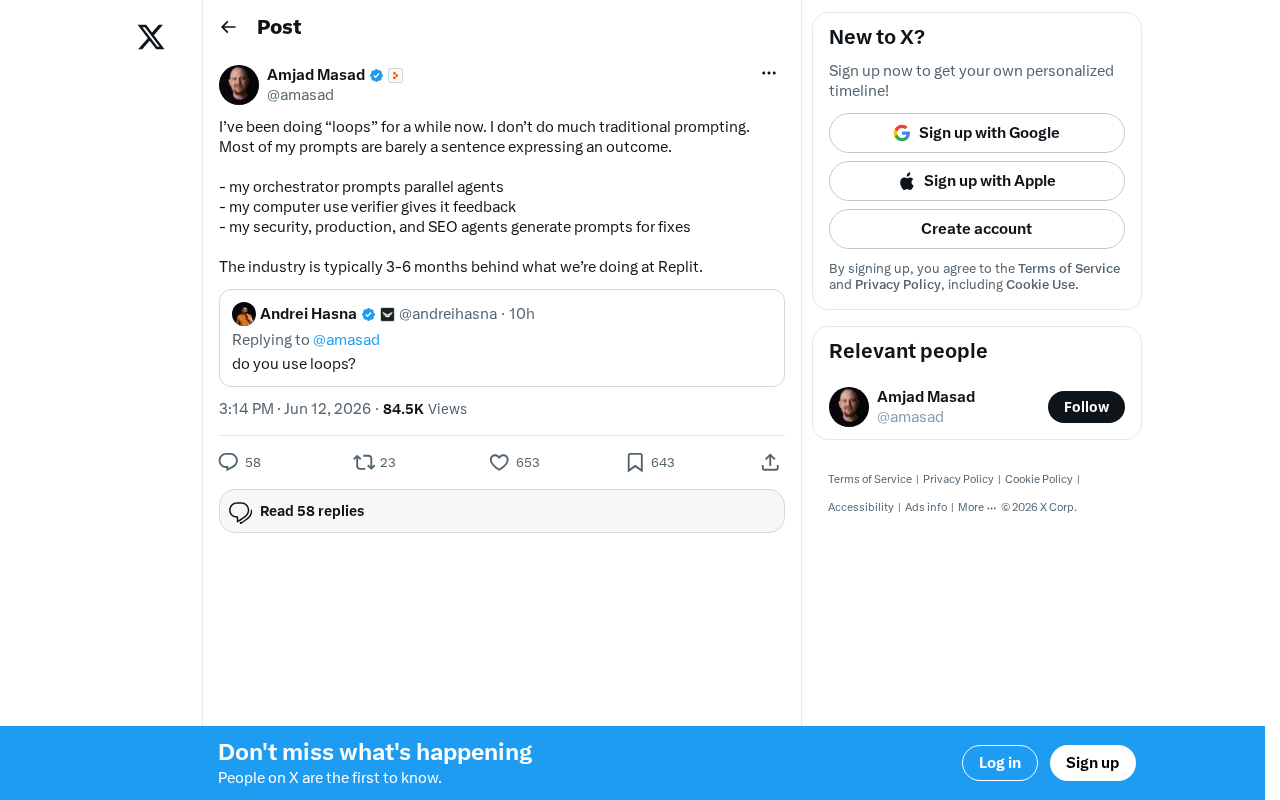
Replit's AI Loops Workflow Explained: Multi-Agent Collaboration Replaces Prompt Engineering
Deep dive into Replit's AI Loops workflow: how orchestrators, parallel agents, and Computer Use Verifiers build automated closed-loop systems through multi-agent collaboration.
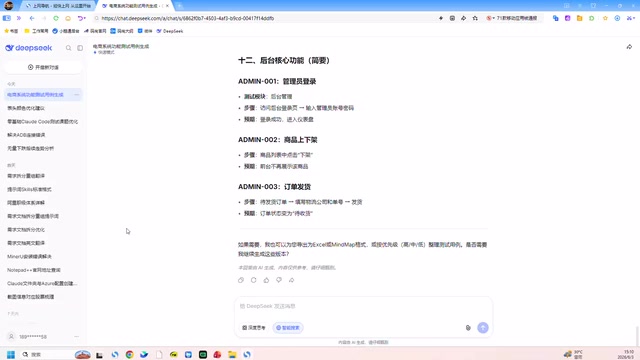
Claude Code + Skills: A Practical Guide to AI-Powered Test Case Generation
Learn how to use Claude Code + Skills to auto-generate enterprise-grade test cases. Covers AI Agent vs LLM differences, the four core capabilities, and the complete workflow from requirements to test cases.