The Complete Guide to Git & GitHub Core Concepts: Version Control in the AI Era

Master Git core concepts in the AI era: understand principles, let AI handle the commands
This article systematically covers Git and GitHub core concepts, emphasizing that developers in the AI era don't need to memorize commands—just understand principles like Commit, Branch, Merge, and Pull Request. It covers Git basics (repositories, commits, three undo options), branch management (Work Tree parallel development, merge conflicts), four zones, GitHub collaboration workflows (Fork, PR), and advanced operations (Cherry Pick, Stash, Rebase), prioritizing conceptual understanding over command memorization.
Why You Still Need to Master Git in the AI Era
In today's world where AI Agents are becoming increasingly prevalent, Git and GitHub have become fundamental skills for developers. The good news is that we no longer need to memorize a massive number of Git commands—we just need to grasp the core concepts and can then use natural language to instruct AI to handle various version control operations. This article, based on a detailed tutorial by Chinese tech YouTuber 技术爬爬虾, systematically covers all the core concepts of Git and GitHub, from local repositories to remote collaboration, all in one place.

Git Basics: The Essence of Version Control
What Is Git
Git is an open-source, free version control system and the most widely used version control tool in the world. Its core functionality is like saving multiple versions of a paper—but Git can manage thousands of files and support hundreds or even thousands of people collaborating simultaneously.
Git was created by Linus Torvalds, the creator of Linux, in 2005, after the Linux kernel community's collaboration with the commercial version control tool BitKeeper fell apart. Linus developed the initial version of Git in just two weeks, with design goals including: speed, support for non-linear development (thousands of parallel branches), fully distributed architecture, and efficient handling of large projects. Unlike earlier centralized version control systems (such as SVN and CVS), Git uses a distributed architecture where every developer has a complete version history locally, enabling most operations without relying on a central server. This design allows Git to work normally in offline environments and inherently provides data redundancy and backup capabilities.
Once a folder is managed by Git, it becomes a Git repository, with a .git subfolder generated to store version control information. Git repositories come in two types:
- Local Repository: Runs on your own computer
- Remote Repository: Stored on a server for backup and sharing
Init and .gitignore
Git Init is the first step in using Git, initializing an ordinary folder into a Git repository. In VS Code, you can simply click the "Initialize Repository" button in the Source Control panel.
The .gitignore file declares which files should not be managed by Git, for example:
.envfiles storing secret keys (for security reasons)- The
node_modules/directory (can be re-downloaded anytime via npm install)
It's recommended to create .gitignore when initializing the project. You can simply tell AI: "Initialize this directory with Git, and make sure to exclude unnecessary content."
Commit: The Basic Unit of Version Control
Each time you make a Commit, Git saves a snapshot of the repository's state at that moment. As Commits accumulate, they form a historical chain, making the entire repository traceable and its history viewable.
Each Commit has a unique Commit ID (calculated via a hash algorithm), available in both long and short forms (first 7 characters), both functionally identical. Git uses the SHA-1 hash algorithm to generate a unique identifier for each Commit. SHA-1 computes any length of input data into a 40-character hexadecimal string (160-bit binary), with an extremely low theoretical probability of different content producing the same hash value (approximately 1/2^160). Git doesn't just hash the Commit content—it also includes file contents, directory structure, parent Commit pointers, and other information in the calculation. This means any tiny change produces a completely different Commit ID. This content-addressable storage approach ensures the integrity of version history—if anyone tampers with any Commit in the history, all subsequent Commit hash values will change, making it immediately detectable. When communicating with AI, using Commit IDs allows you to pinpoint operation targets more precisely.
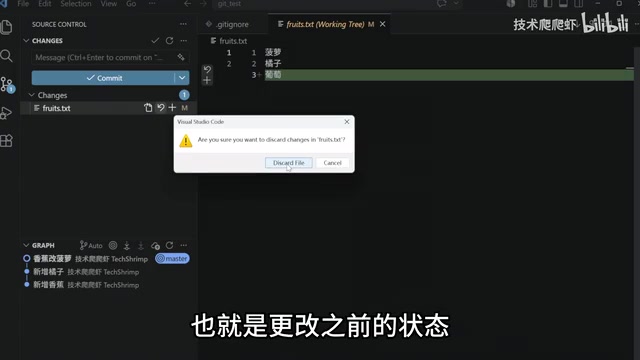
AI Programming Tip: Make a Commit every time AI completes a small feature. If AI's changes don't meet expectations, you can Discard the changes at any time, modify the prompt, and have AI redo it.
Three Git "Undo" Options: Discard, Reset & Revert
| Operation | Behavior | Use Case |
|---|---|---|
| Discard | Abandon uncommitted changes | When file changes haven't been committed yet |
| Reset | Force rollback to a historical state | Solo branches, or changes not yet pushed to remote |
| Revert | Generate a reverse commit to cancel a specific Commit | Multi-person collaboration branches (safer) |
Important note: Never use Reset on multi-person collaboration branches, because Reset requires force pushing, which risks losing other people's code. Always prefer Revert.
Branch: Git Branch Management Explained
Core Branch Concepts
Branches are different development lines within a repository. By default, every repository has one main (or master) trunk branch. Creating a branch is implemented through pointers—no code copying is needed.
Git's branch implementation is extremely lightweight. A branch is essentially just a movable pointer to a Commit object (a 41-byte file storing the target Commit's SHA-1 value). When creating a new branch, Git only needs to create a new pointer without copying any code files, making branch operations nearly instantaneous. Git also maintains a special pointer called HEAD that points to the current branch. When you make a new Commit on a branch, that branch pointer automatically moves forward to the new Commit, while other branch pointers remain unchanged. This design stands in stark contrast to SVN's branch mechanism that requires copying the entire directory tree, encouraging developers to frequently create and merge branches.
The key characteristic of branches: code changes on separate branches don't affect each other. This is extremely useful for multi-person or multi-Agent collaboration—everyone can develop on their own branch and merge back to the trunk via Merge when done.
Work Tree: A Parallel Development Power Tool
Work Tree essentially uses Git to create a new branch and copies the code completely into a new folder. The main folder and branch folders can work in parallel without interfering with each other.
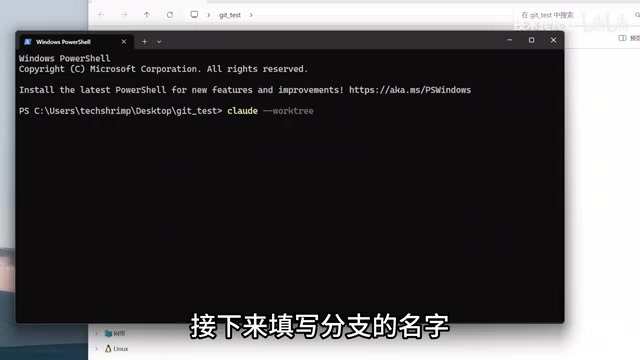
To use Work Tree in Claude Code: claude --worktree, then fill in the branch name. Multiple Work Trees can work in parallel and merge back to the trunk when complete, dramatically improving development efficiency.
Merge Conflict: Handling Merge Conflicts
When two branches modify the same line of the same file, merging produces a conflict. With AI, resolving conflicts becomes simple—AI will list the conflict options, and you just need to tell it which version to keep.
Git's Four Zones & Remote Operations
The Four Zones Explained
- Working Directory: Your local folder
- Staging Area: A checkpoint before Commit
- Local Repository: Storage after Commit
- Remote Repository: Platforms like GitHub
The Staging Area (also called Index) is a unique Git design that sits between the Working Directory and the Local Repository. Many beginners wonder why you can't commit directly from the working directory to the repository. The Staging Area exists for several important reasons: First, it allows developers to precisely control what goes into each Commit—you might have modified 10 files but only stage and commit 3 related files as one logically complete Commit. Second, the Staging Area acts as a "preview" layer, giving you a chance to review what's about to be committed before making it official. Finally, it supports partial staging (git add -p), allowing different modifications within the same file to be committed to different Commits for finer-grained version management.
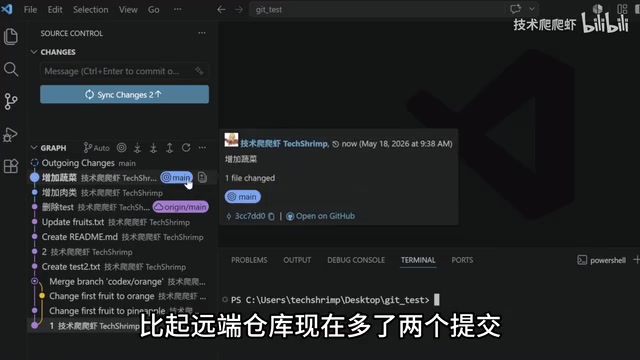
Most Git operations are essentially syncing files between these zones:
Git Clone: Remote → LocalGit Add+Git Commit: Working Directory → Local RepositoryGit Push: Local Repository → Remote RepositoryGit Pull(= Fetch + Merge): Remote → Local
GitHub Multi-Person Collaboration Workflow
Contributing to Open Source Projects
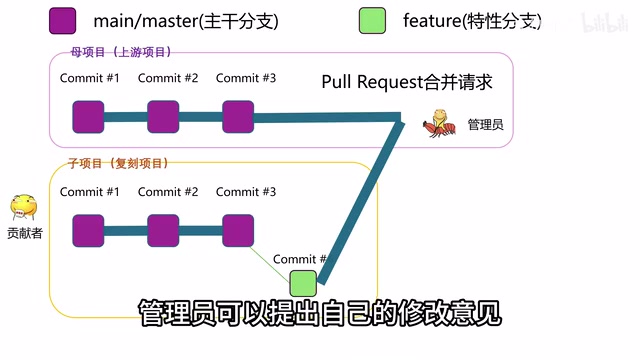
For open source projects where you don't have direct Push access, the standard workflow for contributing code is:
- Fork: Copy the project to your own account
- Clone: Clone the forked project to your local machine
- Create a Branch: Don't modify directly on the trunk
- Develop and Commit: Complete code changes on the branch
- Sync Upstream: Merge the latest changes from the parent project, resolve conflicts
- Create a Pull Request: Submit a merge request
- Code Review: Maintainers review the code
- Merge: Maintainers approve and merge
Fork is a feature provided by code hosting platforms like GitHub (not a Git command itself). It creates a complete copy of a project on the server side under your account, including all branches, tags, and commit history. The forked repository maintains a loose association with the original repository (upstream), and GitHub records this derivation relationship while providing convenient sync and Pull Request functionality. Clone is a native Git command that downloads a remote repository completely to your local machine. In open source collaboration, Fork solves the permissions problem—you can't Push code directly to someone else's repository, but you can Push to your own forked copy and then request the original author to merge your changes via Pull Request. This mechanism both protects the original project's security and lowers the barrier to contributing code.
Internal Team Collaboration
If an administrator adds you as a Collaborator, you can skip the Fork step and directly create branches in the project, commit code, Push to remote, and then merge via Pull Request.
Advanced Git Operations Overview
Cherry Pick
When you only want to merge specific Commits from a branch into the trunk, you can use Cherry Pick. Simply provide the needed Commit IDs to AI and tell it "Cherry Pick these two commits into the trunk."
Stash
When you need to urgently switch branches while code is half-written, Stash can temporarily save your unfinished code. When you switch back, you can Pop it out and continue working.
Rebase
Rebase changes a branch's "base" to another branch. The advantage is that it doesn't create extra Merge Commits, keeping the history cleaner. Both Merge and Rebase can integrate changes from one branch into another, but they work in fundamentally different ways. Merge creates a new "merge commit" with two parent nodes, preserving the complete topological structure of branches, with history appearing as a directed acyclic graph (DAG). Rebase "replays" all Commits from the current branch after the latest Commit on the target branch, effectively rewriting those Commits' parent nodes, making the history a straight line.
The danger of Rebase is that it rewrites existing Commits' hash values—if these Commits have already been pulled by others, force pushing will cause inconsistency between others' local history and the remote, leading to serious collaboration problems. Therefore, the industry universally follows the "golden rule": never Rebase Commits that have already been pushed to public branches. Since Rebase requires force pushing (git push -f), it is only suitable for personal branches and is strictly prohibited on multi-person collaboration branches.
Summary
As the ancient Chinese philosopher Zhuangzi said: "Words exist for meaning; once you grasp the meaning, you can forget the words." In the AI era, we only need to understand the intent and principles behind Git operations—there's no need to memorize specific commands. By mastering core concepts like Commit, Branch, Merge, and Pull Request, you can use natural language to instruct AI to handle all Git operations.
Key Takeaways
- In the AI era, you don't need to memorize Git commands—just master core concepts to instruct AI with natural language
- Git's three undo options: Discard (abandon uncommitted changes), Reset (force rollback, solo branches only), Revert (safe reverse commit, suitable for collaboration)
- Standard open source contribution workflow: Fork → Clone → Create Branch → Develop → Sync Upstream → Create Pull Request → Code Review → Merge
- Work Tree enables parallel development across multiple branches, dramatically improving efficiency when combined with AI Agents
- Rebase creates cleaner history but requires force pushing—strictly prohibited on multi-person collaboration branches
Related articles
 Tutorials
Cursor + Codex Dual-IDE Collaboration: A Practical Methodology for Open-Source Project Customization
A complete methodology for open-source project customization based on real-world experience, detailing the Cursor+Codex dual-IDE workflow, seven-stage process, MVP validation, and AI source code reading techniques.
 Tutorials
Cursor Multi-Agent in Practice: Building a Full-Stack Next.js Blog in 50 Minutes
Build a full-stack blog in 50 minutes using Cursor IDE's multi-Agent mode with Next.js, Clerk auth, and Supabase. Learn the 4-phase AI Agent workflow and key integration pitfalls.
 Tutorials
Building an AI Software Factory from Scratch: A Cursor Engineer's Hands-On Experience with Multi-Agent Collaboration
Cursor engineer Eric shares practical insights on building an AI software factory: automation levels, guardrail design, parallel Agent management, and scaling to 1000+ Agents for 24/7 development.