Tutorial: Connecting Codex to Third-Party API Proxies for Low-Cost GPT-5.5 Access
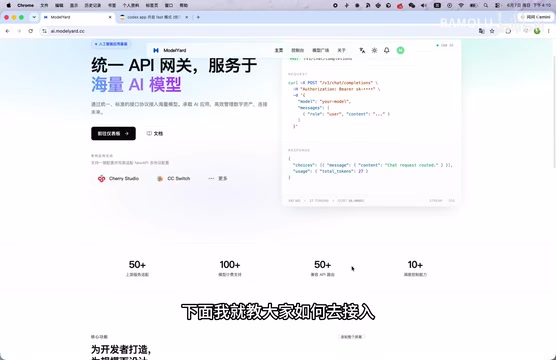
Connect GPT-5.5 to Codex via API proxy with CC Switch for low-cost, fast AI coding.
This tutorial walks developers through connecting GPT-5.5 to OpenAI's Codex using a third-party API proxy and the CC Switch browser extension. It covers proxy setup, one-click configuration import, Fast mode activation, and cost optimization strategies for balancing model capability with budget.
Why Use an API Proxy to Access Codex?
The capabilities of the GPT-5.5 model have been widely validated. According to real-world developer experiences, a complex business logic bug that stumped someone all night and couldn't be resolved with GPT-4 was fixed in under 30 minutes after switching to GPT-5.5. This generational leap in capability has driven more and more developers to want to use the 5.5 model in Codex.
There's a clear capability gradient among the sub-versions within the GPT-5 series (5.3, 5.4, 5.5). GPT-5.3, as the base version, performs well on routine code completion and simple logical reasoning. GPT-5.4 improves on multi-step reasoning and complex context understanding. GPT-5.5, however, achieves a qualitative leap in deep logical chain reasoning, cross-file code comprehension, and handling highly coupled business logic. These capability differences stem from variations in training data scale, parameter count, and post-training alignment strategies. The price differences directly reflect the gap in computational resource consumption — more powerful models typically mean larger parameter sizes and longer inference times, resulting in higher token costs per API call.
However, the issue is cost. GPT-5.5 is twice the price of GPT-5.3, and whether you have 5x or 20x quota on an OpenAI Plus account, the usage limits are quite restrictive. Upgrading to a higher-tier plan is prohibitively expensive. For developers who want to use the 5.5 model on a daily basis, connecting through an API proxy is an extremely cost-effective solution.
This article provides a detailed guide on how to connect GPT-5.5 to Codex through a third-party API proxy — the entire process takes just a few minutes.
Prerequisites
Before you begin, you'll need two things:
A Working API Proxy
You need an API proxy that supports the GPT-5.5 model. There are many proxy options available — the key is confirming it supports the model you need. Common approaches include setting up your own proxy or choosing a third-party proxy service. Once connected to the required models, the pricing is relatively affordable and more than sufficient for daily use.
An API proxy (API Proxy/Relay) is essentially a reverse proxy service that acts as an intermediary layer between users and OpenAI's official API. Proxy operators typically purchase OpenAI API quota in bulk, leveraging economies of scale to reduce per-unit costs, then resell to end users with more flexible billing structures. Technically, the proxy forwards user requests to OpenAI's official endpoints while handling authentication, load balancing, rate limiting, and other concerns. This model is particularly popular in the Chinese developer community — it solves network access stability issues while also providing more granular usage control and billing transparency. Note that using a proxy means your request data passes through third-party servers, so you should assess security risks when handling sensitive business data.
Install the CC Switch Browser Extension
CC Switch is a browser extension that can be downloaded and installed from its official website. Its core function is automating the configuration process — it helps you import your proxy's API information into Codex with one click, eliminating the hassle of manually filling in various parameters.
Browser extensions like this work based on browser extension APIs (such as Chrome's Manifest V3 framework). The extension injects content scripts into the target webpage's DOM environment, identifies form elements on the Codex configuration page, and then auto-fills parameters like the API endpoint address, key, and model name. This automation essentially simulates manual user operations but eliminates the possibility of human input errors. From a security perspective, such extensions require read/write permissions for specific websites — users should verify the trustworthiness of the extension source before installation to prevent sensitive information like API Keys from being intercepted by malicious extensions.
About Codex
Codex is an AI coding agent tool launched by OpenAI, integrated into the ChatGPT interface and designed specifically for software engineering tasks. Unlike conversational AI, Codex can actually execute code, read and write files, run tests in a cloud sandbox environment, and submit changes in the form of Pull Requests. It's essentially an asynchronous AI software engineer — after a user submits a task, Codex independently completes the entire workflow of code writing, debugging, and verification in the background. Codex supports multiple underlying model drivers, and different models exhibit significant differences in code comprehension, logical reasoning, and context processing capabilities — this is the fundamental reason developers seek to use more advanced models like GPT-5.5.
API Proxy Configuration Steps
Register an Account and Obtain an API Key
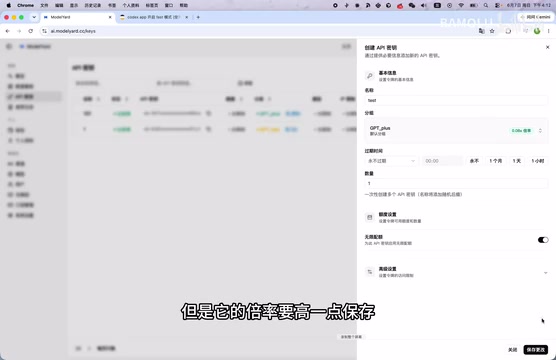
First, register an account on your chosen proxy website. After registration, go to the console and find the API Key management page to create a new API Key.
Pay attention to the following settings when creating one:
- Group selection: Choose the "Plus" group
- Mode selection: "Fast mode" is recommended for faster response times (though the rate multiplier will be slightly higher)
- After confirming and saving, you'll receive a usable API Key
Use CC Switch for One-Click Configuration Import
This is the most hassle-free step in the entire tutorial. On the API Key details page of your proxy, you'll see a "CC Switch" option:
- Click to open the CC Switch panel
- Select the target platform as Codex
- Enter the model name you want to use (e.g., GPT-5.5)
- Click "Open" — the extension will automatically populate all the configuration information needed for import
- Click "Import" to complete the configuration
The entire process requires no manual entry of API addresses, keys, or other parameters — CC Switch handles everything automatically.
Verification and Usage in Codex
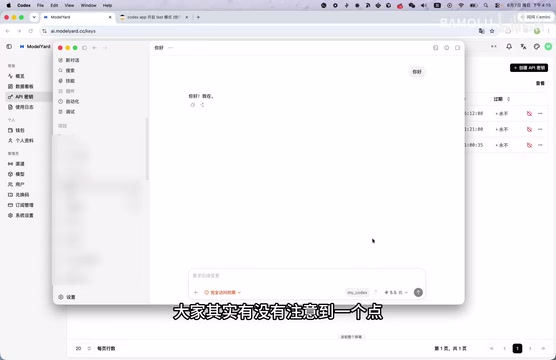
Once configured, open Codex and you'll find that GPT-5.4 and GPT-5.5 are now available in the model selection. Additionally, the reasoning intensity supports multiple levels from "Low" to "Ultra High," which you can flexibly adjust based on task complexity.
Try sending a test message to confirm the model responds normally.
Enable Fast Mode for Faster Response Times
If you look carefully, after successfully enabling Fast mode, a lightning bolt icon will appear on the left side of Codex — this is the Fast mode indicator.
Fast mode is an inference acceleration option provided by Codex. Its core principle is adjusting the inference strategy to reduce response time. In standard mode, the model may perform more rounds of internal Chain-of-Thought reasoning and self-verification to ensure output quality; Fast mode appropriately reduces these intermediate steps in exchange for faster response times. This is similar to making a trade-off between reasoning depth and response latency — for relatively simple tasks, Fast mode barely affects output quality, but for complex problems requiring deep reasoning, standard mode may yield more reliable results.
The configuration path for Fast mode is: General Settings → General → Speed, where you can select "Fast" mode. Note that this speed option is typically not displayed by default when using third-party APIs and needs to be explicitly enabled.
There are two ways to enable it:
Method 1: Manual Configuration
Some developers in the community have shared detailed tutorials for enabling it, but the steps are relatively complex and better suited for experienced users.
Method 2: Let Codex Auto-Configure (Recommended)
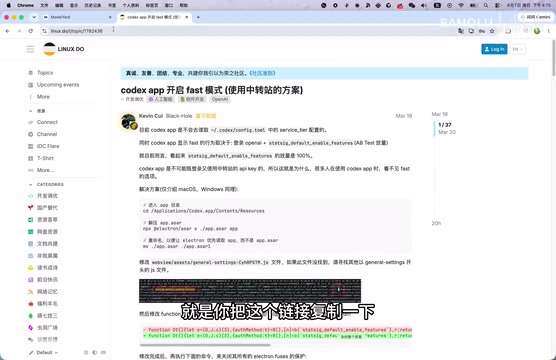
This is a particularly clever approach — copy the tutorial link and send it directly to Codex, telling it to "help me enable Fast mode." Codex will automatically read the tutorial content and complete the configuration. Once successful, you'll see different mode options available in the speed settings.
⚠️ Note: When selecting 1.5x speed mode, your plan's usage quota consumption will double (multiplied by 2), so choose wisely based on your available quota. The multiplier concept relates to the proxy's billing strategy — Fast mode typically requires higher-priority computational resources, which incurs an additional cost coefficient.
Cost Optimization and Usage Tips
The core advantage of accessing GPT-5.5 through a proxy is cost control. Compared to purchasing OpenAI's premium plans directly, the proxy's pay-per-use billing model is better suited for the following scenarios:
- Occasional need for 5.5 capabilities: Switch to it when handling complex bugs, architecture design, and other high-difficulty tasks
- Daily development assistance: Combined with Fast mode, maintain speed while controlling expenses
- Team sharing: A self-hosted proxy can provide unified API management for your team
It's recommended to continue using GPT-5.3 or 5.4 for simple daily tasks and switch to 5.5 only for complex problems — this achieves the optimal balance between capability and cost. This tiered usage strategy is highly practical in real-world development: code formatting, simple refactoring, and similar tasks can be handled perfectly well by lower-cost models, while GPT-5.5's deep reasoning capabilities truly shine in scenarios involving complex business logic analysis, multi-module integration debugging, and system architecture design.
Summary
The entire integration process can be distilled into two core steps:
- Ensure your API proxy supports the GPT-5.5 model
- Use the CC Switch extension for one-click configuration import
No additional manual configuration is needed — it can be completed in just a few minutes. For developers looking to experience GPT-5.5's powerful capabilities at low cost, this is currently one of the most convenient solutions available.
Key Takeaways
Related articles

CodeGraph: The 50K-Star Open-Source Tool That Cuts AI Coding Token Usage in Half
CodeGraph is a 50K-star open-source tool that builds a code knowledge graph so AI coding assistants can locate code instantly—cutting Token usage by 47%, boosting speed by 22%, all running 100% locally.

VibeCoding Beginner's Guide: A Complete Guide to Building Software with Natural Language from Scratch
VibeCoding lets anyone build software through natural language conversations with AI. Learn the core concepts, learning path, and practical methods to get started.

Using UU Accelerator to Speed Up Cursor: A Compliant Solution for Stable AI Coding in China
Learn how to use NetEase UU Accelerator to speed up Cursor AI coding tool in China, with step-by-step setup including node selection and launch configuration.