Claude Code MCP Server Tutorial: Project-Level vs Global-Level Configuration Guide
Claude Code MCP Server Tutorial: Proje…
A complete guide to configuring project-level and global-level MCP Servers for Claude Code.
This article provides a detailed walkthrough of adding MCP Server extensions to Claude Code. It explains the MCP protocol concept and its role in unifying AI-to-external-tool interactions, demonstrates adding both stdio and HTTP type MCP Servers via command line, highlights the differences between project-level and global-level configurations with instructions for switching between them, and offers practical recommendations for team collaboration.
Introduction
In previous articles, we covered how to integrate Claude Code in VSCode and configure models like DeepSeek. But to truly unlock Claude Code's potential, you need to extend its capabilities with MCP (Model Context Protocol) Servers. This article provides a detailed walkthrough of adding project-level and global-level MCP Servers to Claude Code through both command-line operations and configuration file editing.
What is an MCP Server
MCP Server is a crucial extension mechanism in the Claude Code ecosystem that allows AI assistants to connect to external tools and services, gaining more powerful capabilities.
MCP (Model Context Protocol) is an open standard protocol introduced by Anthropic in late 2024, designed to provide large language models with a unified way to access external tools and data sources. Before MCP, integrating each AI tool with external services required developing separate adapters, leading to severe ecosystem fragmentation. MCP draws inspiration from LSP (Language Server Protocol) — just as LSP unified the communication protocol between editors and programming language services, MCP standardizes the interaction between AI models and external tools. MCP uses a client-server architecture where the AI assistant (such as Claude Code) acts as the client, and various tools and services serve as MCP Servers providing capabilities. This architecture means developers only need to implement an MCP Server once for it to be callable by all AI clients that support the MCP protocol.
Common MCP Servers include:
- GitNationals: Builds a knowledge graph for code in Git repositories, helping AI better understand project structure. A Knowledge Graph is a technology that organizes information in a graph structure, consisting of nodes (entities) and edges (relationships). In the context of code repositories, a knowledge graph treats files, functions, classes, modules, and other code elements as nodes, and call relationships, inheritance relationships, and dependency relationships as edges, constructing a complete code relationship network. Compared to traditional full-text search or simple file tree browsing, knowledge graphs enable AI to understand the semantic structure of code — for example, when AI needs to modify a function, it can quickly locate all places that call that function, other modules the function depends on, and test cases that might be affected.
- Hanset: A Git-based memory system that allows AI to maintain contextual memory across multiple conversations. A fundamental limitation of large language models is their "statelessness" — each conversation is independent, and the model doesn't automatically remember previous interactions. A Git-based memory system solves this by persistently storing key information from conversations (such as project conventions, architectural decisions, user preferences, etc.) in a Git repository. When a new conversation begins, the MCP Server retrieves relevant historical memories and injects them as context into the current conversation. The advantages of using Git as the storage backend include: native version control support for tracking memory change history; branch management support so different projects can maintain independent memory spaces; and Git repositories can be shared across teams via remote repositories, enabling team-level AI knowledge accumulation.
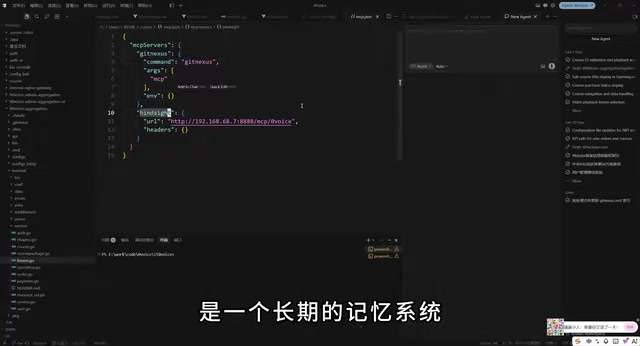
These two MCP Servers are highly practical in real-world development. This article will use them as examples to demonstrate the complete setup process.
Adding MCP Servers via Command Line
Two Connection Methods
Claude Code supports two types of MCP Server connections:
- stdio (Standard Input/Output): For locally running MCP Servers, launched via local commands
- HTTP: For remotely deployed MCP Servers, connected via HTTP addresses
stdio (Standard Input/Output) is the most fundamental inter-process communication method in Unix/Linux systems. In MCP's stdio mode, Claude Code launches the MCP Server as a child process, sends requests through standard input (stdin), and receives responses through standard output (stdout). The advantages of this approach include no network configuration needed, extremely low latency, and inherent process-level security isolation. HTTP transport mode is implemented via Server-Sent Events (SSE) or standard HTTP requests, suitable for scenarios where the MCP Server is deployed on a remote server or in a container. HTTP mode supports cross-network access and can carry authentication tokens (such as Bearer Tokens) via headers, making it ideal for team-shared services. Both modes are functionally equivalent — the choice depends on your deployment architecture.
The command-line tool provides the claude mcp add command for adding MCP Servers, with very intuitive syntax.
Adding a stdio-type MCP Server
Using GitNationals as an example — it's a locally running service that connects via stdio:
claude mcp add GitNationals -- <command> <args>
You need to specify the name (GitNationals), followed by two dashes and then the specific command with its arguments. After execution, the MCP Server will be added to the project's configuration file.
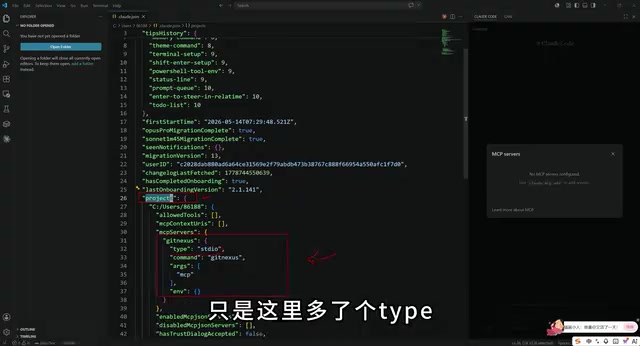
Adding an HTTP-type MCP Server
For services like Hanset that are deployed on an internal network, use the HTTP connection method:
claude mcp add Hanset --transport http <URL>
If it's an internal service that doesn't require authorization, you can omit the Header configuration. Once added, you can see both MCP Servers in the configuration file — one HTTP type and one stdio type.
Verifying MCP Server Connection Status
After adding, check the connection status with the following command:
claude mcp list
If both GitNexus and Hanset show as "connected," the MCP Server configuration is working correctly and ready to use.
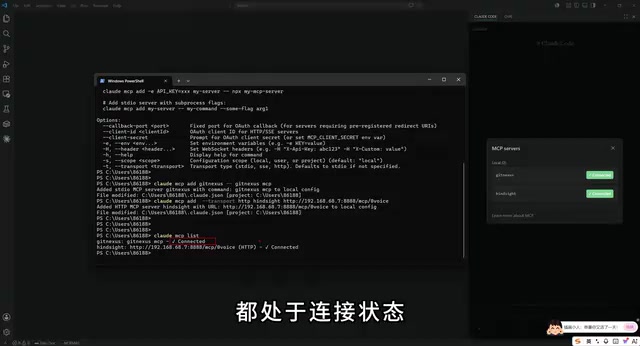
In VSCode, you may need to restart the extension to see newly added MCP Servers. After restarting, you can view the configured MCP list in the Claude Code panel.
Project-Level vs Global-Level MCP Configuration
Default Behavior: Project-Level Configuration
Here's a critical detail: MCP Servers added via command line default to project-level scope.
Claude Code adopts a layered configuration design pattern, which is a common best practice in development tools. Similar to Git's configuration layers (system-level /etc/gitconfig, user-level ~/.gitconfig, repository-level .git/config), Claude Code's configuration also follows the "nearest takes precedence" principle — project-level settings override global-level settings with the same name. The core value of this design lies in balancing flexibility and consistency: global configuration ensures base tools are available across all projects, while project-level configuration allows customization for specific projects. For example, a frontend project might need an MCP Server for design mockup parsing, while a backend project needs one for database schema queries — these specialized tools only need to be configured in their respective projects.
Configuration is stored in the .claude.json file under the project directory, within the project scope. This means:
- The MCP Server works normally within the current project directory
- When switching to other directories or opening other projects, the MCP Server will not be visible
Practical verification confirms this: after switching to another directory, running claude mcp list shows an empty list, and VSCode similarly shows no MCP Servers.
How to Configure Global MCP Servers
If you want all projects to use the same set of MCP Servers, you need to elevate the configuration to global level. Here are the specific steps:
- Open the configuration file: Find the
.claude.jsonfile in your user directory (typically at~/.claude.json) - Copy the MCP node: Copy the MCP Server configuration node from under
project - Move to root level: Place the copied configuration at the root level of the JSON file
- Adjust indentation: Ensure the JSON format is correct
- Clean up project-level config (optional): If you no longer need the project-level configuration, you can delete the corresponding node under
project
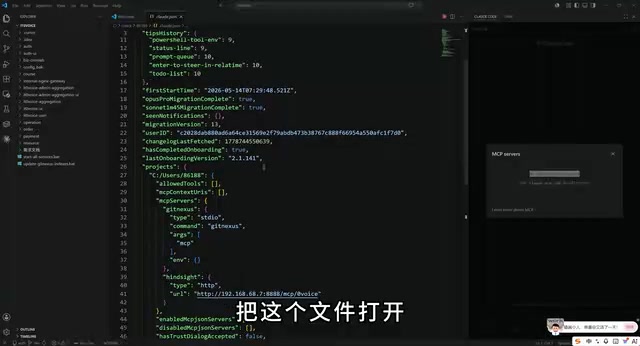
It's worth noting that the .claude.json file uses JSON format. The project-level configuration file can be included in version control (like Git), making it easy for team members to share project-level MCP configurations. The global configuration in the user directory, however, belongs to personal environment settings and typically should not be committed to code repositories.
After making changes:
- Command-line verification: Run
claude mcp listin any directory to see the MCP Servers - VSCode verification: Restart VSCode, and you'll be able to see the configured MCP Servers in any project
This achieves adding global MCP Servers for the current user — all projects can share these extended capabilities without repetitive per-project configuration.
Configuration Summary
| Configuration Level | Use Case | Configuration Location |
|---|---|---|
| Project-Level | MCP Servers specific to a particular project | project node in .claude.json under the project directory |
| Global-Level (User) | MCP Servers shared across all projects | Root node in .claude.json under the user directory |
Practical Recommendations
- Configure general-purpose tools globally: Universal tools like GitNationals (knowledge graph) and Hanset (memory system) should be configured at the global level to avoid repetitive setup in each project
- Keep specialized tools at project level: If an MCP Server is only used in a specific project, keep it at project-level configuration so it won't affect other projects
- Start with command line, then adjust manually: It's recommended to first use
claude mcp addfor quick addition, then manually edit the configuration file to adjust scope - Remember to restart after changes: After modifying configuration, VSCode typically needs a restart to take effect; for command line, you may need to switch directories and re-verify
- Leverage project-level config for team collaboration: Include the project-level
.claude.jsonin Git version control so team members automatically get the project's required MCP Server configuration after cloning the repository, eliminating the need for manual one-by-one setup and significantly reducing onboarding costs for new members
Once you've mastered MCP Server configuration, you can unlock Claude Code's full potential in VSCode, making it a truly powerful assistant in your development workflow.
Related articles
 Tutorials
Cursor + Codex Dual-IDE Collaboration: A Practical Methodology for Open-Source Project Customization
A complete methodology for open-source project customization based on real-world experience, detailing the Cursor+Codex dual-IDE workflow, seven-stage process, MVP validation, and AI source code reading techniques.
 Tutorials
Cursor Multi-Agent in Practice: Building a Full-Stack Next.js Blog in 50 Minutes
Build a full-stack blog in 50 minutes using Cursor IDE's multi-Agent mode with Next.js, Clerk auth, and Supabase. Learn the 4-phase AI Agent workflow and key integration pitfalls.
 Tutorials
Building an AI Software Factory from Scratch: A Cursor Engineer's Hands-On Experience with Multi-Agent Collaboration
Cursor engineer Eric shares practical insights on building an AI software factory: automation levels, guardrail design, parallel Agent management, and scaling to 1000+ Agents for 24/7 development.