Complete Guide to Integrating AI CLI with Obsidian: Let AI Understand Your Entire Note Vault
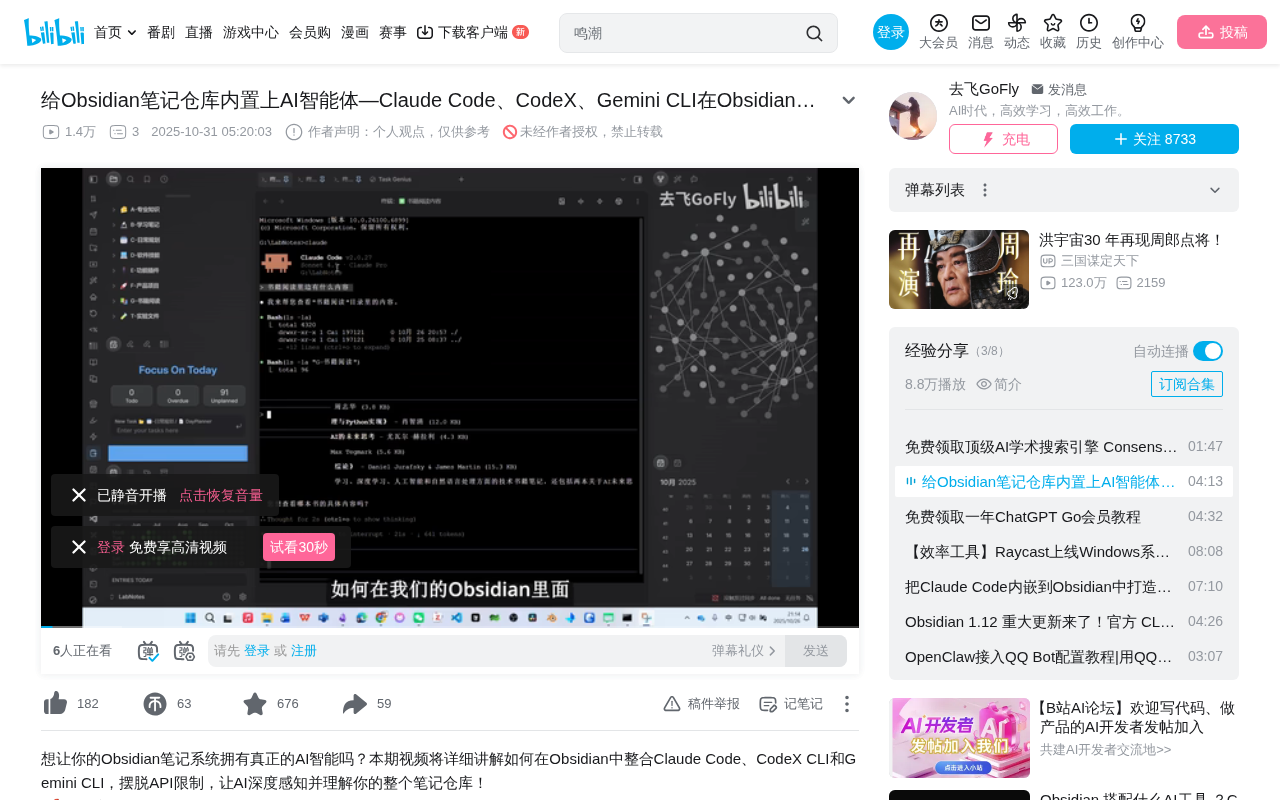
Run AI CLI tools in Obsidian via the Terminal plugin for intelligent, vault-wide note management.
This guide explains how to use AI CLI tools (Claude Code, Codex CLI, Gemini CLI) inside Obsidian by installing the Terminal plugin. By opening a terminal within Obsidian, AI can traverse the entire note vault, overcoming the limitation of traditional AI plugins that can only process individual notes. The approach supports note summarization and archiving, formatting improvements, note system design, and even plugin development. It can also be extended through the MCP protocol for cross-application integration. Claude Code offers the best experience among the three, and users with existing Pro subscriptions incur no additional costs.
Why Use AI CLI in Obsidian?
For power Obsidian users, the note vault is their "second brain." Obsidian is a local Markdown-based knowledge management tool built on the core philosophy that "your data belongs entirely to you" — all notes are stored as plain text files on your local file system, not in a cloud database. This architecture makes Obsidian a natural fit for command-line tools, since CLI tools can directly read and write local files.
However, traditional AI plugins (such as Smart Composer, Copilot, etc.) have two obvious pain points: first, they require purchasing additional API access, which is redundant spending for users who already subscribe to GPT Plus or Claude Pro; second, these plugins cannot fully perceive the entire note vault — they can only process individual notes or limited context. These plugins typically work through Obsidian's plugin API interface and are constrained by the plugin sandbox mechanism, only able to access the currently open note or retrieve context through limited indexing. They can't freely traverse the entire file tree the way OS-level tools can.
Command-line tools like Claude Code CLI, Codex CLI, and Gemini CLI inherently have file-system-level reading capabilities. They work by starting from the current working directory and recursively reading directory structures and file contents through the operating system's file system API. These tools were originally designed for software development scenarios — helping developers understand the architecture of entire code repositories — but this capability is equally powerful when applied to note-taking. A typical Obsidian vault might contain hundreds or even thousands of Markdown files distributed across multiple folder levels, and CLI tools can build a complete directory tree awareness in seconds, feeding file contents as context into large language models for processing.
Bringing them into Obsidian means AI can traverse your entire note directory structure, understand the hierarchical relationships between folders, and truly achieve a global understanding of your knowledge base. This isn't simple "AI Q&A" — it's turning AI into an intelligent steward of your note system.
Installation Steps: The Terminal Plugin Is the Key Bridge
The core idea behind this approach is remarkably simple — open a terminal inside Obsidian, then run AI CLI tools in that terminal.
Step 1: Install the Terminal Plugin
- Open Obsidian and go to Settings → Community Plugins → Browse Community Plugins
- Search for "Terminal", find the corresponding terminal plugin, and install it
- After installation, an "Open Terminal" icon will appear in the left toolbar
- Click the icon, and an integrated terminal window will pop up inside Obsidian
This terminal window's working directory automatically points to the root directory of your current Obsidian vault — this is crucial, as it means any command you run in the terminal naturally uses your note vault as the working context.
From a technical perspective, Obsidian's Terminal plugin essentially embeds a terminal emulator (typically based on xterm.js) within the Electron application. Electron is Obsidian's underlying framework, which bundles the Chromium browser engine with the Node.js runtime. This means Obsidian plugins can invoke Node.js's child_process module to launch system Shell processes. The Terminal plugin leverages this capability to create an interactive interface within the Obsidian window that is functionally identical to a system terminal, automatically setting the Shell's working directory to the current Vault's root path.
Step 2: Run AI CLI Tools
Simply type the corresponding command in the terminal to get started:
- Claude Code: Type
claudeand press Enter - Codex CLI: Type
codexand press Enter - Gemini CLI: Type
geminiand press Enter
The prerequisite is that you've already installed and configured these CLI tools on your system. If you haven't installed them yet, you'll need to complete the installation through npm or the appropriate package manager and finish account authentication. Specifically, Claude Code is installed via npm install -g @anthropic-ai/claude-code and requires an Anthropic Claude Pro or Max subscription ($20 or $100 per month) — once authenticated, the CLI reuses your subscription quota rather than billing API calls separately. Codex CLI is an open-source command-line tool from OpenAI, installed via npm install -g @openai/codex, requiring an OpenAI API key or ChatGPT Pro subscription. Gemini CLI is from Google, supports Google account authentication, and offers free users a daily request quota. All three require Node.js 18+ pre-installed on your system.
Practical Use Cases: Far More Than Just Q&A
Note Summarization and Archiving
The most straightforward use is having AI help you organize your notes. For example, you can tell Claude Code "Summarize all the content in my daily planning folder," and it will automatically scan all Markdown files in that directory, extract key information, and generate a structured summary. For notes that were jotted down casually and lack organization, this feature is a lifesaver.
In real-world testing, Claude Code can traverse an entire folder and summarize its contents in a short time, transforming scattered daily planning notes into well-organized archive documents. This is thanks to its "agentic" working mode — it autonomously plans multi-step tasks: first scanning the directory structure to understand which files exist, then reading key files one by one, and finally synthesizing all information into structured output. The entire process requires no step-by-step instructions from the user.
Note Beautification and Restructuring
You can specify a particular note and have AI help you:
- Optimize Markdown formatting and layout
- Add subheadings and structural hierarchy
- Extract core points to generate summaries
- Rewrite conversational notes into formal documents
Note System Design
A more advanced use case is having AI help you design your entire note system. AI can analyze your existing folder structure and tagging system, suggest optimizations, and even help you batch rename files, move files, and create index pages.
Plugin Development
Since Claude Code excels at programming tasks, you can even use it directly in the Obsidian terminal to develop custom plugins, implementing personalized features that aren't available in the community plugin marketplace.
Advanced Usage: Cross-Application Integration via MCP Protocol
The extensibility of this approach is also reflected in its support for MCP (Model Context Protocol). MCP is a standardized protocol open-sourced by Anthropic in late 2024, designed to solve the connection problem between large language models and external data sources and tools. In the MCP architecture, the AI application acts as a "client" and external services act as "servers," communicating via the JSON-RPC 2.0 protocol. MCP servers can expose three types of capabilities to AI: Resources (data resources), Tools (callable functions), and Prompts (preset prompt templates).
By configuring MCP services in CLI tools, you can achieve deep integration between Obsidian and other applications:
- Readwise: Automatically sync reading highlights to your note vault. Readwise's MCP server lets AI directly query your reading highlights database, consolidating highlights and notes scattered across Kindle, WeChat Read, and other platforms into Obsidian.
- Notion: Bidirectional sync between two knowledge management systems. Notion's MCP server allows AI to read and write Notion pages, enabling cross-platform knowledge flow.
- Chrome Browser: Scrape and organize web content directly into Obsidian
In terms of actual configuration, Claude Code natively supports MCP. Users simply declare the required MCP services in a .mcp.json file in the project root directory, and the CLI automatically connects to these external services on startup. MCP essentially gives AI the ability to call external tools, and combined with Obsidian's note vault, it forms an intelligent workflow centered around notes.
Real-World Experience Comparison of Three CLI Tools
Based on actual usage feedback, Claude Code currently offers the best experience, primarily in:
- Fast response times and strong file system comprehension
- More natural handling of Markdown formatting
- More mature MCP ecosystem support
Claude Code's standout performance is closely tied to its underlying model and engineering design. The Claude model series (particularly Claude 3.5 Sonnet and Claude 4) excels at long-text comprehension and structured output, with a 200K token context window that can accommodate large volumes of note content at once. Additionally, Claude Code has undergone extensive engineering optimization for file operations — it intelligently decides which files need to be fully read and which only need directory structure scanning, striking a balance between token consumption and depth of understanding.
Codex CLI and Gemini CLI work in exactly the same way (both run in the Terminal plugin), but their performance in note-related scenarios is slightly inferior to Claude Code. Of course, all three tools are rapidly iterating, and the gap may gradually narrow.
Conclusion
The elegance of this approach lies in its minimalist architecture: with just a Terminal plugin as a bridge, you can bring powerful AI CLI tools into the Obsidian ecosystem. No complex configuration needed, no additional API costs (if you already have a Pro subscription), yet you gain capabilities far beyond traditional AI plugins — especially the ability to globally perceive your entire note vault.
For users who rely on Obsidian as their primary knowledge management tool, this is likely the most cost-effective AI enhancement solution available today.
Related articles
 Tutorials
Cursor + Codex Dual-IDE Collaboration: A Practical Methodology for Open-Source Project Customization
A complete methodology for open-source project customization based on real-world experience, detailing the Cursor+Codex dual-IDE workflow, seven-stage process, MVP validation, and AI source code reading techniques.
 Tutorials
Cursor Multi-Agent in Practice: Building a Full-Stack Next.js Blog in 50 Minutes
Build a full-stack blog in 50 minutes using Cursor IDE's multi-Agent mode with Next.js, Clerk auth, and Supabase. Learn the 4-phase AI Agent workflow and key integration pitfalls.
 Tutorials
Building an AI Software Factory from Scratch: A Cursor Engineer's Hands-On Experience with Multi-Agent Collaboration
Cursor engineer Eric shares practical insights on building an AI software factory: automation levels, guardrail design, parallel Agent management, and scaling to 1000+ Agents for 24/7 development.