Connecting n8n to Claude AI: Build Automation Workflows Through Conversation

Connect n8n to Claude Code via MCP and build automation workflows with a single prompt.
This article explains how to use n8n's Instance Level MCP feature to connect the n8n automation platform with Claude Code. The setup involves two sides: enabling MCP access in n8n and copying the Server URL, then adding the n8n connector in Claude's Connectors panel and completing authorization. Once connected, users can describe their needs in plain language and Claude will automatically handle workflow creation, viewing, and modification. In testing, a complete multi-node chat workflow was generated from a single prompt — though model selection and API credentials still require manual review.
Why Connect n8n and Claude
Building automation workflows sounds great in theory, but anyone who's actually done it knows the pain points. The video creator shared a real experience: five days ago, he spent a full hour on a single n8n workflow — adding nodes one by one, configuring settings, then debugging errors step by step. If you're not an expert, manually working through every step is genuinely frustrating.
That's exactly why connecting Claude to n8n makes sense. n8n is an automation platform that connects apps like Gmail, Telegram, and Google Sheets to automate tasks. It's powerful, but the problem is: building workflows takes time. Every node has to be configured manually, you need to understand the logic behind each setting, and when something breaks, you're on your own to troubleshoot.
Claude is smart enough to help — but it can't independently access your apps. Once the two are connected, Claude can step directly into your n8n environment and get to work: viewing workflows, creating workflows, modifying workflows. All you need to do is tell it what you want in plain language.
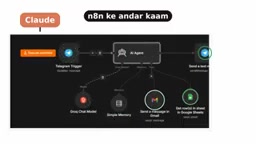
n8n is an open-source, low-code automation platform similar in positioning to Zapier or Make (formerly Integromat), but with support for self-hosted deployment and a more developer-friendly architecture. Workflows are built from "nodes," where each node represents a single operation unit — such as "Send Gmail," "Read Google Sheets rows," or "Call HTTP API." Nodes pass data between each other via directed connections, forming a data processing pipeline. n8n currently offers over 400 native integrations, covering mainstream SaaS tools, databases, and communication platforms. For users without a technical background, understanding node configuration parameters — such as authentication methods, field mapping, and conditional filtering — is typically the biggest onboarding hurdle, and that's precisely where Claude can make a significant difference.
Configuration Steps: Enabling MCP Access in n8n
The core of the entire connection process is n8n's newly introduced MCP (Model Context Protocol) capability. Based on the video walkthrough, here's how to set it up:
Enable MCP in n8n
In n8n, find Settings at the very bottom of the left sidebar and click it. Then locate the Instance Level MCP option. Click into it and you'll see an Enable MCP Access toggle — simply turn it on.
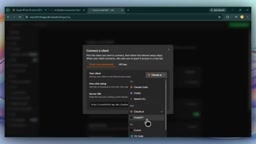
Once enabled, a Connect Your Client option will appear at the bottom of the page. Click Connect, and make sure the selected client is Claude Code — since that's what we're connecting to in this tutorial. The interface also supports connecting other AI clients, but this guide focuses on Claude Code.
After selecting your client, a Server URL will be displayed. Copy this URL — you'll need it in the next step.
Add the Connector in Claude
With the URL copied, switch over to Claude. Go to Settings → Connectors, click Discover, and type "n8n" in the search box — the corresponding connector option will appear. Click it, then click Connect to Cloud.
A text field will appear asking for the Server URL. Paste the address you copied from n8n, then click Connect. Once the connection is established, authorization options will appear — open the dropdown menu and select Allow all to complete the authorization.
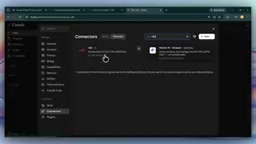
At this point, your Claude Code is successfully connected to n8n.
MCP (Model Context Protocol) is an open-source standard protocol proposed by Anthropic in late 2024, designed to solve the interoperability problem between AI models and external tools or data sources. The core idea is to define a unified "server–client" communication specification, allowing AI assistants (clients) to call the capabilities of any external system (server) through a standardized interface — without needing to build custom integration logic for each tool. n8n exposes its instance as an MCP server; once Claude connects as an MCP client, it can directly call n8n's workflow query, creation, and modification APIs, with all communication following MCP's authentication and request specifications. This is also why Claude prompts for permissions multiple times during the connection — the MCP protocol requires the client to explicitly request user authorization before each external tool call, ensuring operational transparency and security.
Live Test: Can Claude Really Build Workflows on Its Own?
After completing the connection, the author ran a quick verification — sending Claude an instruction to check whether a specific workflow was in an active state. Claude repeatedly requested permissions throughout the process; clicking Allow each time was all that was needed. Claude quickly returned an accurate result, confirming the workflow was active and published — matching what was shown in the n8n interface, proving the connection was working correctly.
What truly "shocked" the author came next. He gave Claude just a single prompt, asking it to create a chat workflow based on the Groq model — then sat back and watched.
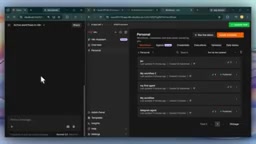
Claude requested authorization multiple times throughout the process. After allowing each request, it actually auto-generated a workflow called Grok Chat AI, complete with a test link and usage instructions. When the author returned to n8n and refreshed the page, the newly created workflow node graph was right there — and he "hadn't touched a single node" himself. All it took was one prompt.
What to Do When Errors Occur
The real-world test wasn't entirely smooth sailing. The workflow threw an error on its first run because the default model selected wasn't available. The author's fix was straightforward: open the node for Groq, swap out the non-working model under the models setting, switch to an OpenAI model, then go back and retest.
After the adjustment, sending a test message worked — Claude returned a reply and the workflow ran normally. The author traced the root cause to the API key: the correct credentials needed to be in place. Since his Groq account credentials had already been connected previously, switching to the right model was all it took to get everything running.
This minor hiccup illustrates an important reality: while AI-assisted workflow building eliminates a huge amount of repetitive work, critical configurations like model selection and API credentials still require human review and fine-tuning. Think of it as a highly efficient assistant, not a fully unsupervised black box.
Value and Limitations
Going from an hour of manual setup to auto-generating a workflow from a single prompt, the n8n + Claude combination genuinely lowers the barrier to automation development. For users unfamiliar with n8n's node logic, describing what you need in natural language and letting Claude handle the node arrangement and configuration is a remarkably practical approach.
That said, it's worth keeping a clear-eyed perspective: workflows generated by Claude won't always succeed on the first try, and steps like model selection and credential configuration still require human intervention. MCP bridges the gap between AI and automation platforms — making "conversational building" possible — but there's still a debugging and validation step standing between you and fully unattended automation.
Claude Code is Anthropic's developer-oriented Claude client, distinct from the standard Claude.ai web chat interface. It focuses on code generation, engineering task execution, and tool-calling scenarios, with native support for MCP connector management. The Connectors panel mentioned in this article is Claude Code's MCP tool management hub, allowing users to add any server endpoint that conforms to the MCP specification. It's worth noting that standard Claude.ai users currently cannot use the Instance Level MCP connection method described here. You'll need Claude Code or another tool that supports the MCP client protocol (such as Cursor or Continue) to replicate the same workflow.
Related articles
AWS AgentCore Gateway: Connecting AI A…
AWS AgentCore Gateway: Connecting AI Agents to Enterprise Backends with MCP
How AWS AgentCore Gateway acts as a primary MCP server to aggregate REST APIs, Lambda, and existing MCP services? Analyzing its AST real-time mapping, zero cold start, semantic search for tool overload, session isolation, and key injection security design, plus the architectural approach to decoupling enterprise AI agents from backends.

One Link Gives Figma AI a New Skill: Hands-On with MCP Connectors
Paste one MCP server link and the AI Agent in Figma gains new tool capabilities. We break down the setup flow, 20+ one-click apps, read/write permissions and execution policies, and the public HTTPS requirement.

Cognition SWE-2 in Practice: One Prompt to Handle the Whole Product Launch Process
Analyzing a YouTube creator's prompt for using Cognition SWE-2 to launch a product: a landing page, seven-email sequence, and non-buyer follow-up tool, plus how the 'test and report' constraint changes AI delivery quality.