DeepSeek Harness Environment Setup Tutorial: Complete Guide to Node.js Installation & Environment Variable Configuration

Step-by-step guide to installing Node.js and configuring environment variables for DeepSeek Harness.
This tutorial walks you through setting up the Node.js environment required by DeepSeek Harness, covering installation directory best practices, the critical "Add to PATH" option, npm global package and cache path configuration, and Windows system environment variable setup. It highlights common pitfalls like Chinese characters in paths and using stale command prompt windows for verification.
Why You Need to Configure Node.js Before Setting Up DeepSeek Harness
DeepSeekAd Harness is an automation AI workflow tool designed for developers, supporting plugin extensions, intelligent orchestration, and visual process management. However, both its installation and runtime depend on the Node.js environment — if you don't get this step right, nothing else will work.
Node.js is a JavaScript runtime environment built on Chrome's V8 engine. It frees JavaScript from the browser, allowing it to run on servers and local machines. npm (Node Package Manager) is Node.js's default package manager and the world's largest open-source software registry, hosting over 2 million packages. DeepSeek Harness relies on Node.js because its plugin system, task orchestration engine, and local services are all built on the JavaScript/TypeScript ecosystem. It needs Node.js for runtime support and npm to manage dependencies, plugins, and version control.
This article is based on a step-by-step tutorial by Bilibili creator "Pan Ge," focusing on the most fundamental and error-prone part — Node.js environment installation and configuration. For readers with zero prior experience, this hands-on guide will help you avoid common pitfalls and complete the environment setup smoothly.
Check Whether Node.js Is Already Installed
Before jumping into installation, first verify whether Node.js is already present on your computer:
- Press
Windows + R - Type
cmdand press Enter to open a command prompt - Run the following two commands to check version numbers:
node -v
npm -v
If both commands output version numbers, Node.js is already installed. If you see an error like "is not recognized as an internal or external command," you'll need to follow the steps below to install it. This error essentially means the system couldn't find node.exe or npm.cmd in any of the directories listed in the PATH environment variable. Environment variables are a mechanism the operating system uses to store configuration information. The PATH variable is especially critical — when you type a command in the terminal, the system searches through the directories listed in PATH one by one to locate the corresponding executable file.
The Right Way to Download and Install Node.js
Go to the official Node.js website and find the "Get Node.js" entry point. The website will automatically detect your operating system:
- Windows users: Download the Windows version directly
- Mac users: Click the dropdown menu and select the corresponding Mac version
Once downloaded, double-click the installer to launch the setup wizard. Pay close attention to the following key points.
Change the Installation Directory — Don't Install on the C Drive
By default, Node.js installs to the C drive. But as the C drive fills up, system performance noticeably degrades. It's recommended to install to a different drive.
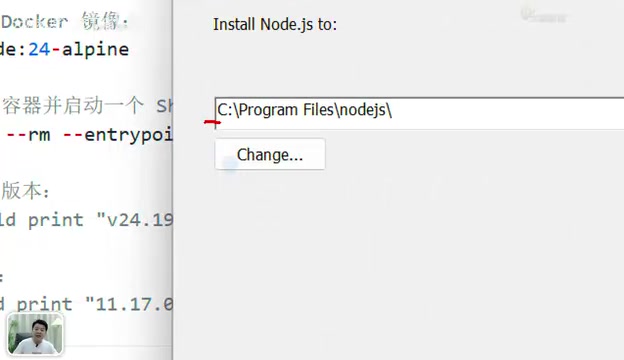
During the installation, click the option to change the directory and select a non-system drive (such as D or F). Create a dedicated folder for Node.js. Important: Do not use Chinese characters in the folder name. Chinese characters in file paths can cause runtime errors later — this is a common trap for beginners.
The reason Chinese characters in paths cause problems is that many Node.js-based tools and third-party packages rely on native modules written in C/C++ (such as the node-gyp build toolchain) for file path processing. These native modules may fail to correctly handle non-ASCII characters (including Chinese, Japanese, and other multi-byte characters), leading to file read/write failures, module loading errors, or compilation issues. Additionally, some scripts use path-concatenation methods that are sensitive to spaces and special characters, and the encoding conversion issues inherent in Chinese paths further exacerbate these incompatibilities. Therefore, using purely English, space-free directory names for development environments is a widely recognized best practice in the industry.
Make Sure to Check "Add to PATH"
During installation, you'll see an "Add to PATH" option — make sure to check it. This step automatically adds the Node.js installation path to the system's PATH environment variable, allowing the system to recognize the node and npm commands from any location, saving you the trouble of manual configuration. After that, simply click Next through the remaining steps and then click Install to complete the process.
Verify That Node.js Was Installed Successfully
After installation is complete, click Finish, then verify the installation. Here's a problem many beginners run into:
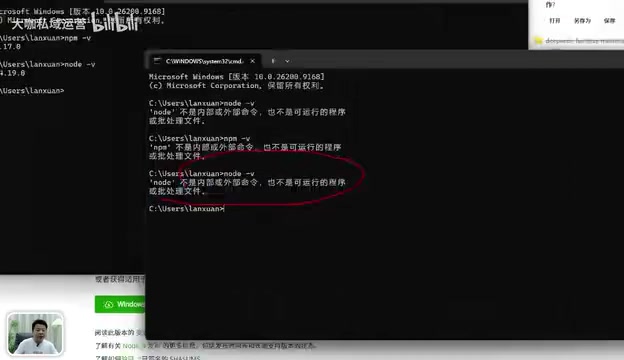
You must open a brand new command prompt window for verification. If you type the commands in a previously opened window, the system will still report "is not recognized as an internal or external command" because the old window hasn't loaded the updated environment variables. This happens because the command prompt reads a snapshot of the environment variables at the time it launches — even if the system environment variables change afterward, already-open windows won't automatically detect or refresh them. When everything seems installed correctly but you're still getting errors, this is almost always the cause.
Open a new window and run node -v and npm -v again. If both version numbers display correctly, Node.js has been installed successfully.
Configure npm Environment Variables to Prevent the C Drive from Filling Up
This step is technically optional, but strongly recommended. Without it, all packages and plugins downloaded through npm will default to the C drive.
Specifically, when npm installs global packages, it stores the package files in the directory specified by prefix and organizes the module structure within a node_modules subfolder under that directory. The cache directory stores compressed archives of downloaded packages. When you install the same version of a package again, npm reads from the cache first instead of re-downloading, significantly improving installation speed. By default, both directories are located under the user folder on the C drive (typically C:\Users\username\AppData\Roaming\npm and C:\Users\username\AppData\Local\npm-cache). As projects multiply and dependencies accumulate, these can take up several GB or more. As you use DeepSeek Harness more extensively, C drive space pressure will only increase.
Create the Directory Structure
Create a new directory on a non-system drive (for example, name it node_home), and inside it create two subdirectories:
- node_global: Stores packages and plugins downloaded via npm
- node_cache: Serves as the npm cache directory
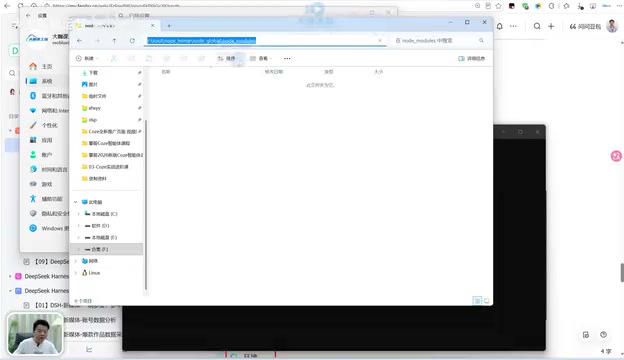
Specify Storage Paths via npm Commands
Open a command prompt and run the following two commands:
npm config set prefix "your_node_global_path"
npm config set cache "your_node_cache_path"
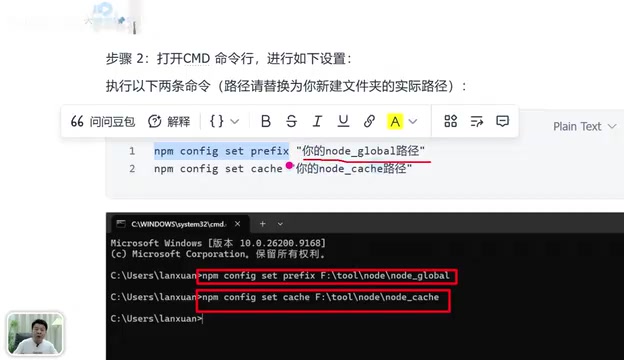
prefixtells npm to store all future global packages in the node_global path, where anode_modulessubfolder will be automatically generated to organize the module structurecachespecifies the directory for cache files — npm saves compressed archives here when downloading packages, allowing direct cache reads for future installations of the same package version
After configuration, a settings file (.npmrc) will be automatically generated in the corresponding directory. You can find it in your user directory and view all current npm configuration items.
Configure Windows System Environment Variables
Setting npm paths alone isn't enough — you also need to configure environment variables at the system level so the system can correctly locate globally installed command-line tools:
- Right-click "This PC" → click "Properties"
- Select "Advanced system settings" → "Environment Variables"
- Under System Variables, click "New." Set the variable name to
NODE_PATHand the variable value to the full path of thenode_global\node_modulesdirectory. NODE_PATH tells Node.js to additionally search this directory when loading modules, ensuring globally installed packages can be properly referenced - Find the
Pathvariable and double-click to edit it. Add two new entries: one with the node_global path (so the system can find globally installed executables) and another with%NODE_PATH%(referencing the variable you just created) - Click "OK" on each dialog to save
Verify That the Environment Variable Configuration Is Working
After configuration, run a test command to download a test package. Once the download is complete, check the node_global\node_modules directory. If the corresponding content appears there, the environment variable configuration is working — from now on, everything installed via npm will go to your specified directory, no longer consuming C drive space.
Key Takeaways from the Environment Setup
At this point, the Node.js environment required to run DeepSeek Harness is fully prepared. Several key points are worth emphasizing again:
- Avoid Chinese characters in installation directories and custom folder names — native modules and some scripts cannot correctly handle non-ASCII characters
- Check "Add to PATH" during installation to automatically configure environment variables, allowing the system to recognize node and npm commands from any location
- Always open a new command prompt window for verification — old windows won't automatically load updated environment variables
- Configuring npm environment variables effectively protects your C drive space by redirecting global packages and cache to a non-system drive
Environment setup is the most fundamental step, but it determines whether you can smoothly use DeepSeek Harness's core features like plugin extensions, intelligent orchestration, and visual process management. Once these configurations are complete, you're ready to move on to the actual installation and use of DeepSeek Harness.
Related articles

Apple Finally Launches a Touchscreen MacBook, But Touch Isn't the Point
Apple launches its first touchscreen MacBook Pro, but touch isn't the core selling point. The Vergecast digs into why Apple did it now, what macOS interaction changes were made, how touch-optimized apps actually feel, and the real challenges around pricing and the product line.

Agentic Engineering with Claude Code and Android CLI
Google's Android team shares how to do agentic engineering with Claude Code and Android CLI: build the right environment, keep context around 150K tokens, inject info precisely via hooks and skills, and use layered verification loops to raise benchmark pass rates from 22% to 90%.

XR Accessibility Design in Practice: Alchemy Labs' Rules for Inclusive Spatial Experiences
Alchemy Labs UX lead Jasmine Cano shares practical XR accessibility design lessons: strategies for four disability types, small-body mode, snap turning, environmental read-aloud, beam stabilization, and more.