Migrating from Windows to Linux: A Practical Switching Guide

A practical Windows-to-Linux migration guide based on an LTT video, covering distro selection, backup, installation, file system, software acquisition, and driver handling.
This article, based on a Linus Tech Tips video, provides a step-by-step guide for migrating from Windows to Linux. First, it recommends using DistroSea to test distros online, or choosing via the DistroChooser questionnaire, and referring to DistroWatch for popularity trends. Before installation, be sure to back up the /home directory and hidden program data, and you can physically disconnect other drives. The Linux file system is rooted at /, with personal files concentrated in /home/username. For software, Flatpak and Flathub are recommended, and Windows-exclusive apps can be tried with Bottles. For gaming, Steam Proton compatibility layer and dual booting are the main solutions. Nvidia drivers require choosing official or open-source drivers based on the GPU model, and some distros provide driver managers to simplify installation.
Title
Migrating from Windows to Linux: A Practical Switching Guide
Meta Description
A practical guide to migrating from Windows to Linux: how to choose a distro, back up data, install the system, understand the file structure, get software, and handle Nvidia drivers, based on LTT video content.
Article Content
Dissatisfaction with Windows may stem from privacy concerns, poorly timed updates, or system ads intruding on your experience. Whatever the reason, more and more users are considering switching to Linux. Based on content from a Linus Tech Tips (LTT) video, this article compiles a practical guide for migrating from Windows to Linux, covering key steps such as choosing a distro, backing up data, installation, the file system, obtaining software, and handling drivers.
1. Choose the Linux Distro That Suits You
With so many Linux distros available, choosing one can often be confusing. LTT recommends not blindly following others' recommendations, but trying things yourself. The fastest way is to use DistroSea, which lets you test dozens of distros directly in your browser without downloading an ISO or creating a boot drive.
If you feel overwhelmed, try DistroChooser—a questionnaire-style selector that recommends about half a dozen options based on your preferences. If you want to understand popularity trends, DistroWatch is a good resource; it ranks distros by popularity and provides release news and reviews.

Once you've decided on a distro, download the ISO file from the official website (usually choose the x86-64 architecture). While waiting for the download, prepare a tool for creating a boot drive, such as BalenaEtcher or Rufus. Ventoy was once popular, but it has recently fallen out of favor due to potential security risks from using precompiled binaries.
2. Back Up Data and Prepare for Installation
Installing Linux usually wipes the operating system drive, so backups are essential. If you have a NAS or cloud storage, you can copy all important files under /home/username there. Also keep in mind that some programs may store user data in hidden AppData folders or even in the program installation directory, so you'll need to check manually.
If you don't have a NAS or cloud storage, consider buying a new hard drive as a backup target, or simply install Linux on the new drive for a dual-boot setup. Either way, after the backup is complete, it's recommended to physically disconnect all drives that don't need Linux installed to avoid accidental operations.
Next, enter the UEFI BIOS (you can hold Shift while restarting in Windows, or press F2/Delete or another hotkey at boot), and set the USB device as the first boot option. You can also check the Secure Boot setting; you can enable it if it's off, but some drivers may require registering a Machine Owner Key (MOK) later.
UEFI and Secure Boot: UEFI (Unified Extensible Firmware Interface) is the modern boot firmware that replaced the traditional BIOS, responsible for hardware initialization and operating system booting. Secure Boot is a security feature of UEFI that prevents malware from loading before the system boots by verifying the digital signatures of bootloaders. Many Linux distros already support Secure Boot, but some third-party drivers (such as Nvidia proprietary drivers) require users to manually register a Machine Owner Key (MOK) before they can load. MOK is part of the Secure Boot mechanism, allowing users to authorize their own signed kernel modules or drivers without fully disabling Secure Boot.
3. Getting to Know the Linux Desktop and File System
After installation is complete, the first time you enter the desktop may feel unfamiliar. Different distros have different desktop environment layouts; the system tray may be in the top-right corner, bottom-right corner, or hidden by default. Don't panic—adaptation takes time, and the best approach is to immerse yourself and not constantly switch back to Windows.
Open the file manager (such as KDE's Dolphin, or Nautilus, Nemo, etc.), and you'll see a directory structure completely different from Windows. Windows assigns a drive letter to each drive and creates a separate folder tree, while Linux has only one tree rooted at /, with all drives mounted somewhere in the tree. For example, a games drive might be mounted at /mnt/games instead of D:\Games.
Most users only need to pay attention to /home/username, which is equivalent to Windows' C:\Users\username and stores personal files such as documents, downloads, and pictures. Other directories mostly belong to system areas: /etc stores configuration files; /var is for frequently changing data (such as logs and package manager caches); /usr stores installed programs; /bin and /sbin are core system binaries; /lib is for shared libraries; /boot handles booting; /proc and /dev are virtual file systems that expose process information and hardware devices, respectively. Ordinary users usually don't need to touch these directories, but understanding that they exist helps you understand how the system works.
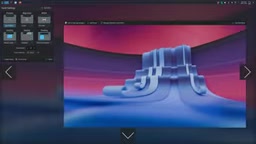
4. Obtaining Software: Package Managers and Flatpak
Linux gets software differently from Windows. Most distros provide graphical package managers, similar to app stores, suitable for users who aren't comfortable with the command line. Although you can also download directly from developers' websites, Linux has no universal .exe format; different distros use different package managers, and compatibility varies.
The closest thing to a universal format currently is Flatpak. It bundles dependencies internally, is sandboxed by default, and can be installed on almost any distro. Flathub, Flatpak's main repository, hosts about 2,800 apps, and downloads have grown significantly: in 2025, downloads reached 25 million, up 21% year over year, with more than 1,000 apps published directly by their original developers rather than repackaged by volunteers.
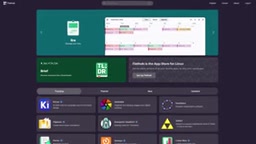
For Windows-exclusive apps with no Linux alternative, you can try Bottles—a front-end for Wine that allows you to install Windows apps in a controlled environment and configure compatibility settings, making it easier to use than Wine directly. Before trying, it's recommended to check WineHQ's AppDB to learn about known compatibility for specific apps.
Wine and Bottles: Wine (Wine Is Not an Emulator) is a compatibility layer that allows Windows applications to run on Unix-like systems such as Linux. It works by translating Windows API calls into native system calls rather than emulating an entire Windows environment, so performance is close to native. However, Wine's configuration is relatively complex, and different apps may require different settings. Bottles is a graphical front-end for Wine that manages dependencies and configurations for different apps by creating isolated "bottles" environments, simplifying the installation process and providing preset compatibility options, making it suitable for users unfamiliar with the command line.
5. Games and Professional Software: Dual Booting and Compatibility Layers
For games with kernel-level anti-cheat or certain professional software, dual booting is currently the only reliable solution. LTT has previously made a dedicated video on dual-boot setup.
If you don't want to dual boot, you can look for Linux alternatives. For browsers, Firefox, Chrome, Brave, and Opera all have native Linux versions, covering most users' daily needs. For gaming, Steam provides the Proton compatibility layer, which lets many Windows games run directly on Linux without user configuration. But not all games are compatible; some anti-cheat and DRM schemes still have issues. In addition, Heroic Launcher can be used for Epic and GOG games, while Lutris is suitable for emulator players.
6. Handling Drivers: Nvidia as an Example
Most distros already include the drivers you need, but Nvidia drivers can sometimes be a pain point. Some distros handle this proactively, while others require users to choose. The open-source NVK driver is progressing well and has even gained experimental DLSS support, but it's still not suitable for gaming.
The main options are the two versions of Nvidia's official driver: Nvidia and Nvidia Open. Both offer the same performance; the difference is that the kernel interface portion of Nvidia Open is open source, while the part that communicates with games remains closed source. The Open version only supports RTX 20 series and newer GPUs; the RTX 50 series exclusively uses the Open version, and Nvidia has defaulted to using the Open version on all supported GPUs. GTX 10 series and older GPUs can only use the classic driver.
Installing drivers may take just one click, or it may be unusually tedious, depending on the distro. Ubuntu, Bazzite, and PikaOS include driver managers that handle it automatically; Arch-based distros can use tools like big driver manager.
After completing the above steps, you've basically finished the migration. Updates no longer interrupt your games, the app menu no longer pushes products, and the operating system no longer sends data back without permission (specific apps may still do so). You gain more control: you can change the desktop environment, adjust boot entries, customize window behavior, and even set up animated pop-up warnings. This freedom is exactly the charm of Linux.
Reference source: Linus Tech Tips (LTT) video "How to Switch to Linux"
One-line Summary
A practical guide to migrating from Windows to Linux based on an LTT video, covering distro selection, backup, installation, file system, software acquisition, and driver handling.
Paragraph Summary
This article, based on a Linus Tech Tips video, provides a step-by-step guide for migrating from Windows to Linux. First, it recommends using DistroSea to test distros online, or choosing via the DistroChooser questionnaire, and referring to DistroWatch for popularity trends. Before installation, be sure to back up the /home directory and hidden program data, and you can physically disconnect other drives. The Linux file system is rooted at /, with personal files concentrated in /home/username. For software, Flatpak and Flathub are recommended, and Windows-exclusive apps can be tried with Bottles. For gaming, Steam Proton compatibility layer and dual booting are the main solutions. Nvidia drivers require choosing official or open-source drivers based on the GPU model, and some distros provide driver managers to simplify installation.
Related articles
AWS AgentCore Gateway: Connecting AI A…
AWS AgentCore Gateway: Connecting AI Agents to Enterprise Backends with MCP
How AWS AgentCore Gateway acts as a primary MCP server to aggregate REST APIs, Lambda, and existing MCP services? Analyzing its AST real-time mapping, zero cold start, semantic search for tool overload, session isolation, and key injection security design, plus the architectural approach to decoupling enterprise AI agents from backends.

One Link Gives Figma AI a New Skill: Hands-On with MCP Connectors
Paste one MCP server link and the AI Agent in Figma gains new tool capabilities. We break down the setup flow, 20+ one-click apps, read/write permissions and execution policies, and the public HTTPS requirement.

Cognition SWE-2 in Practice: One Prompt to Handle the Whole Product Launch Process
Analyzing a YouTube creator's prompt for using Cognition SWE-2 to launch a product: a landing page, seven-email sequence, and non-buyer follow-up tool, plus how the 'test and report' constraint changes AI delivery quality.