9 Advanced Claude Code Tips: From Memory Injection to Context Management — A Complete Guide
9 advanced Claude Code tips to transform your terminal into an AI-powered automation workflow.
This guide breaks down 9 advanced Claude Code techniques — from injecting project memory with /init and claude.md, to monitoring and managing context windows, using Plan mode for upfront alignment, guiding AI like a junior developer, and leveraging /undo for safe rollbacks — helping developers build a complete Monitor → Diagnose → Clean → Plan → Execute → Verify → Rollback workflow for dramatically improved productivity.
Many developers feel like AI just "won't cooperate" when using Claude Code — constant back-and-forth, frequent derailments, and endless revisions. The problem usually isn't the AI itself, but rather not knowing the right way to use it. This article breaks down 9 advanced productivity tips for Claude Code, covering everything from memory injection to context management, collaboration strategies to quality assurance loops, helping you turn your terminal into a true automation powerhouse.
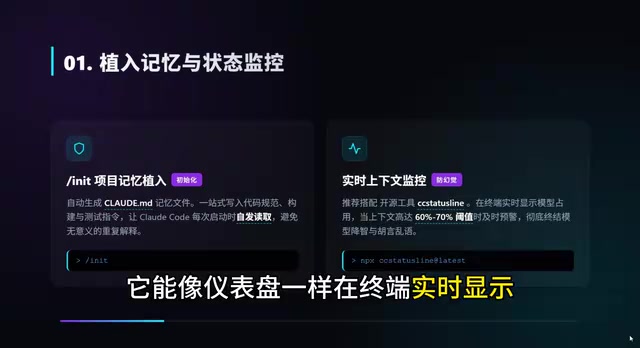
Inject Project Memory into AI: /init and claude.md
What's the first thing you do when picking up a new project? Browse the code, understand the structure, figure out the conventions. But in Claude Code, all you need is a single /init command.
This operation generates a file called claude.md, which essentially implants a "project soul" into the AI. You can include:
- Code conventions: naming styles, indentation rules, commenting requirements
- Build commands:
npm run build,docker compose up, etc. - Forbidden list: naming patterns you dislike, libraries you don't allow
- Architecture overview: directory structure, module responsibilities, core dependencies
The design philosophy behind claude.md embodies the modern DevOps concept of "Configuration as Code." In traditional development, team conventions are typically scattered across Wikis, Confluence docs, or verbal agreements, and new team members need significant time to internalize this tacit knowledge. claude.md makes this tacit knowledge explicit and version-controlled, allowing it to be tracked and collaboratively maintained via Git alongside the codebase. This aligns with the philosophy behind .editorconfig, .eslintrc, and similar config files — turning the "unwritten rules" of your development environment into enforceable "written rules." More importantly, claude.md supports multi-level configuration: global settings in the project root, module-level settings in subdirectories, and personal preference settings in the user's home directory, all merged by priority.
The next time Claude Code starts up, it automatically reads this file — no more explaining your project background over and over. This step may seem simple, but it's the foundation for all the efficient collaboration that follows.
Context Monitoring and Management: Don't Let AI "Work While Sick"
Monitor Token Usage in Real Time
A common pain point: the AI starts hallucinating mid-conversation. The root cause? The context window overflowed.
It's worth understanding the underlying mechanics of the context window. The Context Window is the maximum text length a large language model can process at once, measured in Tokens. A Token isn't the same as a character or a word — in English, one Token corresponds to roughly 4 characters or 0.75 words; in Chinese, a single character is typically encoded as 1-2 Tokens. Claude's context window is 200K Tokens, meaning it can "see" approximately 150,000 words simultaneously. But the context window isn't utilized uniformly: research shows that models remember information at the beginning and end of the window best, while the middle tends to be "forgotten" — the so-called "Lost in the Middle" phenomenon. When Token usage gets too high, early critical instructions and design decisions get pushed into the weak attention zone, causing a sharp drop in output quality.
This is when you need a status monitoring tool, such as the open-source cc-status-line, which displays Token usage percentage in your terminal like a dashboard.
Critical threshold: Once Token usage exceeds 60%-70%, it's a red alert — the AI's "memory" starts degrading rapidly, and reasoning quality drops noticeably. You must clean up immediately. Don't let it work while sick.
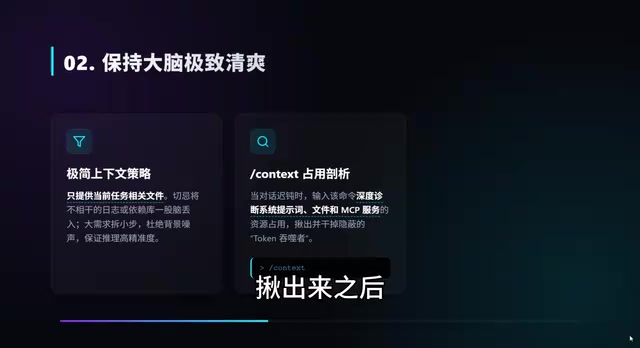
Precise Feeding: Only Provide Relevant Files
Many developers habitually dump entire folders into the AI, which wastes precious context window space. The golden rule is:
Only provide files relevant to the current task, and always break large requirements into small steps.
Keep irrelevant log files, massive dependency libraries, and unrelated config files out. The cleaner the AI's "brain," the more precise its reasoning.
Context Diagnosis and Cleanup: Two Must-Know Commands
If you feel the AI is getting sluggish, don't guess — diagnose it directly with commands.
The /context command acts like a doctor, clearly laying out the distribution of system prompts, file usage, and resource consumption. You can instantly spot what's "eating" your Tokens.
Once you've identified the problem, it's time for surgery. Here are two core commands:
/compact(slim down): This summarizes and compresses previous redundant conversations, retaining only key design decisions and context information, instantly freeing up significant space. Best used mid-task./clear(wipe clean): When you've finished a major module and are ready to start a completely new task, clear the context entirely. Start fresh and clean — don't let "hallucinations" from old code interfere with new thinking.
These two commands serve different purposes: /compact is a "halftime break," while /clear is a "full reset."
Plan Mode: Align on the Approach Before Taking Action
Many programmers jump straight into having the AI write code, then end up in an endless revision loop. Here's a strong recommendation: use Plan Mode.
Press Shift + Tab, or simply tell it to "make a plan first," and Claude Code enters a read-only analysis mode — it only examines code without modifying files, telling you: "Here's what I plan to do. Does this look right?"
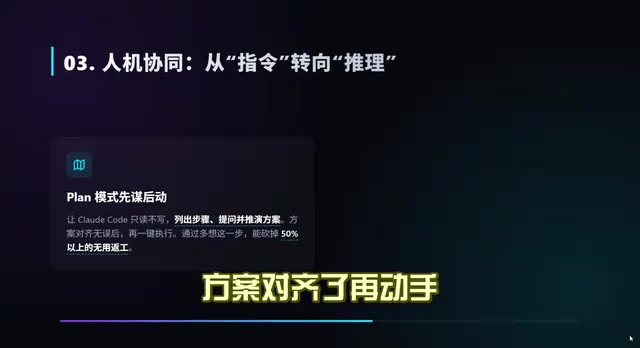
The underlying principle of Plan Mode is closely related to Chain-of-Thought (CoT) reasoning. Research by the Google Brain team in 2022 demonstrated that having large language models reason step-by-step before giving a final answer significantly improves accuracy on complex tasks. Plan Mode essentially forces the AI to perform structured chain-of-thought analysis first — mapping file dependencies, assessing the scope of changes, and anticipating potential conflicts — before deciding on an execution plan. This "think before you act" approach corresponds to the Architecture Review concept in software engineering: any change involving multi-module coordination should go through a design review before entering the coding phase, rather than being written and revised on the fly.
Don't underestimate this step. Aligning on the approach before taking action can save you half the detours. Especially for scenarios involving architectural changes or multi-file coordinated modifications, Plan Mode is practically a must.
Collaboration Strategy: Guide AI Like a Junior Developer
Here's an important mindset shift. Many people issue rigid commands: "Write me a sorting function." This treats the AI like a parrot, and the results are usually mediocre.
A more advanced approach is to pose problems and give it decision-making authority:
"I think this API response is too slow. Can you analyze where the bottleneck might be?"
Treat Claude Code like a junior developer you're mentoring — guide it to reason and analyze rather than mechanically execute. This is true human-AI collaboration: you handle directional judgment, it handles the details.
Practical Tips for Aligning Requirements: Make AI Ask Questions Proactively
How do you ensure the AI truly understands what you mean? Add this line at the end of your requirement description:
"Keep asking me questions until you're 95% confident you understand my true intent."
The technique of making AI ask proactive questions belongs to the "meta-prompting" strategy in Prompt Engineering. Traditional instructional prompts are one-directional commands, while meta-prompts embed constraints on the AI's behavioral patterns within the prompt itself. This method originates from the "Socratic questioning method" in cognitive science — approaching the essence of a problem through repeated questioning. In real-world engineering scenarios, ambiguous requirements are the number one cause of rework. According to the Standish Group's CHAOS Report, approximately 40% of software project failures are directly related to unclear requirements. Having the AI play the role of a "requirements analyst" who proactively clarifies ambiguities essentially front-loads the requirements review process into the human-AI dialogue phase.
Spending an extra 10 minutes aligning requirements upfront beats spending a full day fixing bugs later. This tip may seem simple, but its impact in real projects is remarkable.
Delivery Quality Loop: Self-Check Checklist + Safe Rollback
Automated Self-Check Checklist
High-quality delivery can't rely on "gut feeling" — it needs process. We can have Claude Code automatically create a TODO checklist when executing tasks, which must include:
- ✅ Run test cases
- ✅ Check for Lint errors
- ✅ Verify the build passes
- ✅ Confirm no new type errors were introduced

Nothing counts as done until verification passes. This closed-loop mindset is the guarantee of high-quality delivery.
The Undo Button: /undo for One-Click Rollback
What if the AI really messes up your code? Don't panic — just type /undo.
This is Claude Code's "undo button" — a one-click safe rollback to the state before the modification. Claude Code's /undo capability relies on its deep integration with the Git version control system. Git is a distributed version control system created by Linus Torvalds in 2005 for Linux kernel development, with a core design philosophy of recording every file change as an immutable Snapshot. Claude Code automatically creates Git commits before each code modification, essentially taking a "snapshot" of the code state. The /undo command actually performs a git revert or git reset operation, precisely rolling back the working directory to its pre-modification state. This is far more reliable than a traditional editor's Ctrl+Z, because it doesn't just revert file contents — it can also revert file creation, deletion, and renaming operations.
Because Claude Code fully integrates the editor, terminal, and Git, rollback operations are highly reliable — no more awkward situations where you're stuck halfway through a change with no way back.
Summary: From Chatbot to Automated Workflow
What makes Claude Code truly powerful is that it fully integrates the editor, terminal, and Git. We're not using a simple chatbot — we're building a fully automated power-user workflow.
Let's review the 9 core tips:
| Tip | Command/Action | Core Value |
|---|---|---|
| Inject Memory | /init | Configure once, effective forever |
| Token Monitoring | cc-status-line | Real-time context health awareness |
| Precise Feeding | Manually manage file scope | Improve reasoning accuracy |
| Context Diagnosis | /context | Locate Token consumption sources |
| Context Slimming | /compact | Free up space mid-task |
| Context Reset | /clear | Full reset when switching tasks |
| Plan First | Shift+Tab / Plan Mode | Reduce rework |
| Requirement Alignment | Guide AI to ask proactive questions | Align early, save later |
| Safe Rollback | /undo | No fear even if things go wrong |
The key to mastering these tips isn't memorizing every command — it's building a complete workflow mindset of "Monitor → Diagnose → Clean → Plan → Execute → Verify → Rollback." Once you internalize this process as a habit, the improvement in development efficiency will be a quantum leap.
Related articles
DeepSeek V4 Flash Free Usage Guide: Configuration for Cherry Studio and CC Switch
DeepSeek V4 Flash is free for a limited time with zero token charges. Learn how to register on OpenModel and configure it in Cherry Studio and CC Switch.
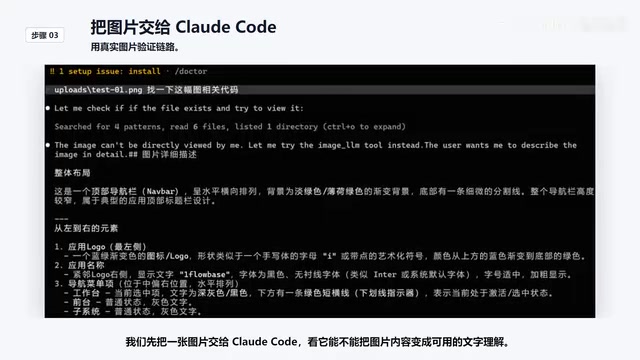
1FlowBase in Practice: Adding Vision Tools to DeepSeek V4 for Multimodal Capabilities
Learn how to use 1FlowBase to mount MIMO 2.5 as a vision tool on DeepSeek V4, creating a Fusion multimodal endpoint with step-by-step orchestration guide.
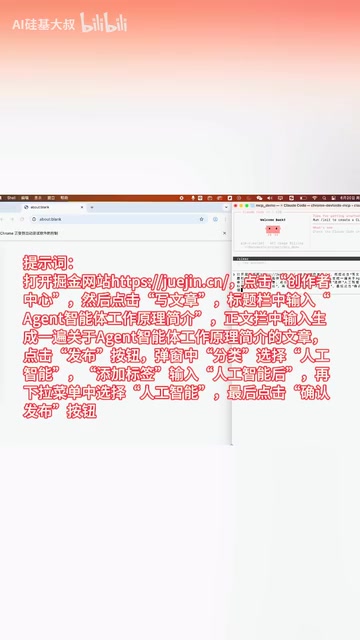
Chrome DevTools MCP Hands-On: Using AI to Automatically Control a Browser, Write Articles, and Publish Them
Hands-on test of Chrome DevTools MCP with Claude Code: AI automatically opens a browser, writes an article, fills in tags, and publishes — full workflow breakdown with pros and cons analysis.