A Giant Shot: An AI Screenshot Tool with Built-in MCP That Lets AI Directly Control Your Computer
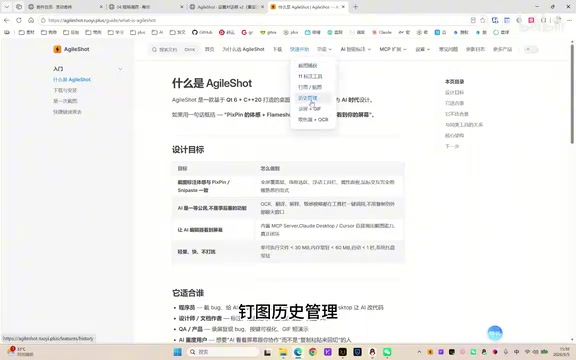
A Giant Shot is an AI-powered screenshot tool with built-in MCP that lets AI see and control your desktop.
A Giant Shot is a C++/Qt desktop screenshot tool that combines PixPin-level capture and annotation with built-in AI capabilities. Its standout feature is a native MCP Server that exposes 25 tools to AI clients like Cursor and Claude Desktop, enabling AI to take screenshots, perform OCR, and automate mouse/keyboard actions on your computer through natural language commands.
Screenshot Tools Enter the AI Era
Have you ever experienced this: you take a screenshot of some code to ask AI about it, then have to switch back to Cursor, drag the image in, wait for AI to analyze it, and switch back again — four window switches in total? Or you screenshot some foreign text for translation but can't copy the text out? Or you pin a design mockup for reference but can't click the buttons underneath it? Or you share a screenshot with a colleague but forget to blur sensitive information…
These seemingly trivial pain points gave rise to a desktop screenshot tool called A Giant Shot. It not only delivers a screenshot experience on par with PixPin along with 11 annotation tools, but also innovatively integrates built-in AI chat and an MCP Server, enabling AI to directly see your screen and even control your computer to complete tasks.
Core Screenshot Experience: PixPin-Level Feel
Smart Window Detection & Quick Actions
A Giant Shot is built with pure C++20 + Qt, achieving sub-second startup times. The technology choices here are worth elaborating on: C++20 is the 2020 standard of the C++ language, introducing important features like Concepts, Coroutines, and Modules — dramatically improving development efficiency while maintaining peak performance. Qt is a battle-tested cross-platform GUI framework used by well-known desktop applications like WPS, VirtualBox, and OBS Studio. Compared to the popular Electron approach (which loads an entire Chromium browser engine and easily consumes hundreds of MB of memory), the native C++ + Qt combination keeps resource consumption extremely low — this is the key reason A Giant Shot achieves sub-second startup.
After installation, double-click to launch and a tray icon appears in the bottom-right corner. A single click triggers a screenshot. The default hotkeys are very intuitive:
- F6: Region screenshot
- F7: Pin to screen
- F8: Hide screenshot
- F9: Restore pinned image
- Ctrl+Alt+A: AI chat
After pressing F6, the tool automatically detects window boundaries — just click to lock the capture area. This smart window-snapping experience is very similar to PixPin, so users familiar with PixPin can get started with virtually zero learning curve. Speaking of PixPin, it's a screenshot tool that has gained widespread acclaim among Chinese developers in recent years, known for its smooth window detection, rich annotation features, and click-through pinning. Many users consider it a strong alternative to Snipaste on Windows. The screenshot tool market has long been dominated by tools like Snipaste, ShareX, and Greenshot, with features concentrated on traditional capabilities like capturing, annotating, and pinning. A Giant Shot chose to start with PixPin-level baseline experience and layer AI capabilities on top — essentially seeking a differentiation breakthrough in an already mature tool category.
11 Annotation Tools at Your Fingertips
After locking the capture area, the bottom toolbar offers a rich set of annotation options:
- Basic shapes: Rectangle, circle, arrow
- Freehand tools: Pen, highlighter
- Text annotation: Direct text input
- Privacy protection: Mosaic (adjustable thickness) and blur effects
- Numbered labels: Auto-numbering 1, 2, 3, 4
- Stamps: X marks, stars, exclamation marks, question marks, flames, etc.
- Undo/Redo: Roll back operations at any time
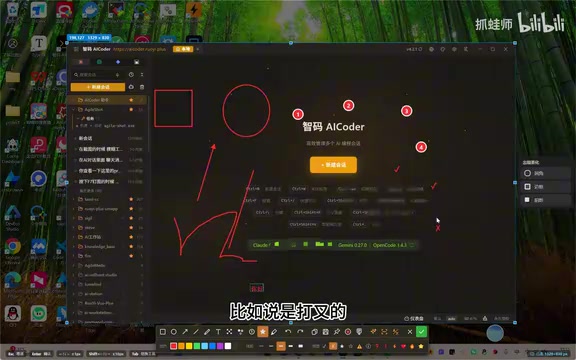
Mosaic and blur are two separate tools — mosaic is ideal for completely obscuring sensitive information, while blur is better for de-emphasizing background details. Both support line thickness adjustment. After finishing your screenshot, click confirm and the image automatically goes to your clipboard, ready to paste into QQ, WeChat, or any other application.
Pinning, Screen Recording & More Practical Features
Press F7 to pin your most recent screenshot as a floating window on the desktop. It supports scaling, and the mouse can click through it — you can reference the pinned image while normally operating the application underneath. The floating window also provides quick buttons for copy, save, edit, and OCR recognition.
Additionally, A Giant Shot supports screen recording with one-click GIF generation, scrolling long screenshots, delayed screenshots, a color picker, magnifier, and other practical features, essentially covering all everyday screenshot use cases.
AI Features: More Than a Screenshot Tool — A Smart Assistant
Configuration & Pricing
Before using AI features, you need to configure an API in the settings. The tool supports multiple AI services — you can add several and set a default. All basic screenshot features are permanently free. AI features come with a free first month, after which the cost is just a few yuan per month — a very friendly pricing strategy.
Quick OCR & Smart Translation
Right-clicking the tray icon reveals a series of AI tool entries. The Quick OCR feature lets you select any area of the screen, and AI immediately recognizes the text and copies it to the clipboard.
Notably, this OCR is not a traditional local engine solution but is powered by the configured AI API. Traditional OCR tools like Tesseract and PaddleOCR bundle model files within the application and can run offline, but their recognition accuracy is limited by the local model's capabilities, with limited performance on complex layouts, handwriting, and mixed-language text. A Giant Shot's cloud-based approach essentially sends the screenshot to a vision-language model (such as GPT-4o, Claude 3.5, etc.) for understanding — these models can not only recognize text but also understand semantic context, table structures, and even chart meanings, with accuracy and generalization far exceeding traditional OCR engines. The trade-off is the need for network connectivity and API call costs, along with some latency, but the benefit is that recognition capabilities continuously improve as AI models are upgraded.
There are also features like "Auto-blur Sensitive Information" and "AI Smart Annotation." The former automatically identifies and blurs phone numbers, email addresses, and other private information in screenshots, saving you the hassle of manual redaction.
MCP Server: Letting AI Truly "See" and "Control" Your Computer
This is A Giant Shot's most differentiating feature, and the most exciting part.
What Is MCP?
Before diving into the feature details, it's worth understanding the background of the MCP protocol. MCP (Model Context Protocol) is a standardized protocol open-sourced by Anthropic in late 2024, designed to solve the connection problem between AI models and external tools and data sources. Before MCP, every AI application that needed to integrate external tools required custom adapter code, creating a massive "M×N" integration challenge — M AI applications connecting to N tools required M×N sets of adapter logic. MCP defines a unified client-server architecture that allows AI applications (MCP Clients) to discover and invoke capabilities provided by any tool (MCP Server) through a standard protocol. This is similar to how the USB protocol unified peripheral connection standards — with MCP, an AI tool only needs to implement the protocol once to connect with all compatible services. Currently, mainstream AI tools including Claude Desktop, Cursor, and Windsurf all support MCP client functionality, and A Giant Shot serves as an MCP Server, exposing screenshot and desktop control capabilities to these AI clients.
Built-in AI Chat for Desktop Automation
Press Ctrl+Alt+A or right-click to select "AI Chat" to open the built-in chat window. In this window, you can directly use natural language to have AI control your computer. For example, type:
"Open QQ, find Lure, and send hello"
The AI then automatically opens QQ, locates the contact named Lure, and successfully sends the message. The entire process requires no manual intervention.
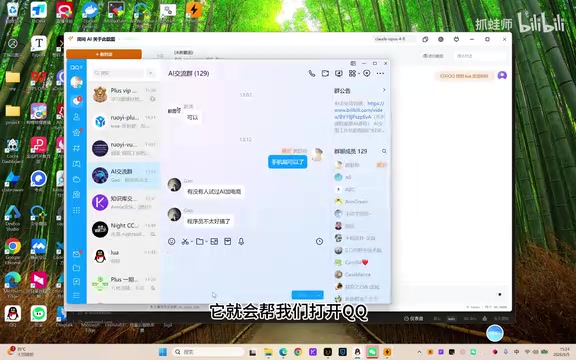
The underlying technology belongs to AI desktop automation (also known as Computer Use or GUI Agent), which has been a hot research direction in AI since 2024. The core workflow is: AI captures visual information from the screen via screenshots, uses multimodal large models to understand interface content and element layouts, then generates mouse click and keyboard input commands to complete tasks. This approach was first publicly demonstrated by Anthropic in Claude 3.5 Sonnet's "Computer Use" feature, followed by OpenAI's Operator, Google's Project Mariner, and others. A Giant Shot's implementation wraps screenshot capabilities and mouse/keyboard control as MCP tools, with the AI model completing complex multi-step tasks through a loop of "screenshot → understand → act → screenshot to verify."
One-Click Integration with Cursor, Claude Desktop, and Other MCP Clients
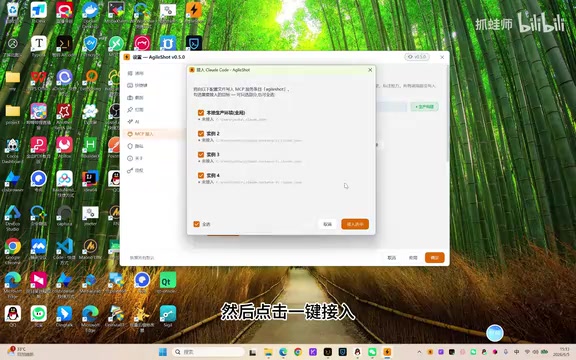
In the MCP settings page, click "One-Click Integration" to connect A Giant Shot's MCP Server to your local development environment. It supports integration with multiple environments, including Claude Desktop and Cursor and other mainstream AI coding tools.
Once connected, typing /MCP in tools like Cursor reveals 25 tools provided by A Giant Shot for AI to call. This means you can simply say "screenshot the desktop" in Cursor, and AI will invoke the screenshot function via the MCP protocol — no need to manually take a screenshot and drag it into the chat. Going further, you can even have the AI in Cursor capture the currently running application's interface, automatically analyze UI issues, and provide fix suggestions, creating a closed loop from "seeing the problem" to "fixing the code."
Security Control Mechanisms
MCP's permission controls are designed with caution:
- Allow AI to take screenshots: Enabled by default
- Allow AI to delete screenshot history: Configurable
- Allow mouse/keyboard automation: Disabled by default
If mouse/keyboard automation is enabled, there's a default 300-second time limit, after which permissions are automatically revoked. You can also check "Always Allow" to remove the time limit. This design strikes a good balance between convenience and security — after all, letting AI control your mouse and keyboard involves significant security risks, so disabling it by default with a timeout mechanism is a responsible approach.
Current Limitations & Outlook
Currently, A Giant Shot only supports Windows (Win 10/11), with macOS and Linux versions still in development. As a freshly released version 0.5.0, the developer acknowledges there may be some bugs and commits to continuous optimization.
From a tech stack perspective, the pure C++20 + Qt choice ensures performance and startup speed, but cross-platform adaptation requires significant effort. Although the Qt framework itself supports cross-platform compilation, screenshot tools involve extensive low-level OS interactions — such as window detection, screen capture, global hotkeys, and system tray — which are implemented very differently across operating systems and require platform-specific adaptation. The OCR reliance on cloud APIs rather than a local engine limits offline scenarios, but the upside is that recognition capabilities improve as AI models are upgraded.
From an industry trend perspective, AI desktop automation is in a period of rapid development. Beyond tool-level products like A Giant Shot, Microsoft is advancing system-level Copilot integration in Windows, and Apple is embedding AI capabilities into macOS and iOS through Apple Intelligence. As a high-frequency entry point for users interacting with screen content, screenshot tools are naturally suited to become the "eyes" through which AI perceives the desktop environment. A Giant Shot's exploration in this direction is forward-looking.
Summary
A Giant Shot's core value lies in upgrading the screenshot tool from "passive recording" to "active interaction." Traditional screenshot tools stop at image capture and annotation, while A Giant Shot, through its built-in MCP Server, turns screenshots into an entry point for AI to perceive the screen, enabling automated desktop control.
For developers, this means significantly less window switching and manual screenshotting in AI coding environments like Cursor, greatly improving workflow continuity. The strategy of free basic features and low-cost AI features also lowers the barrier to trying it out. If you're looking for a tool that combines traditional screenshot capabilities with AI desktop control, A Giant Shot is worth a try.
Related articles
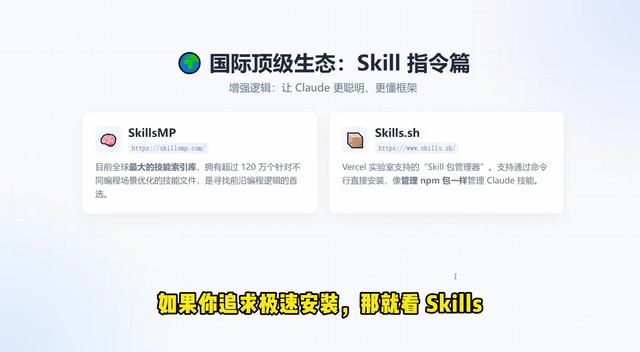
Claude Code Skills and MCP Resources: A Complete Guide from Beginner to Expert
A comprehensive guide to Claude Code Skills and MCP resources, covering international platforms like Skills.mp and Smithery plus Chinese alternatives, with a quick selection guide to boost AI coding productivity.
AI Code Output Up 10x — How Do You Keep Code Review from Collapsing?
When AI code generation outpaces human review, Code Review becomes the biggest bottleneck. Learn guardrail systems, architecture constraint tests, and TDD-driven Agent development strategies.
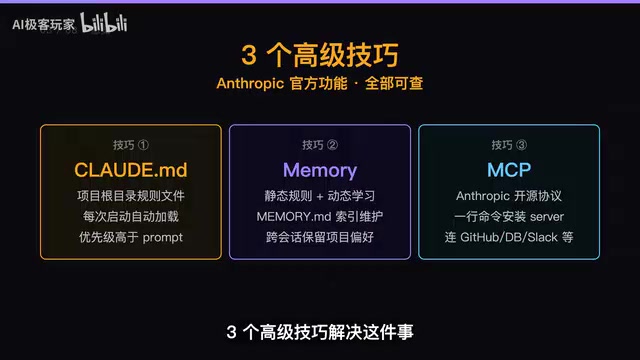
Three Essential Claude Code Configuration Techniques: A Practical Guide to CLAUDE.md, Memory & MCP
Master three Claude Code configuration techniques: use CLAUDE.md for project rules, Memory for auto-learning preferences, and MCP for connecting GitHub and external tools.