Claude Code Desktop Configuration Guide: No Account Required + DeepSeek Integration + Chinese Localization
Set up Claude Code Desktop with DeepSeek integration, no account required, and full Chinese localization.
This guide walks through the complete setup of Claude Code Desktop, including enabling developer mode for account-free usage, connecting to DeepSeek models via CC Switch for lower API costs, applying Chinese localization patches, and importing custom Skills. The result is a fully functional, low-cost AI programming environment accessible to Chinese-speaking developers.
Introduction
Claude Code, the AI programming tool from Anthropic, has won developers over with its powerful coding capabilities. However, the cost of using the official model has always been a pain point — for individual developers and learners, the monthly API fees are quite steep.
The good news is that Claude Code now offers a Desktop version that's not only easier to install but also supports third-party tools to connect with domestic models like DeepSeek, significantly reducing costs. This article provides a complete configuration walkthrough from installation to practical use, covering five core objectives: installing the desktop version, using it without an account, Chinese localization, connecting to the DeepSeek model, and using custom Skills.
1. Installing Claude Code Desktop
1.1 Download and Installation
Visit the Claude Code official website, where you'll see a prominent "Get Claude Code" entry on the homepage. Hovering over it reveals multiple usage options, with Desktop listed first — that's our target.
Clicking it takes you to the download page, where the system automatically matches the version for your operating system (Windows/macOS). After downloading, run the installer — the entire process is a straightforward wizard-style installation, just click next all the way through.
1.2 Key Steps for Account-Free Usage
After installation, the default interface requires you to log in with a Google account or other methods. But if you don't want to deal with the account system, you can enable account-free mode with these steps:
- Click the hamburger menu (three horizontal lines) in the top-left corner
- Select "Help"
- Find the third option, scroll down to "Enable Developer Mode"
- Click to enable, confirm, and wait for Claude Code to restart automatically
After restarting, you'll see a new interface — don't rush to do anything yet, because you still need to install a crucial auxiliary tool.
2. Connecting to DeepSeek via CC Switch
2.1 Installing CC Switch
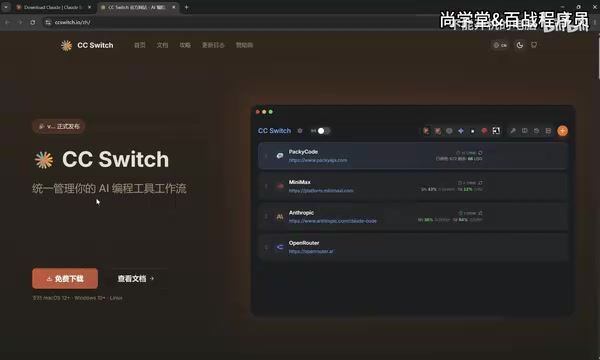
CC Switch is an AI tool workflow management application whose core function is to help you freely switch between different AI models. In simple terms, it acts as a bridge between Claude Code and third-party models.
Version requirement: CC Switch must be version 3.15.0 or higher. Older versions don't support Claude Code Desktop configuration — if you previously installed an older version, make sure to update first. You can download the latest version from its GitHub page.
Installation is equally straightforward. Once complete, the management interface opens automatically. You'll notice that the top navigation bar now includes a "Desktop" option alongside the original "Command Line" option, with a small computer icon next to it, indicating support for Claude Code Desktop.
2.2 Configuring the DeepSeek API
Configuration steps:
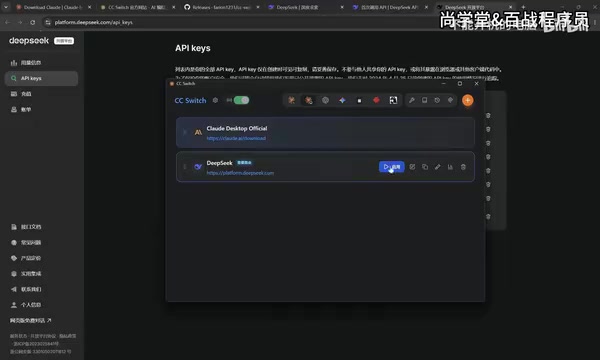
- Enable local routing: Click "Settings" on the left → "Routing" → find "Local Routing" and click the arrow to enable it
- Add a model: Return to the main interface, select "Desktop," click the "Add" button on the right, and choose DeepSeek
- Enter your API Key: Go to the DeepSeek official website's API documentation page, create a new API Key in the Key management section, copy it, and paste it into the corresponding input field in CC Switch
- Check context extension: At the bottom of the configuration page, there are two checkboxes for extending context size (up to 1MB) — it's recommended to check them for a better experience
- Start the service: After clicking "Add," make sure to click "Start" — the configuration won't take effect without starting it
Once started, you can minimize CC Switch (clicking the close button only minimizes it to the system tray; it won't actually exit).
2.3 Completing the Connection in Claude Code
Back in Claude Code Desktop:
- Click the hamburger menu in the top-left corner — you'll now see a new "Developer" option
- Go to "Developer" → "Configure Third-party"
- You'll find that the relevant information has been automatically filled in by CC Switch — no manual editing needed
- Click "Apply" and restart Claude Code
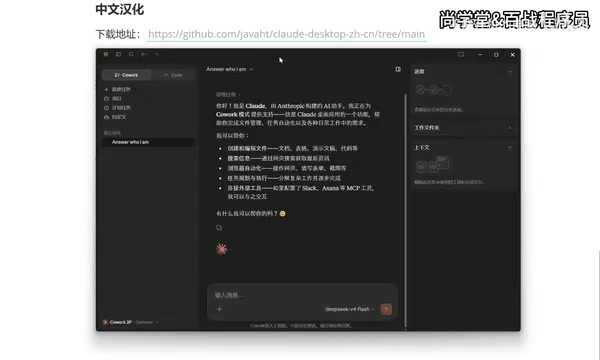
After restarting, Claude Code is officially connected to the DeepSeek model. In the model selection area, you can see Flash and Pro versions along with their corresponding context versions. Choose the appropriate version and start chatting.
3. Chinese Localization Tutorial for Claude Code
By default, the Claude Code Desktop interface is entirely in English. For Chinese users, localization significantly improves the user experience.
3.1 Localization Steps
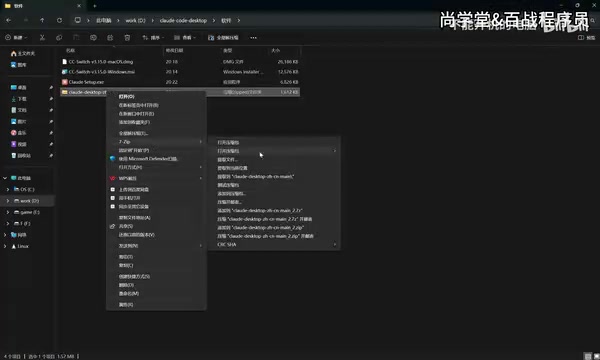
Download the corresponding localization package from community-provided resources (available for both Windows and macOS), extract it, find the .bat file (Windows), and double-click to run it.
Five options will appear:
- 1: Install Simplified Chinese
- 2: Install Traditional Chinese
- 3: Install Traditional Chinese (Hong Kong version)
- 4: Restore original / Uninstall patch
- 5: Exit
Select "1" and press Enter. The localization program will automatically close any running instance of Claude Code (if you haven't closed it manually) and will automatically restart it after completing the localization.
When you reopen it, you'll see the interface is completely in Chinese — menu items like "New Task," "Project Plan," and "Task Customization" are all clearly visible, and your previous conversation history is fully preserved.
4. Importing and Using Custom Skills
4.1 How to Import Skills
The Desktop version handles Skills differently from the CLI version. In the CLI version, you simply place Skill files in the .claude/skills/ directory; the Desktop version requires uploading and installing them as compressed packages.
Specific steps:
- Create a new task
- Click the "+" icon → "Skills" → "Manage Skills"
- Click "Add Skill" → "Upload Skill"
- Supported file formats:
.mdfiles, compressed archives (.zip),.skillfiles - Compress your Skill folder into a zip file and drag-and-drop to upload
4.2 Practical Usage Demo
After a successful upload, type / in the chat box, select "Skills," and you'll see the custom Skill you just imported. Select it along with your prompt, and the model will execute tasks according to the rules defined in the Skill.
For example, using a creative generation Skill called "IvanCreative," input "Help me generate a creative idea for free beer on weekends." The model will follow the Skill's preset workflow — first asking about the output format (poster/text, etc.), then confirming whether accompanying images are needed, and finally outputting creative content that conforms to the Skill's specifications.
Summary and Recommendations
With the configuration above, you now have a Claude Code Desktop development environment that's account-free, Chinese-localized, and low-cost to run. The core value of this setup lies in:
- Significantly reduced costs: DeepSeek's API pricing is far lower than Claude's official model, making it suitable for daily development and learning
- Lower barrier to entry: No need for VPN to register an account, and the Chinese interface is more user-friendly
- Extensibility preserved: Custom Skill functionality is fully available, allowing you to build personalized AI workflows
Note that using third-party models as a substitute for Claude's native model may result in some differences in code comprehension and generation quality. It's recommended to choose the appropriate model based on your actual project needs — use DeepSeek for simple tasks to save costs, and switch back to Claude's official model for complex tasks to get the best results.
Related articles
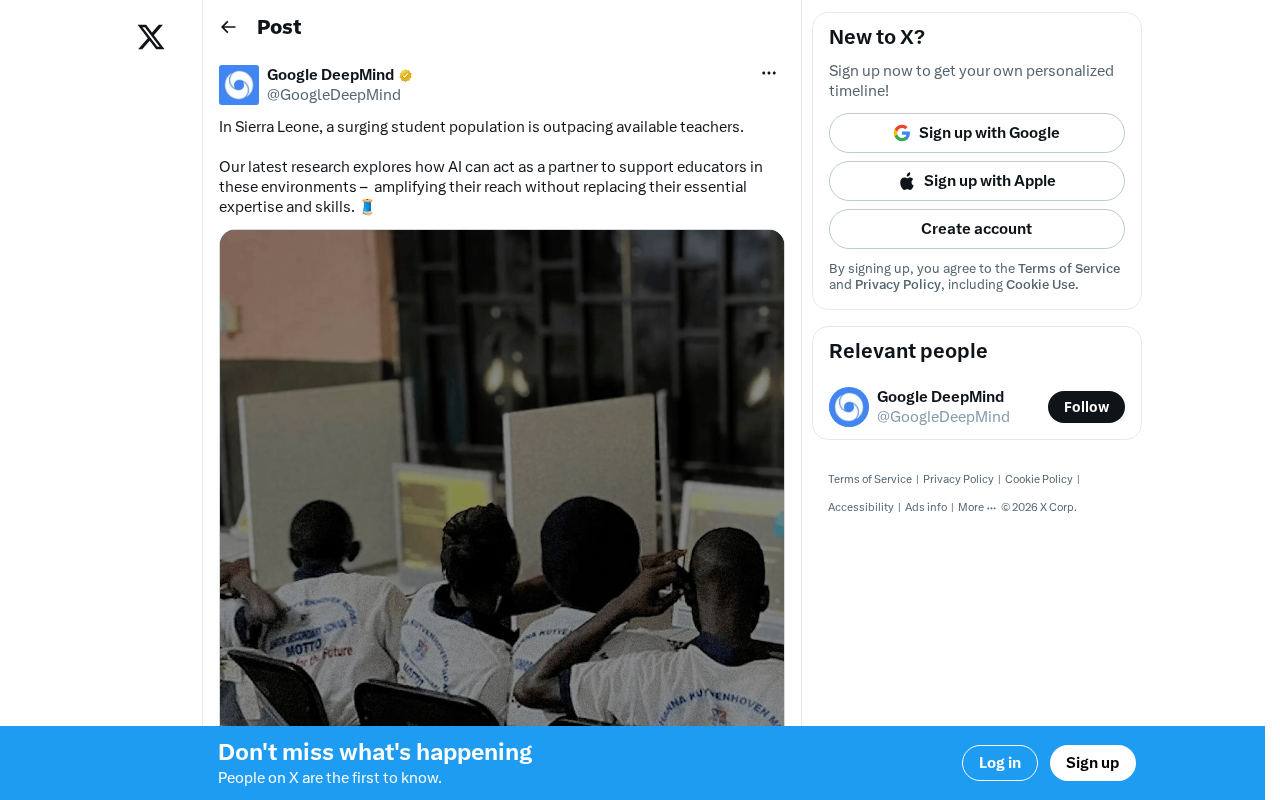
AI Alleviating Sierra Leone's Teacher Shortage: Technology Empowering Rather Than Replacing Educators
Sierra Leone faces severe teacher shortages. AI as a teacher partner can provide personalized tutoring, content preparation, and basic Q&A. This article analyzes AI education prospects, infrastructure challenges, and localization strategies in developing countries.
Hands-On Tutorial: Integrating Google Maps Grounding with Firebase AI Logic
Learn how to integrate Google Maps Grounding with Firebase AI Logic in three steps. Combine Gemini with map data to build smart location-aware AI apps.
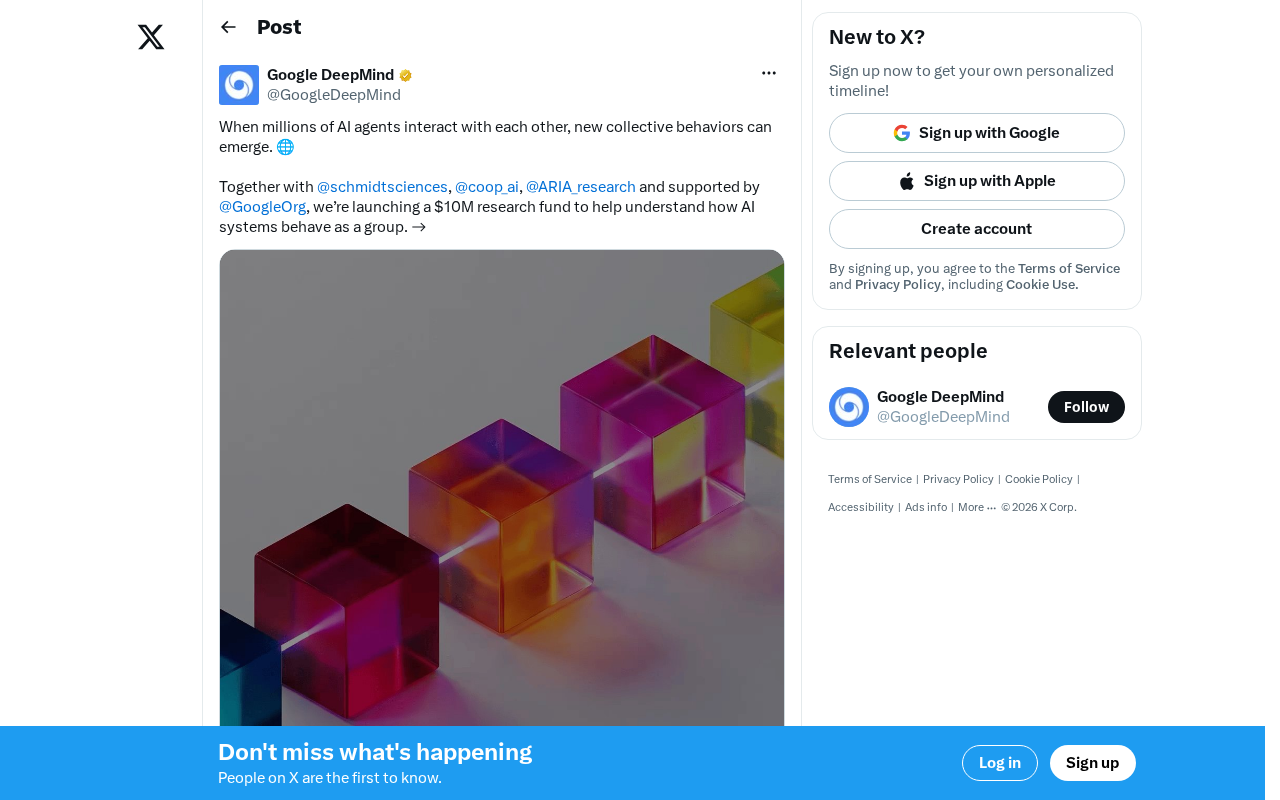
A $10 Million Research Fund Launches: What Happens When Millions of AI Agents Interact with Each Other?
Google.org and Schmidt Sciences launch a $10M fund to study collective behavior and emergent risks of multi-agent AI systems, from flash crashes to mass AI Agent deployment.