Claude Code Desktop Installation Guide: Connect DeepSeek & Other Chinese AI Models + Chinese Localization

Install Claude Code Desktop with DeepSeek integration, account-free usage, and Chinese localization via CC Switch.
This guide walks you through installing Claude Code Desktop and configuring it for Chinese developers. Using the CC Switch tool, you can bypass account requirements via Developer Mode, connect to cost-effective domestic models like DeepSeek, apply community Chinese localization patches, and upload custom Skills to extend AI coding capabilities.
Introduction
Claude Code is an AI programming tool developed by Anthropic. The release of its Desktop version makes it easy for users who aren't comfortable with command-line operations to get started. However, Claude's official models can be expensive, and users in China face significant hurdles with account registration and network access.
This guide will walk you through installing Claude Code Desktop and using the CC Switch tool to enable account-free usage, Chinese localization, and integration with DeepSeek and other domestic Chinese models — dramatically lowering the barrier to entry and cost.
Downloading and Installing Claude Code Desktop
Getting the Installer
Visit the official Claude Code website, where you'll find a prominent "Get Claude Code" button on the homepage. Hovering over it reveals multiple usage options, with Desktop listed first. Clicking it takes you to the download page, which automatically detects your operating system and provides the matching version (Windows / macOS).
Claude Code was originally released as a command-line tool (CLI), requiring users to install it via npm in the terminal and interact through plain text. While developer-friendly, this approach posed a high barrier for non-technical users. The Desktop version essentially wraps a graphical user interface (GUI) around the CLI's core capabilities, offering project management, file browsing, visual conversations, and more — allowing users to generate, debug, and refactor code without memorizing command-line instructions. As one of OpenAI's primary competitors, Anthropic's Claude model series excels particularly in code comprehension and generation, and Claude Code is the flagship product that brings this capability to life.
After downloading, double-click the installer and follow the prompts to complete installation. Once installed, you'll see a login screen supporting Google account sign-in and other methods.
Enabling Developer Mode for Account-Free Usage
If you'd rather not register or log into a Claude account, you can bypass the login requirement through Developer Mode:
- Click the hamburger menu (three horizontal lines) in the top-left corner
- Select "Help"
- Scroll down in the Help menu to find "Enable Developer Mode"
- Click to enable it and wait for Claude Code to restart automatically
The core mechanism behind Developer Mode is switching Claude Code's model API endpoint from Anthropic's official API to a user-defined third-party API address. Normally, Claude Code sends your requests to Anthropic's servers for processing, which requires a valid Anthropic account and subscription. With Developer Mode enabled, the software exposes an API endpoint configuration entry, allowing you to redirect requests to any service compatible with the OpenAI API format — this is the technical foundation for connecting to DeepSeek and other third-party models later. This "API proxy" approach is extremely common in the AI tool ecosystem, and many open-source projects (such as One API and New API) employ a similar unified gateway architecture.
After the restart, the interface will look slightly different. Don't make any other changes yet — we need to install a key companion tool next.
Connecting to DeepSeek Models via CC Switch
Installing CC Switch and Version Requirements
CC Switch is a unified AI tool workflow management application that lets you freely switch between different models within Claude Code.
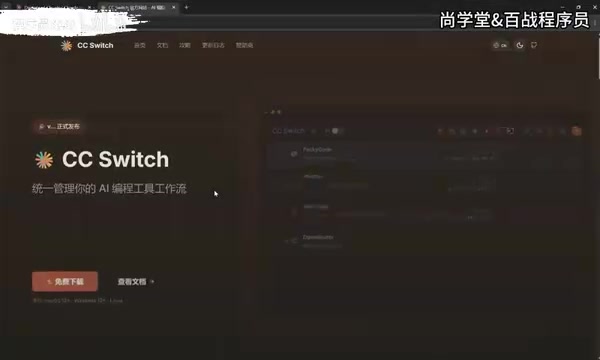
CC Switch works like a local API Gateway. It launches a local proxy service on your computer that intercepts API requests from Claude Code, then forwards them to different model providers (such as DeepSeek, Tongyi Qianwen, Kimi, etc.) based on your configuration. The advantage of this architecture is that you don't need to modify Claude Code's own code — you only need to handle model routing and API format conversion at the middleware layer. For users in China, this also conveniently solves network access issues, since requests ultimately go to domestic model providers' servers.
Version Requirement: CC Switch must be version 3.15.0 or higher — older versions don't support Claude Code Desktop configuration. If you have an older version installed, make sure to update to the latest version.
After installation, you'll see a new "Desktop" option with a small computer icon at the top, indicating support for Claude Code Desktop.
Configuring the DeepSeek API Key
Follow these configuration steps:
- Click the "Settings" button on the left sidebar
- Go to "Routing" options, find "Local Routing" and enable it
- Return to the main interface and select "Desktop"
- Click the "Add" button on the right and select the DeepSeek model
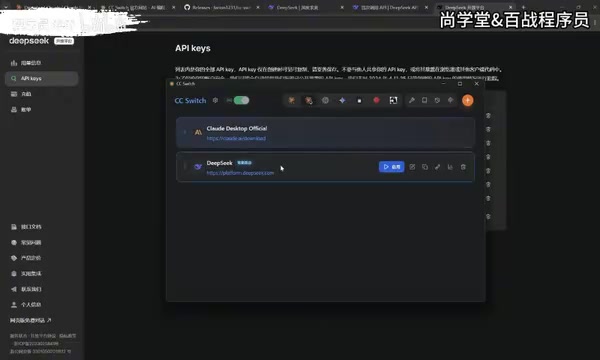
DeepSeek is a large language model series developed by DeepSeek AI. Among its offerings, DeepSeek-V3 and DeepSeek-R1 demonstrate capabilities approaching or even matching top international models in code generation, mathematical reasoning, and other tasks — while API pricing is a fraction or even a few dozen times cheaper than GPT-4 or Claude. DeepSeek's API uses an interface format compatible with OpenAI, meaning virtually any tool that supports the OpenAI API can seamlessly switch to DeepSeek — this is the technical prerequisite that allows CC Switch to easily perform model substitution. An API Key is a credential used by model providers for authentication and usage billing; each key is bound to your account, and you're charged based on the actual number of tokens consumed.
Next, configure the API Key:
- Visit DeepSeek's official API documentation page
- Go to the Key management page and create a new API Key
- Copy the Key and paste it into the corresponding input field in CC Switch
At the bottom of the configuration page, there are two checkable options related to context size. It's recommended to check them to get a larger context window (1M tokens), which is extremely helpful for code project analysis.
The "Context Window" refers to the maximum text length a model can "see" and process in a single conversation. 1M tokens is roughly equivalent to 750,000 English words or about 500,000 Chinese characters — in terms of code, that's tens of thousands of lines. In practical programming scenarios, a larger context window means the model can read multiple files across an entire project at once, understand inter-file dependencies and call chains, and provide more accurate, globally-informed code suggestions. By comparison, earlier models only supported 4K or 8K token contexts, causing them to "forget" earlier content when processing even moderately large code files.
After completing the configuration, click "Add", then make sure to click Start. Once started, you can minimize CC Switch (clicking the close button only minimizes it to the system tray — it won't actually quit).
Completing the Desktop Connection
Return to Claude Code Desktop to finalize the connection:
- Click the hamburger menu in the top-left corner
- You'll now see a new "Developer" option
- Click "Configure Third-Party"
- Connection details have been automatically filled in by CC Switch
- Click "Apply" and restart
After restarting, you'll enter the Claude Code main interface. In the model selector, you can see Flash and Pro versions, as well as the 1M context version — choose the appropriate model and start coding.
Chinese Localization for Claude Code Desktop
Claude Code Desktop's interface is entirely in English by default, but the community has provided Chinese localization patches that are very easy to apply.
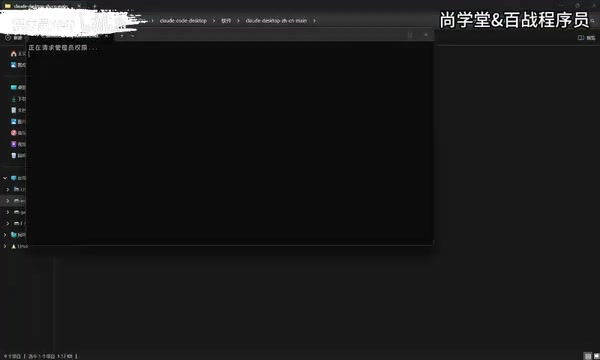
Localization steps:
- Download the localization patch archive (includes both Windows and macOS versions)
- Extract it and find the
.batfile, then double-click to run it - You'll see five options:
- 1: Install Simplified Chinese
- 2: Install Traditional Chinese
- 3: Install Traditional Chinese (Hong Kong variant)
- 4: Restore original / Uninstall patch
- 5: Exit
- Type
1and press Enter to install Simplified Chinese
The localization tool will automatically close any running instance of Claude Code and restart it after applying the patch. After restarting, the interface will be in Chinese, with modules like "New Task," "Project Plan," and "Task Customization" fully localized.
These localization patches typically work by replacing language resource files (locale files) in the application's installation directory. Since Claude Code Desktop is built on the Electron framework (the same technology stack used by VS Code, Slack, and other desktop apps), its interface text is stored in JavaScript or JSON resource files. The localization tool locates and replaces the English strings in these files to achieve interface localization. Note that after each Claude Code version update, the localization patch may need to be reapplied, as updates will overwrite the replaced resource files.
Uploading and Using Custom Skills
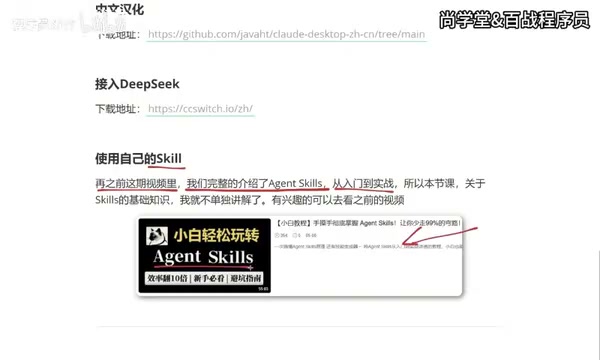
Unlike the CLI version, Skills in the Desktop version need to be uploaded and installed as compressed archives.
Skills are essentially structured Prompt Engineering templates — think of them as pre-orchestrated "AI workflow instruction sets." Each Skill typically contains a System Prompt, interaction flow definitions, output format constraints, and other content, organized in Markdown or proprietary format files. Through Skills, users can encapsulate frequently used complex prompts into reusable modules, avoiding the need to write instructions from scratch every time. This design philosophy is similar to GPTs (OpenAI's custom GPTs), Cursor Rules, and other mechanisms — all aimed at making AI tool behavior more controllable and specialized. In team collaboration scenarios, Skills can also serve as standardized workflow templates shared among team members to ensure consistency in AI output.
How to use them:
- Create a new task
- Click the plus (+) button and find the "Skills" option
- Click "Manage Skills" → "Add Skill" → "Upload Skill"
- Supported file formats:
.mdfiles, archives (.zip), or.skillfiles
Practical Example
Using a creative generation skill called "IvanCreative" as an example:
- Compress the skill folder into a zip file
- Drag and drop it into the upload area to install
- In the conversation, type a forward slash
/, select "Skills" → "IvanCreative" - Enter your request, such as "Generate a creative concept for free beer on weekends"
The Skill will guide you through the creative generation process following its preset workflow, including confirming the output format (poster/text, etc.), whether images are needed, and other interactive steps.
Summary
Through the steps above, we've completed the full configuration of Claude Code Desktop:
- Desktop Installation: Say goodbye to the command line — the graphical interface is more intuitive
- Account-Free Usage: Bypass login restrictions through Developer Mode
- DeepSeek Integration: Use domestic Chinese models via CC Switch, dramatically reducing costs
- Chinese Localization: One-click interface localization with community patches
- Custom Skills: Upload as archives to extend AI programming capabilities
This setup is especially well-suited for developers in China — it preserves Claude Code's excellent interaction experience and coding capabilities while solving cost and access issues through integration with DeepSeek and other domestic models. As a reminder, make sure CC Switch is version 3.15.0 or above, otherwise it won't support Desktop configuration.
Related articles
Why SFT Can't Fix the Root Cause of JSON Errors: How GRPO Correctness Training Breaks Through Coding Agent Bottlenecks
Analysis of why SFT can't fix coding agent JSON errors and how GRPO's binary reward signals and synchronized weight updates train directly for correctness.
Fireworks Platform Adds Nemotron 3 Ultra Post-Training Support: End-to-End Fine-Tuning and Deployment
Fireworks AI adds NVIDIA Nemotron 3 Ultra post-training support with SFT, DPO, LoRA, and full fine-tuning, enabling seamless train-to-deploy workflows for open-weight LLM customization.
Complete Guide to the Coze Platform: Build AI Agents with Zero Code
A deep dive into ByteDance's Coze platform: zero-code AI agent development, China vs. international editions, use cases, and how non-technical users can quickly build AI applications.