Codex CLI vs. Desktop App: Choosing the Right Dev Mode by Task Type

A practical guide to choosing between CLI and desktop modes for AI-assisted coding by task type.
This article compares Codex CLI and desktop app modes for AI-assisted programming, analyzing their strengths across different scenarios. Desktop apps excel at large projects, multi-file refactoring, and context management, while CLI shines in quick tasks, automation, and CI/CD integration. Rather than trying to combine both, the pragmatic advice is to pick one mode per task and stick with it.
CLI or Desktop? The Unavoidable Choice for Developers
AI-assisted programming tools are maturing rapidly. Mainstream tools like OpenAI's Codex and Anthropic's Claude Code offer both CLI (Command Line Interface) and desktop app modes. This naturally raises questions: What are the actual differences between these two modes? Which scenarios suit each one best? Can they be used together?
A Bilibili content creator who has been documenting his AI tool experiences shared his research and thoughts on the capability differences between Codex CLI mode and desktop apps in his Day 86 video. While brief, the content touches on practical questions many developers are actively wrestling with.
Desktop App: Home Turf for Large Projects
According to the creator's research, desktop apps have clear advantages in the following scenarios:
- Large-scale project development: When projects are large and file structures are complex, the desktop's visual interface provides a clearer global view of the project
- Multi-file collaborative editing (Multi-Ripple): In scenarios requiring simultaneous modifications across multiple files, graphical interfaces have an inherent advantage in displaying changes and comparing diffs
- Long session context management: Desktop apps typically offer more intuitive conversation history management, making it easier to backtrack and adjust during complex tasks

Put simply, when a development task requires "seeing the big picture" or frequently switching between and comparing multiple files, the desktop's graphical advantages shine through. This aligns with our general understanding of IDE-type tools — visualization is often more efficient than pure text when handling highly complex tasks.
Understanding Multi-Ripple: Why Multi-File Editing Needs Visualization
Multi-Ripple is an important concept in AI-assisted programming. It refers to how when AI modifies one file, the change ripples out to other related files — for example, modifying an interface definition requires synchronous updates to all classes implementing that interface and all modules calling it. In desktop apps, these multi-file cascading changes can be intuitively displayed through split-screen comparisons, change tree diagrams, and diff views, allowing developers to see the scope of impact at a glance. In CLI, these changes can only be listed one by one in text form, and when a refactoring involves dozens of files, the cognitive burden increases significantly. This is why large project refactoring tasks are almost always better suited for the desktop.
CLI Mode: The Efficiency Weapon for Command-Line Natives
By contrast, CLI mode's core advantage lies in its deep integration with the command-line ecosystem:
- Native command-line integration: CLI mode can seamlessly connect with shell pipes, scripts, and environment variables — something desktop apps can't easily match
- Quick handling of simple tasks: For small tasks with clear objectives, CLI eliminates the overhead of opening an application and loading a project, completing everything directly in the terminal
- Automation and scripting: CLI naturally supports integration into CI/CD pipelines and automation scripts, which is especially important for DevOps scenarios

Here's a concrete example: if you just want to quickly generate a function, fix a small bug, or have AI write a shell script for you, calling the CLI directly in the terminal is obviously faster than opening a desktop app. Plus, CLI output can be piped directly to other commands — this composability is the essence of command-line philosophy.
Shell Pipes: CLI's Composability Superpower
The reason CLI mode is irreplaceable in automation scenarios is rooted in the Unix philosophy's pipe mechanism. Unix philosophy advocates that each program should do one thing and do it well, with programs chained together through pipes (the | symbol), where one program's output becomes the next program's input. For example, developers can pipe code files to an AI CLI tool for analysis, pipe the output to sed for formatting, and finally redirect it to a new file. This composability allows AI tools to become a "building block" in the developer's toolchain, working alongside traditional command-line tools like grep, awk, and jq to achieve highly customized workflows. A typical scenario: find . -name "*.py" | xargs ai-tool review --format json | jq '.issues[]' — this command finds all Python files, has AI review them, then extracts the issue list, all without manual intervention.
AI Integration in CI/CD: CLI's Exclusive Territory
CI/CD (Continuous Integration/Continuous Deployment) is a core practice in modern software development, referring to pipelines that automatically trigger builds, tests, and deployments after code commits. CLI-mode AI tools can be embedded directly into these pipelines — for example: automatically invoking AI for code review on commits, automatically generating change summaries when PRs (Pull Requests) are created, or automatically analyzing error causes and suggesting fixes when tests fail. These scenarios all require AI tools to run in non-interactive mode, accepting parameter inputs and producing structured outputs — exactly CLI's strength. Desktop apps, which depend on human interaction, cannot handle such automation scenarios.
The Ideal vs. Reality: The Dilemma of Combining Both
Many online recommendations advocate combining desktop and CLI. In theory, this is indeed the optimal approach — use the desktop for complex architectural design and multi-file refactoring, and CLI for quick small tasks and automation scripts.
But the creator candidly pointed out a real-world dilemma: in practice, it's very hard to switch seamlessly between the two.

"When you're using the desktop, you just don't feel like switching to CLI to continue the task. You tend to stick with one mode and push straight through."
This observation is very real, and the underlying reasons are worth unpacking:
- Context fragmentation: Switching from desktop to CLI means the previous conversation context and project state may not transfer completely, essentially requiring you to re-"teach" the AI about the current progress
- Mental overhead: Switching between two tools inherently increases cognitive load, and especially when you're in a flow state, any interruption is the enemy of productivity
- Toolchain fragmentation: Most AI programming tools currently lack state synchronization between their CLI and desktop versions — they are essentially two independent sessions
Understanding the Technical Root of "Context Fragmentation"
The "context" of AI programming tools has two layers: first, the large language model's Context Window — the maximum number of tokens the model can process in a single pass, currently ranging from 128K to 200K tokens for mainstream models; second, the tool-level session state, including loaded file lists, previous conversation history, project structure indexes, and more. Desktop apps typically maintain a persistent project index and session history, allowing developers to backtrack to any previous point at any time. CLI sessions are usually lost when the terminal closes, and while some tools support session recovery, cross-tool context transfer remains an unsolved technical challenge. This means that after spending 30 minutes in the desktop getting the AI to understand your project architecture, switching to CLI puts you in front of an AI instance that knows nothing about the previous conversation — you need to provide background information all over again. This is the real cost of "context fragmentation."
Practical Advice: Pick a Mode by Task Type and Stick With It
Based on the analysis above, here's a simple decision framework:
| Scenario | Recommended Mode | Reason |
|---|---|---|
| New project setup / architecture design | Desktop | Requires a global view |
| Multi-file refactoring | Desktop | Visual comparison is more intuitive |
| Quick bug fixes / writing small functions | CLI | Fast startup, no window switching needed |
| Automation scripts / CI integration | CLI | Native support for pipes and scripting |
| Code review + modifications | Desktop | Requires seeing the full context |
Rather than agonizing over how to "bridge" the two, it's better to choose a mode based on the nature of the task at the outset and push through to the end. This is actually the most pragmatic approach at the current stage.
Looking Ahead: The Convergence of CLI and Desktop
From a tool evolution perspective, the boundary between CLI and desktop is gradually blurring. VS Code's terminal integration, Cursor's built-in command line, and various AI tools' plugin-based designs are all attempting to solve this "fragmentation" problem.
The IDE space is currently undergoing a "terminal meets graphical interface" revolution. VS Code, through its built-in terminal and extension API, lets developers use both graphical interfaces and command lines within the same window. AI-native IDEs like Cursor go further, integrating AI conversations, code editing, and terminal operations into a unified interaction layer. Technically, this convergence relies on LSP (Language Server Protocol) for language intelligence services, DAP (Debug Adapter Protocol) for debugging capabilities, and emerging AI Agent protocols to unify AI interactions across different modalities.
The ideal future state might be: within a single development environment, enjoying both the intuitiveness of a graphical interface and the efficiency of CLI on demand, with both sharing the same AI conversation context. This requires tool developers to pursue deeper integration at the architectural level, rather than simply stacking two interfaces together. The future direction may be a unified development environment based on Agent architecture, where AI runs as a persistent intelligent agent that simultaneously responds to graphical interface clicks and command-line text instructions, sharing the same project understanding and conversation memory. When that day comes, "CLI or desktop" will no longer be a choice between two options, but rather two interaction postures of the same tool.
For developers today, understanding the strengths and weaknesses of both modes and choosing flexibly based on actual scenarios is already enough to significantly boost the efficiency of AI-assisted programming.
Related articles
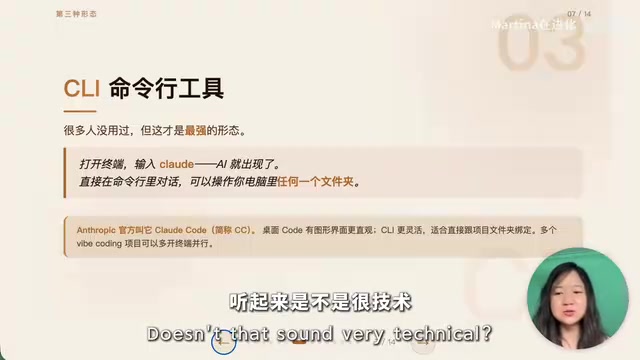
Three Forms of AI: From Chat Windows to Collaborative Work to Command Line
AI isn't just a chat window. This article explains AI's three forms: Chatbox, Cowork, and CLI, with selection advice for Claude, Codex, Kimi, and DeepSeek.
AI Agent Hands-On Learning Path: A Complete Guide from Beginner to Enterprise-Level Development
A systematic AI Agent development learning roadmap covering prompt engineering, RAG, multi-Agent collaboration, tool calling, and more—with phased learning advice and 28 hands-on project references.
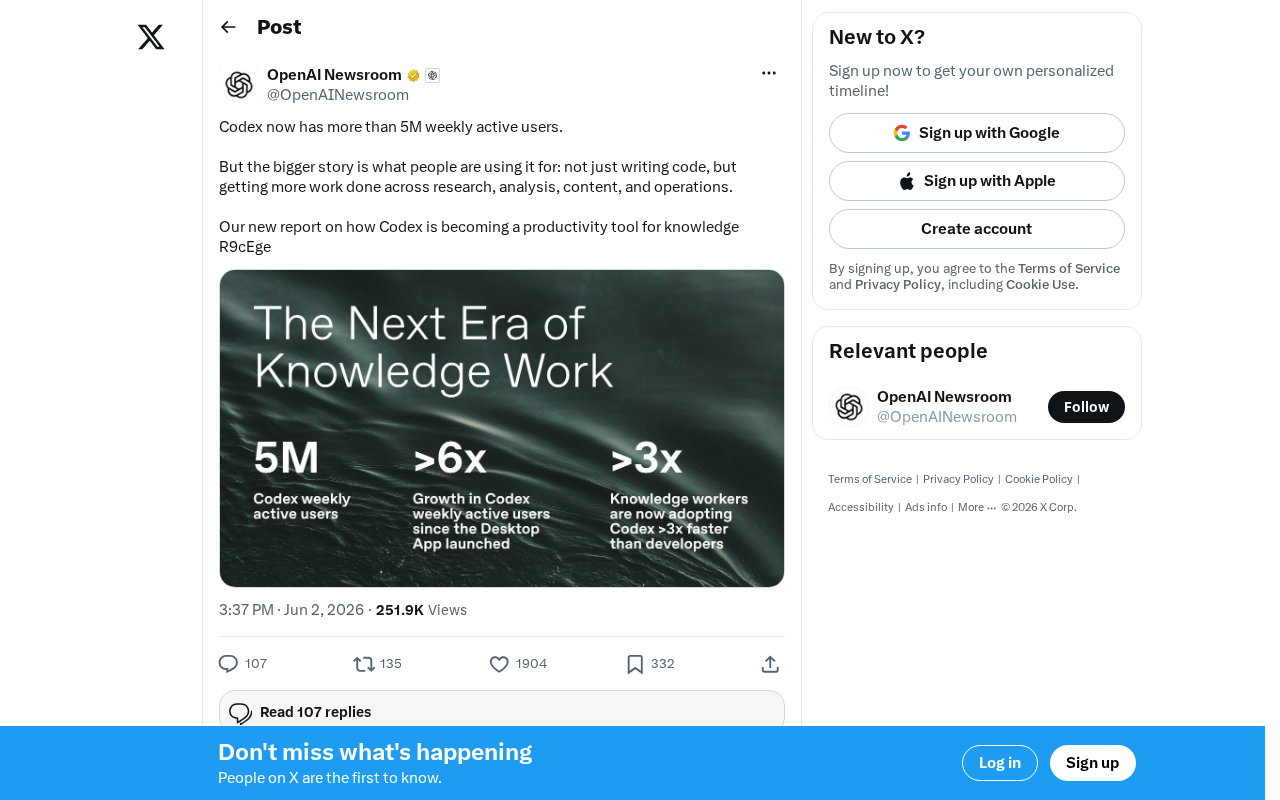
OpenAI Codex Surpasses 5 Million Weekly Active Users: The Transformation from Code Tool to Knowledge Work Platform
OpenAI Codex hits 5M weekly active users, expanding beyond code generation into research, content creation, and operations — evolving into a full knowledge work platform.