Codex MCP Getting Started Guide: Configuration Methods and Practical Applications Explained
A comprehensive guide to configuring and using Codex MCP to connect AI with external tools and data sources.
This guide covers everything developers need to know about Codex MCP (Model Context Protocol), from core concepts and two server types (STDIO and HTTP) to practical configuration via CLI and config.toml. It explains approval modes for security, the Server Instructions mechanism, and real-world use cases including documentation queries, Figma integration, and browser automation with Playwright.
What is MCP (Model Context Protocol)?
MCP (Model Context Protocol) is the bridge connecting Codex AI to the real external world. It frees AI from being limited to its own knowledge base, enabling it to query the latest documentation in real time and directly operate external tools like Figma and Chrome, dramatically expanding AI's capability boundaries.
MCP was first proposed and open-sourced by Anthropic in late 2024, aiming to solve the lack of a unified interaction standard between large language models (LLMs) and external data sources and tools. Before MCP, every AI application needed custom integration code to connect with external tools, resulting in severe ecosystem fragmentation. MCP draws inspiration from LSP (Language Server Protocol) — just as LSP enables any editor to gain code completion, go-to-definition, and other language features through a unified protocol, MCP enables any AI model to invoke external tools and data sources through a unified protocol. This "implement once, use everywhere" philosophy dramatically reduces the cost of ecosystem development.
The core value of this protocol lies in opening up the interaction channel between AI and the external world. Previously, AI could only reason based on training data; with MCP, Codex can act like a real developer — fetching information in real time, calling tools, and executing operations. More importantly, MCP support covers both Codex's command-line tool (CLI) and IDE extensions, delivering a seamless experience with one-time configuration that works everywhere.
MCP Core Capabilities: Two Server Types and the Instructions Mechanism
Differences Between STDIO Server and HTTP Server
MCP primarily supports two server types, suited for different use cases:
- STDIO Server (Standard Input/Output Server): Runs as a local process, ideal for use on personal computers. Its advantages include low latency and no network connection required, making it the preferred choice for local development and debugging.
- HTTP Server (Network Server): Accessed via a network address, suitable for remote deployment or team sharing. When you need multi-person collaboration or access to cloud resources, HTTP Server is the better choice.
From a technical perspective, STDIO (Standard Input/Output) is the most fundamental inter-process communication method in Unix/Linux systems. MCP's STDIO Server exchanges JSON-RPC messages with the host process through standard input/output streams. This approach doesn't require opening network ports, naturally provides security isolation, and has extremely low communication latency (typically at the microsecond level). HTTP Server is based on transport mechanisms like Server-Sent Events (SSE) or Streamable HTTP, supporting cross-network access. In enterprise deployments, HTTP Server can be combined with authentication mechanisms like OAuth 2.0 to implement fine-grained permission control, suitable for multi-tenant and team collaboration scenarios.
Server Instructions Mechanism Explained
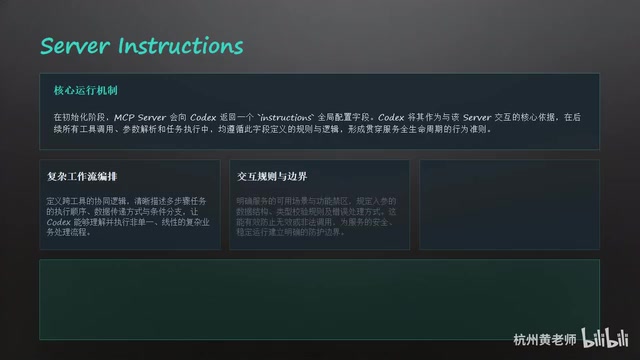
Another noteworthy feature is Server Instructions. This mechanism allows MCP server developers to provide Codex with detailed usage guides, including complex workflows, usage limitations, and other information.
Server Instructions are essentially structured system prompts that leverage the context window mechanism of large language models. When Codex connects to an MCP server, the Instructions returned by the server are injected into the model's context, guiding the model on how to correctly invoke the tools provided by that server. The 512-character priority reading limit is closely related to token economics — with limited context window space, the model needs to obtain the most critical information in the shortest text to make decisions. This is why MCP server developers need to carefully design Instructions like writing good API documentation.
Beginner Tip: Make sure the first 512 characters of your instructions contain the most critical information. Codex will prioritize reading this section to determine how to use the server. If you're an MCP server developer, be sure to put core feature descriptions and key parameter explanations at the very beginning.
Codex MCP Configuration in Practice: From CLI to Manual Editing
Configuration File Structure
Codex's MCP configuration is primarily stored in the config.toml file. You can set up global configuration (applies to all projects) or set project-specific configuration for individual projects. The CLI and IDE extensions share the same configuration file, truly achieving one-time configuration that works everywhere.
TOML (Tom's Obvious Minimal Language) is a semantically clear, easy-to-read configuration file format designed by GitHub co-founder Tom Preston-Werner. Compared to JSON's lack of comment support and YAML's indentation sensitivity issues, TOML offers better readability and fault tolerance in configuration file scenarios. Codex's choice of TOML as its configuration format also reflects its emphasis on developer experience. The hierarchical structure of configuration files (global vs. project configuration) follows the "convention over configuration" principle — project-level configuration overrides same-named items in global configuration, consistent with the configuration priority mechanisms of tools like npm's .npmrc and Git's .gitconfig.
Adding MCP Servers Quickly with CLI
The simplest way to configure MCP is using CLI commands. Taking the addition of a Context7 server as an example, it only takes one command:
codex mcp add context7
You can also use the --help parameter to view all available commands, or manage servers using MCP commands in the interactive interface (TUI). This approach is very beginner-friendly and significantly lowers the configuration barrier.
Manually Editing the config.toml Configuration File
If you need more granular control, you can directly edit the config.toml file.
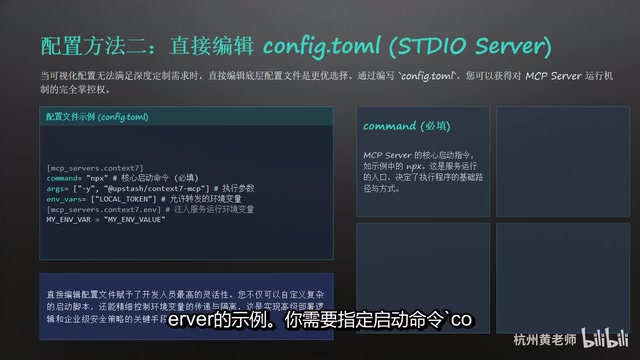
STDIO Server configuration example:
[mcp.servers.my-server]
command = "npx"
args = ["-y", "@example/mcp-server"]
You need to specify the startup command (command) and arguments (args), and you can also manage environment variables through env and env_vars. In the configuration example, npx is the Node.js ecosystem's package execution tool that allows running npm packages directly without global installation. The -y argument means automatically confirming installation prompts, skipping interactive confirmation steps. This design allows MCP servers to be distributed and used like npm packages — developers only need to publish an npm package, and users can start the corresponding MCP server with a single npx command. This greatly lowers the barrier to entry for the MCP ecosystem and is one of the key reasons why the number of MCP servers has been able to grow rapidly.
HTTP Server configuration example (using Figma as an example):
[mcp.servers.figma]
url = "https://figma.mcp.example.com"
bearer_token_env_var = "FIGMA_TOKEN"
For HTTP Server, you need to provide the server's URL address. If authentication is required, you can specify the environment variable name storing the Token via bearer_token_env_var, and you can also set custom HTTP request headers.
MCP Common Configuration Options and Approval Modes
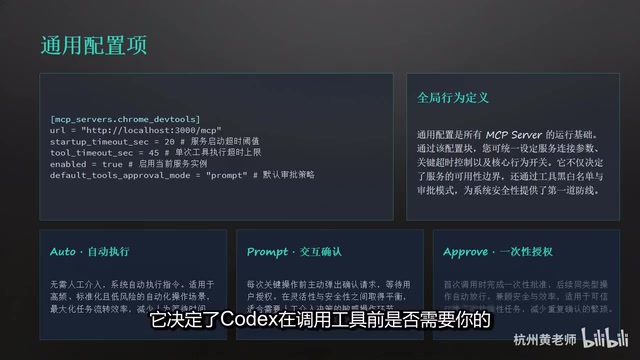
Besides type-specific configurations, there are some common configuration options applicable to all MCP servers:
| Configuration Item | Description |
|---|---|
| Startup Timeout | Sets the maximum wait time for server startup |
| Tool Call Timeout | Sets the timeout for a single tool call |
| Enable/Disable | Determines whether a server is enabled |
| Tool Filtering | Fine-grained control over which tools can be called |
| Approval Mode | Whether user confirmation is required before calling a tool |
Among these, Approval Mode is key to security configuration, offering three levels:
- Auto: Tool calls require no confirmation, suitable for high-trust scenarios
- Prompt: Every call requires user confirmation, providing the highest security
- Once: After initial confirmation, subsequent calls execute automatically, balancing security and efficiency
The approval mode design reflects the core concept of "Human-in-the-Loop" in AI safety. As AI Agent capabilities grow stronger, their operations may involve irreversible actions such as file modifications, network requests, and database writes, necessitating a tiered permission control mechanism. This is similar to IAM (Identity and Access Management) policies in cloud computing — operations at different trust levels correspond to different approval processes. MCP's three-tier approval mode provides developers with flexible security strategy choices and lays the foundation for more fine-grained permission models in the future (such as differentiated approval based on operation type).
For developers new to MCP, it's recommended to start with "Prompt" mode, then switch to other modes as needed once you're familiar with the workflow.
MCP Ecosystem: Overview of Mainstream Use Cases
The MCP ecosystem is developing rapidly, with numerous servers already covering several key areas:
- Documentation Queries: Query the latest documentation from platforms like OpenAI in real time, saying goodbye to outdated information
- Design Collaboration: Directly operate Figma design files — AI can read design specifications and generate corresponding code
- Browser Automation: Control browsers through Playwright for automated testing and data collection
- DevOps: Access Sentry error logs and GitHub PRs to enable intelligent DevOps workflows
The browser automation scenario deserves special attention. Playwright is an open-source browser automation framework developed by Microsoft, supporting three major browser engines: Chromium, Firefox, and WebKit. In the MCP ecosystem, the Playwright MCP server abstracts browser operations into a series of tool calls — such as page navigation, element clicking, screenshots, and form filling. AI models invoke these tools through the MCP protocol, enabling them to operate browsers just like human users. This has tremendous value in scenarios like end-to-end test auto-generation, web data extraction, and UI regression testing. Combined with AI's comprehension capabilities, Playwright MCP can even automatically orchestrate complex browser operation sequences based on natural language descriptions.
These use cases demonstrate MCP's true value — it's not a single tool, but an extensible capability platform. As the community continues to grow, more MCP servers will emerge to cover an even wider range of use cases.
Recommended Steps for Beginners Getting Started with MCP
For developers new to MCP, the following progressive path is recommended:
- Start by adding a simple server using CLI commands (such as Context7) to experience the basic workflow
- Familiarize yourself with the config.toml configuration structure, and try manually configuring both STDIO and HTTP types
- Set approval modes appropriately, finding the balance between security and efficiency
- Explore the MCP ecosystem, connecting more servers based on your actual needs
The emergence of MCP marks a new phase in AI-assisted development — the leap from "AI answering questions" to "AI executing tasks." Mastering MCP configuration and usage will help you achieve significant efficiency gains in AI-driven development workflows.
Key Takeaways
Related articles
Claude Code Installation Guide & The Five Stages of AI Programming Tools Explained
Complete Claude Code installation guide with the five stages of AI programming tools, from manual coding to agents. Learn 0-to-1 project building and 1-to-100 iteration challenges.
Enterprise-Level AI Project Rules Files: 5 Hard Rules + 6 Writing Techniques
AI keeps messing up your code? Learn 5 hard rules and 6 writing techniques for enterprise-level Rules files in Claude Code, Cursor & more, with templates.
Building Cloud Computing Clusters from Old Phones: Google and UCSD Explore a New Path to Sustainable Computing
Google and UCSD explore building cloud clusters from old phones, leveraging ARM chip efficiency to cut e-waste and data center carbon footprints.