Complete Guide to Installing and Configuring Claude Code: A Detailed Tutorial for Setting Up Your AI Programming Environment

A complete guide to installing Claude Code and connecting it to DeepSeek via CC Switch.
This tutorial walks through the full process of setting up Claude Code for users in China, covering Node.js installation, npm-based Claude Code deployment, login bypass configuration, and using CC Switch to connect domestic LLMs like DeepSeek. By following five clear steps, developers can build a fully functional AI programming environment without needing direct access to the Claude API.
Introduction
Claude Code is a command-line AI programming tool developed by Anthropic. Thanks to its excellent code generation and project comprehension capabilities, it's becoming the go-to tool for an increasing number of developers. However, due to network restrictions, users in China often encounter various obstacles during installation and usage. Based on a tutorial shared by the Bilibili creator "跟着娟姐学Python" (Learn Python with Sister Juan), this article provides a detailed walkthrough of the complete Claude Code installation and configuration process. It also covers how to connect to domestic large language models like DeepSeek via CC Switch, allowing you to experience AI-powered programming without needing a VPN.

Step 1: Install the Node.js Runtime Environment
Claude Code is built on Node.js, so you'll first need to install the Node.js runtime environment locally.
Downloading and Installing Node.js
- Visit the Node.js official website (nodejs.org) and select the Windows version
- Click "Windows Installer" to download the installation package
- Double-click the downloaded installer to launch the setup wizard
- Click "Next" on the welcome screen and accept the license agreement
- Choose the installation path (it's recommended to install on a non-system drive, such as the D drive)
- Keep the default settings for subsequent steps, check the necessary options, and click "Install"
- Click "Finish" once the installation is complete
Tip: It's recommended to download the LTS (Long-Term Support) version for better stability. If you see an option to "Automatically install necessary tools" during installation, check it — this will automatically configure environment variables and other required settings.
Step 2: Install Claude Code via npm
Running the Installation Command
Once Node.js is installed, you can install Claude Code globally using the npm command:
- Press
Win + R, typeCMD, and open the command prompt - Enter the following installation command and press Enter:
npm install -g @anthropic-ai/claude-code
- Wait for the installation process to complete
Verifying the Installation
After installation, verify it by entering the following command in the command prompt:
claude --version
If you see a version number in the output, Claude Code has been installed successfully.
Step 3: Configure Login Bypass
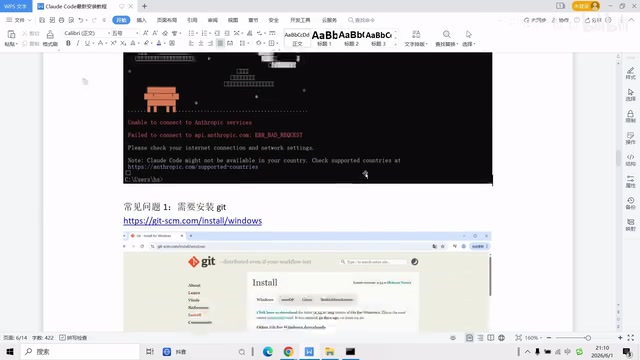
Due to network restrictions, you may not be able to complete the Anthropic account login when using Claude Code directly. You'll need to modify a configuration file to bypass the login verification step.
Steps to Modify the Configuration File
- Locate the configuration file at:
C:\Users\{your-username}\.claude\claude-code.json - Open the file with a text editor (such as Notepad or VS Code)
- Add the appropriate configuration code to the file (to skip login verification)
- Save the file, then re-enter
claudein the command prompt to launch
At this point, Claude Code will start normally but will show a "not logged in" status. Don't worry — in the next step, we'll use a third-party tool to connect to domestically available large language models.
Step 4: Install CC Switch to Connect to Domestic LLMs
CC Switch is a model-switching tool designed specifically for Claude Code. It supports replacing the underlying model with domestic LLMs like DeepSeek, solving the problem of Chinese users being unable to directly access the Claude API.
Downloading and Installing CC Switch
- Visit the official CC Switch GitHub page
- Scroll to the bottom of the page and find the download link for the Windows version
- Download the installer and double-click to install
- Choose the installation path and click "Install" to complete the setup
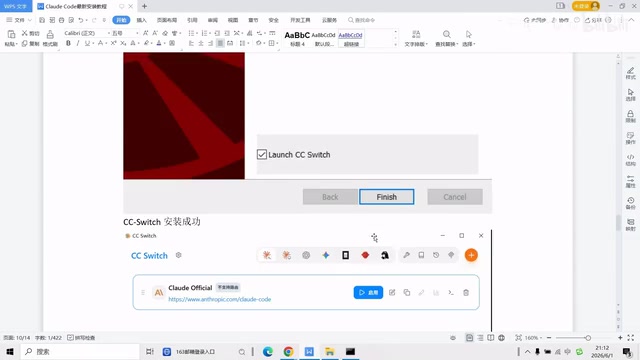
- A desktop shortcut will appear after installation
Configuring the DeepSeek Model
- Double-click the desktop shortcut to open CC Switch
- Click the "+" icon in the upper right corner and select "Add Provider"
- Select DeepSeek as the provider
- Obtain a DeepSeek API Key:
- Go to the DeepSeek Open Platform (platform.deepseek.com)
- Log in and navigate to the "API Keys" page
- Click "Create API Key," enter a name, and generate it
- Copy the generated key (make sure to save it securely — it cannot be viewed again after closing)
- Paste the API Key into the corresponding field in CC Switch
- Click "Add" to complete the configuration
Enabling the Model
After adding the model, you need to manually click the "Enable" button to activate the DeepSeek model. Newly added models are disabled by default, so make sure the toggle has been switched to the enabled state.
Step 5: Switch Models in Claude Code
After completing the CC Switch configuration, you need to restart Claude Code for the new model to take effect:
- Close the current command prompt window
- Press
Win + Ragain → typeCMDto open a new command prompt - Type
claudeto launch the program - On the startup screen, select Enter (press E and hit Enter)
- Type the
/modelcommand to open the model switching menu - Select DeepSeek V3 (or another configured model) from the model list
- Press Enter to confirm — the model switch is complete
After completing these steps, you can start using Claude Code powered by DeepSeek for AI-assisted programming.
Usage Tips and Important Notes
Model Selection Recommendations
- DeepSeek V3: Ideal for everyday programming tasks with fast response times and excellent cost-effectiveness
- If you need stronger reasoning capabilities, consider connecting other supported models through CC Switch
Common Troubleshooting
- npm installation fails: Check your network connection, or try using a domestic npm mirror (such as the Taobao mirror) to speed up downloads
- Configuration file not found: Make sure you've run the
claudecommand at least once — the configuration file is automatically generated on the first run - No response after switching models: Verify that the API Key is entered correctly and confirm that your DeepSeek account has sufficient balance
- CC Switch doesn't detect Claude Code: Try reinstalling CC Switch and ensure Claude Code is properly installed in the global path
Cost Considerations
DeepSeek's API charges are based on token usage, but the overall pricing is quite affordable. It's recommended to start with a small top-up (e.g., 10 RMB) for testing. Once everything is confirmed to be working properly, top up based on your actual usage.
Conclusion
By following these five steps — installing the Node.js environment, deploying Claude Code, modifying the configuration file, installing and configuring CC Switch, and switching models — users in China can successfully set up a complete Claude Code AI programming environment. Although the underlying model has been swapped from Claude to DeepSeek, Claude Code's excellent command-line interface and workflow remain fully intact. Combined with DeepSeek's powerful code generation capabilities, this setup can fully meet everyday development needs. As domestic LLMs continue to improve, the practical value of this combined solution will only grow.
Related articles

Claude Code for Test Development in Practice: An AI Programming Workflow That Doubles Your Efficiency
A practical guide to Claude Code for test development: auto-generating test scripts, Plan Mode workflows, MCP + Playwright integration, and Subagent parallel tasks to build systematic AI-assisted workflows.
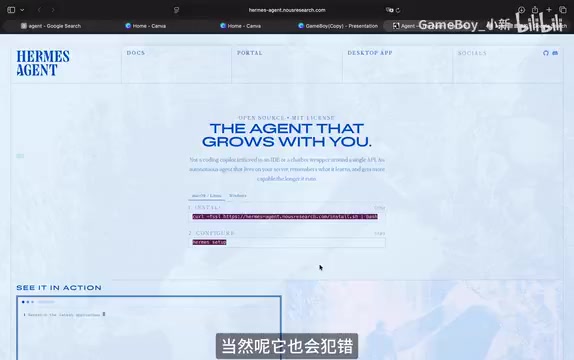
Hermes Agent Hands-On Review: An AI Efficiency Revolution for Indie Game Developers
Indie game developer reviews Hermes Agent vs OpenClaude: intelligent context compression, real-time Memory, remote control via Telegram, and practical use cases in game dev, social media, and email.
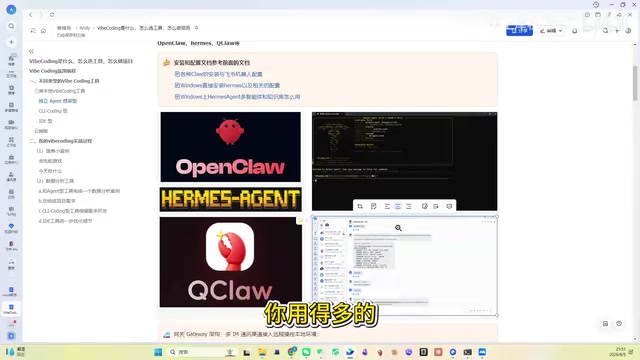
Vibe Coding Beginner's Guide: Tool Selection Across Three Categories with Practical Examples
A comprehensive guide to Vibe Coding's three tool categories: Agent frameworks, CLI Coding, and IDE tools, with practical examples including Snake game and data analysis workbench.