Complete Guide to Trae's Chat Features: Four Modes for Efficient AI Programming
A complete guide to Trae's four AI chat modes for efficient coding workflows.
This article provides a comprehensive breakdown of Trae AI IDE's four conversation modes: Sidebar Chat for complex multi-turn tasks, Inline Chat for zero-context-switch code modifications, Image Input for visual communication like error screenshots and design-to-code, and Voice Input for hands-free interaction. It covers shortcuts, practical use cases, and tips for effective AI collaboration.
Trae is an AI programming IDE developed by ByteDance, and one of its core capabilities is the chat functionality. Unlike a simple chatbot, Trae's conversation system is deeply integrated into the development environment, covering the complete workflow from code comprehension and solution planning to code generation. This article breaks down Trae's four chat modes in detail to help you quickly get started with this AI programming tool.
AI programming IDEs represent one of the most important evolutionary directions in developer tools over the past two years. Traditional IDEs (such as VS Code and IntelliJ IDEA) primarily offer basic capabilities like syntax highlighting, code completion, and debugging. AI programming IDEs build on this foundation by deeply integrating Large Language Models (LLMs), enabling developers to interact with their development environment through natural language. Notable products in this space include GitHub Copilot (integrated into VS Code), Cursor, Windsurf, and ByteDance's Trae. Trae is built on VS Code's open-source core, preserving the familiar editor experience while embedding AI chat capabilities as a first-class citizen deeply into the workflow—rather than as a simple plugin add-on.
Sidebar Chat: Your Dedicated AI Workspace
Sidebar Chat is the most feature-complete conversation mode in Trae. The panel sits on the right side of the IDE, functioning like an independent chat window. It's ideal for handling complex tasks that require deep thinking and multi-turn discussions, such as:
- Quickly understanding the implementation logic of a feature module
- Having AI generate a complete code snippet for you
- Planning technical solutions before writing code
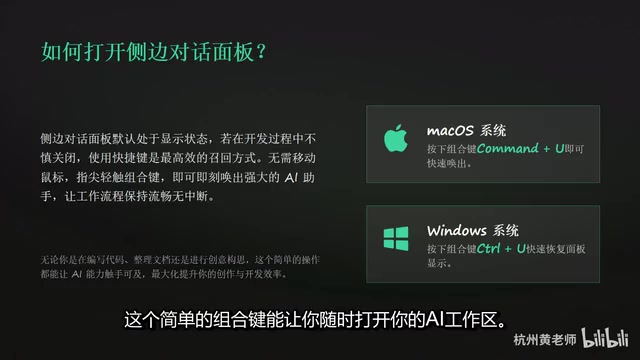
Opening it is straightforward: Command+U on Mac, Ctrl+U on Windows. This shortcut is worth memorizing since you'll use it frequently.
Communication Tips: Context Is Key
The core of effective communication with AI comes down to two things: clear instructions and sufficient context. Specifically, you should pay attention to the following:
- Choose the right AI model: Different models have different strengths in code generation, logical reasoning, etc.
- Provide relevant materials: Including code snippets, file references, and even images
- Leverage the prompt optimization feature: Trae has built-in prompt refinement capabilities that can help you phrase questions more professionally, resulting in higher-quality responses
This is something many developers tend to overlook—the richer the context you provide to the AI, the more precise its results will be. Rather than repeatedly asking follow-up questions and requesting modifications, it's better to provide complete background information from the start.
In AI programming tools, "context" is the core variable that determines AI output quality. Large language models are fundamentally systems that reason based on input information—they cannot "guess" information you haven't provided. Context Engineering has become a key concept in AI-assisted programming, referring to the systematic practice of providing appropriate background information to the AI—including current file content, project structure, relevant dependencies, coding conventions, and more. Trae's Sidebar Chat supports referencing files, folders, and even entire codebases using the @ symbol, which essentially helps users build more complete context. Industry experience shows that for the same question, providing sufficient context versus providing none can result in an accuracy gap of over 40%.
Inline Chat: Your Coding Companion That Never Leaves Your Code
If Sidebar Chat is the "office" for handling complex tasks, then Inline Chat is your "personal assistant" while coding. Its greatest advantage is zero context switching—you don't need to leave the code you're editing to interact with AI directly.
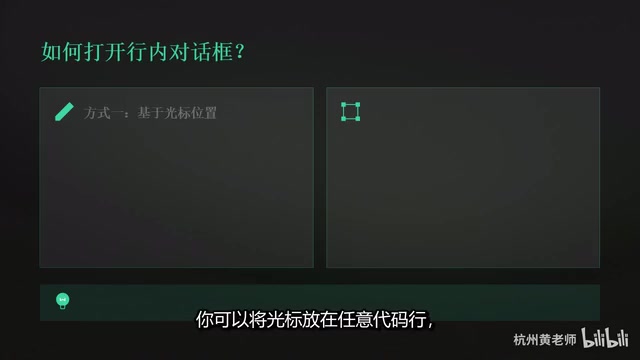
Inline Chat pops up a lightweight dialog box right next to your code, allowing you to quickly ask about the meaning of a line of code or have AI make modifications in place. This approach is extremely effective for maintaining coding flow—every programmer knows that frequent window switching is the enemy of productivity.
"Flow State" is a concept proposed by psychologist Mihaly Csikszentmihalyi, referring to the highly efficient state people enter when fully absorbed in an activity. For programmers, entering a flow state typically requires 15-20 minutes of sustained focus, and a single window switch can break it. Research shows that programmers need an average of 23 minutes to return to their previous level of focus after being interrupted. This is the psychological foundation behind Inline Chat's design—it embeds AI interaction directly into the code editing area, avoiding the cognitive burden of switching back and forth between the editor and a chat window. This "in-place interaction" design philosophy is becoming increasingly common in modern AI IDEs, essentially using product design to protect developers' most precious resource: attention.
How to Use Inline Chat
The shortcut to open Inline Chat is Ctrl+I (Windows) or Command+I (Mac). There are two recommended approaches:
- Cursor positioning method: Place your cursor on any line of code, press the shortcut, and AI will respond based on the context at the current position
- Code selection method (recommended): Select a block of code first, then press the shortcut. This allows AI to understand your intent more precisely, resulting in higher-quality responses
In real-world development, Inline Chat is particularly suited for these scenarios: quickly explaining unfamiliar code, refactoring and optimizing selected code, and fixing localized bugs.
Image Input: A Picture Is Worth a Thousand Words
This is an extremely practical feature in Trae. In many development scenarios, a screenshot is far more intuitive than a text description. Trae supports using images directly as conversation input, letting AI "see" your problem.
The image input feature is powered by the maturation of Multimodal Large Language Model technology. Traditional language models can only process text, while multimodal models (such as GPT-4o, Claude 3.5, etc.) can understand both text and image information simultaneously. In development scenarios, this capability's value is greatly amplified: a single error screenshot contains far more information (error type, stack trace, code context, line numbers) than a developer could cover through manual description. "Design-to-code" conversion is a classic pain point in frontend development—developers need to pixel-perfectly reproduce Figma or Sketch files delivered by designers into HTML/CSS code. Multimodal AI can directly "understand" the layout, colors, spacing, and other visual information in design mockups, generating structured frontend code scaffolding and compressing this process from hours to minutes.
Typical use cases include:
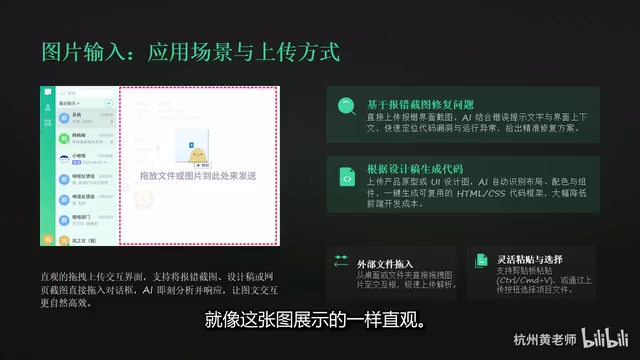
- Error screenshot diagnosis: Send terminal or browser error screenshots directly to AI for problem analysis
- Design-to-code conversion: Drag UI design mockups into the chat and have AI generate corresponding frontend code
- UI bug reproduction: Capture screenshots of abnormal interfaces, combined with text descriptions, to get fix suggestions from AI
The upload method is very flexible, supporting drag-and-drop, paste, and button upload. This means you can paste directly from a screenshot tool or drag files from your file manager—the barrier to entry is extremely low.
For frontend developers, the image input feature is particularly valuable. The traditional workflow of "looking at a design mockup while writing code" can now become "throw the design mockup to AI and fine-tune the generated output," resulting in a significant efficiency boost.
Voice Input: A Hands-Free Interaction Method
The final chat mode is voice input, ideal for moments when you don't want to type or when inspiration strikes suddenly.
Using it is simple: click the microphone icon in the Sidebar Chat panel, then speak your thoughts. You'll need to grant microphone permissions to the browser or application on first use.
The voice input feature relies on Automatic Speech Recognition (ASR) technology. Modern ASR systems (such as OpenAI's Whisper) can achieve near-human-level recognition accuracy in multilingual scenarios. In programming contexts, voice input faces a unique challenge: developers' speech often mixes natural language with technical terminology (such as function names, variable names, and API names), which places higher demands on the speech recognition model's coverage of specialized vocabulary. Currently, voice input is better suited for describing requirements and design ideas rather than precise code instructions.
Voice input is particularly useful in these scenarios:
- Your thoughts are racing and you don't want typing to interrupt them
- You need to describe a complex requirement where speaking feels more natural than writing
- Your hands are occupied with something else
Of course, voice input is currently better suited as a supplementary method. For precise technical descriptions, keyboard input remains the more reliable choice.
Quick Reference Table for Four Chat Modes
| Chat Mode | Shortcut (Mac / Win) | Core Use Case |
|---|---|---|
| Sidebar Chat | Command+U / Ctrl+U | Complex tasks, multi-turn discussions, solution planning |
| Inline Chat | Command+I / Ctrl+I | Quick edits, code explanation, local optimization |
| Image Input | Drag/Paste | Error screenshot analysis, design-to-code |
| Voice Input | Click microphone icon | Capturing ideas, hands-free interaction |
Summary
Trae's four chat modes each serve different purposes, covering various needs throughout the development process. Sidebar Chat handles deep tasks, Inline Chat maintains coding flow, Image Input bridges visual communication, and Voice Input provides flexible supplementation. Mastering the use cases and shortcuts for these four modes is the first step to using Trae efficiently.
Beginners are recommended to start practicing with Sidebar Chat and Inline Chat, then gradually incorporate image and voice input as they become comfortable, building their own AI-collaborative programming workflow step by step.
Related articles
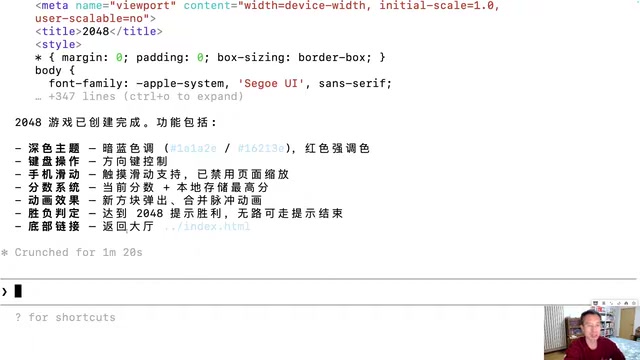
Generating 10 Web Games with One-Line Prompts: A Hands-On Claude Code Experience
A senior developer uses Claude Code to generate 10 playable web games including 2048, Gomoku, and Tetris with one-line prompts in under an hour. A deep dive into AI programming's real capabilities.
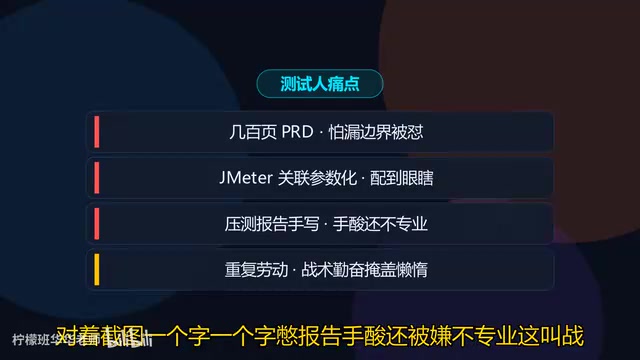
Five Essential Cursor Skills Every QA Engineer Needs: A Complete Breakdown
A detailed guide to five essential Cursor Skills for QA engineers: PRD analysis, test case generation, JMeter scripting, load test reports, and web automation.
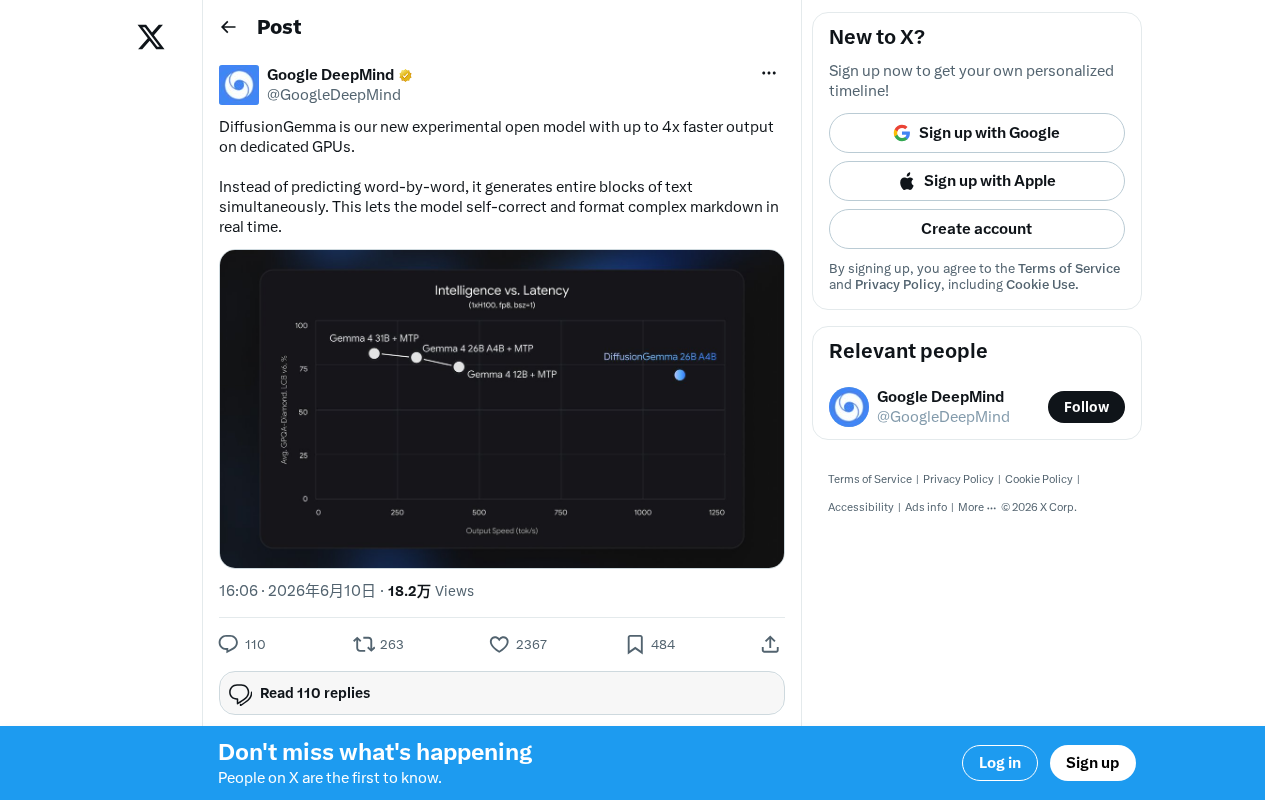
DiffusionGemma: Google's Open-Source Diffusion Language Model with 4x Faster Inference
Google releases DiffusionGemma, an open-source diffusion language model achieving up to 4x faster inference and real-time self-correction by generating text in parallel rather than token by token.