Cursor AI Editor Beginner's Guide: From Installation to Building a Personal Homepage
A beginner's guide to Cursor AI editor, from setup to building a personal homepage with prompts.
This guide introduces Cursor, an AI code editor with built-in Agent capabilities. It explains how Cursor differs from traditional editors through probabilistic LLM-based output, compares it with alternatives like Trae and VS Code, and details its pricing plans. A hands-on demo walks through generating a complete personal homepage using structured prompts, with visual fine-tuning via Design Mode.
What Is the Cursor AI Editor
Cursor is an AI code editor with a built-in Agent. It differs fundamentally from traditional editors. Traditional software is deterministic — given the same input, the output is always identical no matter how many times you run it. This follows the deterministic computing paradigm under the von Neumann architecture, where programs consist of explicit instruction sequences executed one by one by the CPU, with completely predictable logic paths. Cursor, as an editor with a built-in AI model, produces probabilistic outputs — the same input may follow different paths and yield different results. This is because Cursor's built-in Large Language Model (LLM) is based on the Transformer architecture, whose core mechanism computes the probability distribution of the next token via attention mechanisms, then selects output through sampling strategies (controlled by parameters like Top-K, Top-P, Temperature, etc.). The higher the Temperature value, the more random the output; the lower the value, the more deterministic it becomes. This is the fundamental reason why the same prompt may generate different code at different times.
This probabilistic nature is not a flaw — it's a core feature of AI editors. Cursor can serve as a smarter, more proactive assistant for developers, helping you quickly understand code, plan and build features, fix bugs, and review changes. The term Agent here is a core concept in AI, referring to an AI system capable of autonomously perceiving its environment, making plans, invoking tools, and executing actions. Unlike simple Q&A-style AI, an Agent can break complex tasks into multiple sub-steps, autonomously decide which tools to call (such as file read/write, terminal commands, code search, etc.), and dynamically adjust subsequent strategies based on execution results. The Agent in Cursor can autonomously read project files, understand code context, create or modify files, and run terminal commands, forming a complete "perceive-plan-execute-feedback" loop that far surpasses traditional code completion tools.
Why Choose Cursor Over Other AI Editors
Superior Output Quality and Rendering
Cursor is currently one of the most popular AI editors. Compared to ByteDance's Trae and VS Code's built-in AI features, Cursor produces more visually appealing and well-structured output. This is thanks to its built-in Markdown rendering capabilities — headings and table of contents are clearly organized, and it supports charts and relationship diagrams. Markdown is a lightweight markup language widely used for technical documentation. Cursor's built-in rendering engine supports not only standard syntax (headings, lists, code blocks, tables, etc.) but also integrates chart rendering libraries like Mermaid, allowing it to display flowcharts, sequence diagrams, class diagrams, and ER relationship diagrams directly in the chat interface. This means when you ask Cursor to explain system architecture or data flows, it can present them as visual diagrams rather than plain text descriptions — especially valuable for understanding the structural relationships of complex systems.
Additionally, the Design Mode feature introduced in Cursor 3 makes frontend development a breeze, allowing developers to select elements and issue modification commands directly in a visual interface.
Reshaping the Developer's Role: From Executor to Task Manager
Cursor's greatest value lies in reshaping the developer's role — from executor to task manager. You can have multiple Agents simultaneously work on different parts of the codebase: one Agent writes tests for the authentication flow, another updates documentation, and a third cleans up messy utility files in the background. It's like managing three assistants working in parallel, dramatically boosting development efficiency. This multi-Agent parallel workflow essentially delegates the task decomposition and parallel execution capabilities of software development to AI. The developer's core responsibility shifts from "how to write code" to "what code to write" and "how to verify code quality" — an important trend in the evolution of software engineering roles in the AI era.
Cursor Download and Pricing Plans Explained
Cursor offers a free trial, but payment is required once you reach a certain Token usage threshold or need advanced features. Here, a Token is the basic unit by which LLMs process text — it's not simply equivalent to a single character or word. For English, one token corresponds to roughly 4 characters or 0.75 words; for Chinese, one character is typically encoded as 1–2 tokens. Both model input (your prompt + context code) and output (generated responses and code) consume tokens, and Cursor's billing is based on token consumption. The current pricing plans are as follows:
- Free: Basic trial with token limits
- Pro: $20/month, suitable for small project development
- Pro+: For developers with higher demands
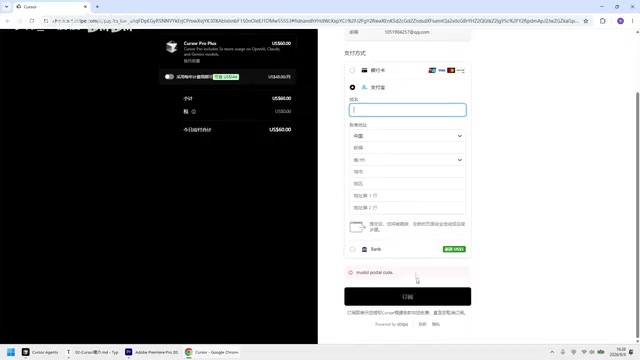
Alipay is supported as a payment method. In the Cursor interface, click the plus icon and find "Plan and Usage" to subscribe.
Hands-On Demo: Generating a Personal Homepage with Cursor
Creating a Project Folder
After opening Cursor, create a new project folder (e.g., demo01) via File → Open Folder and set it as your working directory. There's an input box in the center of the Cursor interface where you can issue commands.
Writing a Structured Prompt
The goal of this demo is to have Cursor generate a modern, minimalist personal homepage. The specific requirements include:
- Tech stack: HTML + CDN-imported CSS + vanilla JavaScript
- Page structure: Fixed top navigation bar (Home, About Me, Portfolio, Contact), hero section (circular avatar, name, one-line bio, social icons), About Me (self-introduction + skill tags), Portfolio (three-card layout), Contact (email, WeChat, message form), footer (copyright info)
- Functional requirements: Smooth scrolling, navigation bar color change on scroll, mobile hamburger menu
- Constraints: All code in a single
index.htmlfile, external resources via CDN
CDN (Content Delivery Network) mentioned here is a distributed network architecture that caches static resources on edge node servers deployed worldwide, closest to users, to accelerate resource loading. Using CDN to import CSS frameworks (like Tailwind CSS or the Font Awesome icon library) in this demo means there's no need to install npm packages locally or configure build tools — you simply reference CDN links in HTML <link> or <script> tags. This approach is especially suitable for rapid prototyping and single-file projects, avoiding the configuration complexity of build tools like Webpack or Vite.
It's worth noting that the prompt itself demonstrates important principles of Prompt Engineering: specifying tech stack constraints (preventing the model from choosing inappropriate frameworks), describing the page structure in layers (helping the model understand the information hierarchy), specifying functional requirements (making implicit expectations explicit), and setting constraints (such as single-file output, preventing the model from generating multi-file projects). This structured expression essentially narrows the model's output space, guiding the probability distribution toward the desired direction, significantly improving the success rate of generating usable output on the first try.
Observing Cursor's Streaming Output
After clicking the Send button, Cursor begins reading the input and extracting key tokens. The output is streamed (generated piece by piece). The benefit of this design is that when you notice the output drifting from expectations, you can pause at any time to avoid wasting token resources.
Streaming output is implemented using long-connection technologies like Server-Sent Events (SSE) or WebSocket. The LLM itself generates content token by token — each forward inference produces only one token, which is then appended to the existing sequence as input for the next inference, looping autoregressively until an end token is generated. Streaming output leverages this characteristic by pushing each token or small batch of tokens to the client for display immediately, rather than waiting for the entire generation to complete. This not only reduces perceived wait time (first-token latency is typically within a few hundred milliseconds) but also enables mid-stream intervention — which is why pausing early can save token consumption. Tokens already generated and output are counted toward consumption, but the ungenerated portion can be terminated.
Once complete, an index.html file is automatically generated in the project folder. You can preview the result by launching a local server with live-server. Cursor generated a complete personal homepage with navigation bar, hero section, portfolio, and all other specified structures exactly as instructed.
Using Design Mode for Visual Fine-Tuning
Due to the probabilistic nature of AI output, the details may vary slightly each time. Cursor 3's Design Mode makes fine-tuning convenient:
- Open Cursor's built-in browser and paste the local page URL
- Click the pen icon in the upper right corner to enable Design Mode
- Use the pen tool to select the element you want to modify
- Describe the modification in the input box (e.g., "generate an avatar using SVG")
- Cursor automatically applies the change and provides a real-time preview
For example, select the name "张三" on the page, type "change to 李四," and press Enter — Cursor makes the change instantly. This WYSIWYG interaction significantly lowers the barrier for frontend adjustments. Design Mode works by establishing a mapping between browser-rendered DOM elements and source code. When a user selects an element in the visual interface, Cursor precisely locates the corresponding source code position, then translates the user's natural language modification command into code changes, achieving an intuitive "point-and-edit" development experience.
Cursor's Editor Window and Its Relationship with VS Code
Cursor is built on top of VS Code's open-source version (Code - OSS) as a secondary development, using the Electron framework — a desktop application development framework based on the Chromium browser engine and Node.js runtime. This means Cursor inherits VS Code's entire plugin ecosystem, including language support (Python, Java, Go, etc.), themes, Git integration, debuggers, and thousands of other extensions. The Cursor team deeply integrated AI capabilities on top of this foundation, including intelligent completion (Tab), inline editing (Cmd+K), the chat panel (Cmd+L), and Agent mode. Because they share the same underlying architecture, VS Code's keyboard shortcuts, settings, and workspace configurations can be seamlessly migrated to Cursor.
If you're accustomed to VS Code's coding workflow, you can open a traditional editor window via File → Open Edit Window. This window's layout and operations are nearly identical to VS Code, making it very friendly for scenarios that require manual coding.
Conclusion
As a next-generation AI editor, Cursor's core value lies in freeing developers from tedious code execution and transforming them into task planners and managers. As demonstrated in this hands-on walkthrough, a single structured prompt is all it takes for Cursor to generate a complete, runnable frontend page. Combined with Design Mode for visual fine-tuning, the entire development workflow is efficient and intuitive. For engineers looking to boost their development productivity, mastering Cursor has become an essential skill.
Key Takeaways
Related articles
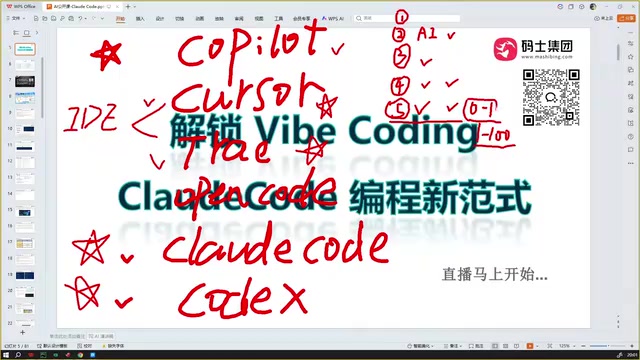
Claude Code Installation Guide & The Five Stages of AI Programming Tools Explained
Complete Claude Code installation guide with the five stages of AI programming tools, from manual coding to agents. Learn 0-to-1 project building and 1-to-100 iteration challenges.

Enterprise-Level AI Project Rules Files: 5 Hard Rules + 6 Writing Techniques
AI keeps messing up your code? Learn 5 hard rules and 6 writing techniques for enterprise-level Rules files in Claude Code, Cursor & more, with templates.
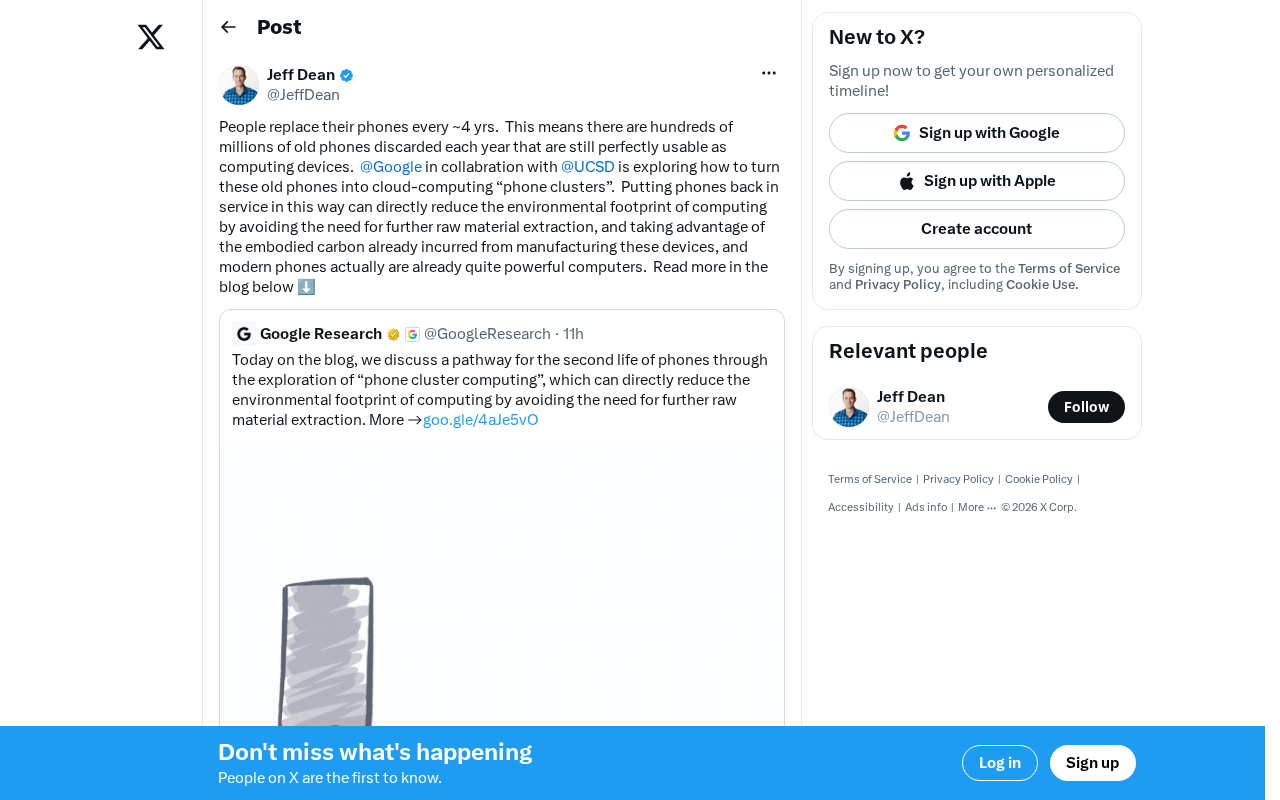
Building Cloud Computing Clusters from Old Phones: Google and UCSD Explore a New Path to Sustainable Computing
Google and UCSD explore building cloud clusters from old phones, leveraging ARM chip efficiency to cut e-waste and data center carbon footprints.