DeepSeek + Cline Setup Guide: A $1.50 Alternative to $20/Month AI Coding Subscriptions
Configure DeepSeek API + Cline in VS Code for near top-tier AI coding at a fraction of the cost.
This guide walks through setting up DeepSeek's API with the free VS Code plugin Cline as a budget-friendly alternative to $20/month AI coding tools. It covers API Key creation, the Plan/Act dual-model strategy using deepseek-reasoner and deepseek-chat, permission settings, and an advanced project file system for managing AI output quality — all for roughly $1.50.
Tired of paying $20 a month for AI coding subscriptions? With DeepSeek's API and a free VS Code plugin called Cline, you can get a near top-tier AI coding experience at a fraction of the cost. This article walks you through the complete setup process, from zero to productive.
Why Choose the DeepSeek + Cline Combo for AI Coding
Mainstream AI coding tools like Cursor and GitHub Copilot typically cost around $20/month. For individual developers or those who only occasionally build small apps, that's not a great deal — often the month ends before you've even used up your quota.
The DeepSeek + Cline combo offers a pay-as-you-go alternative. DeepSeek is a Chinese-developed large language model built on a Mixture of Experts (MoE) architecture. This means that while the model has a massive total parameter count (DeepSeek-V3 reaches 671B parameters), only a subset of expert networks are activated during each inference pass. This maintains high performance while dramatically reducing compute costs — which is the core technical reason its API pricing can be far lower than competitors like OpenAI and Anthropic. In terms of logical reasoning capability, DeepSeek is approaching world-class levels. In real-world testing, a top-up of just 10 RMB (roughly $1.50) lasted an impressively long time, demonstrating exceptional value for money.
Cline (formerly Claude Dev) is an open-source VS Code plugin released under the MIT license. Unlike GitHub Copilot's inline code completion, Cline is positioned as a full-fledged "AI development agent" — it can create and edit files, run terminal commands, and even browse the web to fetch documentation. Through standardized API interfaces, Cline supports providers including OpenAI, Anthropic, Google, DeepSeek, and more. It essentially gives you a flexible AI coding assistant framework where you can switch the underlying model at any time without changing tools.
Complete DeepSeek + Cline Setup Tutorial
Step 1: Install VS Code and the Cline Plugin
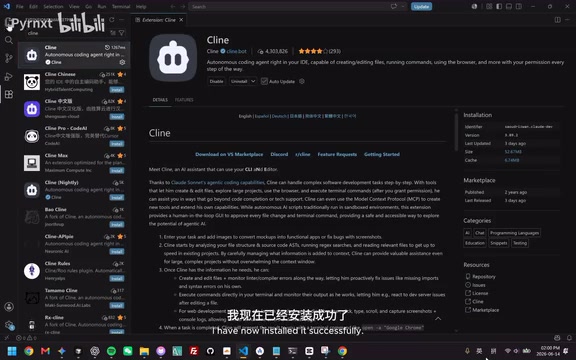
First, download and install VS Code, the most popular code editor among developers. Once installed, search for "Cline" in the Extensions Marketplace, find the plugin with the robot icon, and install it.
After installation, Cline appears in the sidebar by default. To view both your project file structure and the AI conversation simultaneously, drag the Cline panel to the chat area on the right side. Important distinction: VS Code's built-in Chat panel is for Copilot (which requires a paid subscription), while the Cline panel with the robot icon is what we'll be using.
Step 2: Get a DeepSeek API Key
Head to the DeepSeek Platform API portal and complete the following steps:
- Top up: Start with 10 RMB (~$1.50) to test the waters — in practice, this lasts a surprisingly long time
- Identity verification: Complete the platform's required verification process
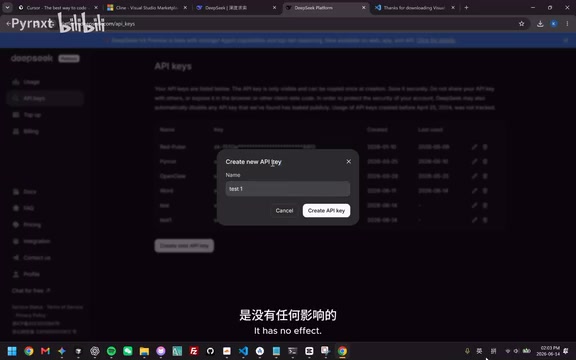
- Create an API Key: Click create, give it any name, then copy and save it immediately — the API Key is only displayed once
An API Key is essentially an authentication token that the platform uses to identify the caller and handle billing. If it's leaked, others can use your balance to make API calls. Keep it secure and never commit it to a public code repository.
Step 3: Configure the DeepSeek API in Cline
Back in VS Code, Cline will prompt you to enter an API Key on first launch. Here's what to do:
- Select DeepSeek as the model provider
- Enter the API Key you just copied
- Enable "Different models for Plan and Act" — this is a key optimization
This feature lets you use different models for the planning and execution phases. The design philosophy stems from a "think-then-execute" architecture: during the Plan phase, the AI needs to understand requirements, analyze code structure, and formulate an implementation strategy, which demands stronger deep reasoning capabilities. During the Act phase, the AI primarily writes code and performs file operations, requiring less reasoning depth but faster response times. The recommended configuration is:
- Plan (planning phase): Use DeepSeek Pro (corresponding to deepseek-reasoner), which has chain-of-thought reasoning capabilities for clear, structured thinking
- Act (execution phase): Use DeepSeek Flash (corresponding to deepseek-chat), which is faster and more token-efficient
This dual-model setup is like an "architect + programmer" division of labor — it maintains code quality while significantly reducing token costs.
Real-World Performance Test
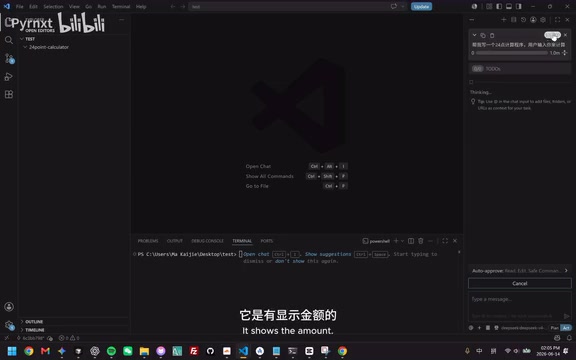
After completing the setup, I ran a test using the classic "24 Game" calculator program.
A few noteworthy details:
- Cost transparency: The top-right corner displays real-time token consumption and the corresponding cost — you can see exactly how much you're spending. A quick note on tokens: they are the basic unit that large language models use to process text. In Chinese, roughly every 1–2 characters correspond to one token; in English, approximately every 4 characters equal one token. API pay-as-you-go billing is split into input tokens and output tokens, with output tokens typically costing 2–4x more than input tokens. DeepSeek's pricing is approximately 1 RMB per million input tokens and 2 RMB per million output tokens (even lower with cache hits). Compared to GPT-4o's $2.50 per million input tokens, the price difference can be tens of times.
- Fast code generation: The code was written quickly, and tests ran automatically
- Strong logical reasoning: I tested it with the historically hardest 24 Game combination — "3, 3, 7, 7" — and it successfully found the solution ((3÷7+3)×7=24), proving the algorithm quality is solid
One more important efficiency setting: in Cline's permission options, I recommend enabling auto-execution permissions. Otherwise, the AI will ask for manual approval every time it runs code, which seriously hurts productivity. Cline's permission system offers multiple granularity levels, including file read, file write, and terminal command execution. You can selectively grant access based on your security needs. If you're feeling bold, just check "Read All" for a smoother coding experience.
Advanced Tips: Using Development Files to Manage AI Output Quality
For real projects, just setting up the tools isn't enough. Here's a methodology for constraining and guiding AI output through project management files — an approach borrowed from Anthropic's internal practices.
Anthropic is the company behind the Claude model, founded by former OpenAI Research VP Dario Amodei. The company extensively uses AI-assisted development internally and has distilled a set of best practices for "AI collaborative engineering." The core insight is this: large language models don't have cross-session memory within a single conversation, but by persisting key information as project files, you can inject context into new sessions to achieve "pseudo-memory," allowing the AI's performance to continuously improve as the project progresses.
Core File System Explained
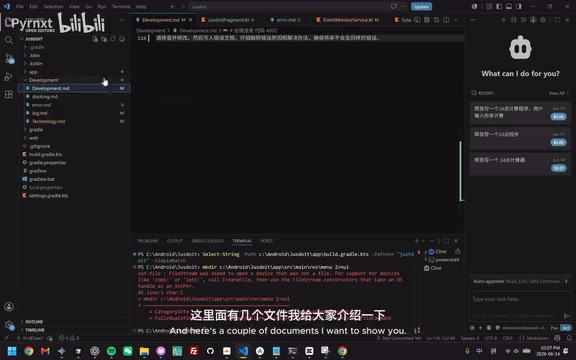
1. Principles and Requirements File
Document your project's coding standards, architectural principles, and other constraints so the AI follows them when generating code. For example, you might specify "all functions must include type annotations," "prefer composition over inheritance," or "error handling must use custom exception classes." Since Cline's input field is small and not ideal for entering large amounts of information, writing detailed requirements in a file is the better approach — Cline automatically reads project files as context.
2. Error Log File (Zero File)
Every time the AI makes a mistake, record the cause and the correction here. This way, the AI can reference it in subsequent tasks and avoid repeating the same errors. The essence of this method is using the file system to compensate for the inherent lack of long-term memory in large language models — the model itself won't "remember" what it got wrong last time, but if error patterns are written to a file and provided as context in the next conversation, the model can adjust its behavior accordingly. In practice, this file becomes increasingly valuable over time, gradually evolving into a project-specific "AI behavior guide."
3. Log File (Log/Run File)
Used to track the AI's work process, recording each file's purpose and modification history. While not strictly necessary, it helps you trace issues and makes the AI aware of its own shortcomings. This is especially useful when debugging complex bugs — you can have the AI review the log and analyze which step introduced the problem.
4. Technology File
Document all technical details of the project, including framework versions, database schemas, API specifications, third-party service configurations, and more. After the AI writes code, ask it to record the technical implementation in this file to ensure continuous knowledge accumulation. This is particularly important for long-term projects — even if you switch AI models or start a new conversation session, the new context can quickly grasp the full picture of the project.
Tips for Migrating from Cursor to Cline
If you previously used Cursor (an AI editor forked from VS Code with built-in Claude and GPT models), you can create a handoff file (Docking File): first have Cursor generate a comprehensive project handoff document covering the project architecture, core module descriptions, known issues, and to-do items. Then have Cline read it and write out its understanding. This ensures seamless project context transfer and avoids misunderstandings of the codebase by the new tool. The process is similar to onboarding a new team member — except both parties in the handoff are AI.
Summary: Who Is This Solution For?
The DeepSeek + Cline combo offers individual developers an exceptionally cost-effective AI coding solution. A top-up of just 10 RMB (~$1.50) lasts a long time. Combined with the Plan/Act dual-model strategy for further cost optimization and a well-structured project management file system, it can fully replace a $20/month subscription service.
Of course, this solution has its limitations: compared to integrated solutions like Cursor, the setup barrier is slightly higher; DeepSeek's API occasionally experiences queuing during peak hours; and for very large projects, context window limitations may require more refined file management strategies. But for developers on a budget who still want to experience AI-assisted coding, this solution is absolutely worth trying.
Key Takeaways
Related articles
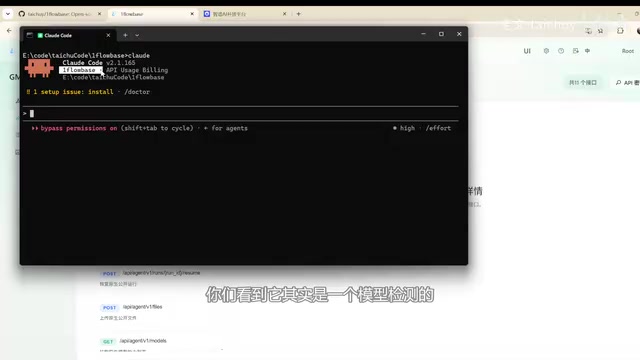
GML 5.2 Multimodal Upgrade Hands-On: Full Validation with DeepSeek V4
Hands-on testing of GML 5.2 and DeepSeek V4 multimodal upgrades on OneBlockBase, covering vision-text workflows, safety mechanisms, and deployment tips.
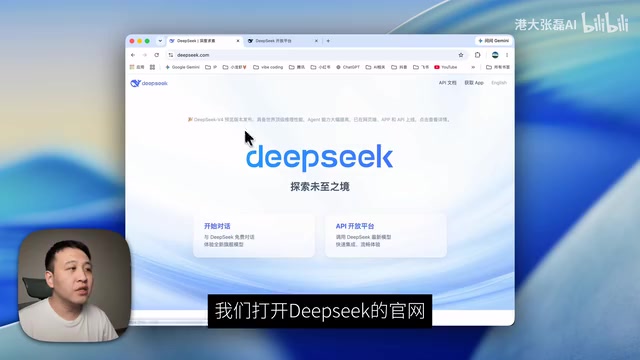
5 Steps to Connect Codex with DeepSeek — No GPT Account Required
Step-by-step tutorial: Connect Codex to DeepSeek API via CC Switch in 5 steps. No GPT account needed — use AI coding features like code completion and Skill plugins at lower cost.

A Systematic Guide to Claude Code: From Deployment to Architectural Analysis of 510K Lines of Source Code
A systematic guide to Claude Code covering environment deployment, domestic model integration, six core systems (memory, multi-Agent, etc.), a full-stack ChatBot project, and eight design patterns from 510K lines of open-source code.