Four Practical Claude Code Commands to Double Your AI Programming Efficiency
Four Practical Claude Code Commands to…
Four practical Claude Code commands to dramatically improve AI-assisted programming efficiency.
This article covers four proven Claude Code techniques: using Compact for targeted context compression to save Tokens and maintain focus, WIT for importing local files with full project structure, Plan mode for safe and precise code fixes, and custom Commands for automating repetitive workflows. Together, these tips help developers get more controllable, high-quality output from their AI programming assistant.
Developers who've used Claude Code probably share the same feeling: once you start, it's hard to go back. Whether it's writing code, fixing bugs, or organizing project files, it handles everything remarkably well. But how useful a tool is largely depends on how well you know how to use it.
Today I've compiled four battle-tested Claude Code tips that genuinely boost development efficiency, helping you squeeze every bit of capability out of this AI programming assistant.
1. Compact Command: Targeted Context Compression
After lengthy AI conversations, the context keeps growing — Token consumption skyrockets, and the AI's responses tend to drift off track. Many people's solution is to start a fresh conversation, but that means losing critical information from before.
Claude Code offers a more elegant solution: the Compact command for targeted compression of conversation history.
The key word here is "targeted." You can specify which module's context to retain — for example, typing "only keep content related to the login module" — and Claude Code will automatically streamline the history, preserving only the key information relevant to that module.
To understand the value of this feature, you need to know an inherent limitation of large language models: although Claude's context window has expanded to the 200K Token level, research shows that LLMs suffer from a "Lost in the Middle" phenomenon — when context gets too long, the model's attention to information in the middle positions drops significantly, causing response quality to degrade. Token consumption also directly correlates with API call costs. This is why targeted compression is more valuable than simple truncation or starting a new conversation: it reduces Token overhead while preserving the highest information density relevant to the current task.
The practical value of this technique:
- Saves Token costs: Irrelevant content in long conversations gets cleaned up, directly reducing expenses
- Improves response accuracy: More focused context means the AI is less likely to be distracted by irrelevant information
- No need to start a new conversation: Key information is preserved, maintaining work continuity
2. WIT Command: Precisely Import Local Files
When you need AI to analyze or modify a file, many people habitually copy-paste code directly into the chat. This creates two problems: the chat interface becomes cluttered, and the AI might misunderstand due to formatting issues.
A better approach is using WIT followed by a file path to let Claude Code automatically read local files.
For example, WIT src/components/Login.vue — the AI will directly read the complete file content, including proper indentation, comments, and code structure.
There's a critical distinction here that's easy to overlook: traditional AI conversations are pure text interactions where the model cannot directly access the user's local file system. Claude Code, as a terminal-native tool running in the user's development environment, has file read/write permissions. This means when importing files via WIT, the model can understand the complete project structure — including inter-module dependencies, import paths, and configuration file relationships. By contrast, copy-pasting code snippets loses this structural information; the model can only see isolated code blocks and cannot infer the file's position and role within the project.
The advantages of this method are clear:
- Chat interface stays clean, not overwhelmed by large blocks of code
- File content is complete and accurate, avoiding format loss from copy-pasting
- AI understands context more precisely, because it receives the original file structure
Use WIT whenever you can — it's a good habit worth developing.
3. Precise Targeting for Fixes: Don't Let AI Touch Code It Shouldn't
This might be the most important piece of advice. Many developers like to throw out "fix all the bugs in my project," and then Claude Code makes sweeping changes that end up creating more problems.
The correct approach is to precisely specify code paths and narrow the scan scope. Tell the AI exactly which file, which function, and which line has the problem, keeping its modification scope as small as possible.
A more reliable workflow:
- Switch to Plan mode first: Have the AI only output a modification plan without actually changing code
- Review the approach: Confirm the AI understands the root cause and the fix direction is correct
- Authorize execution after confirmation: Only let it make changes after you approve the plan
- Review the changed code: Check every modification after completion
Plan mode is essentially a "Dry Run" mechanism, borrowing from infrastructure-as-code best practices — like Terraform's plan command, which shows the change plan before deciding whether to apply. This mechanism is particularly critical in AI code modification scenarios because LLM outputs are probabilistic; the same bug description might produce different fix paths. Plan mode gives developers complete review authority before code is actually modified, preventing destructive changes caused by AI "hallucinations." It essentially establishes a safety gate between automation efficiency and human oversight.
This workflow may seem like extra steps, but it actually helps you avoid common pitfalls like AI accidentally deleting code or over-refactoring, ultimately saving time.
4. Custom Commands: One-Click Trigger for Frequent Operations
If you perform repetitive tasks daily — code reviews, pre-deployment checks, generating ChangeLogs, validating test coverage — manually typing long prompts each time is clearly inefficient.
Claude Code supports configuring these frequent operations as custom commands, stored in the Commands directory, essentially creating your own shortcut commands.
From a Prompt Engineering perspective, the value of custom Commands goes beyond "typing fewer characters." A high-quality prompt often requires multiple iterations of optimization, including role definitions, output format constraints, few-shot examples, and other elements. If you rewrite it every time, not only is it inefficient, but slight wording adjustments can cause output quality fluctuations. Persisting verified Prompt templates as commands is equivalent to crystallizing personal or team best practices into reusable assets. It also lowers the barrier for team members — newcomers can directly invoke optimized commands and get consistent output quality.
Once configured, work that previously required pasting a long prompt can now be triggered with a single short command, delivering a very noticeable efficiency boost.
Scenarios well-suited for custom commands include:
- Code review: Checking items one by one according to team standards
- Pre-deployment checks: Environment variables, dependency versions, configuration files, etc.
- Log generation: Automatically generating standardized ChangeLogs
- Test validation: Checking whether test coverage meets requirements
Final Thoughts
The core philosophy behind all four tips is consistent: give AI more precise input to get more controllable output. Compact manages context, WIT precisely imports files, targeted fixes narrow scope, and custom commands reduce repetition — all helping you collaborate more efficiently with AI.
Claude Code has a very high capability ceiling, but how much of it you can leverage depends on how you wield it. Rather than letting the tool control you, take control of the tool.
Related articles

AI Aggregator Platforms Tested: A Complete Guide to Using GPT 5.5 and Other Top Models for Free
A hands-on guide to using GPT 5.5, Gemini 3.1 Pro, and Grok 4.2 for free via AI aggregator platforms, covering cross-model context memory, account pool mechanisms, and key security risks.
Vibe Coding in Practice: A Junior Student Uses Cursor to Build a Multi-Agent System with 51 AI Officials Based on the Three Departments and Six Ministries Framework
A junior student uses Cursor and Vibe Coding to build a multi-agent system with 51 AI officials modeled on China's Three Departments and Six Ministries, featuring task distribution, approval workflows, and Token cost visualization.
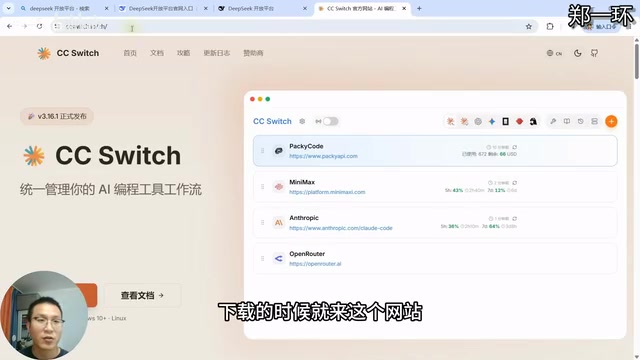
How to Connect Codex to DeepSeek Models: Free Switching via CC Switch
Learn how to connect OpenAI Codex to DeepSeek models via CC Switch, enabling free switching between DeepSeek and GPT with complete setup and routing guide.