Getting Started with Claude Code: Installation, Configuration, and Practical Tips for a Terminal AI Coding Assistant

Claude Code is Anthropic's terminal-native AI coding tool that emphasizes collaboration over full AI reliance.
Claude Code is Anthropic's terminal-native agentic coding tool that runs directly in the command line, unlike IDE plugins such as Cursor. It integrates seamlessly into existing workflows without IDE lock-in. Key strengths include deep codebase understanding, highly customized code generation, deep Git integration, and GitHub automation. The tutorial emphasizes collaborative coding over "vibe coding" to maintain developer control. Starting at $17/month for the Pro plan with Sonnet and Opus model support, it also offers advanced features like Claude.md memory files, MCP servers, and custom commands.
What Is Claude Code?
Claude Code is an AI-driven agentic coding tool developed by Anthropic. Unlike similar tools such as Copilot, Cursor, and Windsurf, Claude Code runs directly in the terminal rather than being embedded in a code editor's UI. This means it integrates more naturally into your existing development workflow without forcing you to switch IDEs.
The term "Agentic Coding Tool" represents a major evolutionary direction in AI programming from 2024–2025. Unlike earlier code completion tools (such as GitHub Copilot's autocomplete feature), agentic tools possess autonomous decision-making and multi-step execution capabilities — they can understand high-level task descriptions, independently plan execution steps, read and modify multiple files, run commands, and adjust strategies based on results. This shift from "passive completion" to "active execution" marks a leap in AI coding assistants from the tool level to the collaborator level.
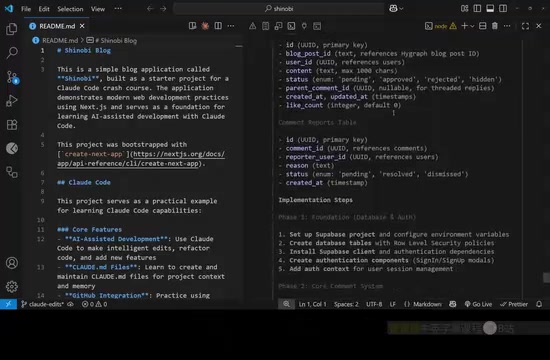
The popular programming tutorial channel Net Ninja recently released a comprehensive Claude Code tutorial series covering everything from installation and configuration to practical applications. This article distills the key features and onboarding process based on that tutorial's core content.
Core Advantages of Claude Code
Terminal-Native, Seamless Integration
The biggest difference from other AI coding tools is that Claude Code runs directly in the terminal. Being terminal-native means it uses the command-line interface (CLI) as its primary interaction method rather than building graphical plugins. This architectural choice has deep technical reasoning: the terminal is the lowest common denominator across all operating systems and development environments, and virtually all developer toolchains (Git, Docker, package managers, etc.) use CLI as their primary interface. By operating at the terminal level, Claude Code can directly invoke system commands, pipe operations, and scripts, achieving seamless integration with CI/CD pipelines, remote servers, and other infrastructure — a level of flexibility that IDE plugins can hardly match.
This brings several notable benefits:
- No IDE lock-in: Whether you use VS Code, WebStorm, or Vim, you can invoke Claude Code from the terminal
- Compatible with existing workflows: No need to learn a new editor interface — just use it in the development environment you're already familiar with
- GitHub workflow integration: Automate code reviews in GitHub workflows, provide feedback on Pull Requests, and even independently handle open issues in repositories
Deep Codebase Understanding
Net Ninja specifically highlighted Claude Code's excellent performance in understanding project codebases throughout the tutorial. Based on his hands-on experience, the code Claude Code generates is more fitting and appropriate across different projects — rather than simply producing generic code, it can output highly customized code based on the project's tech stack, coding style, and architectural patterns.
Collaborative Coding, Not "Vibe Coding"
The tutorial explicitly states that this is not a "vibe coding" course — meaning you don't just hand everything off and let AI write all the code. Vibe Coding is a concept coined by Andrej Karpathy in early 2025, referring to developers who rely entirely on AI-generated code and accept results based on "feel" without deeply understanding the code logic. While this approach has some value in rapid prototyping, it poses serious risks in production environments: AI-generated code may contain subtle logic errors, security vulnerabilities, or performance issues, and if developers lack the ability to review it, these problems gradually accumulate into technical debt that's hard to pay off.
Net Ninja believes this approach is inefficient and prone to more bugs, declining code quality, and technical debt accumulation. The correct way to use it should be:
- Collaborate with Claude on well-scoped, specifically focused tasks and features
- Review AI-generated code at every step
- Manually intervene and modify code when needed
- Maintain full control over the codebase
Claude Code Installation and Configuration Guide
Installation Steps
- Install Claude Code: Install globally via npm
npm install -g @anthropicai/claude-code
Interestingly, Windows users no longer need to install through WSL (Windows Subsystem for Linux) — you can run the above command directly in the Windows terminal. This is a significant improvement, as earlier versions required Windows users to configure a Linux subsystem environment, which added considerable onboarding friction.
- Create an account and choose a plan: Claude Code requires a paid subscription
- Pro plan: $17/month, offering generous usage quotas (reset every 5 hours), with support for models like Sonnet 4 and Opus 4.1
- Max plan: Higher price, but more usage and access to the latest features
- Free plan: Only supports web and desktop apps, does not include Claude Code
💡 Practical tip: The Opus model consumes quota much faster, so for everyday use, it's recommended to default to the Sonnet model.
A note on model selection: Anthropic's model family uses a tiered strategy. The Sonnet series (e.g., Sonnet 4) is positioned as a cost-effective workhorse model that balances speed and quality, suitable for everyday coding tasks like code generation, refactoring, and debugging. The Opus series (e.g., Opus 4.1) is the flagship model with stronger reasoning capabilities and a larger context window, ideal for complex architectural design, cross-file refactoring, and other high-difficulty tasks. The token consumption difference is significant — a single Opus call costs roughly 5–10x more than Sonnet, making smart model selection an important strategy when working with limited quotas.
Launching Claude Code for the First Time
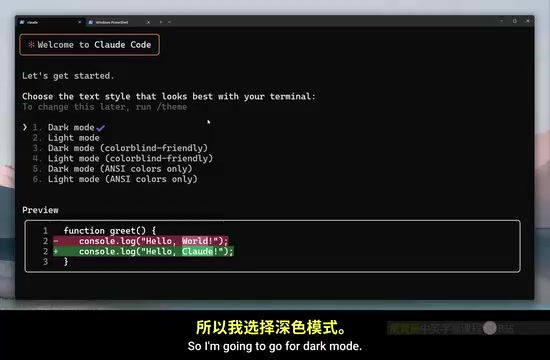
After installation, navigate to your project directory, type claude, and press Enter to start a session. On first use, Claude Code will guide you through the following setup:
- Choose an interface mode (dark/light)
- Authenticate (via browser authorization)
- Confirm that you trust the current project files
Using Claude Code in VS Code
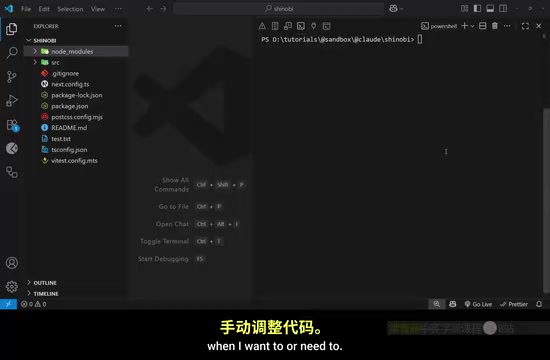
Although Claude Code is a terminal tool, running it in VS Code's integrated terminal provides an enhanced experience. When you run the claude command in the VS Code terminal, it automatically installs the Claude Code VS Code extension, offering the following enhancements:
- Diff view: Visually inspect code changes with side-by-side or inline views showing differences before and after AI modifications, making it easy for developers to review line by line
- Text selection context: Send selected code as context to Claude without manual copy-pasting
- Keyboard shortcuts: Improve operational efficiency
- Active tab awareness: Claude can identify the file you're currently editing and automatically include it in the conversation context
Claude Code Practical Workflows
Project Initialization: Let Claude Understand Your Codebase
After launching Claude Code, the first thing you can do is ask it to summarize your project. This is especially useful when taking over someone else's project:
Can you provide me with a summary of what this project is?
Claude will automatically read various files in the project, analyze the codebase structure, and provide a comprehensive summary including the tech stack, project functionality, architectural design, and more. During this process, Claude Code intelligently selects which files to read — rather than opening every file one by one, it first examines the directory structure, package.json, README, and other key files, then dives into specific modules as needed, mimicking the exploration path an experienced developer would take when onboarding to a new project.
Git Integration: Safeguard Your Code with Version Control
Claude Code has deep awareness of local Git repositories and can:
- Stage and commit changes
- Switch and merge branches
- Resolve conflicts
- Query commit history and branch diffs
Before executing any Git operation, Claude will display the bash command it's about to run and request your permission. This "show-confirm-execute" pattern is a core principle of Claude Code's safety design — it ensures developers always have the final say over destructive operations.
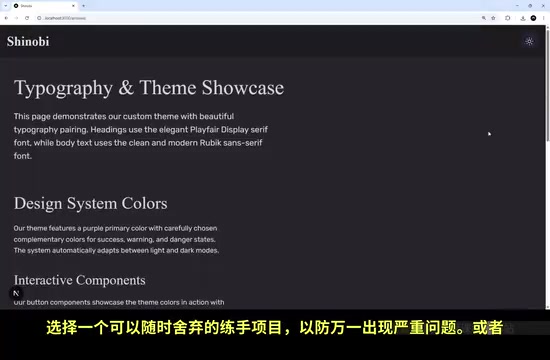
⚠️ Important reminder: Before you start using Claude Code to edit code, make sure you're using version control (Git), or practice on a disposable project. It's recommended to create a new branch (e.g.,
claude-edits) to isolate AI-generated changes.
Terminal Setup Optimization
Claude Code provides a handy built-in command:
/terminal-setup
Running this installs a Shift + Enter keyboard shortcut, making it easy to enter multi-line content in the chat window. By default, pressing Enter in the terminal sends the message immediately — this setting lets you compose complex multi-line prompts before sending them all at once.
Overview of Advanced Claude Code Features
Beyond basic code generation and editing, Claude Code supports several advanced features:
-
Claude.md memory file: Provides persistent context memory for Claude through a project-level configuration file. This is a Markdown-format config file placed in the project root directory where developers can document coding conventions, architectural decisions, tech stack preferences, common patterns, and more. Each time Claude Code starts a session, it automatically reads this file as background knowledge, solving the "amnesia" problem of AI tools — no need to repeat project conventions in every conversation. Similar mechanisms are called
.cursorrulesin Cursor and.github/copilot-instructions.mdin GitHub Copilot. -
MCP servers: Extend Claude Code with additional tool capabilities. MCP (Model Context Protocol) is an open standard introduced by Anthropic in late 2024, designed to provide AI models with a unified interface for external tool invocation. Through MCP servers, Claude Code can connect to databases to query data, call third-party APIs, access design mockups, read documentation systems, and more, significantly expanding its capability boundaries. MCP uses a client-server architecture where developers can write their own MCP servers to expose arbitrary tool capabilities, and the community has already produced numerous open-source MCP servers (connecting to Figma, Notion, PostgreSQL, etc.).
-
Custom commands: Create shortcut commands for common tasks to reduce repetitive input. For example, you can define a
/reviewcommand to execute a standardized code review process, or a/testcommand to generate unit tests for a specific framework. -
Sub-agents: Launch sub-agents to work collaboratively with Claude on more complex tasks. Sub-agents can process different subtasks in parallel and then consolidate results, making them ideal for large-scale refactoring or multi-file coordinated modifications.
-
GitHub automation: Let Claude autonomously handle simple issues and bugs within GitHub workflows. Through GitHub Actions integration, Claude Code can automatically respond to newly opened issues, analyze problems, generate fix code, and submit Pull Requests, achieving a fully automated loop from issue reporting to code fixes.
Conclusion
Claude Code represents a unique direction in AI coding tools — it doesn't try to replace your IDE but instead serves as an intelligent assistant in the terminal that integrates into your existing development process. Its core value lies in deep codebase understanding and high-quality code generation, not flashy UI interfaces.
For developers who want to try AI-assisted programming without being locked into a specific tool, Claude Code is a choice worth serious consideration. But remember: the best practice is to collaborate with AI, not rely on it entirely — maintaining control over your code is the key to truly unlocking the value of AI coding tools.
Related articles
 Tutorials
Cursor + Codex Dual-IDE Collaboration: A Practical Methodology for Open-Source Project Customization
A complete methodology for open-source project customization based on real-world experience, detailing the Cursor+Codex dual-IDE workflow, seven-stage process, MVP validation, and AI source code reading techniques.
 Tutorials
Cursor Multi-Agent in Practice: Building a Full-Stack Next.js Blog in 50 Minutes
Build a full-stack blog in 50 minutes using Cursor IDE's multi-Agent mode with Next.js, Clerk auth, and Supabase. Learn the 4-phase AI Agent workflow and key integration pitfalls.
 Tutorials
Building an AI Software Factory from Scratch: A Cursor Engineer's Hands-On Experience with Multi-Agent Collaboration
Cursor engineer Eric shares practical insights on building an AI software factory: automation levels, guardrail design, parallel Agent management, and scaling to 1000+ Agents for 24/7 development.