How to Add Custom API Keys to Cursor Free: A Complete Cursor++ Setup Guide
Use Cursor++ to add custom API Keys to Cursor Free and unlock full AI coding features.
This guide walks through configuring Cursor++ to enable custom API Key support on Cursor's free tier. It covers the complete setup process — installation, authorization, switching to HTTP 1.1 network mode, and API channel configuration — along with feature verification results and important security risk warnings about using third-party tools.
Background: API Limitations of Cursor Free
Cursor is one of the most popular AI coding tools available today, beloved by developers for its powerful code generation and intelligent editing capabilities. Built on VS Code's open-source framework with deep customizations, Cursor's core competitive advantage lies in deeply integrating Large Language Models (LLMs) into the code editing workflow. Unlike traditional code completion tools, Cursor can understand the context of an entire project, providing AI assistance ranging from single-line completions to full function generation.
However, Cursor's free-tier accounts come with significant limitations, the most critical being that they don't support adding your own API Keys by default. Cursor's API restriction mechanism uses a server-side authentication model — all AI requests from users are routed through Cursor's intermediary proxy servers to the underlying model providers (such as OpenAI or Anthropic), rather than being called directly from the client. This architectural design allows Cursor to precisely control the call frequency and quota for each account. Free-tier users typically get only a limited number of premium model calls per month (roughly 50 calls for GPT-4 or Claude 3.5 Sonnet), after which they're restricted to weaker models. This business model is essentially the classic "Freemium" strategy common in the SaaS industry.
This means free users can only work within their limited quota and cannot use their own API Keys to bypass usage restrictions. However, thanks to the third-party tool Cursor++, there's now a workaround for this problem.
What Is Cursor++: An API Key Enhancement Tool for the Free Tier
Cursor++ is a third-party enhancement tool that enables Cursor free-tier accounts to support custom API Key configuration. With this tool, users can connect their own LLM APIs (such as OpenAI, Claude, etc.) to achieve an experience close to the paid version.
From a technical standpoint, an API Key is essentially an Authentication Token used to establish a trusted connection between the client and the AI model provider. When users have their own API Key (for example, a key obtained after registering and adding credits on the OpenAI platform), it means they've established a direct billing relationship with the model provider, paying based on actual token consumption. The core technical principle behind Cursor++ is intercepting or redirecting Cursor client's API request paths, rerouting requests originally destined for Cursor's proxy servers directly to user-specified API endpoints. This works similarly to a network proxy, implementing request route rewriting at the application layer.
Key Features at a Glance
- Supports adding custom API Keys to free-tier accounts
- Supports connecting and switching between multiple models
- Compatible with Cursor's core features (chat, image recognition, file editing, Agents, etc.)
- Usage experience is virtually indistinguishable from the paid version
Step-by-Step Cursor++ Configuration Guide
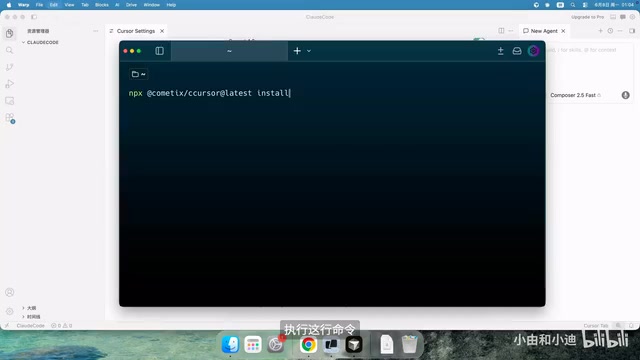
Step 1: Install Cursor++
Open your terminal and run the installation command to install Cursor++. After installation is complete, restart Cursor for the changes to take effect.
Step 2: Complete Authorization and Login
After restarting Cursor, click the login button to complete the Cursor++ authorization process. Once authorized, restart Cursor again.
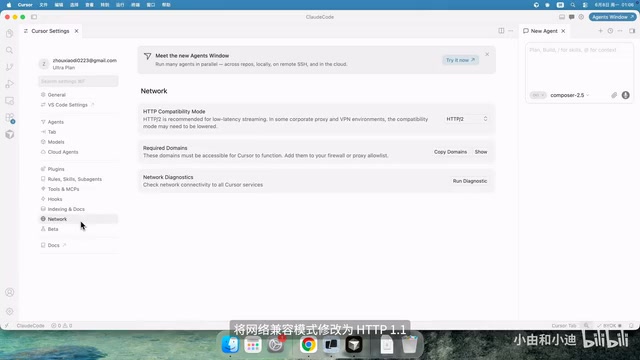
Step 3: Change Network Configuration to HTTP 1.1
This step is critical: In Cursor's settings page, change the network compatibility mode to HTTP 1.1. This is a necessary setting to ensure custom API Keys work properly — skipping this step may cause API requests to fail.
The reason this configuration is needed is that while HTTP/2 introduces advanced features like Multiplexing and header compression (HPACK), some API proxy services or relay servers may not fully support HTTP/2's streaming capabilities, particularly when handling Server-Sent Events (SSE). SSE is the core technology that enables the "word-by-word output" effect in LLM APIs — each token generated by the model is pushed to the client in real-time via SSE. Rolling back the network mode to HTTP 1.1 avoids these compatibility issues, since HTTP 1.1's request-response model is simpler and more straightforward, with near-universal support across all middleware and proxy services.
Step 4: Configure the API Channel
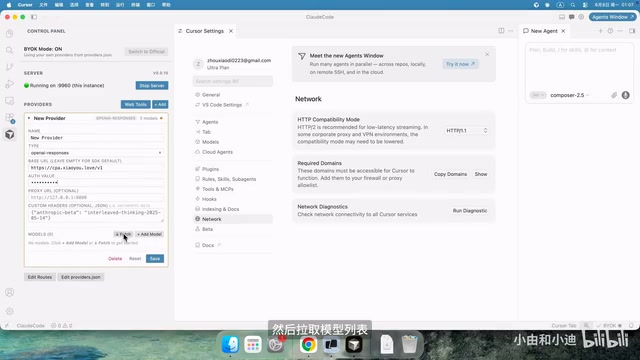
Open the Cursor++ interface and follow these steps in order:
- Click Add Channel — Create a new API access channel
- Configure the URL and API Key — Enter your API service address and key. The URL here is typically an OpenAI-compatible API endpoint (e.g.,
https://api.openai.com/v1). Many third-party model providers (including various relay services) also adopt the OpenAI-compatible interface format, making it easy for users to switch seamlessly - Fetch the Model List — The system will automatically retrieve the models supported by that API, accomplished by calling the
/v1/modelsendpoint - Select the Models You Want to Use — Check the models you'd like to use from the list
- Set Model Display Names — You can enter any name you like for easy identification
- Set Maximum Context Length — Configure based on model capabilities and your needs. The Context Window determines how much content the model can "see" at once. For example, GPT-4 Turbo supports 128K tokens, and Claude 3.5 Sonnet supports 200K tokens. In coding scenarios, a longer context means the model can reference more code files simultaneously
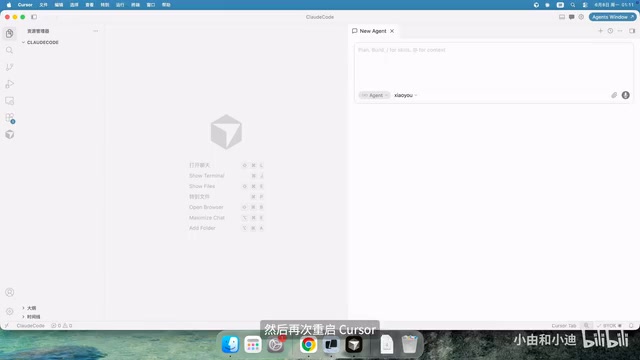
Step 5: Save and Restart Cursor
After completing the configuration, click Save, then restart Cursor once more for all settings to take effect.
Feature Verification: Real-World Performance with Custom API Keys
After completing the setup, actual testing confirmed that the following features all work properly:
- AI Chat — Responds normally with no latency issues
- Image Recognition — Supports multimodal model image understanding capabilities. Multimodal Models are AI models capable of simultaneously processing multiple input types such as text, images, and audio — examples include GPT-4V and the Claude 3 series. In coding scenarios, multimodal capabilities allow developers to upload UI design mockups or error screenshots directly, letting the AI understand visual content and generate corresponding code or provide debugging suggestions
- File Editing — Core features like code generation, modification, and refactoring work normally
- Agents Mode — Supports automated operations in Window mode. Agents mode is an advanced form of AI application — it goes beyond single Q&A interactions, giving the AI the ability to autonomously plan, call tools, and execute multi-step workflows. In Cursor, an Agent can automatically analyze project structure, read relevant files, execute terminal commands, and run tests, forming a complete automated workflow. This mode relies on the model's Function Calling capability and a sufficiently long context window
Based on testing feedback, the user experience is virtually identical to Cursor's paid version, with all core features functioning normally.
Important Notes and Risk Warnings
Security Risks
The security risks of using third-party enhancement tools span multiple dimensions, and developers should fully understand them before proceeding:
- Third-Party Tool Risks — Cursor++ is not an official tool; please thoroughly assess its security before use. As a tool that needs to intercept and redirect network requests, it technically has the ability to read all communication content, including your code, conversation history, and sensitive information. This is a classic supply chain security risk — its code could potentially contain malicious logic, such as uploading users' API Keys to third-party servers or injecting malicious code into user projects. It's recommended to review the tool's source code (if open-source) or community reputation before use
- Account Risks — Using third-party tools may violate Cursor's Terms of Service (ToS). Cursor's ToS typically explicitly prohibits reverse engineering or using unauthorized third-party tools to modify client behavior. Violating these terms could result in permanent account bans with no avenue for appeal
- API Key Security — Ensure your API Key is not leaked or misused by third-party tools. Once an API Key is compromised, attackers can make large volumes of calls using your quota, resulting in financial losses
Usage Recommendations
- It's recommended to test with a non-primary account
- Set usage caps on your API Key (most API providers support setting monthly spending limits in their dashboard) to avoid unexpected charges
- Stay informed about changes to Cursor's official policies and adjust your usage strategy accordingly
- If your budget allows, subscribing to Cursor Pro ($20/month) is the safer choice — you'll not only get official support but also enjoy more stable service quality and faster model updates
Conclusion
For developers who want to experience Cursor's full feature set without committing to a paid plan just yet, configuring a custom API Key through Cursor++ is a viable solution. The entire setup process isn't complicated — it essentially boils down to four steps: install the tool, authorize, change the network mode, and configure the API channel.
From a cost perspective, using your own API Key depends on actual usage. Taking OpenAI's GPT-4 Turbo as an example, input pricing is $10 per million tokens and output pricing is $30 per million tokens; Claude 3.5 Sonnet's input pricing is $3 per million tokens and output pricing is $15 per million tokens. For moderate coding usage, monthly API costs typically range from $5–$15, potentially lower than Cursor Pro's $20 monthly fee — but you'll need to accept the tool-related risks yourself.
That said, it's important to emphasize that using third-party tools always carries certain risks. We recommend making a careful decision based on your own circumstances and taking proper security precautions to protect your API Keys.
Related articles
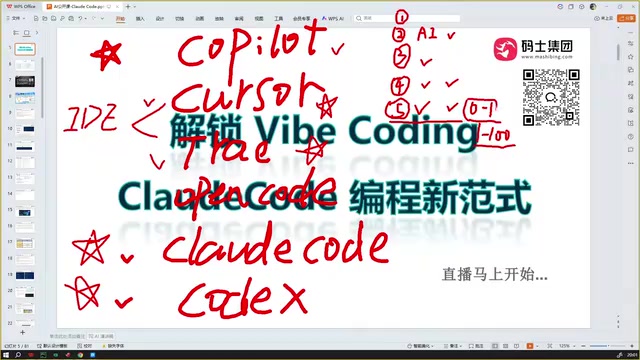
Claude Code Installation Guide & The Five Stages of AI Programming Tools Explained
Complete Claude Code installation guide with the five stages of AI programming tools, from manual coding to agents. Learn 0-to-1 project building and 1-to-100 iteration challenges.

Enterprise-Level AI Project Rules Files: 5 Hard Rules + 6 Writing Techniques
AI keeps messing up your code? Learn 5 hard rules and 6 writing techniques for enterprise-level Rules files in Claude Code, Cursor & more, with templates.
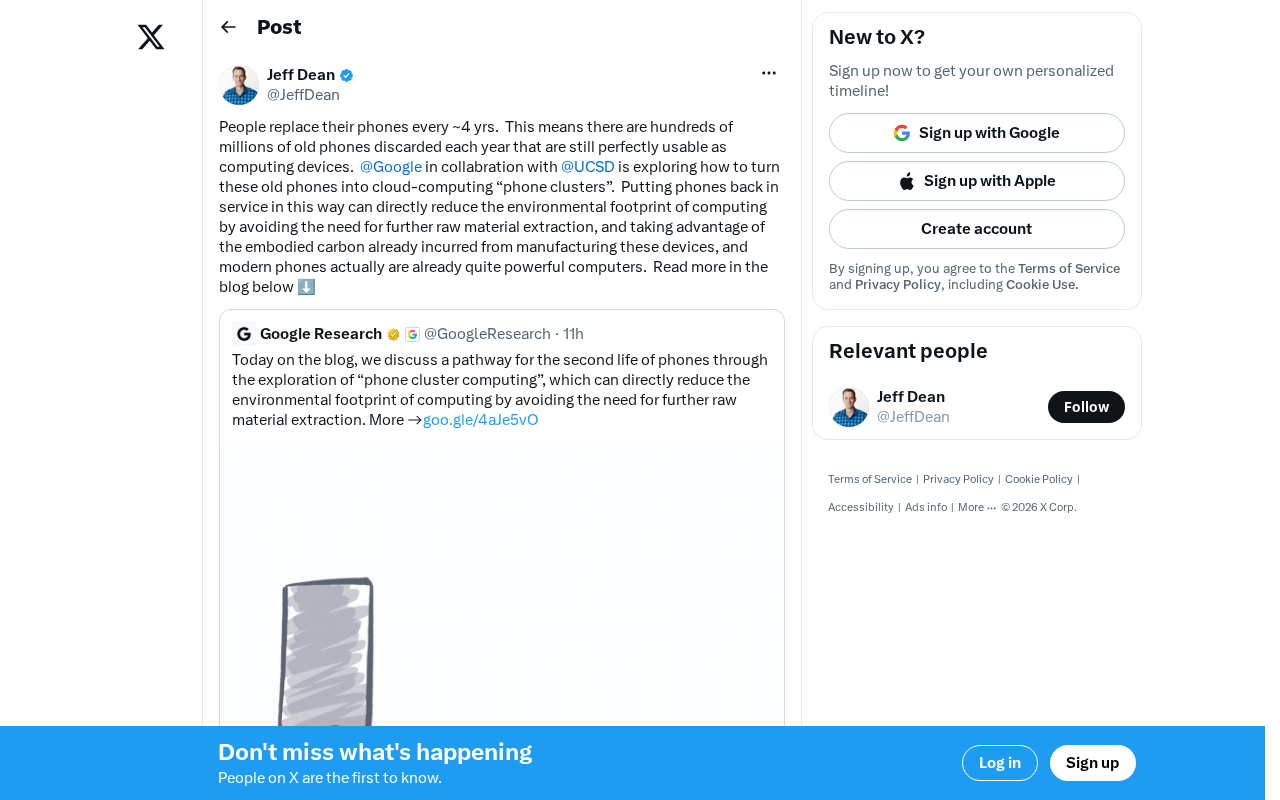
Building Cloud Computing Clusters from Old Phones: Google and UCSD Explore a New Path to Sustainable Computing
Google and UCSD explore building cloud clusters from old phones, leveraging ARM chip efficiency to cut e-waste and data center carbon footprints.