iOS App Publishing in Practice: From Device Testing to Certificates, Signing, and App Filing — The Complete Workflow
A step-by-step guide from simulator to App Store, covering device testing, certificates, and China-region compliance.
This article details the complete iOS App publishing workflow beyond the simulator, covering App Icon setup, Xcode configuration, on-device debugging, Apple Distribution certificate creation, privacy policy writing, App Store screenshot preparation, and China-region App filing. It highlights compliance and configuration as the most critical — and most time-consuming — steps for indie developers aiming to publish on the App Store.
Introduction
In the previous installment, we walked through how to build an iOS App from scratch using AI — PulseSync — covering everything from requirements analysis, PRD writing, and prototype design to Xcode project creation and simulator testing. But many indie developers get stuck right after this step, because running on a simulator doesn't mean you're ready to publish on the App Store.
Going from "it runs" to "it's ready to submit" typically gets blocked by three things: whether it runs on a real device, whether certificates and signing are set up correctly, and whether the China-region App filing materials are ready. This article walks through a real project to break down every critical step from simulator to App Store submission.
Preparation Before Device Testing
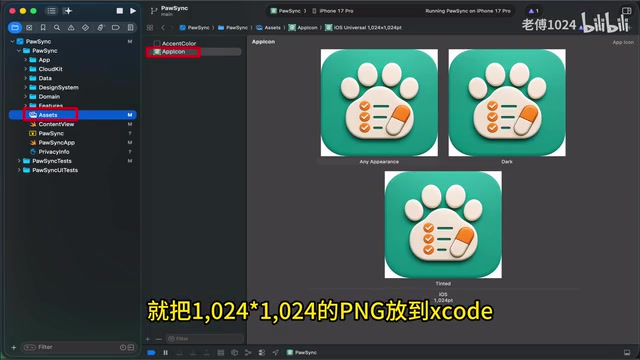
App Icon Configuration
While an App Icon isn't a hard prerequisite for running on a real device, it's best to prepare it at this stage for three reasons:
- It affects how your app looks on the home screen
- It's tied to brand recognition
- App Store Connect will require complete asset configuration later
In practice, you can have an AI tool generate the icon, or configure it manually — just place a 1024×1024 PNG into Xcode's App Icon asset catalog. Important note: don't add rounded corners yourself — iOS and the App Store automatically handle corner rounding.
Xcode Pre-Submission Configuration
For an initial MVP release, one key principle is: only support iPhone — don't simultaneously enable iPad, Mac, or Vision Pro. Every platform you enable theoretically needs testing and falls within the scope of review. If you haven't adapted for it, don't expand the scope.
Specific steps:
- In Supported Destinations, remove iPad, Mac Designed for iPad, and Apple Vision — keep only iPhone
- In Orientation, keep only Portrait. For utility apps at launch, this reduces the cost of testing landscape layouts
On-Device Debugging
On-device debugging requires the following:
- An active Apple Developer account
- The iPhone trusts the current Mac
- Developer Mode enabled on the phone
- Correct Team, Bundle ID, and Signing configuration in Xcode
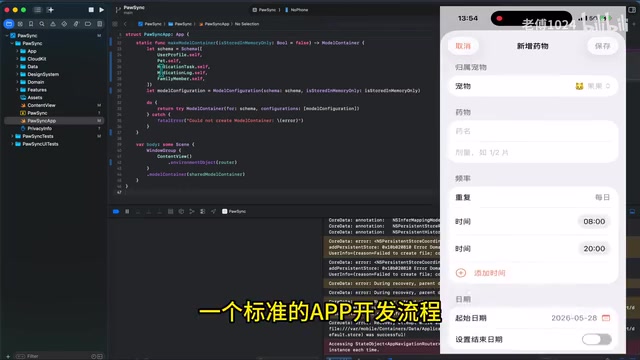
If you encounter provisioning profile generation failures in Signing and Capabilities, or see a prompt that the device hasn't enabled Developer Mode, it's usually because the device hasn't been properly registered, or Developer Mode hasn't been turned on in iPhone settings. Once configured, select the real device in Xcode and hit Run to begin on-device testing.
At this point, a standard app development workflow is complete: from an idea, to requirements documents, design documents, and prototypes, through to development, simulator testing, and on-device testing.
Preparing the Apple Distribution Certificate
This is where many newcomers get confused. Regular on-device debugging uses Development Signing, but Archive builds for upload, TestFlight distribution, and extracting the iOS public key and SHA-1 for App filing all require an Apple Distribution certificate.
The complete process:
- Generate a CSR file in Keychain Access
- Go to the Certificates page in Apple Developer to create an Apple Distribution certificate
- Upload the CSR, then download the .cer file
- Double-click to install it into Keychain
Once you have the certificate, you need to extract two fields required for filing: the iOS public key and SHA-1. You can use AI tools to assist with the extraction — these two fields are mandatory for the App filing process.
Compliance Preparation: The Most Critical Step for China Region Publishing
This is the most critical — and the most likely to slow you down — part of publishing in China. Many developers discover on the last day that these materials can't be rushed, causing launch plans to slip by weeks or even months.
The Website Trio
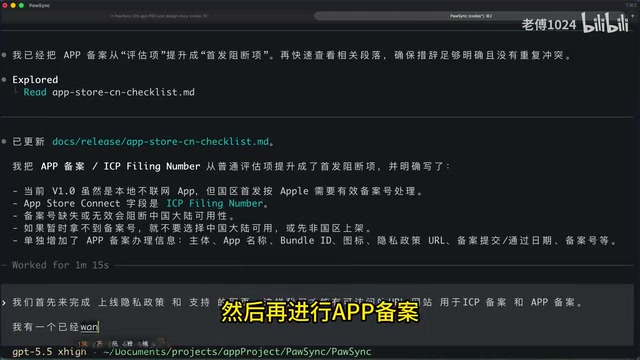
App Store Connect submissions typically require a Support URL and a Privacy Policy URL. If these pages are hosted on servers or CDNs in mainland China, the corresponding domains need to complete ICP website filing.
Recommended path:
- Prepare the official website, privacy policy page, and support page first
- Complete ICP website filing
- Bring the pages online
- Then proceed with App filing
You can have AI generate three types of pages based on your PRD and the app's actual features: an App detail page, a privacy policy page, and a support page.
Privacy Policy Writing Principles
The privacy policy must match the app's actual behavior. Take a utility app with no accounts, no server-side component, and no third-party analytics, ads, or crash SDKs as an example — if core data is stored locally, the privacy policy should clearly state:
- Which permissions are used
- Whether data is uploaded
- How users can delete local data
- How to contact the developer
Don't write things that sound professional but aren't true, and don't omit permissions you actually use. The App Privacy review notes and filing notes must all be consistent with the privacy policy.
App Store Screenshot Preparation
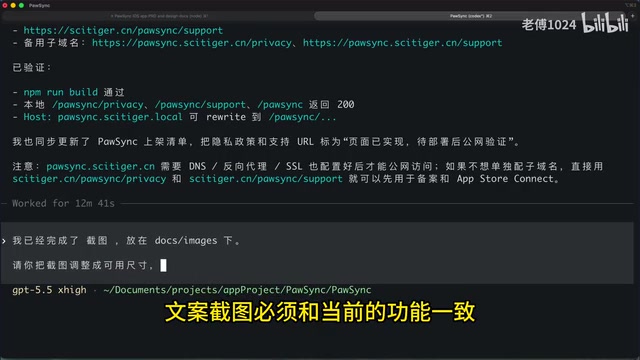
Screenshots can be captured from the simulator first, then adjusted to App Store Connect-accepted dimensions using AI tools. A few important principles for screenshots:
- The first three are the most important — they should showcase the core workflow that users can most easily understand
- Don't show features that haven't been implemented yet
- Don't include high-risk copy such as medical diagnoses, treatment recommendations, or revenue promises
- Screenshots must match the current version's functionality
App Filing: The Most Time-Consuming Step
Materials needed for App filing include: App name, category, backend service domains, Bundle ID, and iOS platform characteristics. The public key and SHA-1 in the iOS platform characteristics come from the Apple Distribution certificate (not the Development certificate).
Tips for Writing Filing Notes
If filing under a personal entity, the notes should be written with extreme restraint. For example:
This is a personal lifestyle recording app developed by myself, used for tracking pet care, reminders, and completion status. The app has no registration or login, no content publishing, no transactions or fees, no ads, no online consultation — data is primarily stored locally on the device.
This kind of description better fits the positioning of a personal utility app and reduces the risk of being misclassified as a platform-type, commercial, or industry-service application. If you're developing an app with commercial activities, you'll need to file under a company entity.
App filing is the most time-consuming step in the entire publishing process — you need to wait for approval, and there may be rejections requiring information adjustments along the way. So start this step early — don't wait until the code is finished.
Summary and Next Episode Preview
This installment covered the complete transition from simulator to real device:
- ✅ App Icon configuration
- ✅ Xcode pre-submission configuration (devices, orientation)
- ✅ On-device debugging
- ✅ Apple Distribution certificate application
- ✅ Website trio and privacy policy
- ✅ App Store screenshot preparation
- ✅ App filing submission
For developers looking to build and publish apps with AI, this compliance and configuration work is more important than writing code, because these aren't things you can patch up on the last day. The next installment will move into App Store Connect, covering submission asset configuration, App Privacy, pricing, Archive upload, TestFlight regression testing, and final preparations before submitting for review.
Related articles
Apple Opens WWDC26 Developer Survey: How to Participate and Share Your Feedback
Apple has opened the WWDC26 developer survey, inviting global developers to share feedback. Learn about the survey's background, this year's AI highlights, and how to participate.

AI Large Language Model Learning Roadmap: A Systematic Path from Zero to Project Implementation
A detailed AI LLM learning roadmap covering Transformer architecture, Prompt Engineering, RAG, Agent development, model fine-tuning & deployment, with enterprise project guides.
Anthropic's Fable 5 Halted by Emergency U.S. Government Ban: A Complete Breakdown
The U.S. government emergency-banned Anthropic's Fable 5 and Mythos 5 on national security grounds, with just 5 hours from notice to enforcement. Full analysis of the timeline, rationale, and industry impact.