Kuaima Client Tutorial: A Detailed Guide to Pay-Per-Use Pricing for Cursor's Premium Models
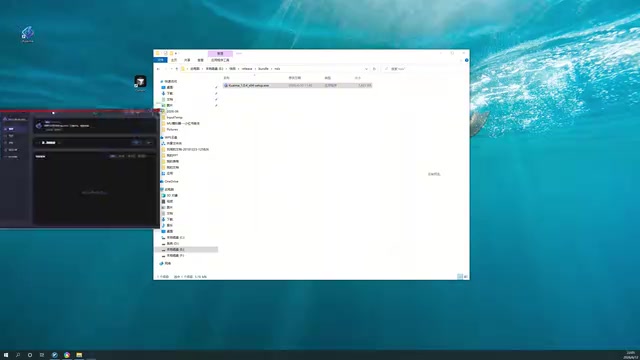
Step-by-step guide to using the Kuaima client for pay-per-use access to Cursor's premium AI models.
This tutorial walks through the complete setup process for the Kuaima client, a third-party tool that enables pay-per-use access to Cursor's premium AI models like GPT-4 and Claude via a credit-based system. It covers downloading, installation, account configuration, top-up pricing, service activation, and common troubleshooting, while also analyzing the security risks and compliance concerns of using such third-party tools.
Introduction
For developers who frequently use Cursor for programming, finding a more economical way to access premium AI models has always been a hot topic. Cursor is an AI-powered code editor deeply customized on the VS Code architecture, developed by Anysphere. It deeply integrates large language models like GPT-4 and Claude into the code editing workflow, supporting intelligent code completion, conversational programming, code refactoring, and more. Cursor's official subscription plans include a Free tier (limited premium model calls), a Pro tier ($20/month with 500 fast premium model requests), and a Business tier — making the monthly cost quite significant for heavy users.
Recently, a third-party client tool called "Kuaima" (快码) has attracted considerable attention. It offers a pay-per-use approach to Cursor's premium models through a credit-based top-up system. Based on a hands-on tutorial by a Bilibili content creator, this article compiles the complete installation and usage workflow for the Kuaima client as a reference for interested developers.
Disclaimer: This article is purely a technical tutorial compilation. Using third-party tools carries certain risks — please evaluate the security and compliance implications on your own.
Downloading and Installing the Kuaima Client
Obtaining the Installer
The Kuaima client currently supports both Windows and macOS. Users can download the corresponding installer from its official website. After downloading, simply extract the files to begin installation.
Important Notes During Installation
There are several key points to pay attention to during installation:
- Disable security software: If you have security software like 360 running on your computer, it's recommended to temporarily disable it, as it may block the installation process. This is because the Kuaima client needs to modify system network configurations and Cursor's internal files — behaviors that are easily flagged as malicious by proactive defense mechanisms in security software.
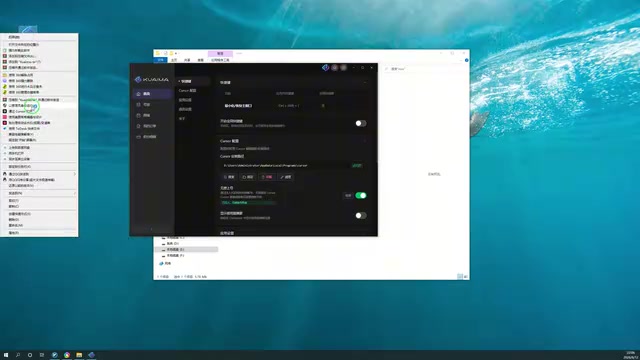
- Installation path requirements: The path must not contain Chinese characters — use only English names. This is a common issue with many internationalized software products — some underlying libraries use ASCII encoding when parsing file paths, and encountering multi-byte characters like Chinese can cause path resolution failures.
- Recommended drive: Try to install Cursor on the C: drive (system drive). Installing on other drives may cause compatibility issues. This is related to Windows' UAC (User Account Control) permission management — programs on non-system drives may require additional permission configuration when accessing system-level resources.
- Path verification: Once the installation path is correctly set, a green indicator will appear on the interface as confirmation.
Account Configuration and Login Setup
Registering a Kuaima Account
After installation, the client will open automatically. First-time users need to register a Kuaima account and log in. The main configuration item is confirming whether Cursor's installation path has been correctly detected.
Running with Administrator Privileges
The first time you open the client, you need to run it as administrator to ensure the tool can properly read and modify Cursor's configuration files. As a desktop application built on the Electron framework, Cursor stores its configuration files, extension data, and user settings in the system's AppData directory (Windows) or Application Support directory (macOS). Write operations to these directories may require elevated privileges under certain system security policies. For users performing an overlay installation, previously saved features and settings will be preserved.
Top-Up and Pricing Details
Kuaima uses a credit-based top-up billing model. Here are the specific prices:
| User Type | Premium Model Price | Notes |
|---|---|---|
| New users | ~¥0.8/credit | Roughly a 20% discount, with bonus credits |
| Regular use | ~¥1/credit | Standard top-up price |
The "credit" here refers to the billing unit for model calls, which essentially corresponds to the Token consumption cost of AI model API calls. In the billing system of large language models, a Token is the smallest unit of text processing — roughly 1–2 Tokens per English word and 1–3 Tokens per Chinese character. Taking OpenAI's GPT-4 as an example, its official API pricing is $30/million Tokens for input and $60/million Tokens for output; Anthropic's Claude 3.5 Sonnet is priced at $3/million Tokens for input and $15/million Tokens for output. Kuaima's billing unit can be understood as a wrapper and conversion layer over these underlying API costs.
For developers who heavily use Cursor's premium models, this pricing may offer some cost advantages over the official subscription, but you'll need to calculate based on your actual usage. For example, if a developer has 20–30 conversational programming interactions per day, each consuming roughly 2,000–5,000 Tokens, the monthly total consumption would be approximately 1.2 million to 4.5 million Tokens. Depending on the model's pricing, actual costs could range from tens to hundreds of yuan.
Enabling the Kuaima Service
Step 1: Log Out of Your Existing Cursor Account
After topping up, there's a critical step before you can start using the service: you must first log out of your existing account in Cursor. Many first-time users have already logged into Cursor with their own accounts and need to log out first in Cursor's settings. The reason is that Kuaima needs to inject its own authentication credentials into Cursor's session management. If the original account is still logged in, the two sets of authentication information will conflict, causing API request authentication failures.
Step 2: Enable and Connect the Service
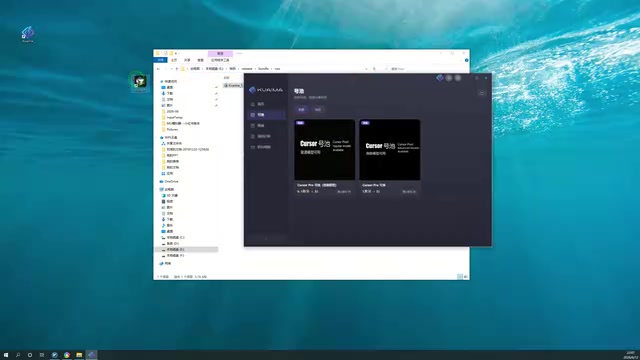
- Open the Cursor editor
- Click the "Enable" button in the Kuaima client
- The system will prompt you to activate related services (such as VPN proxy and other network components)
- After the first activation, you need to restart Cursor for the configuration changes to take effect
- After restarting, click the "Connect Account" button, and the account information will be pushed to your local environment
Regarding the VPN proxy component mentioned in Step 3, here's an explanation of the technical principle: Kuaima essentially works by establishing a local network proxy layer (similar to a Man-in-the-Middle/MITM Proxy) that intercepts requests Cursor sends to the official API servers, then redirects those requests to Kuaima's own backend servers. Kuaima's servers hold legitimate API keys (likely obtained through bulk purchasing or shared account pools) and complete the actual interaction with AI models on behalf of the user, then return the results to the local Cursor client. This architecture is similar to how a reverse proxy or API gateway works.
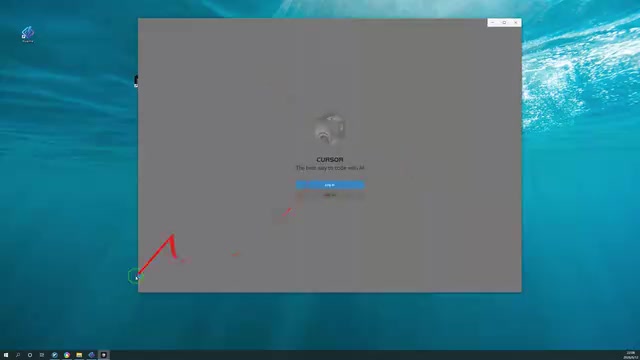
Once the account is successfully connected, you can see detailed account information and a list of available models on the interface. Essentially all mainstream premium models are included — GPT-4, GPT-4o, Claude 3.5 Sonnet, and more — and users can call these models normally within Cursor for programming assistance.
Troubleshooting Common Issues
Based on the tutorial author's experience, the most frequently encountered problems fall into the following categories:
What to Do If the Installation Path Can't Be Detected
This is the most common issue, and it usually comes down to only two causes:
- Insufficient permissions: The client wasn't run as administrator, preventing it from reading Cursor's installation directory. The fix is to right-click and select "Run as administrator."
- Chinese characters in the path: The installation path contains Chinese folder names. The fix is to reinstall Cursor to a path using only English characters.
How to Handle Network Connection Failures
Beyond path issues, most other problems are related to the network environment. Since Kuaima needs to forward model requests through a network proxy, an unstable network or firewall settings can cause connection failures. Specifically, Kuaima's proxy service typically listens on a local port (e.g., 127.0.0.1:xxxx) and hijacks outbound traffic by modifying system proxy settings or Cursor's network configuration. If other proxy software already exists on the system (such as VPN tools, corporate VPNs, etc.), port conflicts or proxy chain issues may arise. When encountering such problems, try checking your firewall whitelist settings, disabling other proxy software, or switching to a different network environment.
Security Risks and Compliance Analysis
When using third-party tools like Kuaima, developers need to fully understand the potential risks:
Data transmission security: Since all code interaction requests pass through Kuaima's proxy servers, this means every code snippet and project context you send to the AI model is routed through a third-party server. While Kuaima may claim it doesn't store user data, from a technical architecture standpoint, a man-in-the-middle proxy inherently has the ability to read and log all transmitted content. For projects involving trade secrets, proprietary code, or sensitive client data, this risk should not be overlooked.
Account security: Kuaima's "account connection" mechanism essentially injects third-party authentication credentials into the local client. The source and management of these credentials are opaque to users. If these credentials come from a shared account pool, there's a risk of being detected and banned by the official platform.
Compliance risks: From the perspective of Cursor's Terms of Service, using third-party tools to bypass the official billing system or sharing account credentials very likely violates the user agreement, potentially leading to account bans or legal risks.
Summary and Recommendations
As a third-party auxiliary tool for Cursor, Kuaima offers a pay-per-use approach to accessing premium AI models. The overall installation and configuration process isn't complicated — just pay attention to path settings and permission issues. However, when using such third-party tools, developers should keep the following in mind:
- Data security: Understand the tool's data transmission mechanism and avoid leaking sensitive code. It's recommended to use Kuaima only for personal learning projects or non-sensitive code development.
- Compliance risks: Evaluate whether usage complies with Cursor's Terms of Service. Anysphere may employ technical measures to detect abnormal usage patterns and take enforcement actions.
- Stability: Third-party service availability cannot match official guarantees. For important projects, use the official subscription. Third-party services may suddenly go offline due to account pool exhaustion, server failures, or being blocked by the official platform.
- Evaluate alternatives: If budget is limited, consider using official AI model APIs directly (such as OpenAI API or Anthropic API) paired with open-source editor plugins (like Continue, Cody, etc.). While this approach requires slightly more complex configuration, it offers better data security and compliance assurance.
For light users or developers who want to try out premium models, the Kuaima client provides a low-cost entry point. However, for long-term heavy usage, it's still recommended to consider Cursor's official subscription plan or explore other compliant AI programming tool ecosystems.
Related articles
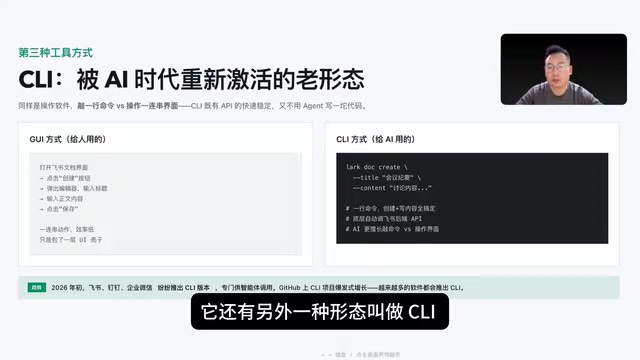
Agent Tool Selection Guide: A Comprehensive Comparison of API, CLI, MCP, Browser Use, and Computer Use
Compare 5 Agent tool types: CLI, API, MCP, Browser Use & Computer Use on speed, accuracy, and token cost. Includes a selection priority table to cut costs and boost Agent efficiency.

Codex CLI vs. Desktop App: Choosing the Right Dev Mode by Task Type
In-depth comparison of Codex CLI vs. desktop app capabilities, analyzing the best choice for large projects, multi-file refactoring, quick bug fixes, and more.
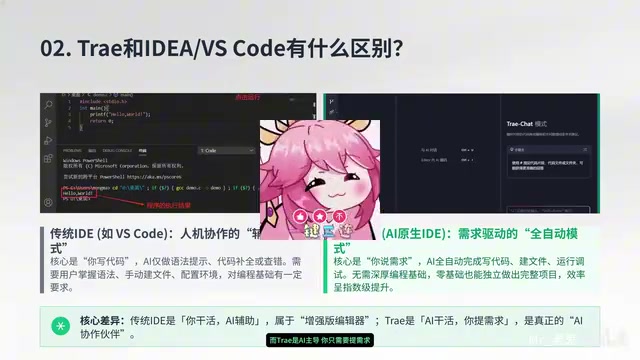
Trae CN Download & Installation Guide: A Beginner's Guide to AI-Powered Coding
Complete guide to downloading and installing Trae CN, covering Windows & macOS setup, first-time configuration, Builder & Chat modes, and third-party AI model integration for beginners.