New Gemini macOS Feature: Double-Tap Command Key to Analyze Screen Content
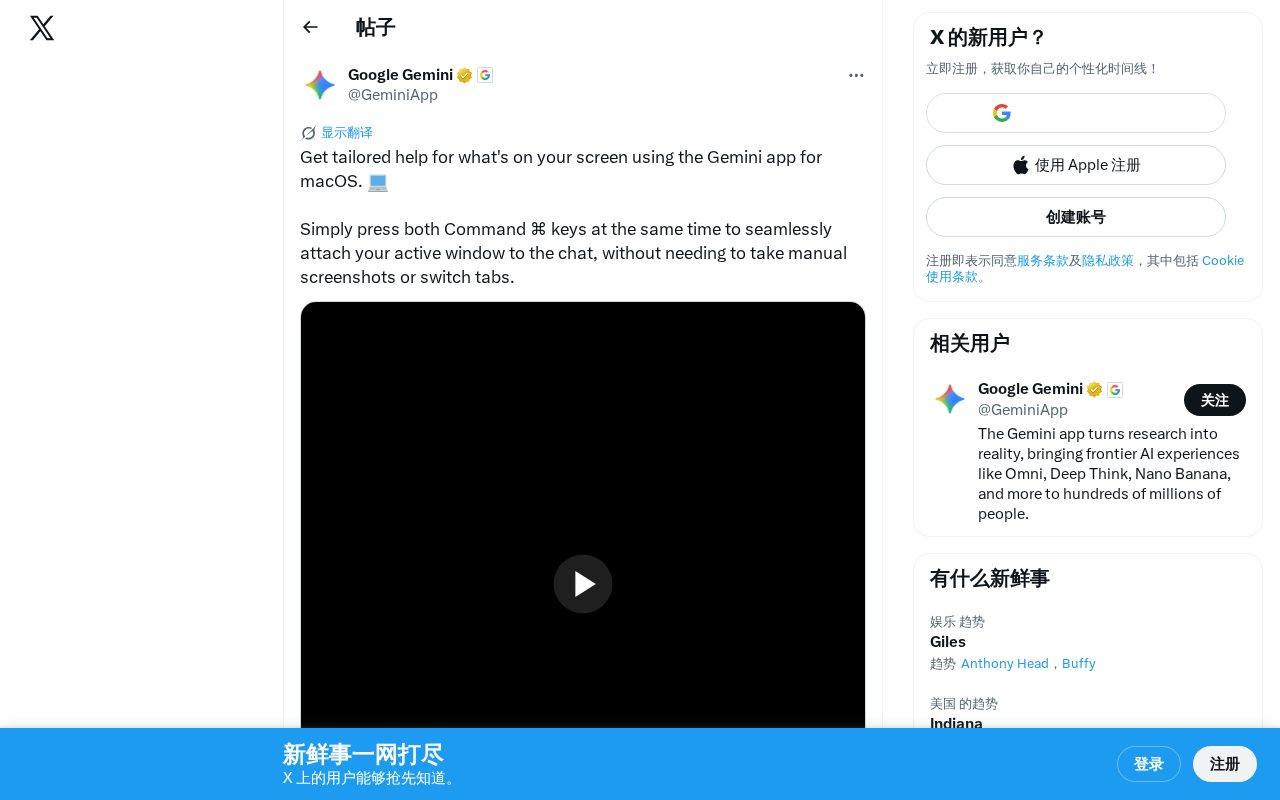
Gemini macOS now lets users double-tap Command keys to instantly share screen content with AI.
Google has introduced a screen-awareness feature for Gemini on macOS that lets users double-tap both Command keys to automatically capture and attach the active window's content to their AI conversation. This eliminates the need for manual screenshots, enabling seamless context-aware assistance for tasks like code debugging, document comprehension, and data analysis — marking a step toward ambient intelligence in AI assistants.
Overview
Google recently rolled out a practical new feature for the Gemini macOS app — users can simply press both Command (⌘) keys simultaneously to automatically attach the content of the current active window to their Gemini conversation. Without manually taking screenshots or switching tabs, users can get customized AI assistance tailored to what's on their screen.
Feature Deep Dive: Seamless Screen-Aware Interaction
Minimalist Operation
The core highlight of this feature is its extremely low barrier to use. Traditionally, if users wanted an AI assistant to analyze on-screen content, they'd need to go through multiple steps: take a screenshot, save it, open the AI app, and upload the image. Now, Gemini for macOS compresses this entire workflow into a single keyboard shortcut:
- Press both Command (⌘) keys on the keyboard simultaneously
- Gemini automatically captures the current active window content
- Content is seamlessly attached to the chat conversation
- Users can directly ask questions or request help
macOS's shortcut system revolves around the Command (⌘) key as its core modifier key, forming a stark contrast with Windows' Ctrl-key-centric design. A unique aspect of Apple keyboards is that there's a Command key on each side of the space bar — this symmetrical layout was originally designed for convenient use by both left- and right-handed users. Double-tapping a modifier key to trigger functionality isn't new in macOS — some apps have previously explored using double-tap Command to invoke specific features. Gemini leverages this design by essentially registering a Global Hotkey Listener at the operating system level, detecting the simultaneous press of both Command keys to trigger the screen capture process. This approach neither conflicts with existing system shortcuts nor is difficult to remember.
Technical Implementation of Screen Capture
From a technical perspective, macOS provides multiple screen capture APIs. Among them, ScreenCaptureKit (introduced in macOS 12.3+) is Apple's recommended modern framework, allowing applications to capture specific windows or screen regions efficiently with low latency. Compared to the traditional CGWindowListCreateImage API, ScreenCaptureKit offers more granular permission controls and better performance. Applications must obtain explicit user authorization for "Screen Recording" permission to use these APIs — this permission is managed in the "Privacy & Security" panel of System Preferences. After Gemini captures the active window, it sends the image to its multimodal model for understanding and analysis.
Multimodal Understanding: More Than Just "Seeing" the Screen
Gemini's ability to analyze screenshot content relies on the visual understanding capabilities of its underlying multimodal large language model. Google's Gemini model family was designed from the ground up to be natively multimodal, capable of simultaneously processing text, image, audio, and video inputs. In screen content understanding scenarios, the model needs multiple capabilities including OCR (Optical Character Recognition), layout understanding, UI element recognition, and code syntax parsing. This is fundamentally different from pure text interaction — the model must not only "read" the text on screen but also understand the spatial layout and visual hierarchy of information to accurately determine what help the user might need.
Wide Range of Use Cases
The practical applications of this feature are extensive:
- Technical documentation comprehension: Get instant explanations when encountering complex technical docs while browsing the web
- Code debugging assistance: Quickly get debugging suggestions from Gemini while writing code
- Foreign language translation: Get instant translations and contextual analysis when reading foreign-language materials
- Data analysis suggestions: Let AI provide analytical approaches when working with tabular data
Regardless of the scenario, users can instantly invoke Gemini for context-relevant help without interrupting their current workflow.
Competitive Analysis
This feature launch is clearly Google's strategic move to match the desktop capabilities of other AI assistants. Since 2024, major AI companies have been racing to release desktop applications to capture users' daily work scenarios. Anthropic's Claude desktop version supports interaction with local file systems and applications through the MCP (Model Context Protocol); OpenAI's ChatGPT macOS version similarly supports screenshot analysis and voice conversation, and has integrated Apple's accessibility APIs to achieve partial screen-awareness capabilities. Microsoft has deeply embedded Copilot into Windows, using the Recall feature to record user screen activity.
The core of this competition lies in who can integrate more deeply at the operating system level, becoming an indispensable "ambient intelligence" layer in users' workflows. Google's approach of combining keyboard shortcuts with screen awareness reflects its pursuit of "frictionless interaction."
You might not have noticed, but the double-tap Command key shortcut design is quite clever — it leverages the unique dual-Command-key layout on macOS keyboards, neither conflicting with existing system shortcuts nor being difficult to remember, significantly reducing the learning curve for users.
Privacy and Technical Considerations
Screen content capture functionality inevitably raises privacy concerns. Based on currently available information, Gemini for macOS captures only the "active window" rather than the entire screen, which somewhat limits the scope of information exposure. Users should still keep the following in mind:
- Avoid triggering this feature in windows containing sensitive information (such as passwords or financial data)
- Understand that captured content is sent to Google's servers for processing
- Manage relevant permissions in System Preferences as needed
Notably, macOS manages screen recording permissions quite strictly. Since macOS Catalina (10.15), Apple requires all applications that need to capture screen content to obtain explicit user authorization in "System Preferences > Privacy & Security > Screen Recording." This means users have complete control over Gemini's screen access and can revoke the permission at any time.
From Tool to Partner: The Evolution of Ambient Intelligence
Ambient Intelligence is an important concept in computer science, referring to technology systems that can perceive their environment and proactively provide services without requiring explicit user requests. This concept was first proposed by the EU's ISTAG (Information Society Technologies Advisory Group) in 2001. In the AI assistant domain, Context-Aware Computing means AI is no longer passively waiting for users to input text prompts, but can proactively understand the user's current work state, what they're viewing, and their potential needs.
Gemini's screen-awareness feature is a concrete implementation of this philosophy — it upgrades AI from a "Q&A tool" to a "work partner." Users no longer need to spend effort describing what they see or what they're doing; the AI can directly "see" the user's work context, enabling more precise and timely assistance.
Summary
Gemini for macOS's screen-awareness feature represents the trend of AI assistants evolving toward "ambient intelligence." By reducing friction in user-AI interaction and enabling AI to directly understand the user's current work context, this design approach will significantly enhance the practical value of AI assistants in daily workflows. As competition among major AI companies intensifies on the desktop, we can expect to see more similar deep system integration features emerge. The AI assistant of the future will no longer be a standalone app that users must actively switch to, but rather an intelligent partner that's always present, always available, and deeply understands the work context.
Key Takeaways
Related articles

Claude Code for Test Development in Practice: An AI Programming Workflow That Doubles Your Efficiency
A practical guide to Claude Code for test development: auto-generating test scripts, Plan Mode workflows, MCP + Playwright integration, and Subagent parallel tasks to build systematic AI-assisted workflows.
Hermes Agent Hands-On Review: An AI Efficiency Revolution for Indie Game Developers
Indie game developer reviews Hermes Agent vs OpenClaude: intelligent context compression, real-time Memory, remote control via Telegram, and practical use cases in game dev, social media, and email.
Vibe Coding Beginner's Guide: Tool Selection Across Three Categories with Practical Examples
A comprehensive guide to Vibe Coding's three tool categories: Agent frameworks, CLI Coding, and IDE tools, with practical examples including Snake game and data analysis workbench.