The Complete Guide to Claude Code Skills: Write Once, Auto-Match On-Demand Knowledge Injection

Master Claude Code Skills for automatic, on-demand knowledge injection that eliminates repetitive instructions.
Claude Code Skills let you teach Claude once and have it automatically apply that knowledge when relevant. This guide covers the core semantic matching mechanism, storage locations and priority rules, differences from Claude.md and other customization options, advanced techniques like progressive disclosure and script execution, troubleshooting tips, and team collaboration strategies.
Why You Need Skills
Every time you ask Claude to review a PR, you have to re-describe the feedback format. Every time you commit code, you have to remind Claude of your preferred commit message style. This repetitive work not only wastes time but also consumes precious context window space.
Claude Code's Skills feature was built to solve exactly this problem — it's a Markdown file that lets you teach Claude something once, and it will automatically apply that knowledge in relevant scenarios going forward.
Unlike Claude.md, which loads with every conversation, Skills are loaded on demand. Your PR review checklist doesn't need to occupy context window space while you're debugging code — it only activates when you actually request a review.
Core Mechanics of Skills
Semantic Matching and Auto-Triggering
A Skill file contains two key parts: name and description. When you send a request to Claude, it performs semantic matching between your request and the descriptions of all available Skills, automatically activating the most relevant one.
This means you don't need to manually type commands like Slash commands. Claude recognizes the context and applies Skills automatically. For example, when you say "take a look at this PR for me," Claude will match it to a Skill whose description contains semantics related to "code review."
Storage Locations and Priority Rules
Skills can be stored in different locations to serve different scopes:
- Personal Skills: Stored in
~/.claude/skills/, they follow you across all projects. Ideal for personal preferences like commit message style, documentation format, etc. - Project Skills: Stored in
.claude/skills/at the project root. Anyone who clones the repository automatically gets these Skills — perfect for team standards. - Plugin Skills: Distributed through the plugin marketplace, suitable for universal capabilities across projects and teams.
- Enterprise Skills: Deployed by administrators with the highest priority, used to enforce security requirements and compliance processes.
Priority from highest to lowest is: Enterprise > Personal > Project > Plugin. If an enterprise-level Skill named code-review exists, your personal Skill with the same name will be overridden. The solution is to use more descriptive names, such as frontend-pr-review or security-review.
How Skills Differ from Other Customization Options
Claude Code offers multiple customization options, and understanding their differences is crucial:
| Feature | Loading Method | Use Case |
|---|---|---|
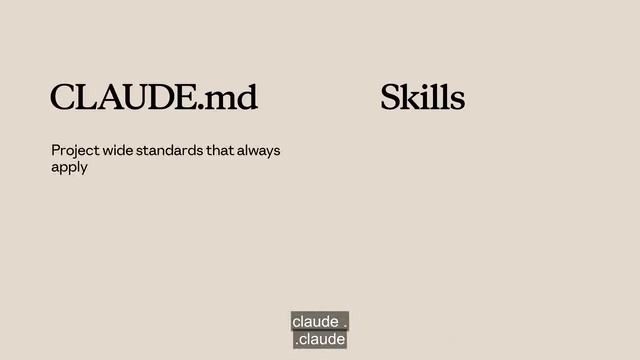
| Claude.md | Auto-loaded with every conversation | Project-level standards that always apply, e.g., "never modify the database schema" |
| Skills | Loaded on demand via matching | Specialized knowledge for specific tasks, e.g., PR review checklists |
| Sub-agents | Run in isolated context | Delegated tasks requiring isolated execution |
| Hooks | Event-driven triggers | Automated operations like running a linter every time a file is saved |
| MCP | External tool integration | Providing additional tool capabilities |
A typical configuration might be: Claude.md handles always-active project standards, Skills handle specialized knowledge for specific tasks, and Hooks handle automated operations. Each serves its own purpose, and they can all be used simultaneously.
Inheritance Between Sub-agents and Skills
An easily overlooked detail: Sub-agents do not automatically inherit your Skills. When you delegate a task to a Sub-agent, it starts with a completely fresh context. Built-in agents like Explorer, Plan, and Verify have no access to Skills at all — only custom Sub-agents can use them, and you must explicitly list the Skills to load in the skills field of the agent.md file.
Note that Sub-agent Skills are all loaded at startup rather than on demand, so only list Skills that are always relevant to that Sub-agent's responsibilities.
Advanced Tips: Making Skills More Efficient
Progressive Disclosure to Control Context Consumption
Skills share the context window with your conversation. If you cram everything into a single 2,000-line file, it not only consumes a massive number of tokens but is also painful to maintain.
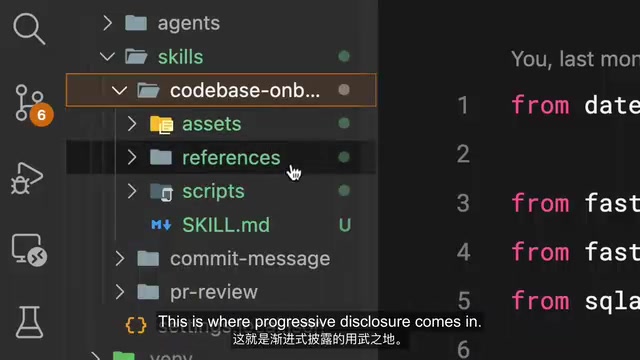
The solution is Progressive Disclosure: put core instructions in skill.md and detailed reference materials in separate files that Claude only reads when needed.
Recommended directory structure:
skill.md: Core instructions (recommended to keep under 500 lines)scripts/: Executable scriptsreferences/: Supplementary documentationassets/: Images, templates, and other resources
Link to supporting files within skill.md, for example: "If the user asks about system architecture, read references/architecture.md." This is like placing a table of contents in the context window instead of the entire book.
Script Execution Over Content Loading
Scripts in the Skill directory can be executed directly without loading their contents into the context. After execution, only the output consumes tokens. This is very useful for environment validation, data transformation, and similar scenarios — tell Claude to run the script, not read the script.
Using allowed-tools to Restrict Tool Permissions
Sometimes you want a Skill to only read files without modifying them. The allowed-tools field makes this possible, restricting Claude to only use specified tools when that Skill is active — ideal for security-sensitive workflows.
Common Troubleshooting
When Skills don't work as expected, the issues typically fall into these categories:
Skill not triggering? The problem is almost always in the description. Claude uses semantic matching, and your request needs sufficient overlap with the description's meaning. Try adding trigger phrases that users would actually say, such as "help me analyze performance," "why is this so slow," or "make it faster."
Skill not loading? Check the file structure: skill.md must be inside a directory named after the Skill (not in the skills root directory), and the filename must be SKILL.md (SKILL in uppercase, md in lowercase). Run claude --debug to check for loading errors.
Wrong Skill loaded? Your descriptions might be too similar to other Skills. Make each description as specific and unique as possible.
Runtime failure? Check whether external dependencies are installed and scripts have execution permissions (use forward-slash paths, even on Windows).
Additionally, you can use the Agent Skills Verifier tool for validation. It's recommended to install via UV — it can quickly identify most structural issues.
Sharing Skills and Team Collaboration

The simplest way to share is by committing Skills to the .claude/skills/ directory in your repository. Team members get them automatically when they clone the repo, and updates sync on the next pull.
For universal Skills across projects, you can package them as plugins and publish them to the marketplace. Create a skills directory in the plugin project and follow the same file structure.
For enterprise deployment, administrators can enforce Skills organization-wide through managed settings, ensuring consistency in security requirements and compliance processes.
Hands-On: Creating Your First Skill
Let's create a personal PR description Skill as an example:
mkdir -p ~/.claude/skills/pr-description
Then create a SKILL.md file containing:
- name: Identifies your Skill
- description: Tells Claude when to use it (up to 1024 characters — this is the most important field)
- Instructions section: Specific steps Claude needs to follow
After creation, restart Claude Code (it scans for Skills at startup), then verify it's available. When you say "write a PR description for my changes," Claude will match the Skill, request confirmation, then load the full content and execute according to your template.
Same format every time, no repeated explanations needed.
Summary
The core value of Skills lies in write once, auto-match. It fills the gap between the "always loaded" Claude.md and the "manually triggered" Slash commands, providing an elegant on-demand knowledge injection mechanism. If you find yourself repeatedly explaining the same thing to Claude, that's a Skill waiting to be written.
Related articles
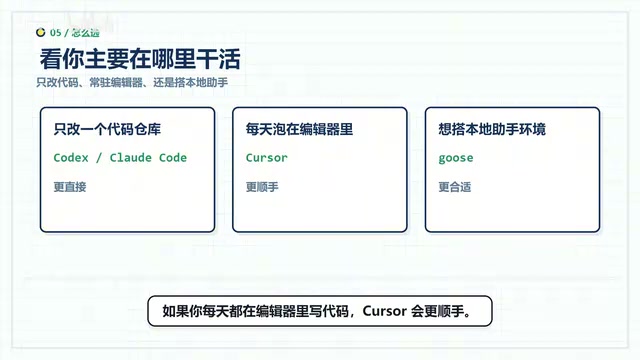
Deep Dive into Goose Open-Source AI Assistant: A Practical Guide to the 50K-Star Local Workbench
Deep dive into Goose, the 50K-star open-source local AI assistant. Covers MCP tool integration, multi-model switching, Recipes workflows, and comparisons with Codex and Cursor.
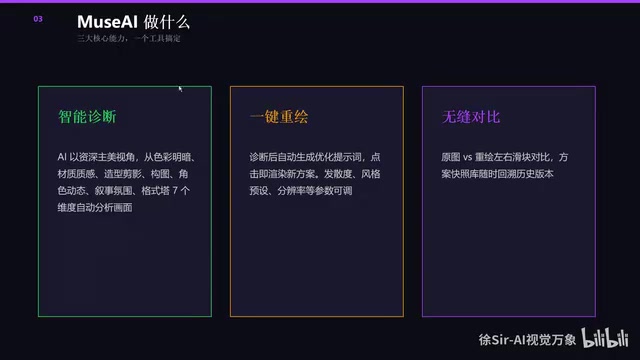
Zero-Code Development of a Desktop AI Art Review Tool: A Vibe Coding Case Study
A game art director uses Vibe Coding to build Muse AI, a zero-code desktop tool with AI scoring, one-click image generation, and atmosphere presets that dramatically improves art team review efficiency.

Art Student Hand-Crafts Chinese Pokémon GO: Walk to Cultivate Immortality and Catch Demons
An art student indie developer uses AI coding tools to combine Pokémon GO gameplay with Chinese cultivation culture, creating an LBS mobile game prototype for walking, cultivating immortality, and catching demons.