UE5.8 MCP Plugin Tutorial: Generate Materials and VFX with a Single AI Prompt
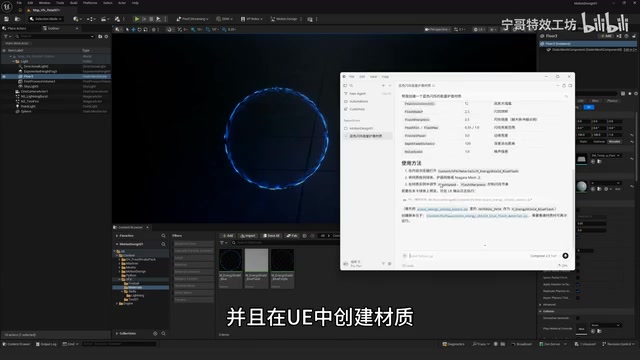
Step-by-step guide to setting up UE5.8's MCP plugin for AI-driven material and VFX generation.
This tutorial covers the full setup process for Unreal Engine 5.8's built-in MCP (Model Context Protocol) plugin. Learn how to enable the MCP and MCP Tools plugins, configure the server, connect Cursor as your AI Agent, and use natural language prompts to automatically generate materials, blueprints, and Niagara particle effects directly in the editor.
Unreal Engine 5.8 Preview was recently released, and its built-in MCP (Model Context Protocol) plugin has attracted widespread attention. This plugin enables UE5.8 to connect directly to AI Agents (such as Cursor), allowing you to automatically generate materials, blueprints, and even Niagara particle effects through natural language commands. Based on a hands-on tutorial by Bilibili creator Ning Ge, this article walks through the complete installation and configuration process from scratch to help you quickly get started with this revolutionary feature.
What Is the UE5.8 MCP Plugin
MCP stands for Model Context Protocol, a new built-in plugin in UE5.8. Its core function is to establish a communication bridge between Unreal Engine and external AI Agents, enabling AI to directly read project information, operate editor features, and automatically complete tasks like material node editing and texture generation that previously required manual work.
In simple terms, once configured, you only need to describe your requirements in natural language in the AI chat window, and the AI will automatically create complete materials or Niagara effects in UE — with virtually no manual intervention needed.
Step 1: Enable the MCP Plugin in UE5.8
Enable Core Plugins
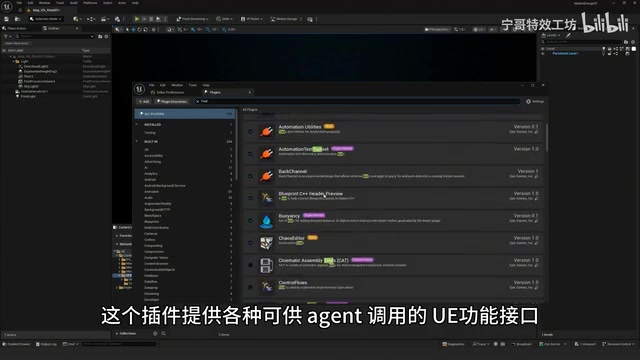
First, open the UE5.8 editor and navigate to the Plugin Manager (Edit → Plugins). You need to enable two key plugins:
- MCP Plugin: Search for "MCP" and check the box to enable it. This is UE5.8's built-in core communication plugin responsible for data exchange between the engine and AI.
- MCP Tools Plugin: Search and enable this as well. This plugin provides various UE function interfaces that AI Agents can call, forming the foundation for AI to actually operate the editor.
After enabling both plugins, you must restart the project for the changes to take effect.
Configure the MCP Service
Once the project has restarted, open Editor Preferences, find the Model Context Protocol option, and check Auto Start Server. Keep the protocol address at its default value — no modification needed.
Next, manually start the MCP service to verify it's working:
- Open UE's console (Output Log window)
- Enter the corresponding console command and press Enter to execute
- Check the output log — if you see "Starting listeners", the MCP service has started successfully
At this point, the UE-side MCP configuration is complete.
Step 2: Configure the AI Agent (Using Cursor as an Example)
Connect Cursor to UE
The MCP plugin requires an external AI Agent to function. This tutorial uses Cursor (a code editor with integrated AI capabilities). You can also choose other Agents that support the MCP protocol based on your preference.
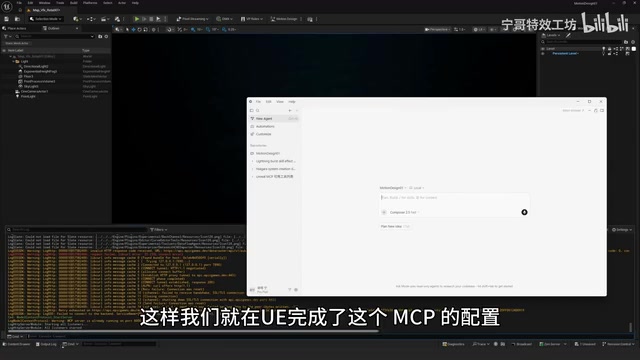
After launching Cursor, follow these configuration steps:
- Find Settings in the Cursor menu bar
- Select the MCP configuration option
- Critical step: Open the root directory of your current UE project (note: this is the project root directory, NOT the Content folder — this is a common configuration mistake)
- Add UE's MCP protocol address in the configuration (matching the default address shown earlier in Editor Preferences)
- Save the configuration
Verify Connection Status
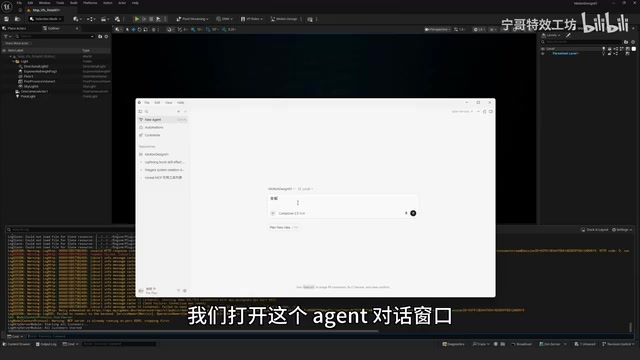
After saving the configuration, you can immediately test whether the connection is successful. Open Cursor's Agent chat window and type:
Check current UE project status
Wait a few seconds. If the AI successfully returns information about the current project (such as project name, asset list, etc.), it means Cursor has successfully connected to UE5.8 via the MCP protocol.
Practical Results
Once the connection is established, you can issue commands to the AI using natural language. For example, describe the material effect you want, and the AI will automatically handle the following:
- Requirement analysis: Understands your natural language description and breaks it down into specific material parameters
- Node editing: Automatically creates and connects nodes in the UE Material Editor
- Texture generation: Automatically generates required texture maps based on your needs
- Parameter tuning: Sets appropriate material properties and parameter values
The entire process requires virtually no manual operation. For developers unfamiliar with the Material Editor's complex node system, this is undoubtedly a massive productivity boost. Beyond materials, MCP also supports blueprint and Niagara particle effect generation, covering a large portion of repetitive visual effects work in game development.
Configuration Checklist Summary
For quick reference, here's a consolidated configuration checklist:
| Step | Action | Notes |
|---|---|---|
| 1 | Enable MCP Plugin | Built into UE5.8, searchable in Plugin Manager |
| 2 | Enable MCP Tools Plugin | Provides callable function interfaces for AI |
| 3 | Restart Project | Required after enabling plugins |
| 4 | Editor Preferences | Check Auto Start Server |
| 5 | Console Verification | Confirm "Starting listeners" appears |
| 6 | Cursor MCP Configuration | Point to project root directory, not Content |
| 7 | Test Connection | Query project status in chat window |
Final Thoughts
UE5.8 shipping MCP as a built-in plugin marks a new phase in the deep integration between game engines and AI. Materials and effects that previously required hours of manual tweaking can now potentially be completed in their first draft with a single sentence. Of course, AI-generated results may still need manual fine-tuning, but as a rapid prototyping and foundational scaffolding tool, MCP's value is already abundantly clear.
UE5.8 is still in its preview phase, and the MCP feature will likely continue to be iterated and optimized. I recommend that interested developers try it out early, familiarize themselves with AI-assisted development workflows, and prepare for future productivity gains.
Related articles
CosyVoice v3.5 in Practice: Solving the Performance Direction Challenge in AI Voice Acting
Hands-on testing of Alibaba's CosyVoice v3.5 instruction control and pronunciation correction vs Doubao TTS stability issues, with voice design tips and LLM debugging methodology for AI voice acting.

Gordon Ramsay's Wild American Food Adventure: A Culinary Journey Through Swamps, Smoky Mountains, and Texas
Gordon Ramsay explores Louisiana swamps, Smoky Mountains, and Texas in National Geographic's Uncharted — hunting nutria, catching rattlesnakes, and discovering America's diverse food roots.
Vibe Coding in Practice: The Right Way to Communicate with AI — Just Ask When You Don't Understand
Learn effective AI communication techniques for Vibe Coding: how to ask when you don't understand, discover plan gaps through follow-ups, and align on terminology with AI.