Unity MCP Hands-On Guide: Lessons Learned from AI-Powered Game Engine Operations
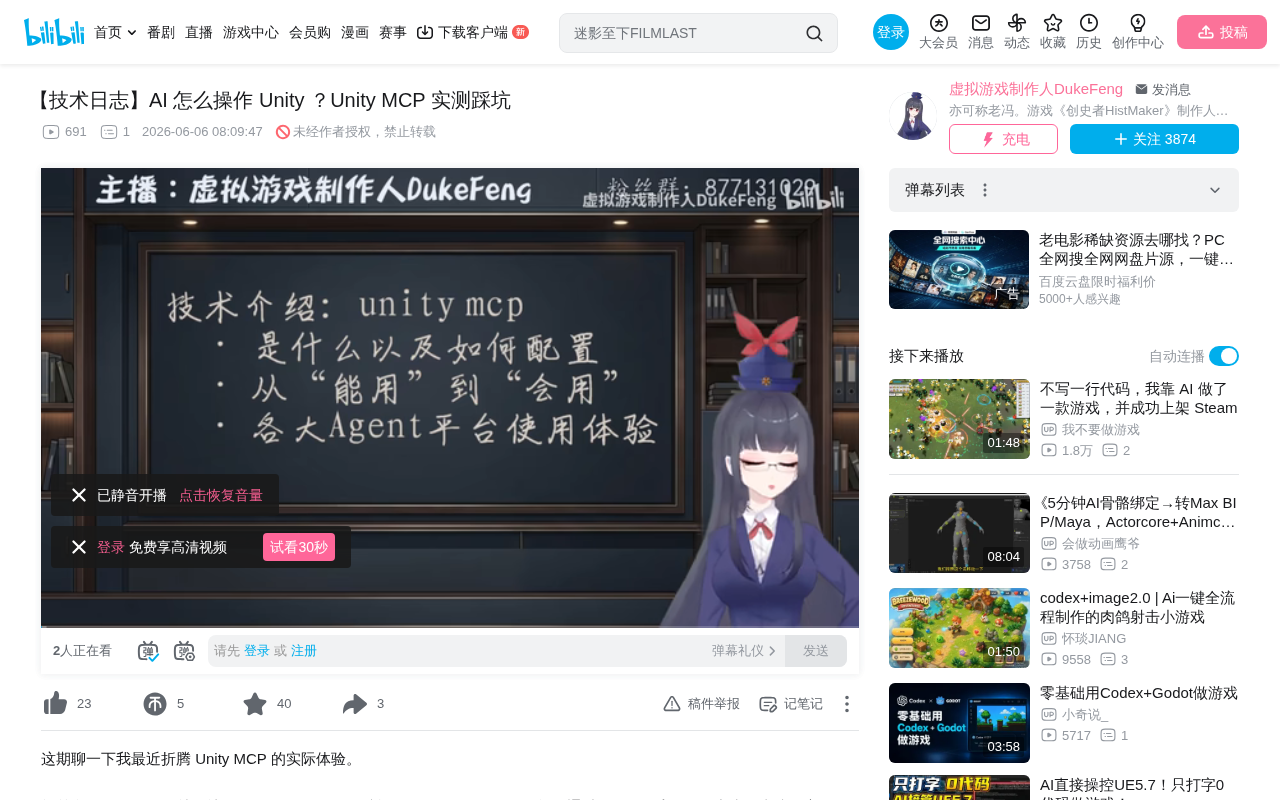
A hands-on guide to Unity MCP with setup tips, workflow patterns, and a four-way AI Agent comparison.
This article provides a comprehensive hands-on guide to Unity MCP, covering environment setup (Unity 6.0.6+), key configuration steps, essential guardrails to prevent AI from bypassing MCP, the Prefab sandbox workflow, and an automated UI building pipeline using multimodal AI. It also includes a head-to-head evaluation of GitHub Copilot, Claude Code, Codex, and DeepSeek for Unity MCP tasks.
What Is Unity MCP?
Unity MCP (Model Context Protocol) is an official middleware framework from Unity that allows AI large language models to directly interface with and operate various functions inside the Unity Editor. In simple terms, it's a "bridge" that enables AI Agents like Claude and GPT to read and modify GameObjects, Prefabs, UI layouts, and other frontend elements within a Unity project.
MCP (Model Context Protocol) is an open protocol standard proposed by Anthropic in late 2024, designed to establish a unified communication interface between AI large language models and external tools. Before MCP, every AI tool that needed to integrate with an external system required custom integration code, meaning N AI tools connecting to M external systems required N×M adapter solutions. By defining a standardized server-client protocol, MCP reduces this complexity to N+M. Unity's adoption of the MCP protocol means that any AI tool supporting the MCP client can operate the Unity Editor in a unified way, without Unity needing to develop separate plugins for each AI tool.
In AI-assisted game development, having AI write backend code is relatively straightforward, but operating Unity's frontend interface — especially the numerous UI components, Sprites, Layouts, and other elements in 2D games — has always been a challenge. Unity MCP was created precisely to address this pain point.
Environment Setup: Version Requirements and Installation Steps
Unity Version Requirements
The hard prerequisite for using Unity MCP is Unity 6.0.6 or above. If you're still on Unity 2022 or earlier and don't plan to upgrade, you won't be able to use MCP and will have to rely on traditional methods for AI-assisted development. Developers using the Tuanjie Engine (the Chinese localized version) should verify compatibility separately.
Unity 6 is a major version update released by Unity Technologies in 2024, marking Unity's transition from the traditional year-based naming convention (e.g., Unity 2022, Unity 2023) to a new versioning system. This change isn't just a branding adjustment — it reflects deep architectural evolution in the engine, including native support for AI-assisted development toolchains, further unification of rendering pipelines, and a refactored editor extension API. Unity MCP requires version 6.0.6+ specifically because that version introduced the underlying editor APIs and reflection mechanisms needed by the AI Assistant. For the many commercial projects still on Unity 2022 LTS, upgrading means evaluating rendering pipeline compatibility, third-party plugin adaptation, and project migration costs.
Installing the Assistant Package
Install the official com.unity.ai.assistant package through Unity's Package Manager. If you can't find it via search, you'll need to manually edit the project's Packages/manifest.json file and add the corresponding package reference. This package iterates rapidly with frequent updates, so it's recommended to follow the official Release Notes.
Configuring the MCP Bridge
MCP operates on a server-client model:
- Unity Editor acts as the Bridge, running the MCP server
- AI tools (Cursor, Claude Code, Codex, etc.) connect as clients
- The key is locating the
Unity Relay(e.g.,relay-win.exe) and configuring the corresponding JSON
The MCP Relay architecture is crucial to understanding how the entire system works. Traditional editor extensions are typically embedded directly into the host program as plugins, but MCP uses inter-process communication: the Unity Editor launches a local MCP server process (i.e., relay-win.exe or the platform-specific executable) that exposes editor capabilities through standard input/output (stdio) or HTTP/SSE protocols; AI tools send requests as clients via the JSON-RPC protocol. The benefit of this decoupled design is that AI tools don't need to load Unity's runtime environment and aren't affected by Unity's main thread blocking. The trade-off is increased configuration complexity and communication latency.
Configuration varies slightly across tools:
- Claude Code: Write the relay path in the
.claudeconfiguration file in the project root directory - Cursor: Can be configured in global settings and can automatically detect existing MCP configurations
- GitHub Copilot: Requires configuration in
.vscodewith a manual click on Start
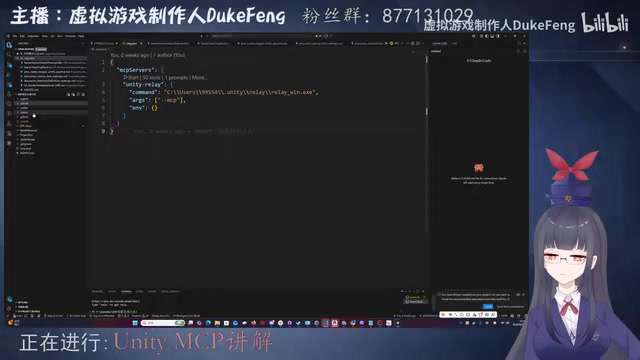
Once configured successfully, you can see the Connected Clients list under Unity's Project Settings > AI > Unity MCP, showing which tools have connected successfully.
From Working to Mastering: Key Lessons Learned
Tool Selection Strategy
Unity MCP provides a large number of Tools, but not all are practical. Based on hands-on testing, the recommended configuration is:
- Must-have: All Default tools + all Core tools checked (manage_gameobject, manage_asset, etc.)
- Useful: grep search, get_console_logs (for viewing errors), editor screenshots
- Avoid: read_console (prone to falsely concluding that compilation errors have been fixed)
The most critical tool is run_command — it allows C# scripts to run directly inside Unity, covering scenarios that other Tools can't handle.
run_command essentially executes arbitrary C# code snippets on Unity Editor's main thread context through Unity's EditorApplication API or direct C# reflection. This is similar to the Console in browser developer tools — you can execute JavaScript to manipulate the DOM, and run_command lets AI execute C# to manipulate Unity's scene hierarchy. Its power lies in being able to call virtually any Unity Editor API function, including AssetDatabase, PrefabUtility, the Undo system, and more. But the risks are equally significant: incorrect code can crash the editor, corrupt assets, or destroy Undo history. For production environments, it's recommended to use APIs like Unity's Undo.RegisterCompleteObjectUndo to ensure operations are reversible.
Setting Up "Hard Guardrails" to Prevent AI from Going Rogue
This is the most important lesson: you must explicitly prohibit AI from operating Unity through non-MCP methods.
LLMs' knowledge bases contain methods for directly modifying .scene/.prefab files. Without restrictions, AI will bypass MCP and edit files directly, resulting in low efficiency, poor accuracy, and potentially unpredictable issues. Although Unity's .scene and .prefab files are YAML-formatted text files that can theoretically be edited directly, they contain extensive fileID and GUID references along with serialized data structures — manual modification easily leads to broken references or data corruption. Specific prohibitions include:
- Batch Mode (automated operations without opening Unity)
- External require methods (similar to unit testing approaches)
- Aimless probe-and-retry exploration
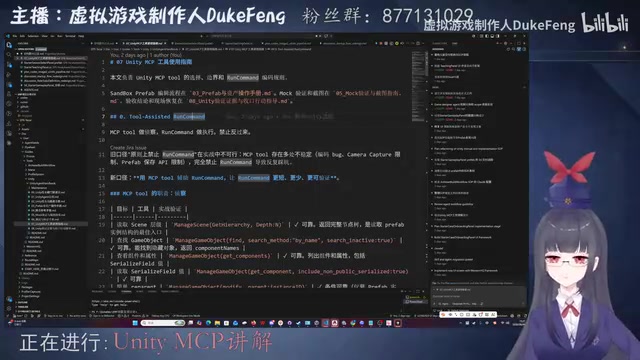
Run Command Usage Guidelines
While run_command is powerful, AI tends to write incorrect code. The proper workflow is:
- Use MCP Tools first: Find GameObjects, read serialized values, check Console
- Then use Run Command: Handle batch operations and scenarios not covered by Tools
- Never: Jump straight to writing probe code with run_command through trial and error
The key issue is that AI frequently guesses component names incorrectly, causing Find methods to throw errors. The solution is to force it to first obtain accurate information through manage_gameobject before executing operations.
Sandbox Approach for Prefab Operations
An important discovery: MCP tools like manage_gameobject cannot be used in Prefab editing mode. For projects that heavily use Prefabs rather than Scenes (such as Asset Bundle-based projects), the solution is:
- Create a dedicated Sandbox Scene
- Have the AI drag Prefabs into the Scene for manipulation
- After adjustments, save back to the Prefab via Override
In Unity, Prefabs and Scenes are two fundamentally different asset organization methods. A Scene is a runtime container where all GameObjects exist directly in the scene hierarchy; a Prefab is a reusable asset template stored as an independent .prefab file. Unity's Nested Prefab system, introduced in 2018.3, allows Prefab nesting and Variants, but also brought complex editing modes — in Prefab Mode, the editor opens an isolated editing environment where many APIs that depend on scene context (such as GameObject.Find) don't work properly. For projects using Asset Bundle or Addressable asset management, where game content is primarily organized as Prefabs rather than placed directly in Scenes, MCP tools' scene-dependent nature becomes a significant workflow obstacle.
This sandbox workflow, implemented through run_command, is far more efficient than letting AI repeatedly hit walls in Prefab mode.
AI Frontend Building: Automated Workflow from Design Mockups to UI
Problems with the Traditional PSD Layer Approach
The method of having AI generate design mockups and then automatically create layers (generating PSDs) performs very poorly in practice. The reason is that it essentially asks AI to redraw each component based on the original image, resulting in severe positional offsets — especially with unstable positioning for small elements like buttons.
A Better Approach: Coordinate Packages + Multimodal Analysis
After iteration, a more effective workflow emerged:
- Have AI use multimodal capabilities to analyze the positions of elements in the design mockup
- Specify canvas dimensions (e.g., 1920×1080) and generate precise coordinate data packages
- AI automatically places UI elements in Unity based on the coordinate package
- Leverage AI's understanding of Layout, Anchor, and other concepts to handle hierarchical relationships
Multimodal AI refers to large language models that can simultaneously process multiple input modalities such as text, images, and audio — examples include GPT-4o and Claude 3.5 Sonnet. In UI building scenarios, the core value of multimodal capability lies in "visual understanding" — AI needs to identify UI element types (buttons, text fields, lists, etc.), hierarchical relationships, and precise positions from design mockups. This involves computer vision subtasks like object detection, OCR (Optical Character Recognition), and layout analysis. Different models vary dramatically in their performance on these subtasks: GPT-4o excels at spatial reasoning and coordinate estimation, while Claude-series models, despite strong code generation capabilities, have notable weaknesses in pixel-level position judgment and Chinese OCR. This explains why the Agent evaluations below show such significant divergence in UI building task performance.
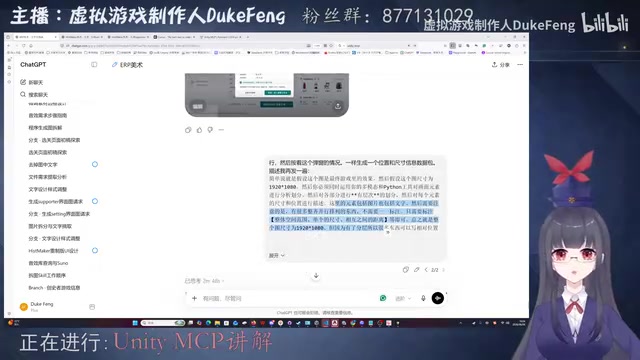
This approach is far more stable than PSD layering, as AI's position judgment leverages dedicated parsing tools rather than pure image generation.
Head-to-Head Evaluation of Four AI Agents
GitHub Copilot: Best Experience but Runaway Costs
- Strengths: Strong multimodal capabilities with GPT models, stable MCP usage, user-friendly interface
- Weaknesses: Token-based billing burns through quota extremely fast — completely unsustainable
- Additional issue: The latest Unity Assistant package has a compatibility bug with its Server recognition
Claude Code: Strong Programming but Terrible Vision
- Strengths: Strong programming ability, VS Code plugin with visual interface, stable execution
- Critical flaw: Extremely poor multimodal/visual capabilities, severe text recognition errors, confused Layout understanding
- Quota issue: 5-hour quota depletes extremely fast (approximately 1.5-2.5 tasks), and when exhausted, it stops abruptly without wrapping up
Codex: Highest Potential but Efficiency Needs Work
- Strengths: Exceptional GPT multimodal capabilities, can autonomously draw mockups + analyze + build UI, strongest end-to-end ability
- Weaknesses: Severe PowerShell encoding issues on Windows; its strong multimodal capabilities lead to perfectionist tendencies, with repeated screenshot-modify cycles consuming massive time and quota
- Recommendation: You need to teach it "give up after two attempts" and provide troubleshooting guides
Token consumption for AI Agents executing complex tasks far exceeds that of normal conversations. A single MCP operation may involve: sending the tool description list (thousands of Tokens), receiving Unity scene tree serialized data (potentially tens of thousands of Tokens), AI generating operation instructions, receiving execution results, taking screenshots for multimodal analysis (image Token consumption is extremely high), and more — across multiple rounds. Using GPT-4o as an example, a single screenshot consumes approximately 765-1105 Tokens (depending on resolution), and Codex's repeated screenshot-verification workflow can easily push a single task's Token consumption past 100,000. After GitHub Copilot switched from monthly subscription to Token-based billing, the cost implications of this high-consumption pattern became particularly acute, requiring developers to make explicit trade-offs between task quality and cost.
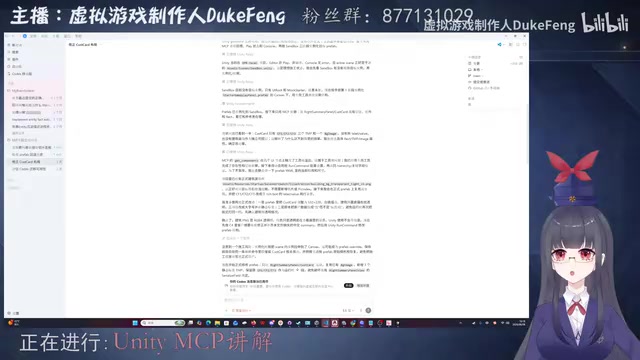
DeepSeek: A Cheap and Adequate Fallback Option
- Strengths: Extremely cheap API (about ¥2 for large tasks, a few cents for small ones), can be integrated with various harnesses
- Weaknesses: Can't handle complex tasks, quality roughly equivalent to Sonnet 4.6 level
- Psychological cost: With pay-per-use billing, the sunk cost feeling from failed tasks hits harder
Summary and Recommendations
Unity MCP makes it possible for AI to operate game engine frontends, but it's still a considerable distance from "plug and play." The core lessons are:
- Get the version right: Unity 6.0.6+, and test Package version compatibility
- Set up guardrails: Prohibit non-MCP operations, standardize run_command usage workflows
- Build your flywheel: Continuously document problems and solutions so AI usage improves over time
- Mix and match tools: Choose the right Agent based on task type — there's no one-size-fits-all solution
The current best practice is likely: Codex for UI building (strong multimodal), Cursor for small fixes (fast), and DeepSeek for simple repetitive tasks (low cost).
Related articles
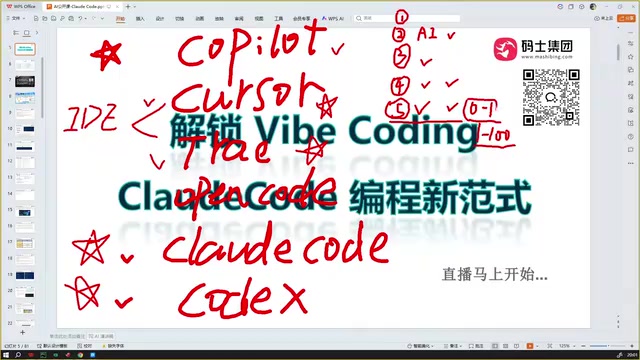
Claude Code Installation Guide & The Five Stages of AI Programming Tools Explained
Complete Claude Code installation guide with the five stages of AI programming tools, from manual coding to agents. Learn 0-to-1 project building and 1-to-100 iteration challenges.
Enterprise-Level AI Project Rules Files: 5 Hard Rules + 6 Writing Techniques
AI keeps messing up your code? Learn 5 hard rules and 6 writing techniques for enterprise-level Rules files in Claude Code, Cursor & more, with templates.
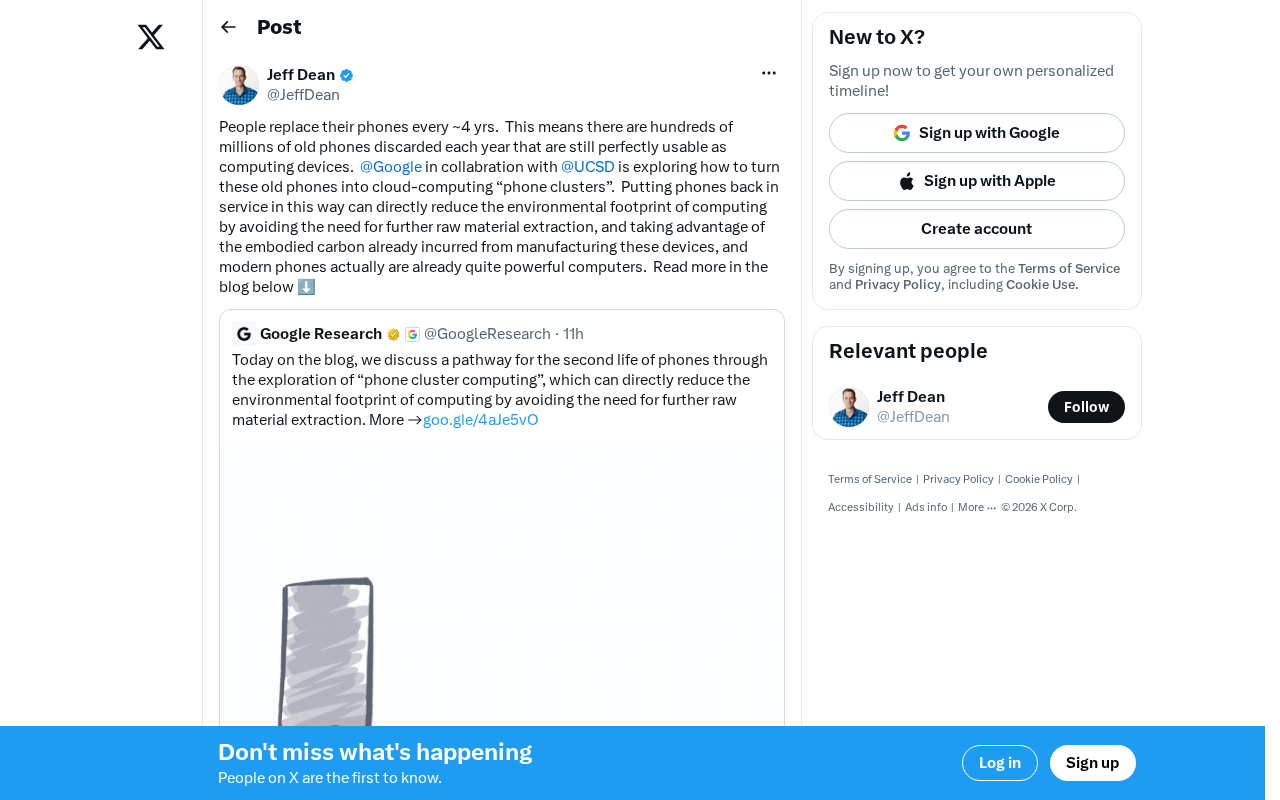
Building Cloud Computing Clusters from Old Phones: Google and UCSD Explore a New Path to Sustainable Computing
Google and UCSD explore building cloud clusters from old phones, leveraging ARM chip efficiency to cut e-waste and data center carbon footprints.