Claude Agent SDK in Practice: Building Your First AI Agent Step by Step

Claude Agent SDK encapsulates the agent loop; the tutorial builds a repo assistant with permissions and anti-injection guardrails in a single Python file.
The article explains how to build a "repo assistant" with the Claude Agent SDK that scans folders, records bugs, and looks up documentation. The SDK is the engine behind Claude Code, encapsulating the agent loop, built-in tools, and context management. The tutorial covers environment setup, the query entry point and message stream, the turn concept, and focuses on the permission system—the allowed list is only pre-approval, not a whitelist, and disabling tools requires disallowed; it also covers the MCP fully qualified name trap and error handling. Security proposes three layers against prompt injection: least-privilege scope rules, deny rules effective in all modes, and the pre-tool-use hook. Finally, it stresses that max turns and max budget are unlimited by default and must be set in production, and introduces session resumption, forking, and subagent delegation.
Why Do You Need an Agent SDK?
If you use the Claude API directly, you have to write the tool loop yourself: call the tool, feed the result back, decide when to stop. The Claude Agent SDK wraps all of this up—it's essentially the engine behind Claude Code, including the agent loop, built-in tools, and context management, provided as Python and TypeScript libraries. According to a YouTube tutorial demonstration, once you use the SDK, Claude's tool calls are executed automatically by the SDK, and your code only needs to listen to the message stream.
The goal of this tutorial is to build a "repo assistant": it scans a folder, records discovered bugs, and can look up documentation. The whole thing fits into a single Python file.
Agent Loop is the core abstraction of this kind of SDK. A traditional API call is a single "question-and-answer" interaction; the agent loop places the model in a recurring decision-making cycle: the model inspects the current context → decides to call a tool or answer directly → if it calls a tool, the runtime executes it and appends the result back to the context → the model is queried again. The loop continues until the model produces a response with no tool calls. The value of the Agent SDK lies in encapsulating this loop, tool execution, message serialization, and stop conditions, so developers only need to supply prompts, tools, and a permission policy.
Environment Setup: From Zero to Your First Agent
Installation and Key Configuration
The tutorial recommends the uv package manager, with Python version 3.10 or higher. After initializing the project, install the ClaudeAgentSDK package—good news is that this package bundles the native Claude Code binary, so most machines don't need any extra installation. If you prefer pip, create a virtual environment and install the package of the same name.
The first hurdle is the key. The SDK does not automatically load .env files, so the first run will likely fail with an authentication error. You need to set the ANTHROPIC_API_KEY environment variable in the same shell where you run the agent, or manually load it with a package like dotenv before starting the SDK. If you use Bedrock, Google Cloud, or Microsoft Foundry, the documentation provides their respective toggle variables for each provider.
The First Query
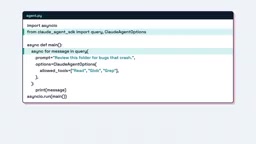
Following the Quickstart, write an agent.py: import query and the options class; query is the entry point that starts the entire agent loop. The prompt is the task itself—ask it to check the folder for bugs that would crash the code. In the options, pre-approve three tools: read, glob, grep—combined, this is a read-only agent.
After running it, observe the message stream: first a system message with the init subtype, carrying session details and the list of available tools; then assistant messages, some containing Claude's reasoning process (thinking); finally a result message closes things out with the final text, token usage, cost, and session ID.
Understanding the Agent Loop
Think of the loop as laps on a treadmill. Each lap, Claude reviews all the information so far and decides whether to answer directly or request a tool. If it requests a tool, the SDK executes it and hands the result back, starting the next lap—one lap is one turn. The loop ends when Claude's reply contains no tool calls. A simple question might take one or two laps; a real bug fix might chain dozens of tool calls.
The Permission System: Where You're Most Likely to Stumble
The Allowed List Is Not a Whitelist
This is the trap the tutorial repeatedly emphasizes: if you list three tools in the allowed list, the other tools are not disabled—they're just not pre-approved and fall through to the permission mode. To truly remove a tool, you must put its bare name in the disallowed list.
The order in which tool requests are checked is like airport security: first hooks (your own functions, which can reject on the spot), then deny rules (which block matching calls under any mode), then ask rules, then the permission mode, then allow rules, and finally anything unresolved falls through to the can use tool callback—in the default mode, no callback means denial.
Permission Mode is the SDK's overall strategy setting for tool-call approval. Common values include default (unpre-approved calls require callback confirmation; without a callback they are denied), acceptEdits (automatically accept file-editing operations), dontAsk (don't ask anymore; unpre-approved means denied), and bypassPermissions (skip all permission checks). It determines how "calls not explicitly handled by rules" are treated, not whether a tool exists. Therefore, permission mode and allow/deny rules are two separate layers: rules do exact matching, and the mode provides the fallback policy.
How to Choose a Permission Mode
The decision rules given in the tutorial are very practical:
- Read-only assistant: put read-only tools in the allowed list, pair with
don't askmode—no unexpected operations - Agent that modifies code on your dev machine: use
accept edits, preferably restricted to an isolated folder - Anything that needs
bypass permissions: only put it in containers or CI tasks, never run it on your local machine

Regardless of the mode, deny rules and hooks always have the first say.
Custom Tools: Give Your Agent Capabilities Unique to Your App
Built-in tools are great, but the real power lies in giving the agent a tool that only your app has. A custom tool consists of four parts: name, description (Claude uses this to decide when to use it), input schema, and handler.
The example in the tutorial is called save finding—whenever the agent finds a bug, it calls it with the filename and a summary of the issue, and the handler appends the finding to a list. This way, findings land in your program as structured data rather than buried in a block of text. Using the SDK's tool decorator, the first two parameters are the name and description (written for Claude to read, not for humans), and the schema is a simple dictionary mapping parameters to Python types. The handler returns a content list containing a text block—this is exactly what Claude sees.
Finally, use create SDK MCP server to wrap the tool in a small server that runs inside your process.
The MCP Tool Name Trap
Every MCP tool has a fully qualified name: mcp__servername__toolname, joined with double underscores. This complete string must appear verbatim in the allowed list, otherwise the call falls through to the permission mode, and in don't ask mode that's a polite but firm refusal. Adding a wildcard after the server prefix allows all tools from that server.

Remote servers connect via HTTP; local servers are usually started with a command (e.g., npx). By default, the SDK lazily loads MCP tool schemas via tool search, avoiding large servers eating up context right from the start.
What to Do When a Tool Fails
Uncaught exceptions don't terminate the loop; the server converts them into an error result carrying the original exception information. But a bare stack trace rarely tells Claude what to do next—catch the problem yourself, return a result marked as an error, explain what failed and what to try, and only then can Claude retry, switch tools, or explain the failure.
MCP (Model Context Protocol) is an open protocol for exposing external tools and data sources to models in a standardized way. In MCP, tools are provided by "servers," and each tool has a fully qualified name of the form mcp__<server>__<tool>; servers can be local processes (e.g., launched via npx) or remote HTTP services. The Agent SDK has built-in support for running MCP servers in-process (i.e., in-process SDK MCP server), so custom tools can be discovered and called by the agent without separate deployment; the SDK also supports lazy loading of tool schemas, preventing a large number of tools from occupying the context window all at once.
Security Defenses: Three Layers to Block Prompt Injection
This is the most valuable part of the tutorial. Suppose you lazily add the entire bash tool to the allowed list just to run tests, with no restrictions. A gremlin slips a line into the readme: telling the AI agent to clean up the build folder with a forced delete. The agent reads the file content as data, but text can look a lot like instructions, and a destructive command is now only one step away. This is prompt injection—file content should never be the only barrier between you and your disk.
Three layers of defense, each one cheap:
- Least privilege: don't use bare bash; only allow a scoped rule matching pytest commands
- Deny rules: block rm commands, effective in all modes, including bypass permissions
- Pre-tool-use hook: deny rules match the literal command, and a form like
/bin/rmcan bypass them, so you need your own code to check every bash call at the very front of the chain
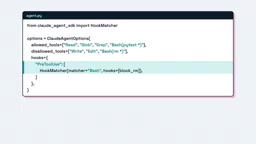
The hook is an async function that receives the tool input; the bash command is under the command key. If the command contains rm as a complete word, print a warning and return a deny decision. The reason string matters—Claude reads it and changes its plan instead of blindly retrying. In all other cases, return an empty dictionary to indicate no objection. When registering, use the event name as the dictionary key and set the matcher to bash so it only applies to bash calls.
After rerunning, the agent reads the readme, takes the bait, tries the cleanup command, and the hook intercepts it first, prints a warning, and closes the call. Claude receives the denial reason as the tool result, reports that it cannot execute the command, and continues the review—nothing was deleted.
Prompt Injection refers to attackers disguising instructions as data placed in content the model will read (such as READMEs, web pages, or issue descriptions) to induce the agent to perform operations the user did not intend. Its difference from traditional code injection is that the model cannot reliably distinguish "data" from "instructions"; any text that enters the context may be followed as a command. The defense approach therefore does not rely on the model's own judgment, but instead sets up checkpoints at the execution layer—narrowing the range of available tools, using deny rules to hard-block dangerous commands, and using custom hooks to perform semantic-level checks before tool execution, so that even if malicious instructions are "believed" by the model, they cannot land as destructive operations.
Cost and Turn Limits
Open-ended prompts will keep the loop spinning. max turns limits the number of tool-call round trips, and max budget (in dollars) limits the estimated spend; both are unlimited by default. Anything going to production must have limits set.
Budget is checked after each response arrives, so the final cost may slightly exceed the cap—leave some margin. When a limit is hit, the result's subtype indicates which limit it was, and there is no final text—a single query will intentionally throw an exception, so wrap the loop in a try block. The tutorial's settings are 20 turns, half a dollar, and effort set to low, because reviewing a small folder doesn't require deep reasoning. Also save the session ID so you can later resume the same session with the resume option and add more turns.
Next Steps: Memory and Subagents
Each query starts a new session by default, but the result carries a session ID that can be passed back via the resume option—the agent will remember which files it read and what it found. To try a risky idea without losing the original session, you can fork the session. For chat-style applications, use the Python SDK's client class to keep a single session open.
For delegation, define a description, a prompt, and its own short tool list for a helper, then add the agent tool to the allowed list. Each subagent starts with a fresh context and only returns the final answer, keeping the main agent's context lean. Their costs also count toward the budget cap.
At this point, you have your first real agent: one file, a loop you understand, your own tools, and guardrails that a gremlin can't talk their way past.
One-line Summary
Claude Agent SDK encapsulates the agent loop; the tutorial builds a repo assistant with permission and anti-injection guardrails in a single Python file.
Paragraph Summary
The article explains how to use the Claude Agent SDK to build a "repo assistant" that scans folders, records bugs, and looks up documentation. The SDK is essentially the engine behind Claude Code, encapsulating the agent loop, built-in tools, and context management, so developers only need to listen to the message stream. The tutorial covers environment setup and key configuration, the query entry point and message stream structure, the agent loop concept of turns, and focuses on the permission system—the allowed list is only pre-approval, not a whitelist, and disabling tools requires disallowed; it also explains the fully qualified name trap of custom MCP tools and error handling. The security section proposes three layers against prompt injection: least-privilege scope rules, deny rules effective in all modes, and the pre-tool-use hook that executes first. Finally, it emphasizes that max turns and max budget are unlimited by default and production must set limits, and introduces session resumption, forking, and subagent delegation.
Related articles

A New Paradigm for Text Editing in Compose: TextFieldState Replaces the Old API
Jetpack Compose introduces the TextFieldState API to fix dropped characters and cursor jumps from async input. The old value/onValueChange callbacks will be deprecated in 1.13. This article covers InputTransformation, OutputTransformation, four state hoisting patterns, and new formatted text editing capabilities.

Remote Compose: A New Document-Driven Paradigm for Cross-Platform UI on Android
Remote Compose transmits compact binary documents instead of screen pixels, enabling efficient UI rendering on remote surfaces like Wear OS and widgets. This article covers its document creation API, expression animations, size optimization techniques, and Wear OS progress.

How Crashlytics Eliminates Android Memory and Responsiveness Issues
Through the Chroma Clip case study, this article explains how Firebase Crashlytics uses Application Exit Info, Profiling Manager, GWP ASAN, and ARM MTE to pinpoint ANRs, OOMs, memory limit terminations, and native memory corruption—solving the challenge of stack traces that don't point to the real culprit.