n8n in Practice: How Software Testers Can Build Their First AI Agent

Build a software testing AI agent using n8n workflow automation and large language models.
This article explains how to use n8n, a workflow automation platform, to build AI agents for software testing scenarios. n8n acts as an integration hub connecting tools like Jira and Slack with LLMs such as Gemini and Claude. It covers four deployment options and walks through building a requirements analysis chatbot — from configuring a chat trigger and AI Agent node to connecting Google Gemini — showing how a single sentence of requirements can instantly generate a full, structured test scenario checklist.
Software testing is being redefined by AI. From requirements analysis to test case generation and defect management, an increasing number of repetitive tasks can be handled through automated workflows. A tutorial from the YouTube channel Automation Testing Insider demonstrates how to use n8n — a workflow automation platform — to build your first AI agent for testing scenarios. This article, based on that tutorial, covers n8n's core concepts, deployment options, and practical implementation within the testing process.
What Exactly Is n8n
First, let's clear up a common misconception: n8n is not an AI tool — it's a workflow automation platform. Its core capability is connecting different applications, APIs, and databases into an automated pipeline. You can integrate it with Jira, Slack, and various databases, while also incorporating large language models like Gemini, Claude, or OpenAI to enhance analysis and decision-making within your workflows.
In other words, AI is just one "node" in an n8n workflow, not the entirety of the platform. With this design, you can have workflows automatically handle tasks like creating records, sending updates, and triggering email notifications. For software testers, this means handing off tedious, rule-based tasks to automated processes and saving your mental energy for work that requires genuine judgment.
n8n's name comes from "nodemation" (node + automation), pronounced "n-eight-n." It uses a source-available license, with its core code publicly accessible and full support for self-hosting. Compared to similar platforms like Zapier and Make (formerly Integromat), n8n stands out in two key ways: first, it supports complete self-hosting so your data never has to pass through third-party servers — critical for organizations with data privacy and compliance requirements; second, its pricing model is based on the number of workflows rather than task executions, making it more cost-effective for high-frequency use cases. n8n comes with over 400 official integration nodes covering major project management, communication, database, and cloud service categories, and also supports connecting to any REST API via the HTTP Request node — making it compatible with virtually any modern software system.
Four Deployment Options: Which One Is Right for You
The tutorial covers four ways to use n8n, each suited to different users:
- n8n Cloud: The simplest option — no installation required, just sign up with Gmail or another email address. Great for beginners, though it comes with a 14-day trial limit.
- Docker (self-hosted): Ideal for learning and long-term use, giving you access to the free Community Edition at zero cost.
- npm + Node.js: Aimed at developers who have a local Node.js environment set up.
- VPS (self-hosted on your own server): Installing n8n on a virtual private server, best for teams with operational capabilities.
The tutorial author primarily demonstrates the Cloud and Docker approaches across the video series. For testers who want to quickly validate ideas, the Cloud version is essentially a zero-barrier starting point.
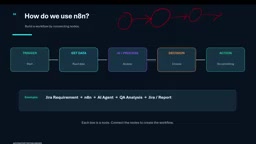
How Workflows Run: Nodes and Connections
You can summarize n8n's operating logic in one sentence: build workflows by connecting different nodes together to achieve your goal. Each box represents a node, and nodes connect to each other to form a complete automated process.
A typical workflow usually goes through several stages:
- Trigger: The starting point of any workflow — for example, receiving a chat message, an API request, or a scheduled task.
- Data Retrieval: Fetching input data from the trigger source.
- AI Analysis & Decision-Making: Passing data to an LLM for processing and judgment.
- Action Execution: Completing specific operations like creating records, updating data, or sending notifications.
This "building block" approach lowers the barrier to automation — you don't need to write extensive code; instead, you orchestrate logic through drag-and-drop node configuration.
Six Testing Scenarios Where n8n Adds Value
The tutorial highlights several representative testing scenarios that show how AI agents can be embedded into the testing process:
- Business Requirements Analyzer: Analyzes requirement documents and identifies potential issues
- AI Test Case Generator: Automatically generates test cases from requirements
- Test Case Review: Assists in reviewing test case quality
- Defect Analysis: Automatically analyzes bugs
- Jira Defect Creation: Automatically creates tickets in Jira
- Regression Impact Analysis: Assesses the impact of changes on regression testing
What these scenarios have in common is that they're all high-frequency, rule-heavy stages in the testing process — exactly where AI agents can deliver the most efficiency gains.
Hands-On: Building Your First Requirements Analysis Agent
The complete example demonstrated in the tutorial is building a "Requirements Analyzer" chatbot. The process is straightforward and breaks down into the following steps.
Step 1: Sign Up and Create a Workflow
Visit app.n8n.cloud, sign up with your email and complete verification, then fill in your name, password, and account name — your workspace is ready. From the homepage, click Create Workflow to start a new workflow.
Step 2: Configure the Trigger Node
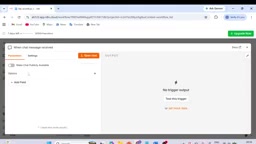
Click the plus icon to add the first step and select On chat message as the trigger — this fires the workflow when a user sends a chat message and is designed specifically for AI nodes. Checking "Make chat publicly available" generates a web-accessible chat URL. At this point, you can also edit the initial welcome message, for example: "I can help you analyze software requirements, identify test scenarios and improve test coverage."
Step 3: Add the AI Agent Node
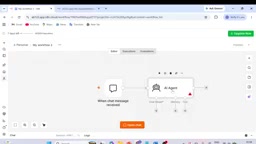
Click the plus icon again and select the AI Agent node. It can generate action plans and execute them, and can also call external tools. The key is configuring the System Message (system prompt). The tutorial author used ChatGPT to generate a prompt that sets the agent's role as a "senior software QA engineer" whose job is to analyze software requirements and identify positive scenarios, negative scenarios, boundary conditions, validation scenarios, and missing or ambiguous requirements.
AI Agent vs. a standard LLM call — what's the difference? A regular LLM node is a one-shot question-and-answer exchange: you provide text, the model returns text, and the process ends. An AI Agent, by contrast, has planning and tool-calling capabilities: it first breaks down the goal and formulates execution steps, then calls external tools as needed (e.g., querying a database, searching the web, writing to Jira), and decides its next action based on what those tools return — continuing until the task is complete. This "think–act–observe" loop (the ReAct pattern) lets agents handle multi-step tasks that require external information, rather than simply generating static text. n8n's AI Agent node encapsulates this interaction logic, so users only need to configure the system prompt, select an underlying model, and attach tools — no need to implement an agent framework from scratch.
Step 4: Connect a Language Model
At this point, the node will indicate that a Chat Model is missing. The tutorial selects Google Gemini as the underlying model (you can substitute Anthropic or others). Once connected, all nodes in the workflow turn green, indicating the configuration is correct.
Testing and Publishing: Getting Your Agent Live
Once configuration is complete, type "hi" in the chat box to test it — the agent will respond in the role of a senior QA engineer, prompting the user to provide a requirement or user story. After confirming everything works, click Publish and tag a version number to go live.
The tutorial also demonstrates UI customization: you can modify the input placeholder text, subtitle (e.g., "You are AI powered software testing assistant"), and title (e.g., "AI QA Assistant"). After each change, you need to publish a new version, and refreshing the URL will reflect the updates.

Where the real value shows up is in actual requirements analysis. The tutorial inputs a real requirement: "Customers can transfer funds between eligible accounts, with a maximum transfer amount of 100,000 per transaction." The agent immediately outputs a structured test coverage analysis:
- Positive scenarios: Successful transfer (amount below limit), transfers between different account types, correct balance updates
- Negative scenarios: Exceeding the limit, source/destination account not eligible, insufficient balance
- Boundary conditions: Exactly 100,000 should pass, just over the limit should be rejected, handling of the lower boundary at 0.01
- Validation scenarios: Error message wording, confirmation dialog, success notifications
From a single sentence of requirements to a comprehensive test scenario checklist — the entire process is nearly instantaneous. That's the direct value an AI agent brings to testing work.
What to Explore Next
The tutorial notes that what's been built here is just the most basic version. You can take it further by adding Memory to the AI Agent so it retains context across a conversation, or by connecting Tools so the agent can directly interact with external systems — for example, automatically creating defect tickets in Jira.
For testing teams, n8n's value isn't in any single feature — it's in the orchestration layer it provides for bringing AI, existing toolchains, and automation logic together. Starting with a simple requirements analysis chatbot and gradually expanding toward a full test automation pipeline is a path worth exploring for any QA engineer looking to embrace AI.
A note on Memory nodes: Memory solves a fundamental limitation of large language models: they are stateless by default — the model has no recollection of what was said in the previous turn. Memory components in n8n store conversation history in memory or a database and pass relevant context along with each new request, simulating a continuous conversation. Common Memory types include: Window Buffer Memory (retaining the last N turns), Summary Memory (using the model to compress history to save tokens), and long-term memory backed by a vector database. For testing scenarios, memory capability means users can progressively refine requirements and follow up on analysis results within a single session, without having to re-provide the full context each time.
Related articles
AWS AgentCore Gateway: Connecting AI A…
AWS AgentCore Gateway: Connecting AI Agents to Enterprise Backends with MCP
How AWS AgentCore Gateway acts as a primary MCP server to aggregate REST APIs, Lambda, and existing MCP services? Analyzing its AST real-time mapping, zero cold start, semantic search for tool overload, session isolation, and key injection security design, plus the architectural approach to decoupling enterprise AI agents from backends.

One Link Gives Figma AI a New Skill: Hands-On with MCP Connectors
Paste one MCP server link and the AI Agent in Figma gains new tool capabilities. We break down the setup flow, 20+ one-click apps, read/write permissions and execution policies, and the public HTTPS requirement.

Cognition SWE-2 in Practice: One Prompt to Handle the Whole Product Launch Process
Analyzing a YouTube creator's prompt for using Cognition SWE-2 to launch a product: a landing page, seven-email sequence, and non-buyer follow-up tool, plus how the 'test and report' constraint changes AI delivery quality.