Hand-Written VBA Code vs. AI Voice Programming: How Big Is the Efficiency Gap Really?
AI voice programming dramatically outperforms hand-written VBA and formulas for Excel automation tasks.
Through a practical Excel case of merging names by department, this article compares three approaches: formula methods, hand-written VBA code, and AI voice programming. While formulas struggle with blank rows and performance, and VBA demands steep coding skills with painful debugging, AI programming assistants let users describe requirements in natural language to automatically generate, debug, and run VBA code — making data automation accessible to everyone.
In everyday office work, Excel data processing is a fundamental skill for every professional. A seemingly simple task like "merge names by department" can clearly reveal the enormous efficiency gap between traditional coding and AI-powered programming. A Bilibili content creator compared three approaches through a real-world case study — formula-based methods, hand-written VBA code, and AI voice programming — and the results are thought-provoking.
The Scenario: Merging Names by Department
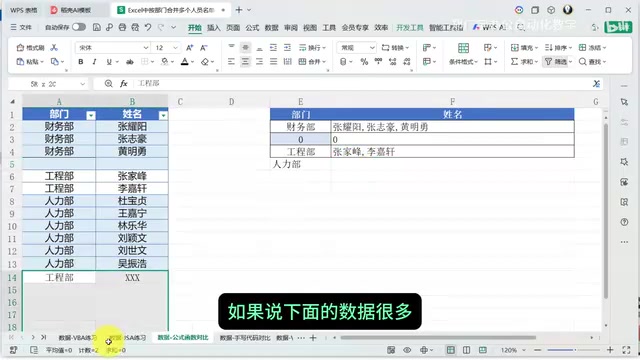
The requirements for this case are very typical: on the left is the raw data containing two columns — department and name (cells A2 through B16) — and on the right is the expected result: all names under the same department merged together and output in a specific format.
It looks simple, but there are quite a few pitfalls in practice. This kind of "group and merge" requirement is extremely common in real work — summarizing staff lists by department, consolidating product information by category, and so on. Once the data volume grows, it becomes a real headache.
From a technical perspective, "merging names by department" is essentially the classic GROUP BY + string aggregation operation from the database world. In SQL, this can be easily accomplished with functions like GROUP_CONCAT (MySQL) or STRING_AGG (SQL Server/PostgreSQL). However, Excel, as a spreadsheet tool, doesn't natively support string aggregation functions. It wasn't until Office 365 introduced the TEXTJOIN function — which, combined with the FILTER function, can roughly achieve similar functionality — that this became somewhat feasible. But for users on older versions of Excel, this remains a challenge that requires helper columns or VBA to solve.
Pain Points of Traditional Approaches
Formula Method: It Works, But With Issues
The video first demonstrates using Excel functions to accomplish this task. While complex formula combinations can indeed get the job done, there are several obvious problems:
- Errors when blank rows appear: Formulas tend to break when data isn't continuous
- No dynamic updates: Results don't automatically refresh when the source data changes
- Performance bottlenecks: Complex array formulas cause severe Excel lag with larger datasets
The performance bottleneck deserves a deeper explanation. Array formulas in Excel (CSE formulas — those requiring Ctrl+Shift+Enter to confirm) cause lag because their computation mechanism is fundamentally different from regular formulas. A regular formula evaluates a single cell, while an array formula must build a temporary array in memory, process each element individually, and then return the result. When data reaches thousands of rows, nested array formulas generate exponential computation loads — for example, a nested array formula involving 1,000 rows of data might need to perform 1 million comparison operations. Excel's single-threaded calculation engine slows down noticeably under this kind of load, and in severe cases, the entire workbook becomes unresponsive. The Dynamic Arrays engine that Microsoft introduced in Excel 365 has alleviated this problem to some extent, but for complex string concatenation scenarios, the performance bottleneck persists.
These issues might be tolerable with small datasets, but in real business scenarios where data often runs to hundreds or thousands of rows, the limitations of the formula approach are magnified enormously.
Hand-Written VBA Code: High Barrier, Painful Debugging
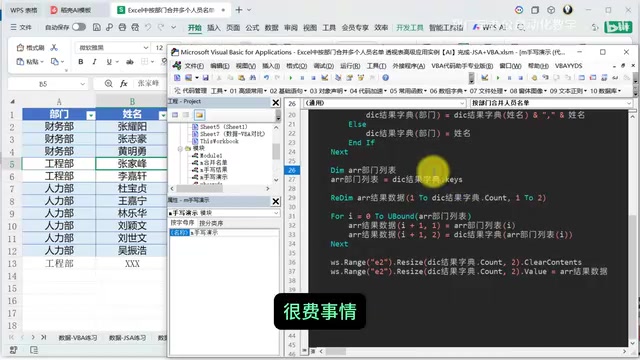
The second approach is hand-writing VBA code. The creator demonstrated the coding process live: defining variables, setting up dictionary objects, iterating through data, and generating results.
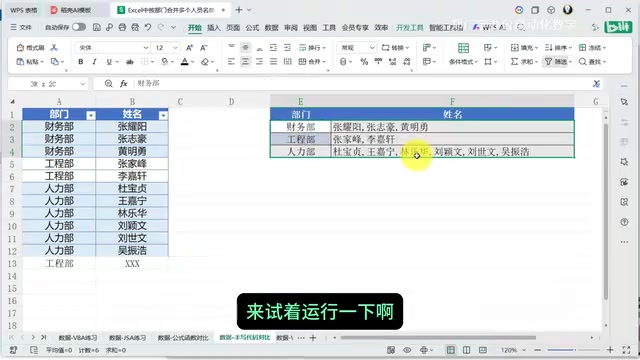
VBA (Visual Basic for Applications) is an embedded programming language introduced by Microsoft in 1993, built into virtually all Office applications. Based on the Visual Basic language, it provides full access to the Office object model, allowing you to manipulate worksheets, cells, charts, and nearly every other Excel element. The Dictionary object in VBA is a powerful tool for handling group aggregation problems — it stores data as key-value pairs, enabling quick checks on whether a department has already appeared and appending new names to the corresponding value. Despite VBA's power, its development experience is stuck in the 1990s: no intelligent code completion, no modern debugging tools, and cryptic error messages. Combined with the fact that VBA syntax differs significantly from today's mainstream programming languages (like Python and JavaScript), its learning curve is exceptionally steep for non-programmers.
The code does produce correct results once written, but the debugging process is extremely painful:
- Typos are hard to track down: A single missing letter causes errors — misspelled variable names, incorrect keywords
- Beginners don't know how to debug: Faced with VBA error messages, many people have no idea where to start
- Researching solutions is time-consuming: You need to search forums and documentation repeatedly
- Cascading errors: Fixing one bug may introduce new problems, trapping you in an endless "fix and fix again" cycle
The video deliberately demonstrated several common error scenarios — a missing character causing a compile error, a misspelled variable name causing a runtime exception. These might be minor issues for VBA veterans, but for ordinary office workers, they're nearly insurmountable obstacles.
AI Voice Programming: A Paradigm Shift Over Traditional Methods
Next comes the highlight of the video — using an AI voice programming assistant to accomplish the same task.
Describing Requirements in Natural Language Instead of Writing Code
The creator simply told the AI in natural language:
"The raw data in the currently selected spreadsheet is in cells A2 through B16. The simulated result I want is in cells D2 through E5. I want you to generate the result starting at cell D13. Use VBA code to generate it. The output should match the headers and formatting of the simulated result, and the data should alternate row colors."
That statement was the entire "programming" process. No need to know how to use dictionary objects, no need to understand loop syntax, and no need to even open the VBA editor.
AI Automatically Identifies and Corrects Errors
You might not have noticed, but the creator actually misstated the data range of the simulated result when describing the requirements. However, the AI automatically identified and corrected this error. This demonstrates the AI's deep contextual understanding — it doesn't mechanically execute instructions but rather makes judgments based on the actual data.
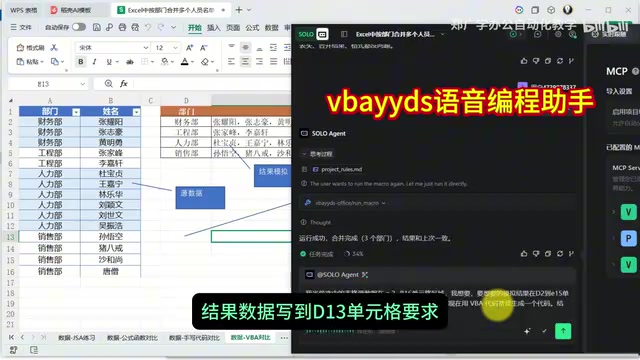
This involves the coordinated work of multiple AI technologies. First is the speech recognition (ASR, Automatic Speech Recognition) stage, converting the user's voice to text. Then comes the natural language understanding (NLU) stage, where a large language model (LLM) parses the user's intent, identifying key information such as the data source range, target location, and output format. Finally, in the code generation stage, the model generates executable code based on its trained knowledge of VBA syntax and the Excel object model. Particularly noteworthy is the model's "contextual reasoning" ability — when the user misstates the data range, the AI can cross-validate against the actual data distribution in the worksheet, detect the contradiction between the verbal description and reality, and automatically correct it. This capability stems from the large language model's pre-training on massive amounts of code and documentation, giving it deep understanding of Excel operation scenarios rather than simple "voice-to-code" mapping.
A Fully Automated Loop from Generation to Execution
The AI completed the entire closed loop from code generation to debugging and execution:
- Automatic code writing: Generates complete VBA code based on natural language requirements
- Automatic debugging: Identifies and fixes issues on its own without human intervention
- Automatic execution: Runs the code directly and outputs results
- Automatic verification: Compares generated results against expected results to ensure accuracy
Throughout the entire process, the user only needs to wait a few dozen seconds to get a final result that's properly formatted, data-accurate, and even features alternating row colors.
Efficiency Comparison: Formulas vs. Hand-Written VBA vs. AI Programming
| Dimension | Formula Method | Hand-Written VBA | AI Programming |
|---|---|---|---|
| Learning Cost | Medium | Very High | Extremely Low |
| Implementation Time | Fairly Long | Long | Extremely Short |
| Debugging Difficulty | Medium | Very High | No Debugging Needed |
| Maintainability | Poor | Average | Good |
| Big Data Adaptability | Poor | Good | Good |
Implications for Everyday Office Workers
Although this case is simple, it reveals a profound trend: AI is democratizing programming ability. Automation tasks that previously required specialized VBA skills can now be accomplished simply by clearly describing your requirements.
"Democratization of Programming" has been one of the tech industry's most important trends in recent years. From early low-code/no-code platforms (such as Microsoft Power Platform and Mendix) to today's AI code generation tools (such as GitHub Copilot, Cursor, and Tongyi Lingma), the technical barrier is being continuously lowered. Gartner predicts that by 2026, 80% of software products will be built or co-built by non-professional developers (i.e., "citizen developers"). This trend is especially pronounced in office automation: Microsoft has deeply integrated Copilot into the entire Microsoft 365 suite, allowing users to direct Excel to perform data analysis, generate charts, and even write macros using natural language.
But this doesn't mean learning to code is worthless. Quite the opposite — people who understand programming logic can describe their requirements to AI more precisely, resulting in better outcomes. AI programming assistants lower the barrier at the syntax level, but core competencies like requirements analysis and logical thinking remain irreplaceable. It's worth noting that AI-generated code isn't always perfect — it may have issues with edge case handling or suboptimal performance. Therefore, users with basic programming literacy can review and optimize AI output, which is the core value of the "human-AI collaboration" model.
For professionals, the most worthwhile investment right now isn't memorizing VBA syntax, but learning how to collaborate effectively with AI — clearly defining problems, accurately describing requirements, and properly validating results. This is the true "programming ability" of the AI era.
Key Takeaways
Related articles

AITS Hands-On Review: API + Web + App Automated Testing All in One Platform
In-depth review of AITS: an AI testing platform covering API automation, Web automation, App real-device cloud testing, and performance testing end-to-end.
Codex vs Claude Code vs Cursor: How to Choose the Right AI Coding Tool
In-depth comparison of Codex, Claude Code, and Cursor: pricing, stability, and capabilities. Codex excels at frontend UI, Claude Code at backend logic, Cursor remains a stable veteran. Find your best AI coding tool.

Hermes Jarvis Deep Dive: The Voice-Driven All-in-One AI Assistant
Deep dive into Hermes Jarvis voice AI assistant: its core features, five-layer architecture, multi-model integration, system-level control, and the future of voice-driven AI development.